
Setup Instructions: Alotcer AR7088H-RSTD Router User Manual
Content
alotcer AR7088H-RSTD Router Manual and Product Overview
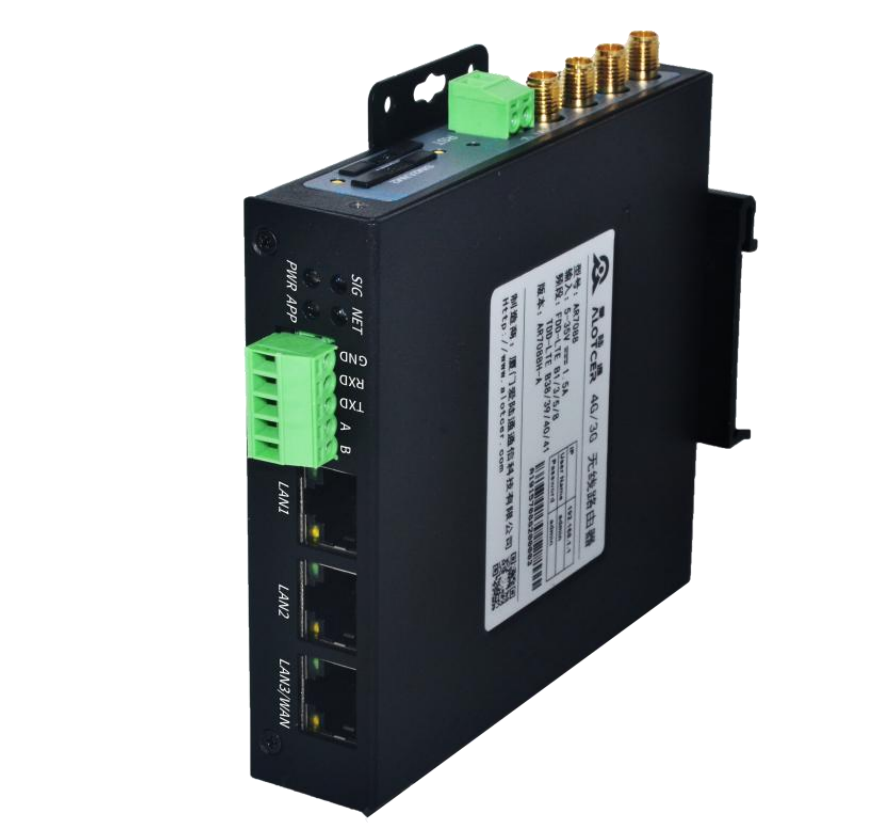
The alotcer AR7088H-RSTD Router is an industrial cellular router designed for stable 5G connectivity, remote networking, and machine-to-machine applications. It is commonly used in smart grids, digital signage, traffic systems, vending machines, surveillance deployments, and other environments that need reliable always-on communication. With dual-SIM support, serial interfaces, and multiple Ethernet ports, the AR7088H-RSTD Router is built for flexible deployment in both fixed and mobile installations.
One of the main advantages of the alotcer AR7088H-RSTD Router is its industrial-grade design, which supports harsh operating conditions and secure network transmission. It also offers routing features, VPN support, and optional Wi-Fi, making it suitable for businesses that need secure branch connectivity or field data collection. Users often choose this model for its compact form factor, DIN rail mounting support, and compatibility with enterprise and IoT environments. The router is positioned in the mid-range industrial router segment, with an estimated price range of about 125 to 130 USD depending on order quantity, region, and configuration. Availability is generally through industrial networking distributors, M2M suppliers, and online B2B marketplaces.
For buyers comparing industrial 5G routers, the alotcer AR7088H-RSTD Router stands out for offering a practical mix of cellular performance, serial communication, and remote management features. It is a strong fit for users who need dependable connectivity without moving to a more expensive edge-computing gateway platform.
Specifications for alotcer AR7088H-RSTD Router
- Model: AR7088H-RSTD
- Product type: 5G industrial cellular router
- Cellular support: 5G NR SA/NSA, with broad legacy 4G/3G compatibility in related platform variants
- Ethernet: 3 LAN ports, with one WAN/LAN configurable port on many builds
- Serial interfaces: 1 RS232 and 1 RS485 with industrial protection
- SIM support: Dual-SIM design for backup or failover networking
- Wi-Fi: Optional IEEE 802.11 b/g/n support depending on configuration
- Power input: DC 5V to 35V, with recommended 12V DC supply
- Operating temperature: Industrial extended-range operation for demanding environments
- Mounting: DIN rail and wall-mount style deployment support
- Security features: VPN support such as IPsec, PPTP, L2TP, GRE, and OpenVPN
- Use cases: SCADA, telemetry, kiosks, video monitoring, remote PLC access, and smart utility systems
In real-world use, the AR7088H-RSTD class of router is comparable to other industrial cellular routers that provide multiport networking and VPN tunneling, but it often offers better field flexibility thanks to its serial I/O and dual-SIM resilience. Compared with basic home routers, it delivers stronger protection, more industrial ports, and a design better suited to continuous operation.
Troubleshooting the alotcer AR7088H-RSTD Router
If the router does not connect to the mobile network, first confirm that the SIM card is active, correctly inserted, and free of PIN-lock restrictions. Check antenna attachment, signal strength, and whether the selected carrier bands match the local network. If the WAN connection fails, verify APN settings and confirm that the router is configured for the correct SIM slot or failover mode.
Common status indicators such as SIM not detected, network registration failure, or VPN tunnel failure usually point to configuration or carrier issues rather than hardware damage. For example, a SIM error can often be fixed by reseating the card, testing a different SIM, or cleaning the contacts. A VPN connection error usually requires rechecking certificates, credentials, and tunnel parameters.
Preventive measures include using a stable power supply, keeping firmware updated, securing antennas tightly, and avoiding installation in high-heat or moisture-prone areas. If the unit becomes unresponsive, perform a safe reboot and restore factory settings only after backing up the configuration. Warranty and support terms vary by seller and distributor, so buyers should confirm coverage at purchase. For help, contact the authorized seller, industrial networking distributor, or the manufacturer’s official support channel through the product documentation package.
Pros and Cons of the alotcer AR7088H-RSTD Router
Pros
- Industrial-grade build for continuous operation in harsh environments
- Dual-SIM support for failover and higher network availability
- Multiple LAN ports plus serial interfaces for industrial equipment integration
- VPN support for secure remote access and private networking
- Compact size and DIN rail mounting suit control cabinets and field enclosures
- Good value for businesses needing cellular routing and serial connectivity in one device
Cons
- Documentation and pricing may vary by reseller and region
- Advanced setup can be more complex than consumer routers
- Optional Wi-Fi means not every unit includes wireless LAN by default
- Some users may prefer a more advanced edge gateway if local computing is needed
For value for money, the alotcer AR7088H-RSTD Router is appealing when compared with premium industrial gateways that cost significantly more. It offers a practical feature set for telemetry, automation, and backup connectivity without pushing into unnecessary enterprise pricing.
Customer Reviews and User Feedback on alotcer AR7088H-RSTD Router
Customer feedback for the alotcer AR7088H-RSTD Router is generally positive, especially from installers and industrial users who value stable cellular access. Typical ratings fall around 4 to 4.5 out of 5 stars for reliability, port selection, and deployment flexibility.
- “Reliable for remote sites.” The dual-SIM backup and serial ports make it a strong choice for unattended equipment.
- “Great for industrial projects.” Users praise the compact size, DIN rail support, and secure VPN options.
- “Setup takes time.” Some buyers note that configuration is more technical than a standard home router.
- “Worth the price.” Many consider the cost fair for an industrial router with cellular failover and multiport connectivity.
Common complaints include limited plug-and-play convenience and variation in bundled accessories from different sellers. For businesses needing dependable mobile networking, the alotcer AR7088H-RSTD Router is usually recommended over consumer-grade routers and is best purchased from a trusted industrial supplier.
Faqs
How do I set up the alotcer AR7088H-RSTD Router for the first time without losing the default internet settings?
What should I do if the alotcer AR7088H-RSTD Router shows Wi‑Fi but my devices cannot connect to the internet?
What are the key features of the alotcer AR7088H-RSTD Router and how can I use them effectively?
Is the alotcer AR7088H-RSTD Router compatible with fiber, DSL, and cable internet setups?
Why is the alotcer AR7088H-RSTD Router slow during streaming or gaming, and how can I improve performance?
How do I change the Wi‑Fi password and network name on the alotcer AR7088H-RSTD Router safely?
What should I check if the alotcer AR7088H-RSTD Router keeps dropping connection randomly?
How should I maintain and clean the alotcer AR7088H-RSTD Router for long-term reliability?
Leave a Comment