
Setup: Av Access Dual-Monitor KVM Switcher 4KSW21-DM User Manual
Content
av access Dual-Monitor KVM Switcher 4KSW21-DM

Introduction
The av access Dual-Monitor KVM Switcher 4KSW21-DM is a cutting-edge 2x1 HDMI KVM switch designed to streamline multi-computer and multi-monitor setups with exceptional video and data performance. Supporting two computers and dual 4K monitors simultaneously, this device enables seamless control of multiple systems using a single keyboard, mouse, and USB peripherals, making it ideal for professionals who require efficient workspace management.
Featuring HDMI 2.0 and HDCP 2.2 compatibility, it delivers stunning visuals up to 4K@60Hz with 4:4:4 chroma sampling and supports HDR formats including HDR10, HLG, HDR10+, and Dolby Vision. The switch also offers super-speed USB 3.0 data transfer up to 5Gbps, allowing simultaneous sharing of high-speed USB devices such as webcams, external drives, and audio peripherals. Its compatibility with Windows, Mac OS, and Linux ensures effortless integration without the need for drivers.
This KVM switcher is perfect for IT professionals, video editors, streamers, and gamers who require high-resolution dual-monitor support and quick switching capabilities between systems. With front panel buttons and keyboard hotkey controls, switching between computers is intuitive and instant, further enhanced by its automatic wake-up function that reduces switching delays.
Available at an estimated price range of around $90 to $100, the 4KSW21-DM is competitively priced considering its advanced features and robust build quality. It is readily available through various online retailers, including AV Access official channels and popular e-commerce platforms, making it accessible for those seeking a reliable dual-monitor KVM solution.
Features
- 2 in 1 dual-channel KVM switcher:
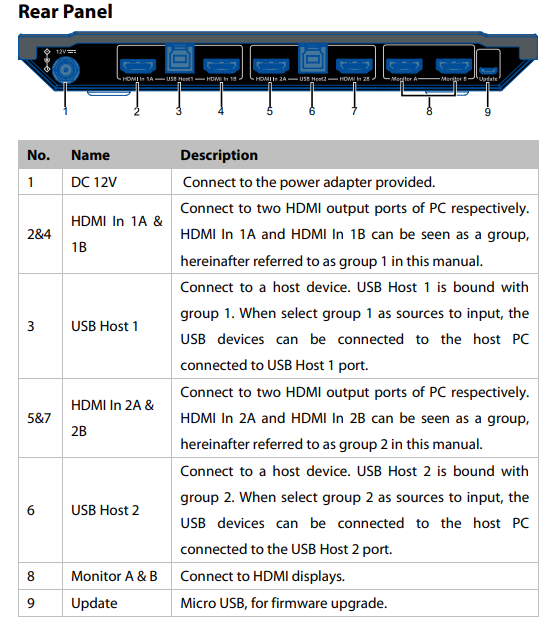
- Each input group support two independent HDMI input channels, which can be connected to two HDMI output ports of the PC and extended to two external monitors.
- Each monitor has independent channel, which can support different resolution.
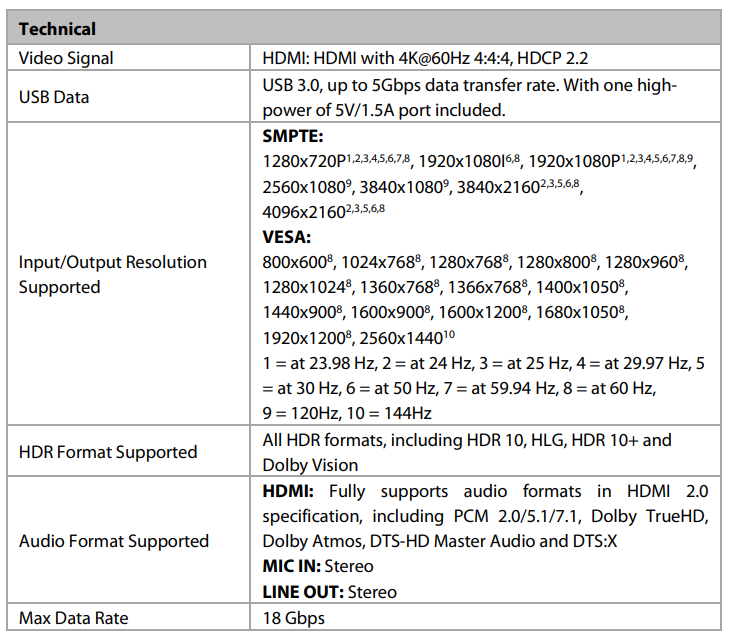
- Supports HDMI 2.0 with resolutions up to 4K@60Hz 4:4:4 8bit and HDCP 2.2 compatibility.
- Supports all HDR format, such as HDR 10, HLG, HDR 10+ and Dolby Vision.
- Supports USB 3.0 super-speed data transmission with speed up to 5Gbps.
- Supports new generation PC automatic wake-up function, when switch to the PC in sleep mode, it will automatically wake up the PC and no other operations are needed.
- Fast switching, based on the virtual interaction function.
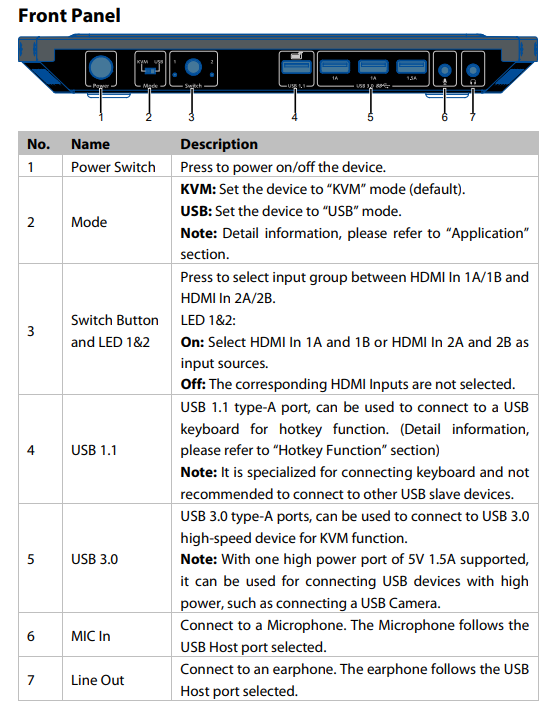
- One USB 1.1 port for keyboard and three USB 3.0 ports for USB devices.
- Supports microphone input and headphone output for audio application.
- Supports KVM and USB operation mode, which can be selected via the DIP switch on front panel. Supports button switch and hotkey switch (Keyboard must be connected to USB 1.1 port).
- Supports CEC trigger on HDMI outputs.
- No driver required, plug and play.
Panel
Application
Warnings:
- Before wiring, disconnect the power from all devices.
- During wiring, connect and disconnect the cables gently.
The switcher supports two application modes: KVM mode and USB mode. It can be set through DIP switch on front panel. By default, the switcher is in KVM mode.
KVM Mode
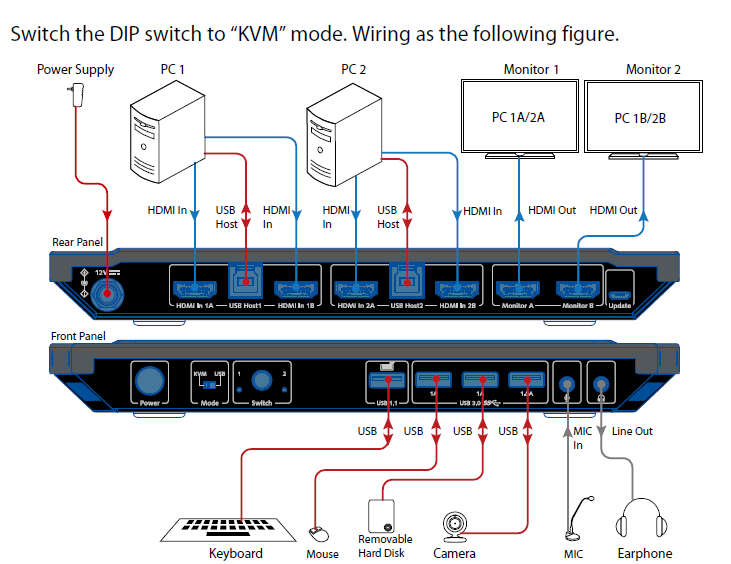
In this mode, when switch input source to group 1 or group 2:
- The connected USB devices, microphone and earphone can be connected to Host PC 1 or 2.
- When switch to group 1, the display connected to Monitor A and Monitor B will output video from HDMI In 1A and HDMI In 1B respectively. When switch to group 2, the display connected to Monitor A and Monitor B will output video from HDMI In 2A and HDMI In 2B respectively.
USB Mode
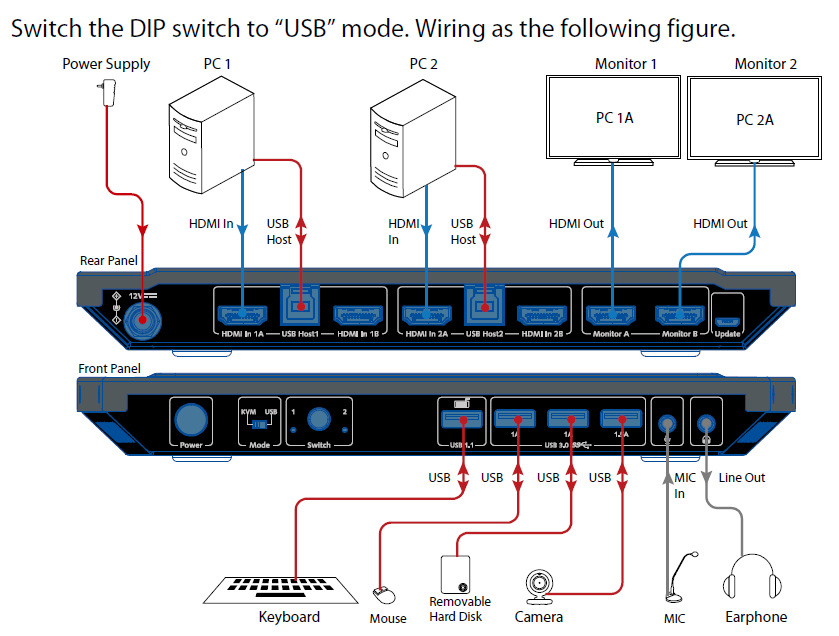
In this mode, when switch input source to group 1 or group 2:
- The connected USB devices, microphone and earphone can be connected to the Host PC 1 or 2.
- The displays connected to Monitor A and Monitor B will constantly output video from HDMI In 1A and HDMI In 2A respectively.
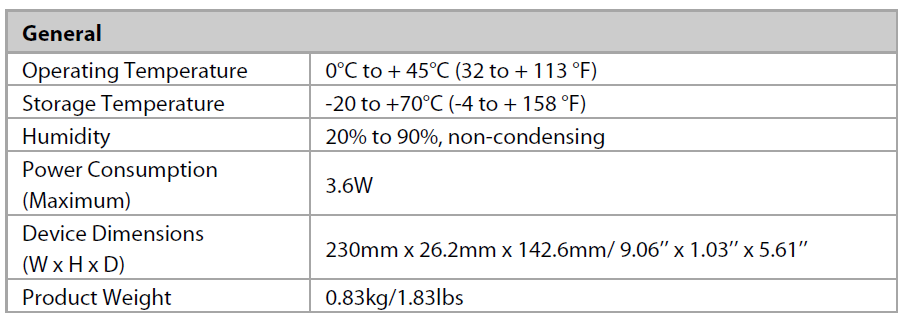
Specifications
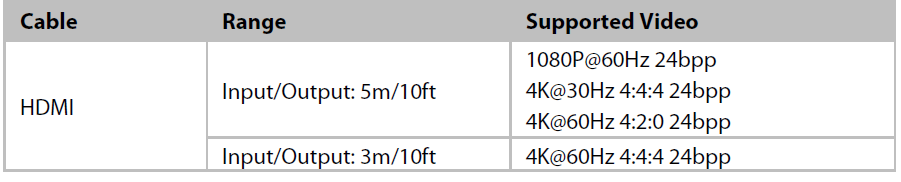
Transmission Distance
Pros & Cons of the av access Dual-Monitor KVM Switcher 4KSW21-DM
Pros
- 4K Dual Monitor Support: Handles two independent HDMI inputs per PC, supporting full 4K@60Hz 4:4:4 video output, ideal for high-resolution workflows.
- USB 3.0 Super-Speed Hub: Transfers data at up to 5Gbps, supporting a range of peripherals from keyboards to webcams seamlessly.
- Wide Compatibility: Works with Windows, Mac OS, and Linux without driver installation, facilitating plug-and-play operation.
- Multiple Switching Options: Offers front panel buttons and keyboard hotkeys for flexible and quick switching between computers.
- HDR Support: Compatible with HDR10, HLG, HDR10+, and Dolby Vision, enhancing visual quality for media professionals.
- Automatic Wake-Up Function: Reduces delay when switching by waking the connected PC from standby automatically.
Cons
- USB Device Compatibility: Some wireless keyboard and mouse dongles may need specific USB port placement for optimal tracking across extended displays.
- Limited Power Supply: The unit does not include an external power adapter, relying on USB power which may limit some heavy peripheral usage.
- Price Point: Slightly higher than basic single-monitor KVM switches, reflecting advanced dual-monitor and USB 3.0 features but possibly restrictive for budget users.
- Setup Complexity: May require adapters for computers with non-HDMI outputs (e.g., DisplayPort to HDMI) to fully utilize dual-monitor functionality.
Customer Reviews of the av access Dual-Monitor KVM Switcher 4KSW21-DM
Users consistently praise the av access Dual-Monitor KVM Switcher 4KSW21-DM for its reliability and ease of setup, especially appreciating the slim profile and seamless switching between PC and Mac systems. Reviewers highlight the value of dual-monitor support at 4K resolution with zero lag and the efficient USB 3.0 hub for multiple devices.
Some common complaints relate to wireless peripherals, where certain keyfobs must be plugged into specific USB ports to maintain mouse tracking across extended displays. However, this issue does not affect general functionality and is manageable with minor adjustments.
Overall, the product holds a strong average rating of 4.5 to 5 stars, with customers recommending it highly for anyone requiring efficient dual-monitor KVM switching with high video fidelity and robust peripheral support. Frequent purchasers note that it provides excellent value for money when compared to alternatives lacking USB 3.0 speed or dual 4K output.
Faqs
How do I set up the av access Dual-Monitor KVM Switcher 4KSW21-DM for first-time use?
What should I do if my av access Dual-Monitor KVM Switcher 4KSW21-DM is not switching video signals between computers?
Can the av access Dual-Monitor KVM Switcher 4KSW21-DM support 4K resolution on both monitors simultaneously?
How do I switch between two connected computers using the av access Dual-Monitor KVM Switcher 4KSW21-DM?
Is the av access Dual-Monitor KVM Switcher 4KSW21-DM compatible with Windows, Mac, and Linux systems?
What are the best practices for maintaining the av access Dual-Monitor KVM Switcher 4KSW21-DM?
How can I optimize performance when using USB peripherals with the av access Dual-Monitor KVM Switcher 4KSW21-DM?
What should I do if my headphones or microphone are not switching correctly with the av access Dual-Monitor KVM Switcher 4KSW21-DM?
Tags
Leave a Comment