
Setup: Av Link Universal Remote Control User Manual
Content
AV Link Universal Remote Control
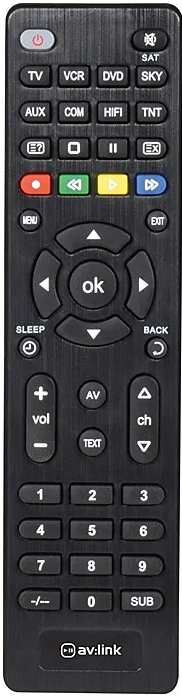
Introduction
The AV Link Universal Remote Control is a versatile, high-performance solution designed to simplify your home entertainment experience. Whether you're tired of juggling multiple remotes or need a reliable replacement for a lost or broken device, this universal remote consolidates control of up to eight devices—including TVs, DVDs, satellite receivers, and HiFi systems—into a single, intuitive unit. With its sleek design and user-friendly interface, the AV Link Universal Remote Control is ideal for households seeking convenience, accessibility, and clutter-free living spaces.
Key benefits include easy manual and automatic programming, compatibility with most major brands, and a compact form factor that fits comfortably in any hand. The remote is especially suited for families, elderly users, and anyone looking to streamline their entertainment setup. At an estimated price range of £5–£10, it offers excellent value for money and is widely available from leading electronics retailers across the UK and online marketplaces.
Specifications of the AV Link Universal Remote Control
- Controls up to 8 devices simultaneously (TV, DVD, SAT, HiFi, VCR, CD, VCD, and more)
- Compatible with most major brands and models
- Powered by 2 x AAA batteries (not included)
- Operating range: up to 8 meters
- Dimensions: 190 x 60 x 20 mm
- Weight: 135g
- Simple setup options: manual, automatic, direct code, and search methods
- Pre-programmed for quick use; supports future device compatibility
- Compact, ergonomic design for comfortable handling
Compared to similar universal remotes, the AV Link Universal Remote Control stands out for its broad device compatibility, ease of programming, and affordability. It outperforms basic single-device remotes and offers more flexibility than many 4-in-1 models.
Features
- Ideal to replace lost or broken remote controls.
- Can be used to control up to 8 devices simultaneously (TV, DVD, SAT, HiFi,, etc).
- Operates most major control functions.
- Uses 2x AAA batteries (not supplied).
- NOTE: may not work with some models of smart TV.
Instructions for use
Before use, insert 2x AAA batteries observing the polarity markings inside the battery compartment. There are 3 methods of configuring this remote control with your devices,, as listed below:
Direct code setup
Example: Setting up the remote control for your television using the included code list (Codes are listed by device type and brand name).
- Switch your television on (i.e., not on standby) and aim the remote control towards it.
- Press the TV button on the remote control and hold it down for 3 seconds until the power button lights up.
- Enter the four-digit device code from the list provided using the number buttons on the remote (the power button light will go out if the code is valid).
- Next, aim the remote control at your TV and press the POWER button - if your TV switches off,, then the remote control is set to the correct code and is ready to operate your device.
- Repeat the above process for all devices that you wish to program, i.e., VCR, DVD, etc.
Search by brand name
Example: Setting up the remote control by searching for your TV brand code.
- Switch your television on (i.e., not on standby) and aim the remote control towards it.
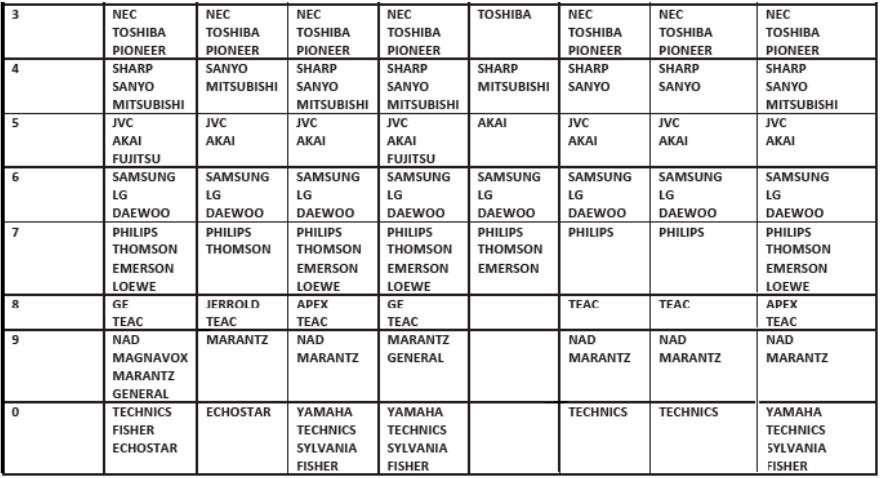
- Press and hold the TV button on the remote control along with the corresponding brand number from the Brand Name Table below.
- Keep pressing these 2 buttons until the light in the Power button stays on, then after 2 seconds,, it will begin to flash intermittently.
- When the TV is switched off, release the 2 buttons immediately, and the remote control will then save the relevant code and exit search mode.
Brand Name Table

Auto code search
If your device does not respond to the remote control after you have tried all the codes listed, you can try the auto search method. This method allows you to find the code for your device by scanning through all the codes retained in the memory of the remote control. This method may also work if your brand is not listed at all.
Example: Auto searching for a TV brand code.
- Switch your television on (i.e., not on standby) and aim the remote control towards it.
- Press and hold the TV button on the remote control for 3 seconds until the light in the Power button stays on.
- Press the Power button on the remote control, and the LED indicator will flash to indicate that the remote is sending a power-on/off signal repeatedly for every code saved in its memory.
- When your TV turns itself off,, press the OK button on the remote to save the correct code for your TV.
- Repeat the above process for all devices that you wish to program, i.e.,, VCR, DVD, etc.
Warning:
- For reasons of electrical safety, this device must never be immersed in water, exposed to damp conditions, or excessive force.
- Please do not use this device if you find that it is damaged in any way,, and only use the batteries recommended by the manufacturer.
- Do not attempt to repair this device or take it apart under any circumstances, as this will invalidate your warranty.
Errors and omissions excepted.
Copyright© 2023 AVSL Group Ltd, Unit 2 Bridgewater Park, Taylor Road, Trafford Park, Manchester. M41 7JQ. www.avsl.com
AVSL (Europe) Ltd, Unit 3D North Point House, North Point Bus. Park, New Mallow Road, Cork, Ireland.
Troubleshooting the AV Link Universal Remote Control
Common issues include unresponsive buttons, pairing failures, and limited range. Ensure batteries are fresh and correctly installed. If the remote fails to control a device, try reprogramming using the manual or automatic setup method. For persistent problems, consult the included code list or use the search function to find compatible codes. Preventive measures include keeping the remote clean and replacing batteries regularly.
Most AV Link Universal Remote Controls come with a standard 12-month warranty. For technical support or warranty claims, contact the retailer or manufacturer directly. Customer service is available via phone or email for troubleshooting assistance.
Pros and Cons of the AV Link Universal Remote Control
Pros
- Controls up to 8 devices for maximum convenience
- Easy to program with multiple setup options
- Compact and lightweight design
- Compatible with most major brands
- Excellent value for money
Cons
- Batteries not included
- May not work with some smart TV models
- Limited advanced features compared to premium remotes
The AV Link Universal Remote Control offers solid performance and reliability at a budget-friendly price, making it a smart choice for replacing lost remotes or simplifying multi-device setups.
Customer Reviews of the AV Link Universal Remote Control
Users consistently praise the AV Link Universal Remote Control for its ease of use, broad compatibility, and value. Many highlight its effectiveness in replacing lost remotes and simplifying home entertainment systems. Common complaints include occasional pairing issues with newer smart TVs and the need to purchase batteries separately. Most customers rate the remote 4–5 stars, recommending it for households seeking a reliable, affordable universal remote solution.
Faqs
How do I set up the av link Universal Remote Control for the first time?
What should I do if my av link Universal Remote Control is not responding to my devices?
Can the av link Universal Remote Control be used with smart TVs and newer devices?
How can I program multiple devices to the av link Universal Remote Control?
What are the key features of the av link Universal Remote Control that improve user experience?
How do I maintain and care for my av link Universal Remote Control to ensure longevity?
Why does my av link Universal Remote Control lose programming after some time, and how can I fix it?
How do I troubleshoot common problems like unresponsive buttons or device non-detection on the av link Universal Remote Control?
Leave a Comment