
Aver CAM550 Conference Camera User Manual
Content
AVer CAM550 Conference Camera Manual: Overview, Setup, and Buying Guide
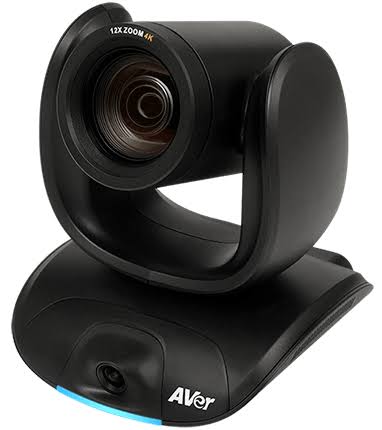
The aver CAM550 Conference Camera is a premium dual-lens 4K PTZ conferencing camera built for medium and large meeting rooms that need sharp video, intelligent framing, and flexible connectivity. It combines a 12X optical zoom PTZ lens with a wide-angle AI lens to deliver both close-up participant detail and full-room coverage, making it ideal for hybrid meetings, boardrooms, classrooms, and executive collaboration spaces. With support for USB, HDMI, and IP streaming, it fits easily into modern video conferencing workflows across Zoom, Microsoft Teams, Google Meet, and other UC platforms.
One of its biggest strengths is its smart framing capability, which helps keep speakers centered and meeting participants visible without constant manual adjustment. The Sony 4K Exmor sensor provides strong low-light and high-definition performance, while the motorized pan and tilt design adds professional-level control. For organizations seeking a reliable conference room camera with advanced auto-framing and zoom, the aver CAM550 Conference Camera stands out as a strong mid-to-premium option.
Typical pricing generally falls in the range of about $1,100 to $1,300, depending on region, reseller, and included accessories. Availability is broad through authorized AV and IT retailers, enterprise resellers, and online business equipment stores, with some markets offering extended warranty coverage.
Key Specifications of AVer CAM550 Conference Camera
- Camera system: Dual-lens design with PTZ main lens and fixed wide-angle AI lens
- Sensor: Sony 4K Exmor image sensor
- Main lens zoom: 12X optical zoom, 24X total zoom
- Video resolution: Up to 4K at 30 fps; 1080p and lower resolutions supported at up to 60 fps
- Field of view: Main lens approximately 85° diagonal; wide-angle lens approximately 95° diagonal
- Pan and tilt: Motorized pan up to ±170°, tilt +90° / -30°
- Connectivity: USB 3.1 Type-B, HDMI, IP streaming, RS-232 control
- Power: 12V/2A DC adapter or PoE+ support in supported deployments
- Streaming support: H.264, H.265, RTSP, RTMP, and common conferencing workflows
- Mounting: Wall mount support with optional ceiling mounting accessories
- Weight: About 2.1 kg for the camera unit
Compared with single-lens USB conference cameras, the aver CAM550 Conference Camera offers better flexibility for room coverage and speaker tracking. Against similar dual-lens models, it is especially competitive for its mix of 4K output, optical zoom, and enterprise connectivity.
Troubleshooting AVer CAM550 Conference Camera Issues
If the camera is not detected, first confirm the USB 3.1 connection, power supply, and correct input selection in your conferencing app. Try a different USB port or restart the system if the device appears frozen. If video is showing but looks cropped or unstable, reset the PTZ position and verify that auto-framing is enabled or disabled as needed for the room layout.
- No video signal: Check HDMI, USB, or IP source selection and confirm the camera is powered on.
- Blurry image: Clean the lens, confirm autofocus behavior, and ensure the subject is within operating distance.
- Auto-framing not working: Recheck firmware, room lighting, and the subject detection area.
- Network streaming failure: Verify Ethernet, IP settings, and RTSP/RTMP configuration.
- Control issues: Check RS-232 cabling, baud settings, and remote battery condition.
Common preventive measures include keeping firmware current, avoiding obstruction of the wide-angle lens, and using stable mounting hardware. The camera is generally backed by a three-year warranty in many regions, and some EU programs offer extended coverage. For support, contact the seller, authorized AVer reseller, or AVer business support portal, and have the serial number, firmware version, and purchase details ready.
Pros and Cons of the AVer CAM550 Conference Camera
Pros
- Excellent zoom flexibility: The 12X optical zoom is useful for presenters, whiteboards, and large rooms.
- Dual-lens design: The wide-angle AI lens helps with automatic participant framing.
- Strong connectivity: USB, HDMI, and IP support make integration easier.
- Professional image quality: The Sony 4K sensor delivers sharp video in conference environments.
- Good value for enterprise use: It can replace multiple lower-end cameras in one installation.
Cons
- Higher price: It costs more than entry-level webcams and basic USB conferencing cameras.
- Setup complexity: Advanced features may require IT configuration and tuning.
- Overkill for small rooms: In huddle spaces, the full feature set may not be necessary.
- Accessories may add cost: Ceiling installation and enterprise mounting can require extras.
For organizations comparing alternatives, the aver CAM550 Conference Camera is strongest when room size, optical zoom, and flexible output formats matter more than budget. It offers better long-term value than basic single-sensor cameras in professional meeting spaces.
Customer Reviews and Real-World Feedback on the AVer CAM550
Most users rate the camera highly for clarity, zoom performance, and reliable auto-framing, with typical scores around 4.5 out of 5 stars in enterprise-focused reviews. Common praise includes the sharp 4K image, smooth PTZ movement, and the ability to cover both close-up presenters and full-room views without switching devices.
Common complaints usually mention price, the need for careful setup, and occasional learning curves with advanced streaming or control options. A typical testimonial reads: “The image quality is outstanding in our boardroom, and the dual-lens design makes meetings feel much more professional.” Another frequent comment is: “It was more expensive than we expected, but the coverage and zoom made it worth it.”
For buyers who need a dependable conference room camera for hybrid meetings, the aver CAM550 Conference Camera is widely recommended, especially when quality, flexibility, and room coverage are top priorities.
Faqs
How do I set up the aver CAM550 Conference Camera for the first time in a meeting room?
What should I check if the aver CAM550 Conference Camera is not showing video in Zoom or Microsoft Teams?
Does the aver CAM550 Conference Camera work with popular video conferencing platforms and operating systems?
How do I optimize framing and tracking settings on the aver CAM550 Conference Camera for larger meeting rooms?
Why does the aver CAM550 Conference Camera image look blurry or poorly lit, and how can I fix it?
What are the best USB and system requirements for using the aver CAM550 Conference Camera reliably?
How do I update the firmware and software for the aver CAM550 Conference Camera safely?
What maintenance steps help extend the life of the aver CAM550 Conference Camera?
Tags
More aver manuals
Leave a Comment