
Setup: Bunud External CD Drive 3.0 User Manual
Content
bunud External CD Drive 3.0: Product Overview and Buying Guide
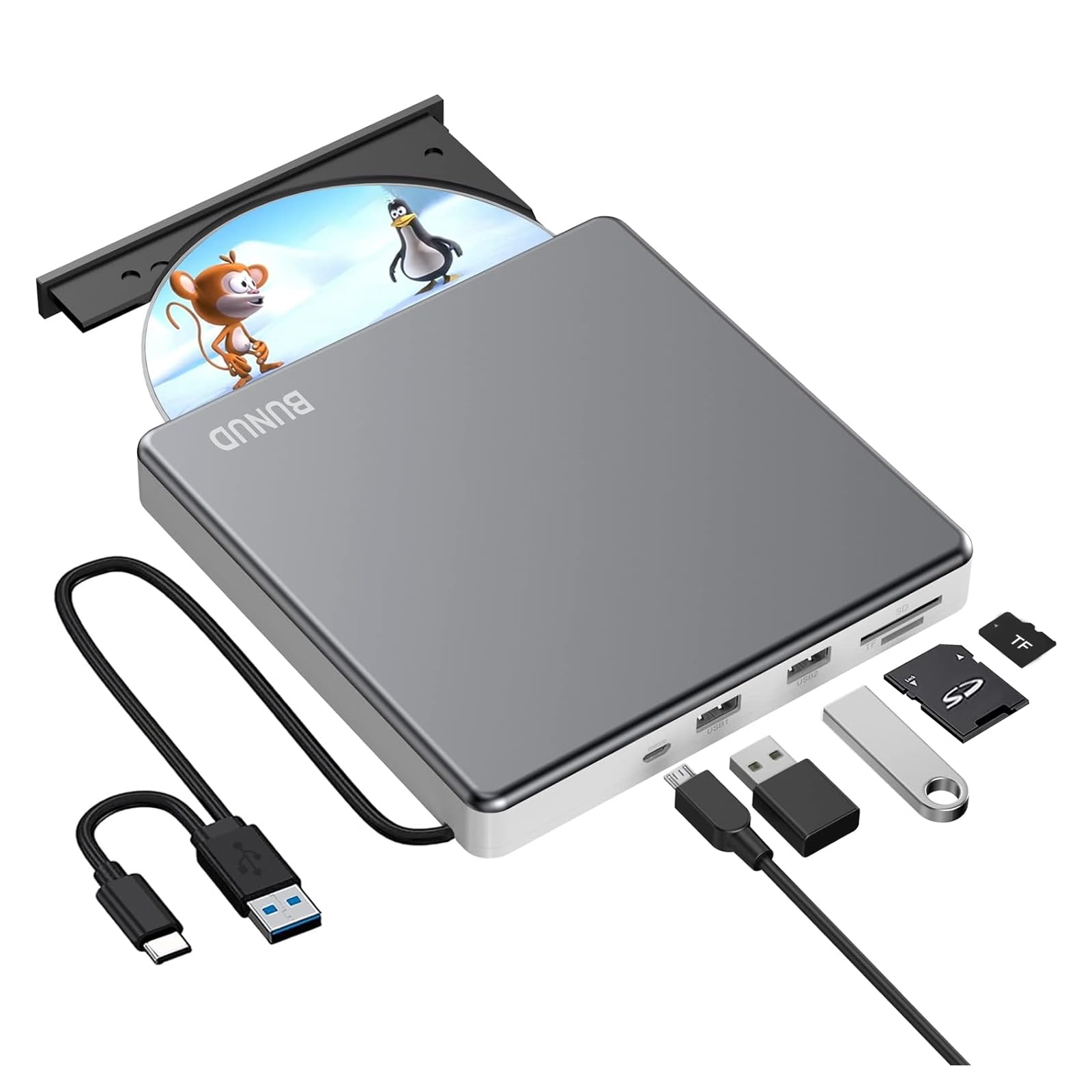
The bunud External CD Drive 3.0 is a slim, portable external optical drive designed for laptops and desktop PCs that no longer include an internal disc drive. It is built for users who still need reliable access to CDs and DVDs for software installation, music playback, data backup, movie viewing, and disc burning. With USB 3.0 and Type-C connectivity, this external CD/DVD drive is aimed at modern systems, including Windows laptops, MacBook models, iMac systems, and other USB-C compatible devices. The plug-and-play design makes it especially appealing for students, office users, home users, and professionals who want a simple disc reader and writer without additional power adapters or complicated setup.
One of the main selling points of the bunud External CD Drive 3.0 is its convenience. It combines portable size with dual-interface support, fast data transfer, and broad media compatibility. Many versions of this drive also include extra ports such as USB and SD/TF card slots, which can be useful for basic file transfer workflows. Estimated market pricing typically falls in the low-cost range of about $20 to $35, though availability and final pricing can vary by region, retailer, and bundle. In some marketplaces, the drive appears at slightly higher prices depending on condition or included features. For users seeking an affordable external optical drive for everyday disc tasks, this model offers a practical balance of value, compatibility, and portability.
Specifications for bunud External CD Drive 3.0
- Interface: USB 3.0 and Type-C connection for broad laptop and desktop compatibility.
- Transfer speed: Up to 5 Gbps theoretical USB 3.0 transfer performance for stable disc access and file reading.
- Read speeds: Commonly listed at 24x for CD-ROM and 8x for DVD-ROM.
- Write speeds: Typically supports up to 24x for CD-R/CD-RW and 8x for DVD-R/DVD+R formats.
- Supported media: CD-ROM, CD-R, CD-RW, DVD-ROM, DVD-R, DVD-RW, DVD+R, DVD+RW, DVD-R DL, DVD+R DL, and related formats.
- Form factor: Slimline portable external optical drive designed for travel and small desks.
- Compatibility: Works with Windows, macOS, and many Linux systems depending on device recognition and software support.
- Extra functions: Some bundles include 2 USB ports and SD/TF card slots for added convenience.
- Typical weight: Around 0.42 to 0.52 kg, depending on version.
Compared with basic USB 2.0 external DVD drives, the bunud External CD Drive 3.0 generally offers faster data transfer and better compatibility with modern USB-C devices. Compared with premium optical drives, it focuses more on affordability and portability than advanced media features such as Blu-ray support.
Troubleshooting bunud External CD Drive 3.0: Common Problems and Fixes
- Drive not detected: Try a different USB port, reconnect the cable, or use both connectors if your model includes USB 3.0 and Type-C plugs.
- Disc not spinning: Confirm the disc is inserted correctly, is not scratched, and is a supported format such as CD or DVD.
- Slow reading or skipping: Clean the disc, avoid unpowered USB hubs, and connect directly to the computer.
- Burning failure: Use high-quality blank discs and verify that your software supports the disc type and write speed.
- Error code 19 or 43 on Windows: These often indicate a device recognition or driver issue; reinstall the drive, update USB drivers, and restart the system.
- Mac not recognizing the drive: Check for sufficient USB power, test another port, and confirm the disc format is supported by macOS.
Preventive care includes keeping the drive on a flat surface, avoiding dust buildup, and ejecting discs properly before unplugging. Warranty terms vary by seller, but most retail listings offer standard limited support and return options. For help, contact the seller or marketplace support center through the order page, and check the product listing for the most current warranty window and service instructions.
Pros and Cons of bunud External CD Drive 3.0
Pros
- Easy plug-and-play setup with no external power adapter required.
- USB 3.0 and Type-C support improves compatibility with newer laptops and MacBook systems.
- Portable design makes it easy to carry for travel, school, and office use.
- Good value for money compared with higher-priced optical drives.
- Supports both reading and writing for common CD and DVD formats.
- Useful for old software discs, music CDs, movie DVDs, and backups.
Cons
- Not a Blu-ray drive, so it cannot read or burn Blu-ray media.
- May need direct USB connection for the best performance on some laptops.
- Extra features such as SD/TF slots may vary by bundle and seller.
- Performance is solid for everyday tasks, but not designed for heavy professional disc duplication.
- Alternative drives from premium brands may offer stronger build quality or quieter operation.
For buyers focused on affordability and basic optical disc support, the bunud External CD Drive 3.0 is a strong practical choice. Users who need Blu-ray playback or enterprise-level durability may prefer a higher-end alternative.
Customer Reviews for bunud External CD Drive 3.0
Customer feedback is generally positive, with many users rating the drive around 4 to 4.5 stars for ease of use and compatibility. Buyers often praise the compact size, fast setup, and reliable disc reading for older media collections. A common testimonial style comment is: “Works right out of the box on my laptop and reads both CDs and DVDs without trouble.”
Frequent complaints usually mention inconsistent software bundles, occasional connection issues on older USB ports, and the lack of Blu-ray support. Some users also note that burn speed is acceptable but not exceptional. Overall, this is a recommended purchase for students, home users, and office workers who need a dependable external disc drive at a budget-friendly price.
Faqs
How do I set up bunud External CD Drive 3.0 for the first time on Windows or Mac?
Why is my bunud External CD Drive 3.0 not showing up on my laptop?
Is bunud External CD Drive 3.0 compatible with Windows 11, macOS, and older operating systems?
Can I use bunud External CD Drive 3.0 to burn CDs and DVDs, or only read discs?
What should I do if bunud External CD Drive 3.0 spins but cannot read a disc?
Does bunud External CD Drive 3.0 need extra software to play DVDs or install programs?
How can I get the best transfer and reading speed from bunud External CD Drive 3.0?
How should I clean and store bunud External CD Drive 3.0 to keep it working longer?
Tags
Leave a Comment