
Setup: Cosjoype Kids Game Smart Watch User Manual
Content
Cosjoye Kids Game Smart Watch
Introduction
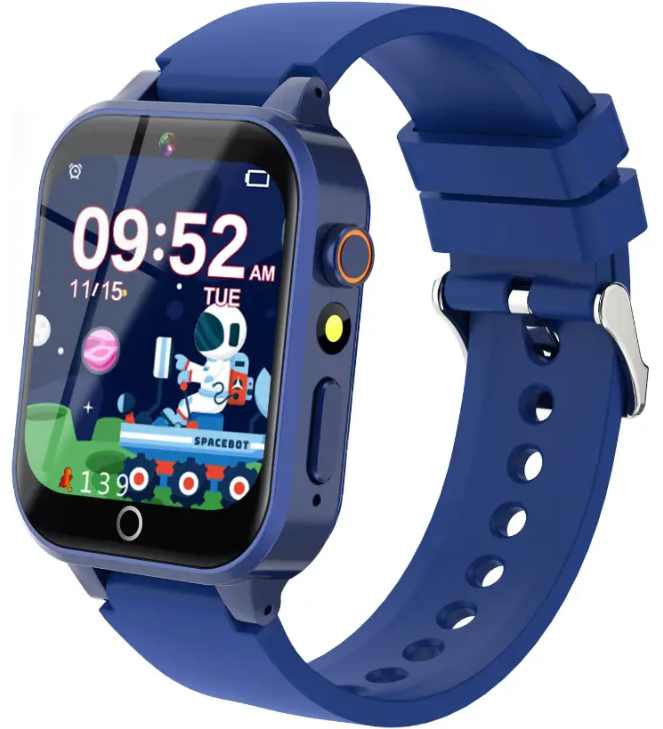
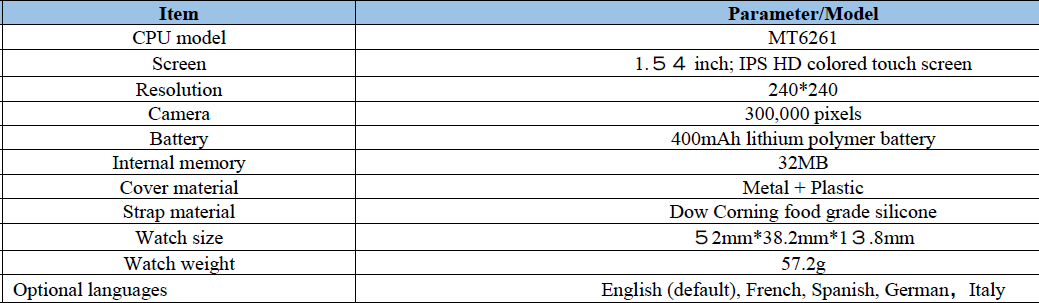
The cosjoype Kids Game Smart Watch is a versatile wearable device designed specifically for children aged 4 to 12 years. Combining fun, education, and practical functions, this smartwatch offers an impressive array of features that engage young users while promoting healthy habits and responsibility. The watch sports a vibrant 1.54-inch IPS HD touch screen, offering easy navigation through games, apps, and settings with simple swipe and tap controls.
Key benefits include 24 to 26 built-in educational puzzle games that enhance logical thinking and hand-eye coordination, an HD camera for photos and videos encouraging creativity, and a pedometer feature that tracks steps and calories to motivate active play. Additional utilities like a music player, alarm clock, flashlight, calculator, and voice recorder make this watch a multifunctional gadget tailored to kids’ needs. Its durable aluminum frame and comfortable strap ensure it withstands daily wear and energetic activities.
Ideal for use as a birthday or holiday gift, the CosjopeKids Game Smart Watch supports independent play and learning without requiring phone connectivity or additional apps. Available online and through select retailers, the estimated price ranges from $35 to $50, delivering great value for parents seeking an engaging and educational tech toy. This smartwatch is a perfect blend of entertainment, learning, and fitness tracking for young children.
Package Contents

Hardware Specifications
Get Started
Power On/Off
- Power On: Press and hold the power button

- Shutdown: Press and hold the power button
Before turning on the watch, make sure that the battery is properly installed in the watch.
If the watch fails to turn on, this might be caused by a low battery.
So please try again after recharging the watch for 5 minutes.
Charging
Remove the silicone plug from the USB charging port, and then use the included USB cable, connect the USB cable between the watch and the regular USB port in your PC, or a power-certified adapter. (Power Output: DC 5V/1A is recommended).
The power icon at the top right of the screen will start scrolling, indicating that the watch is in charging mode. The power icon will stop scrolling and show a full battery icon once the watch is fully charged.
Functions
- User interface
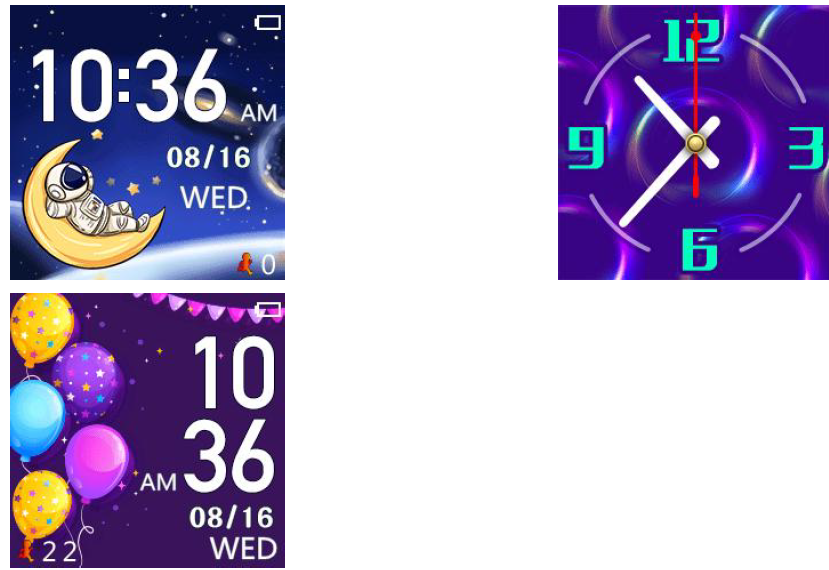
You can switch between multiple wallpapers and watch faces.
- Camera
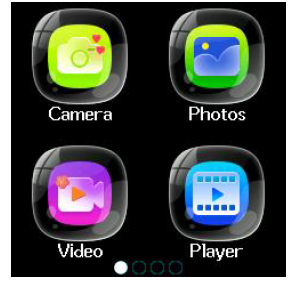
In the main menu, slide to select "Camera" and click to enter. You can enter the preview interface, click the left button to take a picture, and click the right button to enter the image viewer.
On the right-hand side of the watch, there is a shortcut button that provides one-touch access to the camera function by pressing the circular button located on the side. - Photos
In the main menu, slide to select "Photos" and click to enter, and you can view the saved photos. - Video
In the main menu, slide to select "Video" and click to enter. You can enter the preview interface, click the left button to start recording, and click the right button to enter the the video player. - Music
Swipe to select music in the main menu, and click to enter. You can play the downloaded and stored music.
Download some .mp3 format music files into your PC, then copy them into: My Music. (located in the memory card). - Recorder
In the main menu, slide to select"Recorder" and click to enter, and you can record.
Note: Memory is required in the watch. - Calculator
In the main menu, slide to select"Calculator" and click to enter, and you can calculate. - Calendar
In the main menu, swipe to select the "Calendar" and click to enter, and you can view the calendar. - Torch
In the main menu, slide to select "Torch" and click to enter. The torch can be turned on and off, and please be careful not to illuminate the eyes directly. - Theme
Swipe to select "Theme" in the main menu.. Click to enter, and you can change to the preset wallpaper.
Troubleshooting Your CosjCosjope Game Smart Watch
Common issues with the CosjCosjope Game Smart Watch include the device not turning on, an unresponsive touch screen, or games freezing. If the watch fails to power up, first ensure it is fully charged using the supplied USB cable. A forced reset can be performed by holding the power button for 10 seconds. For touch screen issues, clean the screen gently and avoid using excessive moisture.
In case the camera or games do not load correctly, restarting the device often resolves temporary glitches. Avoid deleting factory data stored in the internal memory, as this can cause malfunctions. Error codes are not commonly displayed, but if the watch exhibits persistent software errors, a factory reset via the settings menu can restore default functionality.
Preventive measures include regular charging, careful handling to avoid water exposure, and updating usage habits to prevent excessive gameplay duration. The product typically comes with a 12-month warranty covering manufacturing defects. For support, users can contact the manufacturer at usvc-service@outlook.com, ensuring professional assistance for unresolved issues.
Pros & Cons of the Cosjope Kids Game Smart Watch
- Pros:
- Rich feature set including 24+ educational games, HD camera, pedometer, and music player.
- User-friendly 1.54-inch IPS HD touch screen suitable for children aged 4-12.
- Durable aluminum frame and comfortable strap designed for active kids.
- Encourages physical activity and cognitive development simultaneously.
- Affordable price point offering excellent value compared to similar kids’ smartwatches.
- Cons:
- No GPS tracking or phone call capabilities, limited parental monitoring features.
- Battery life may require daily charging under heavy use.
- Limited internal storage for music and videos compared to more advanced smartwatches.
- Some users report occasional software freezes requiring resets.
Customer Reviews of the Cosjoy Kids Game Smart Watch
Users generally praise the Cosjoype Kids Game Smart Watch for its engaging puzzle games and easy-to-use interface. Many parents appreciate the watch’s ability to keep kids entertained without phone dependency. The HD camera is frequently mentioned as a fun feature that encourages creativity, and the pedometer motivates children to stay active.
Common complaints include the need for frequent charging and occasional lag during gameplay. Some reviewers note that younger children may initially need guidance to navigate the menu. Overall, the watch has an average rating of 4 out of 5 stars, with customers recommending it as a budget-friendly educational gift option that balances fun and functionality effectively.
Faqs
How do I set up the cosjoype Kids Game Smart Watch for the first time?
What should I do if the cosjoype Kids Game Smart Watch is not charging or turning on?
Can the cosjoype Kids Game Smart Watch track my child's physical activity effectively?
What types of games and multimedia features does the cosjoype Kids Game Smart Watch offer?
Is the cosjoype Kids Game Smart Watch compatible with smartphones or other devices?
How can I customize the appearance and settings on the cosjoype Kids Game Smart Watch?
What maintenance and care tips should I follow to keep the cosjoype Kids Game Smart Watch in good condition?
How do I reset the cosjoype Kids Game Smart Watch if it freezes or has performance issues?
Leave a Comment