
Setup: Cyberdyer T96 Smart Watch With Earbuds User Manual
Content
Cyberdyne T96 Smart Watch With Earbuds
Introduction
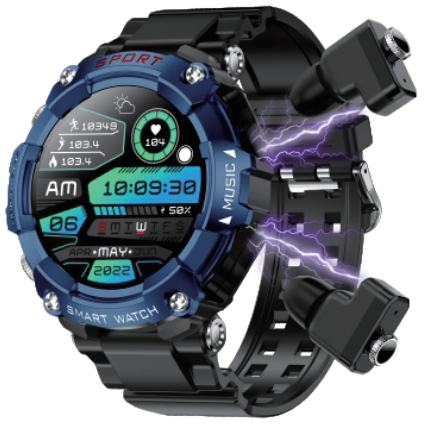
The cyberdyer T96 Smart Watch With Earbuds is an innovative 2-in-1 wearable device that expertly combines a sleek smartwatch with integrated wireless earbuds. Designed for tech enthusiasts and fitness-conscious users alike, this device offers a seamless blend of style, convenience, and advanced functionality. Featuring a vibrant 1.52-inch IPS colour touchscreen and Bluetooth 5.1 connectivity, the T96 ensures stable, low-energy wireless communication, enhancing both your workout and daily communication experience.
Key benefits include continuous health monitoring with heart rate and blood oxygen tracking, sports modes suitable for over 100 activities, and the ability to store and play local music directly from the watch through its earbuds. Its IP67 life waterproof rating makes it durable enough for sports and outdoor activities, while the magnetic charging system provides hassle-free power replenishment.
This smartwatch is ideal for users who want an all-in-one device to track fitness, receive smart notifications, manage calls, and enjoy wireless audio without carrying separate gadgets. With a competitive price range around $129 to $219,, depending on retailer promotions, the Cyberdyne T96 is accessible for users seeking premium features at an affordable cost. It is compatible with iOS 10.0+ and Android 5.0+ devices, making it widely available and user-friendly.
Product Composition
- Watch;
- Turn on the app.
- ging cable;
- Instruction manual;
- Packaging
Button Function and Touch
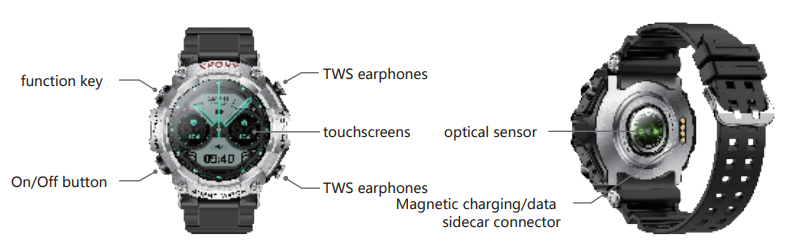
Charging instructions and music storage (U-Disk)
- After the magnetic cable is successfully connected, the watch will show the charging icon; the other end is connected to the standard USB port for charging and copying files.
Attention: - Do not charge in a wet or watery environment.
- Make sure that the metal contacts on the watch body and the magnetic charging cable are not dirty or corroded.
- Periodically clean the metal contacts on the back of the watch and on the magnetic charging cable with a clean flannel. Make sure that the contacts of the watch and the magnetic charging cable are in full contact to ensure proper charging.
- This product is not equipped with a power adapter. To ensure personal and property safety, when charging, you can use the computer USB interface or choose an output that does not exceed 5Vexceed a dapter. Please purchase the power adapter through regular channels, and eliminate the use of low-quality, shoddy power adapters to avoid causing a burst or fire.
- One end of the magnetic cable is connected to the watch, the other end is connected to the USB port of the computer,. Whether the computer reads out the watch's USB flash drive and deposits the song, MP3 format only.
APP Installation
Scan the QR code or search "Fitcloudpro" in the APP Store or App Store to download and install the app.
Note: Android supports 5.0 and above systems, iOS supports 10.0 and above sysystemsand Bluetooth hardware 4.0 and above.

APP Connection
- Install and open the APP for the first time: follow the prompts to allow the APP to obtain the corresponding permissions. The first time Apple mobile phone APP connection will prompt the Bluetooth pairing request, click "pairing" to connect, the watch can receive notification alerts from IOS system, such as incoming calls and SMS..
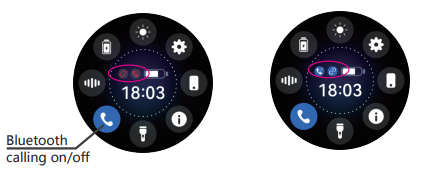
- Open the app and click "add device" and search "T96" to connect. If more than one device is in the vicinity, select the MAC address of your own watch (12-digit alphanumeric and numeric) to bind the device. (The watch MAC address can be viewed through the settings of the watch terminal-About-MAC address method.) When the Bluetooth icon appears on the top of the watch or the Bluetooth connection is successful, you can use the watch dialling code to control the mobile phone to make a call. Answer incoming calls from the mobile phone on the watch and view call log information on the watch. When using the Bluetooth call function, you need to make sure that the connection between the device and the mobile phone is stable.. If you find the connection is disconnected, please pull down the main interface and click the earphone icon to turn blue; the connection is successful. As shown in the right picture
"Watch Music" mode: As shown in the figure below, the watch amplifier speaker (watch speaker) plays music from the watch memory.
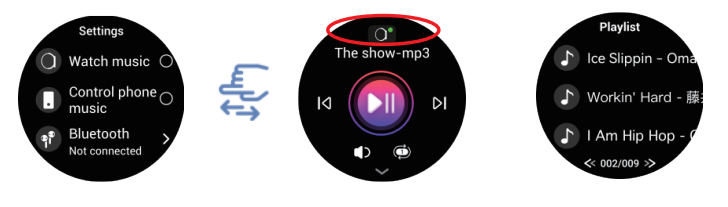
“Mobile Music” mode: As shown in the figure below t,, the Bluetooth of the mobile phone searches and connects to "T96", afterafter. After connecting, the watch can control the playback of the mobile phone music. As shown in the picture on the right.
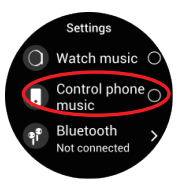
“Bluetooth earphone" mode: as below, take out the Bluetooth earphone, watch Bluetooth search and connect "T96-R or T96-L", after successfully connecting, the Bluetooth earphone will play the watch music.
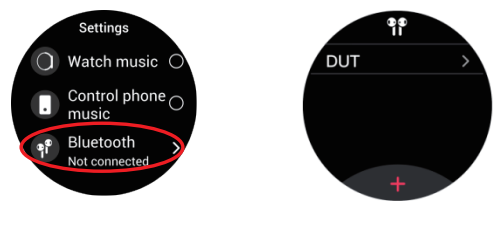
Product Parameter
- Watch Chip: RTL8763EW+HX3605
- Bluetooth Version:BLE5.1
- Screen size: 1.52 inch, IPS colour screen
- Watch Battery Capacity: 400 mAh
- TWS Earphone Battery Capacity: 35mAH
- Battery Type: Polymer Battery
- Usage time: about 1 0 days
- Waterproof grade : IP67 life waterproof
- Charging method: magnetic charging
- Working temperature: 0-40°C
- Compatibility: IOS 10.0 or above; Android 5.0 or above. Suitable for most mobile devices on the market.
Instructions for using the watch
Press the side button or lift your wrist to wake up the screen. Swipe up to access the information bar; swipe down to access the control centre; swipe left to access sports data; swipe right to access split-screen mode..
- Replacement Dials Long Long-press the main page dial for 3 seconds to enter the watch dial replacement page. Or download the replacement dial on the page.
- Control Centre
Swipe down to enter the control centre. 1, Non-disturbance mode .2, Bright screen adjustment.3, Settings.4, Find my phone 5, Volume.6, Voice assistant. - Do Not Disturb Mode
Swipe down to the Control Centre and click the Do Not Disturb icon to confirm Do Not Disturb mode is on. - Brightness Adjustment
Scroll down to the Control Centre and click the Brightness Adjustment icon to adjust the brightness of your device. - Settings
Scroll down to the Control Centre and tap the Settings icon to access the feature settings. - Find My Phone
Scroll down to the Control Centre and click the Find My Phone icon. Your phone will vibrate to remind you. - Bluetooth Calling
Scroll down to the control centre and click the audio icon to turn on the audio mode. - Voice assistant
Scroll down to Control Centre, click Voice Assistant, click the button to enter voice or long-press the function/back button for 3 seconds. 9, Sports Data Swipe down once to enter the sports data page to view the sports data and record steps, calories and kilometres respectively. - Messages
Swipe down to the message bar to view messages - Heart Rate
Swipe down twice to the heart rate page to start measurement and display data.. - Dialling function
This function requires a connection to Bluetooth audio. When entering dialling, you can enter the phone number to make a call as needed; long-press 7 and 9 on the keypad to enter * and #. - Exercise Mode
Press the function/back button to enter the function page to find the sport.
Tap to enter the sport mode and select your favourite sport. - Weather
Press the function/return key to enter the function page to find the weather, and click to view the weather.. - Music control
Press the function/back key to enter the function page to find the music control, click and return to adjust the up/down, start/stop, volume up/down. - Blood pressure
Press the function/back key to enter the function page to find blood pressure, click and measure - blood oxygen
Press the function/back key to enter the function page to find blood oxygen, click and measure
TWS Earphone Features
A:earphone Pairing
- earphone pairing, take the earphone out of the watch host, there is a boot tone, open the bluetooth in the mobile phone settings, find the corresponding bluetooth name T96-R/T96-L for bluetooth connection, factory before TWS earphone has been done between the pairing pair. Only the Bluetooth name T96-R/T96-L is displayed, and the mobile phone sees that it has been connected, which means that the product has been successfully connected.
- Remove the earphones from the watch,, and it will automatically switch on and pair with the connection.
- If the earphone is disconnected from the mobile phone during use or the earphones arethe earphones are not connected, the mobile phone needs to be reconnected to Bluetooth. There is a previously connected Bluetooth model in the Bluetooth section under the mobile phone settings. Please clear it first, and then search for Bluetooth T96-R/T96-L to connect.
- Earphone couplers: If there is a situation where only one side of the earphone has sound, it is necessary to pair the couplers between the ears.
How to pair earphones with each other
- Firstly, switch off both earphones by holding them down for 6 seconds at the same time.
- Long-press the two earphones at the same time to boot, boot the two earphones lin a light-alternatingflashing state (at this time to keep your hand on the earphone touch point does not move), press the two earphones at the same time for 7, seconds press the and after the 7 af,,ter the two earphones will be automatically switched off at the same time..
- Put the two earphones into the watch compartment and then take out the two earphones at the same time; ; only one of the earphones lights up after switching on the watch. It means the earphones are paired successfully..
B: The middle side of the earphone is a touch surface, used to touch control to answer/hang up the phone, control the music up/down, volume up/down, Al voice assist
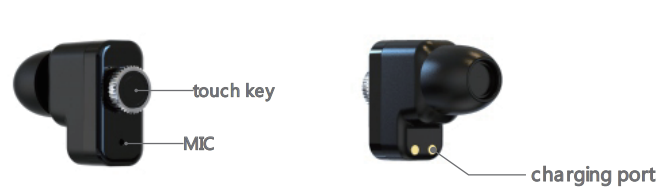
C: Answer/hang up calls
When the earphone has an incoming call in the base of the watch, remove it from the watch will be automatically connected, the earphone is in the watch for a long time, incoming calls need to manually answer, double-click the button to answer the phone, double-click to hang up the phone, when the call put the earphone back to the watch, then the earphone is switched off. If the other party does not hang u,,p the phone will automatically switch to the mobile phone to answer.
D: Music Operation
Double click for pause/play, long press for 2 seconds for previous/next song, triple click for volume +/-
AN AI voice assistant and making calls
The earphones have been connected to the Bluetooth state. Four clicks on the touch key to activate the i phone mobile phone's Siri and Android mobile phone's voice assistant, can be operated through the voice assistant to make a phone call, check the weather, navigate maps and other functions. The voice must be in the mobile phone in the standby interface or the main interface at the time to be effective!
Precautions for use
- The measurement results of this product are for reference only and are not intended for any medical use. Please follow your doctor's instructions and do not rely on the results for self-diagnosis and treatment.
- This product is IP67 life waterproof, can not be used for deep diving and long-term soaking in the water.. In addition, this product is not anti-hot water, because water vapour will affect the watch.
- We reserve the right to modify the contents of this manual without notice. It is normal for some functions to differ in the corresponding software version.
- Please use Restore Factory Settings with caution. Restoring Factory Settings will result in the loss of all APP content settings and watch history data.
- After using the earphone, please promptly clean the earphone charging port 5. of oil and water quality, including the watch earphone compartment debris
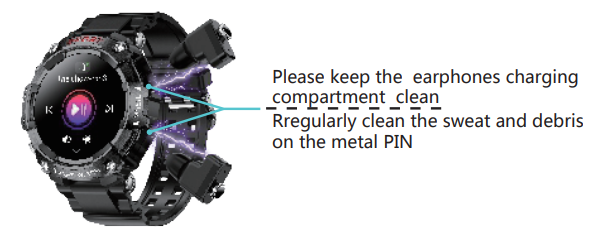
Troubleshooting
Q:APP connection is unsuccessful,, or some functions are unstable
- The watch battery may be too l,, ow and the product needs to be recharged.
- Check whether certain functions are in the corresponding watch mode. For details, please refer to the description of Article 3 in V. APP Connection of this manual. nual
- Whether the Bluetooth of the mobile phone has been turned on
- Whether the app's permissions are turned on in the phone's settings.
- Excludes situations where multiple devices are in the vicinity, may be incorrectly connected to the phone,, or the phone is being used by another mobile phone (in this case, the device should be deleted from another tethered mobile phone). e If you are using Apan iPhone, you need to find the device name in your phone's Bluetooth and click on Ignore this device).
- There are too many Bluetooth devices connected to rorrhave been connected to the phone. It is recommended that the number of Bluetooth devices connected or previously connected not exceed 10.
- The distance between the phone and the watch is too long ,, or there is an obstacle in between.
- APP permissions in the mobile phone such as storage, phone, location information, camera, etc. are turned on (due to the large number of mobile phone brands, APP installation prompts and mobile phone setting APP permissions may be different, by default, according to the APP installation prompts to agree to turn on the corresponding permissions can be, such as operational errors or due to permissions problems caused by the use of the APP to prevent the use of the functions of the user, users are asked to set up the appropriate permissions of the APP according to the brand of their own mobile phone)
- App or watch version needs to be upgraded..
Q : Information, weather, time and other features can not be set to change, or can not be pushed
- The watch battery may be too low,, and the product needs to be recharged.
- Need to turn on and select the corresponding functions of message alerts and weather push in the app.
- Turn on message push in app settings..
- Whether the Bluetooth of the mobile phone has been turned on, and whether the mobile phone and the watch are connected properly
- Weather data is regularly updated by the APP in the background of the phone via a server and then synchronised to the watch.
- Please make sure the network connection is normal. Weather data provided by the server or different from other platform weather data.
- The update and upgrade of the data server may cause data synchronisation problems. Please wait patiently for the completion of the upgrade according to the announcement on the APP.
- The main thing on the APP is to record and store the data; some functions cannot be operated or modified.
- The time on the watch is synchronised via the mobile phone connection and cannot be changed..
Watch use jams
- The watch battery may be too low and needs to be recharged. Memory usage is too high, restart your phone and watch and reconnect them.
- The surrounding environment is poor, such as high temperatures and, humidity. Please change your thoughts on the environment.
Incoming calls can't be synced to the watch..
- The incoming call reminder function in the message push function of the app should be turned on.
- Check if the watch is successfully connected to your phone
- If you have any other questions, please contact the seller .
Specifications of Cyberdyne T96 Smart Watch with Earbuds
- Display: 1.52-inch IPS colour touchscreen with responsive full touch controls
- Bluetooth Version: BLE 5.1 for enhanced connection stability and lower power consumption
- Processor: RTL8763EW + HX3605 chipset optimised for smooth operation and connectivity
- Battery Capacity: 400 mAh for the watch; 35 mAh for each TWS earbud, supporting approximately 10 days of usage
- Waterproof Rating: IP67 life waterproof, suitable for sweat and rain protection
- Health Monitoring: Continuous heart rate, blood oxygen (SpO2), sleep tracking, and women's physiological period reminder
- Sports Modes: Supports over 100 sports and activity tracking options, including running, hiking, and basketball
- Music Playback: Local music storage and playback via Bluetooth earbuds, plus control of mobile phone music
- Compatibility: Works with iOS 10.0+ and Android 5.0+ smartphones
- Additional Features: Call and message notifications, drinking water reminders, shake to take pictures, voice recorder
Compared to similar models, such as the Cyberdyne 1.96" AMOLED smartwatch, the T96 offers a more compact 1.52" IPS screen and integrated TWS earbuds, making it a unique all-in-one device for active users who want both fitness tracking and wireless audio functionality in a single package.
Troubleshooting the Cyberdyne T96 Smart Watch with Earbuds
- Connection Issues: If Bluetooth does not connect, ensure the earbuds and watch are charged and within range. Restart both devices and try pairing again via the "T96" Bluetooth profile.
- Charging Problems: Make sure the magnetic charger contacts are clean and aligned correctly. Avoid charging in wet environments to prevent damage.
- Display Not Responding: Perform a long press of the power button to restart the device. If freezing persists, reset via the companion app or factory reset option.
- Health Monitoring Errors: Wear the watch snugly on the wrist and ensure the sensor contacts the skin properly. Update the firmware for improved accuracy.
- Error Codes: Specific error codes are rare; most issues resolve through rebooting or app updates. Consult the user manual for firmware update instructions.
- Preventive Measures: Keep software updated, avoid exposure to extreme temperatures (0-40°C operating range), and clean charging ports regularly.
The Cyberdyne T96 comes with standard manufacturer warranty coverage. For further assistance, users can contact customer support via the official retailer platform or the manufacturer's website, where manuals and software updates are also available.
Pros & Cons of the Cyberdyne T96 Smart Watch with Earbuds
- Pros:
- Integrated earbuds provide true wireless audio convenience without carrying extra devices.
- Comprehensive health and fitness tracking with continuous heart rate and SpO2 monitoring.
- Long battery life—up to 10 days on a single charge for the watch and extended earbud use.
- IP67 waterproof rating ensures durability during sports activities.
- Affordable price point compared to premium smartwatches with earbuds.
- Cons:
- The smaller 1.52-inch screen may feel limited compared to larger AMOLED smartwatches.
- Some users report occasional Bluetooth connectivity issues requiring manual reconnection.
- Limited app ecosystem compared to mainstream smartwatches.
- The earbud battery capacity (35 mAh) limits continuous playback time compared to dedicated wireless earbuds.
While the Cyberdynee T96 excels as an all-in-one fitness and audio companion, users seeking ultra-high-end display technology or extensive third-party apps might consider alternatives. However, its value for money and unique 2-in-1 design rank it highly among budget-friendly smartwatches with earbuds.
Customer Reviews of the Cyberdyne T96 Smart Watch with Earbuds
Users praise Cyberdynenene T96SmartWatch with EEarbuds for its innovative combination of smartwatch features with truly wireless earbuds, highlighting the convenience of managing calls and music on the go. Many appreciate the clear IPS touchscreen and the durable, stylish design. The long battery life receives consistent positive feedback, supporting busy lifestyles without frequent charging.
Common complaints relate to occasional Bluetooth disconnections and the smaller screen size, which some find less immersive compared to larger smartwatches. A few users mention that the bundled app can be slightly unintuitive but functional once mastered.
Overall, customer ratings average around 4 out of 5 stars, with many recommending the device for fitness enthusiasts and casual users looking for an affordable, multi-functional smartwatch with earbuds integration.
Leave a Comment