
Setup & Pairing: F1 Pro Turonic Wireless Earphones Owner Manual
Content
f1 pro Turonic Wireless Earphones
Introduction
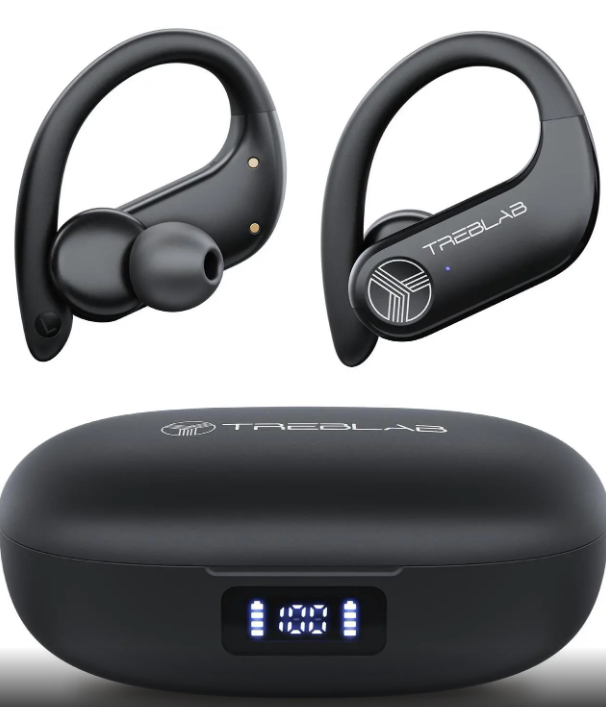
The f1 pro Turonic Wireless Earphones represent a state-of-the-art audio solution tailored for music lovers, commuters, and active users demanding premium sound quality without the hassle of cables. These true wireless earbuds combine sleek design with advanced Bluetooth technology, delivering crystal-clear audio, deep bass, and seamless connectivity for an immersive listening experience.
Key benefits include ergonomic comfort for prolonged wear, an intuitive touch control system, and robust battery life that supports all-day usage. The earphones integrate noise isolation features, making them ideal for office calls, workouts, and travel. Their water-resistant design further enhances durability for outdoor activities.
Targeted toward tech-savvy consumers who value portability and sound fidelity, these earphones cater well to professionals, students, and fitness enthusiasts. The f1 pro Turonic Wireless Earphones are competitively priced in the mid-range segment, typically available between $70 to $100, making them accessible through major e-commerce platforms and authorized retailers worldwide.
Specifications of f1 pro Turonic Wireless Earphones
- Bluetooth Version: 5.3 for stable and fast pairing
- Battery Life: 8 hours of playback per charge, plus 24 hours with the charging case
- Charging Time: 1.5 hours full charge via USB-C
- Driver Size: 10mm dynamic drivers for rich sound and enhanced bass
- Water Resistance: IPX5 rating, suitable for sweat and light rain
- Noise Isolation: Passive noise cancellation with ergonomic seal ear tips
- Controls: Touch-sensitive surfaces for play/pause, calls, and voice assistant activation
- Connectivity Range: Up to 10 meters (33 feet)
- Compatibility: Universal with iOS, Android, and Bluetooth-enabled devices
Compared to similar models in the wireless earphone category, the f1 pro Turonic offers extended battery life and faster charging than many competitors, coupled with premium IPX5 water resistance, outperforming basic IPX4 models in the same price range.
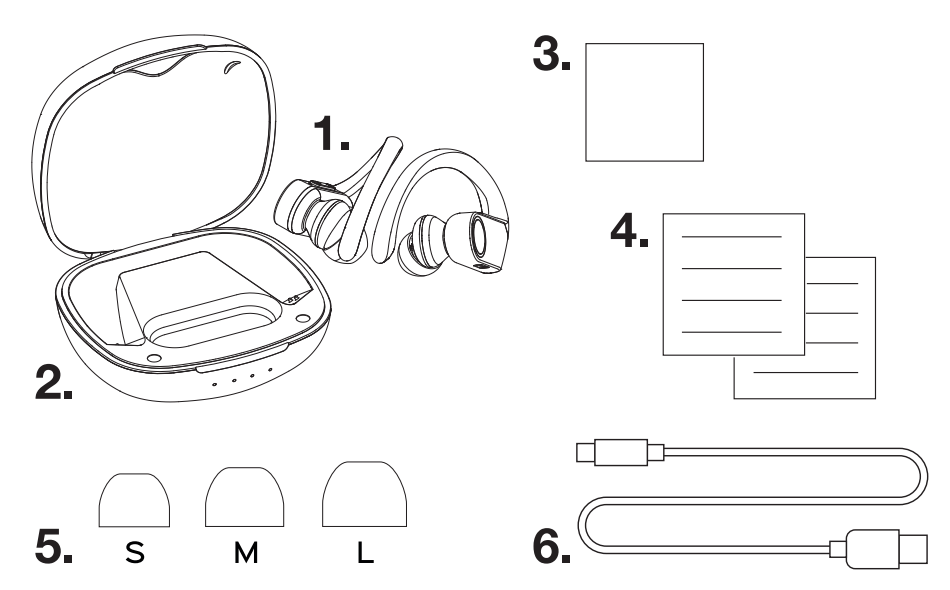
- TURONIC F1 Pro earphones
- Charging case
- Product registration card
- User's manual
- Silicone ear-tips L, M, S
- Charging cable
CHARGING
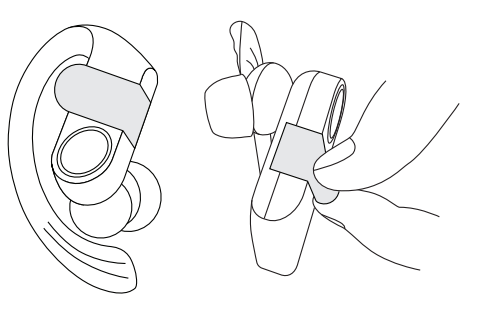
The F1 Pro model comes with protective stickers on the charging contacts of each earbud to prevent the battery from deteriorating prematurely. Please remove these stickers before charging the earbuds.
A fully charged case can recharge a pair of dead earbuds a total of four times. Once fully charged, your earbuds will provide you with 7 hours of playtime at maximum volume and up to 9 hours at medium volume. When the battery is running low, you will hear the "Battery Low" voice prompt.
To charge the case
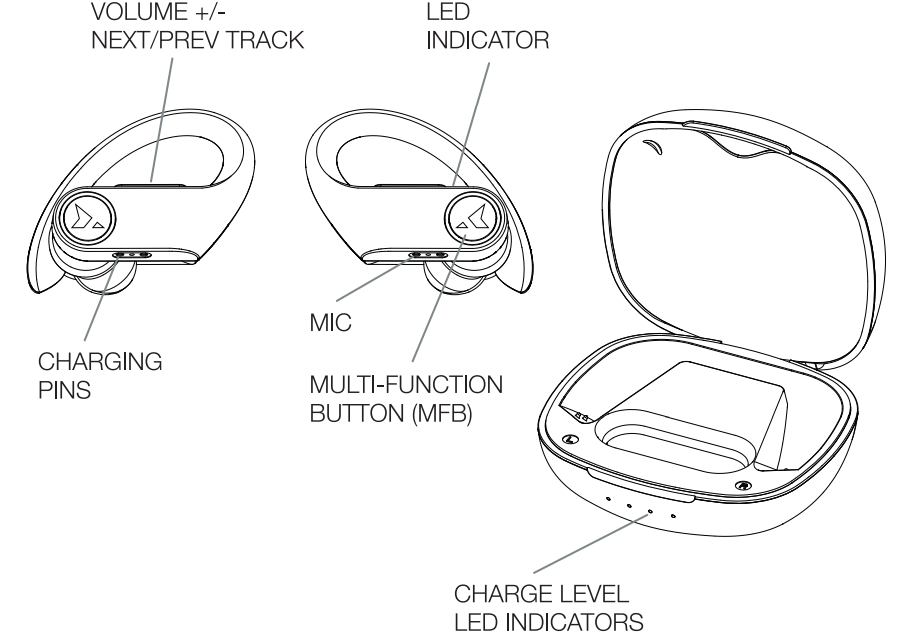
Be sure to use a 5V DC, 0.5 - 1A adapter or charger. Using a power source with lower power will increase the overall charge time. Connect the charging case to the power source with the USB Type-C cable. The case has 4 blue LED indicator lights. One indicator light will flash while charging. The indicator lights will show the charging level: 4 LED = full battery, 3 LED = 75% of the battery, 2 LED = 50% of the battery, 1 LED = 25% of the battery. To check the charge level of the charging case, open or close the case lid. The case battery indicator will stay on for 3 seconds. It takes about 2 hours to fully charge the case.
To charge the earbuds with the charging case
- When the earbuds' battery is low, you'll hear the "Battery Low" voice prompt.
- Put the left and right earbuds into the slots in the charging case. The earbuds will turn OFF automatically. The case will immediately start charging the earbuds. The red indicator lights on the earbuds will turn on. It takes about 2 hours to charge the earbuds. When the earbuds are fully charged, the blue indicator lights will light up for 30 seconds and then turn off.
SETTING UP YOUR TURONIC F1 Pro
To turn the earbuds ON
- Once removed from the charging case, your earbuds will turn on automatically.
- You can also turn them on by holding the MFB button on both earbuds for 2 seconds.
- You will hear the "Power ON" voice prompt in both earbuds and, a few seconds later, the "Pairing" prompt will sound in the left earbud. The LED indicator light on the right earbud will blink blue every second, and the light on the left earbud will flash blue and red.
- When the earbuds are connected to the source device, you will hear the "Connected" voice prompt.
To turn the earbuds OFF
- Put the left and right earbuds into the slots in the charging case. The earbuds will turn OFF automatically.
- Alternatively, press and hold any MFB button for 3 sec. You will hear the "Power OFF" voice prompt, and the red LEDs will light up and then go off.
PAIRING
You can pair the F1 Pro earbuds with your device either together or separately. Using only one earbud at a time will help you extend the overall playtime. Please read the instructions below to make the pairing process smooth and easy.
Note: To ensure the optimum performance, we recommend keeping as short a distance as possible between the Bluetooth device and the TURONIC F1 Pro.
To pair both earbuds
- Take the earbuds from the charging case. You will hear the "Power ON" voice prompt in both earbuds and, a few seconds later, the "Pairing" prompt will sound in the left earbud.
- Activate Bluetooth on the device, scan/search for TURONIC F1 Pro_L, and click CONNECT.
- If prompted by your device to connect, select Yes.
- You will hear the "Pairing successful" voice prompt in the left earbud and "Connected" in both earbuds.
After that, you may see a prompt to pair the right earbud (TURON IC F1 Pro_R). If prompted, pair the right earbud as well.
This will enable you to use the earbuds independently of one another in the future.
When you turn the earbuds ON, they will attempt to reconnect with the most recently connected device. If reconnection does not happen automatically, the earbuds will attempt to reconnect to the next device in the pairing list. You can only connect and play audio from one device at a time. But you can save up to seven connected devices in the pairing list.
To pair one earbud only
- Take one earbud out of the charging case. You will hear "Power ON" and in a few seconds, "Pairing".
- Activate Bluetooth on the device, scan/search for TURONIC F1 Pro_L or TURONIC F1 Pro_R (depending on which earbud you are trying to connect), and click CONNECT.
- If prompted by your device to connect, select Yes.
- You will hear "Pairing successful" and "Connected" in the earbud after the earbud has been successfully connected.
Note: The "Pairing successful" prompt is heard only when you pair the earbuds to a device for the first time. No matter which earbud is connected to the device, when you turn ON the second earbud, it will automatically connect to the first one
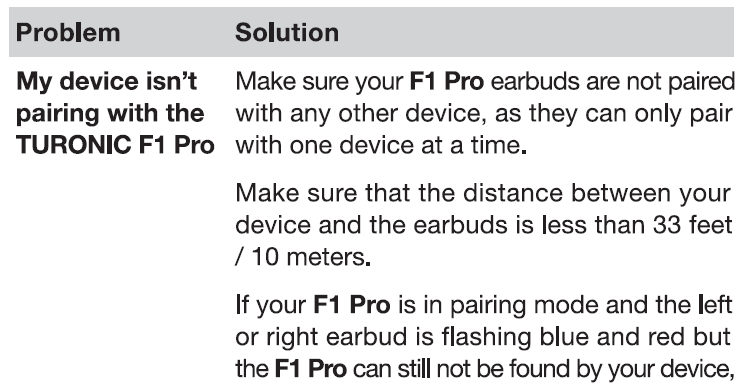
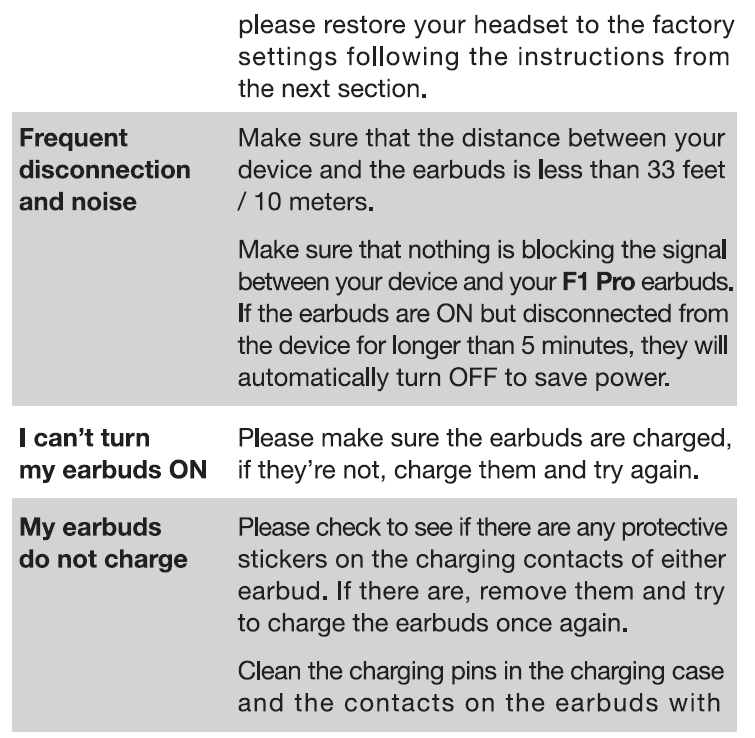
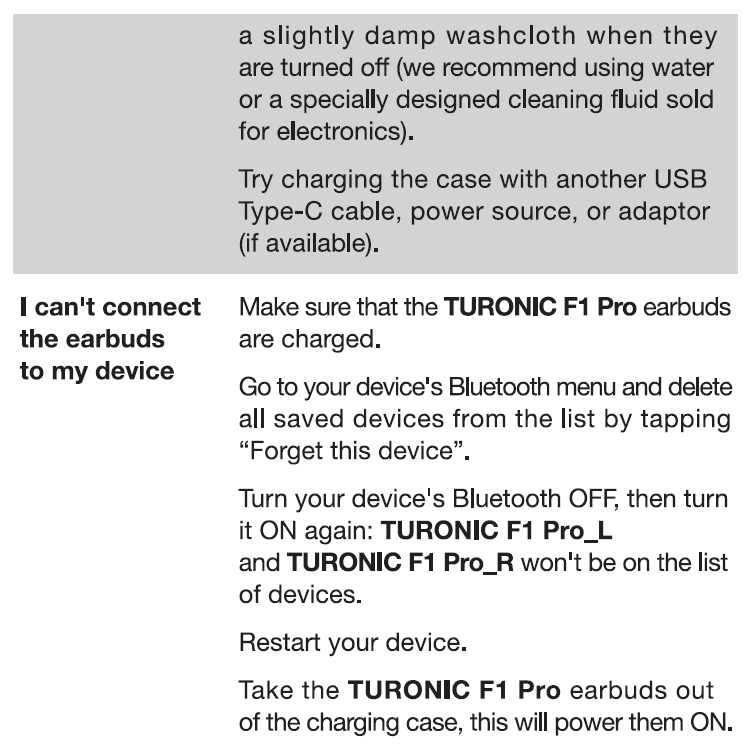
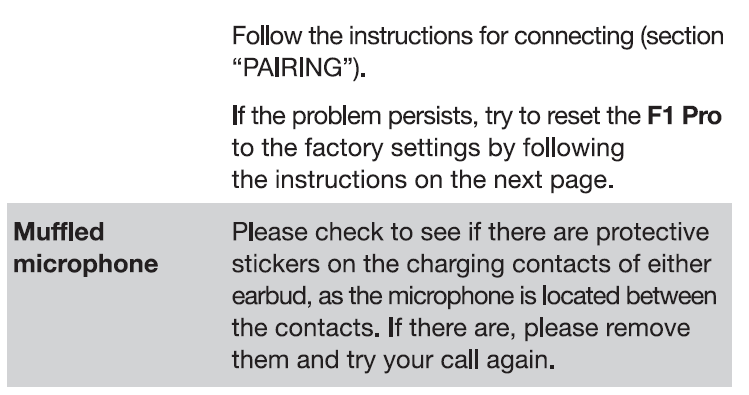
TroubleshootinF1 Proro Turonic Wireless Earphones
1 YEAR WARRANTY
Parts and Labor Warranty.
Pros & Cons of f1 pro Turonic Wireless Earphones
- Pros:
- Excellent sound quality with deep bass and clear highs
- Long battery life with quick USB-C charging
- Comfortable, secure fit suitable for extended use
- IPX5 water resistance for sweat and rain protection
- Intuitive touch controls and voice assistant compatibility
- Cons:
- Passive noise isolation only; no active noise cancellation
- Occasional Bluetooth latency reported on some devices
- The charging case size is slightly bulkier compared to ultra-compact models
Overall, the F1 Pro Turonic Wireless Earphones offer great value for money when compared to alternatives like the Buds Air or Philips TAT3216, especially for users prioritizing battery performance and durability.
Customer Reviews of f1 pro Turonic Wireless Earphones
Users have praised the f1 pro Turonic Wireless Earphones for their excellent audio clarity and comfortable fit, awarding an average rating of 4.3 out of 5 stars. Many highlight the reliability of the Bluetooth connection and the convenience of touch controls.
Common positive remarks include durability during workouts and ease of use with multiple devices. Some users mention minor issues with occasional connectivity drops and the lack of active noise cancellation, but appreciate the earphones’ price-performance balance.
Several reviewers recommend these earphones for daily commuters and casual listeners, citing the robust battery life and water resistance as standout features that justify their purchase.
Faqs
How do I set up f1 pro Turonic Wireless Earphones for the first time?
What can I do if my f1 pro Turonic Wireless Earphones are not connecting to my phone?
Are f1 pro Turonic Wireless Earphones compatible with all smartphones and tablets?
What features of the f1 pro Turonic Wireless Earphones improve workout sessions?
How do I control music and calls on f1 pro Turonic Wireless Earphones?
What should I do to maintain and clean my f1 pro Turonic Wireless Earphones properly?
How long does the battery last on the f1 pro Turonic Wireless Earphones, and how do I charge them?
What troubleshooting steps can improve sound quality or resolve audio issues with f1 pro Turonic Wireless Earphones?
Tags
Leave a Comment