
Setup: Ferguson Tvs 24-Inch Smart TV F2420RTS Instruction Manual
Content
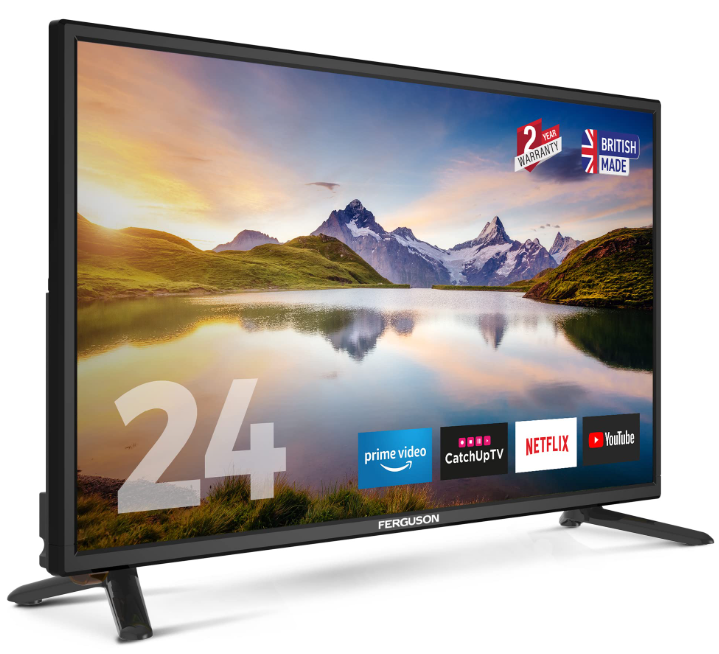
Ferguson TVs 24-Inch Smart TV F2420RTS
Introduction
The Ferguson TVs 24-Inch Smart TV F2420RTS is a sleek and feature-rich television designed to enhance your viewing experience. This smart TV is ideal for small to medium-sized rooms, making it a perfect choice for bedrooms, kitchens, or offices. With its compact size and lightweight design, it is easy to install and move around. The estimated price of the Ferguson TV's 24-Inch Smart TV F2420RTS is around $250-$300, making it an affordable option for those looking to upgrade to a smart TV without breaking the bank. The product was launched in early 2023, bringing modern smart TV features to a wider adience.
The F2420RTS is not just a TV; it is a complete entertainment system. It comes with built-in Wi-Fi, allowing you to stream your favorite shows and movies from popular platforms like Netflix, Hulu, and Amazon Prime. The TV also supports various apps, ensuring you have access to a wide range of content at your fingertips. Whether you are looking to watch the latest series, play games, or simply enjoy some music, this TV has you covered.
What's in the box:
- TV
- Stand & Stand fixing Screws ((ST3 x 8) x 4)
- Power Adapte r
- Remote control
- Batteries (2 x AAA)
- Quick start guide
- Warranty card
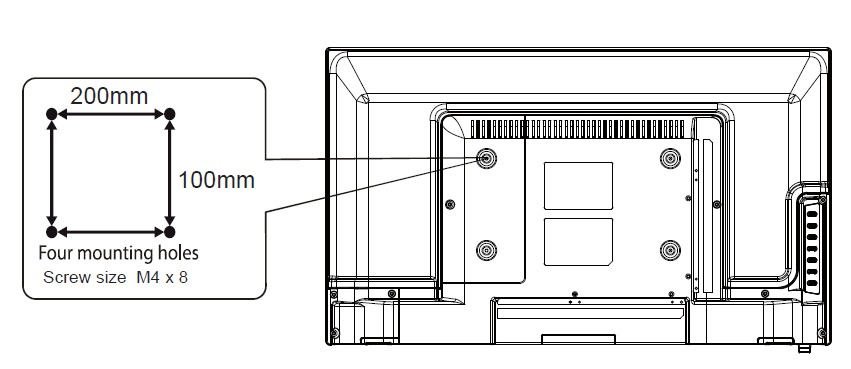
Wall mounting
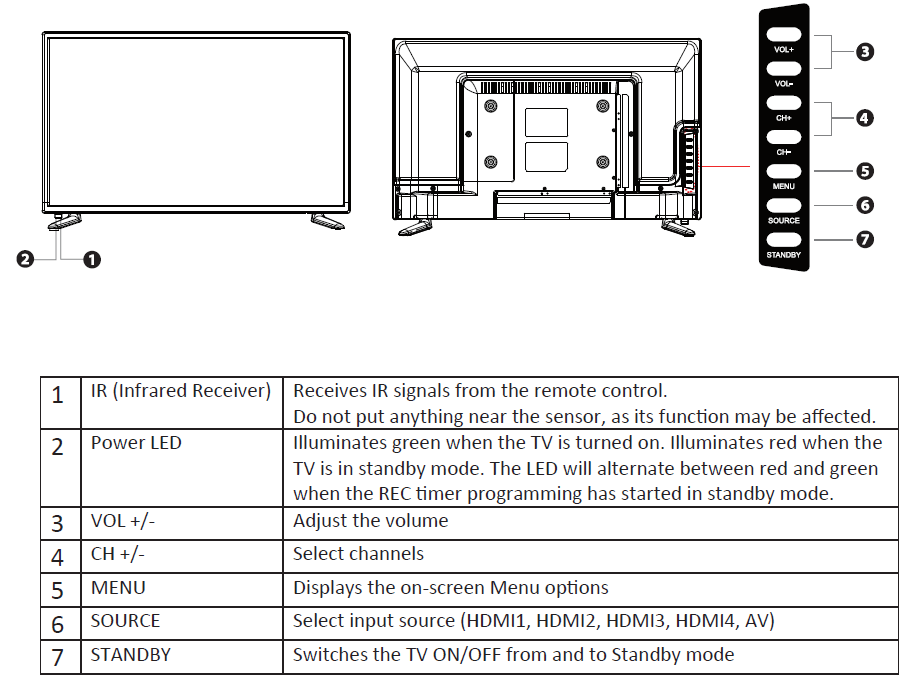
Front IR sensor and TV buttons
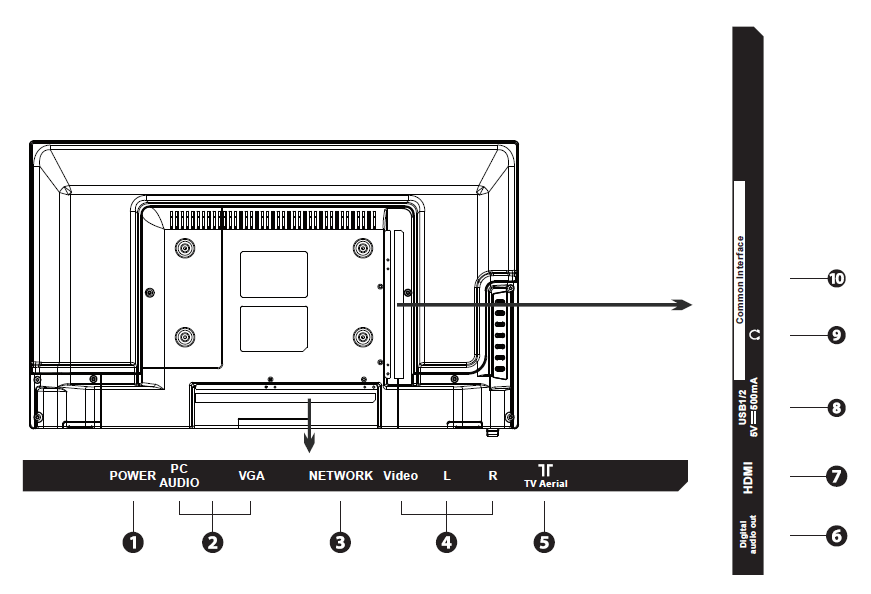
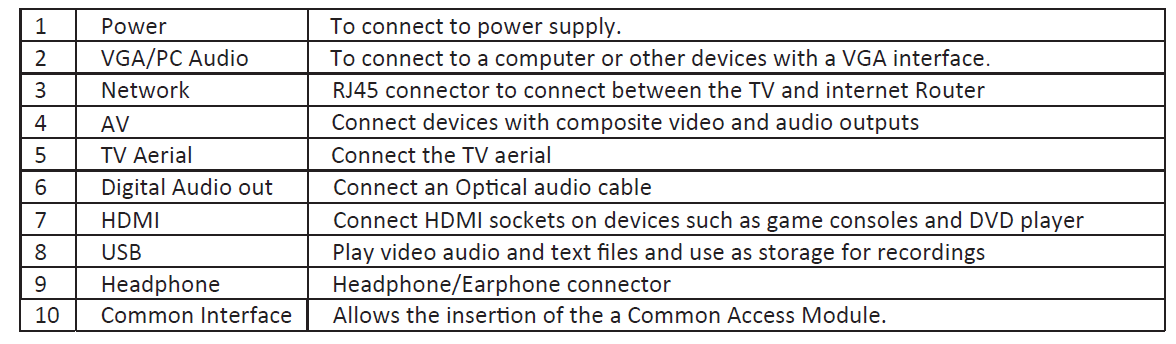
Rear View and Connections
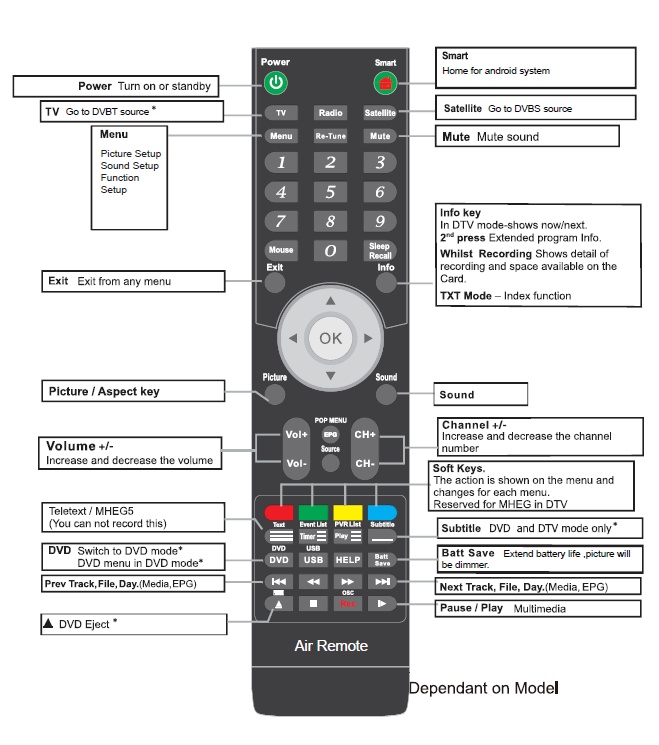
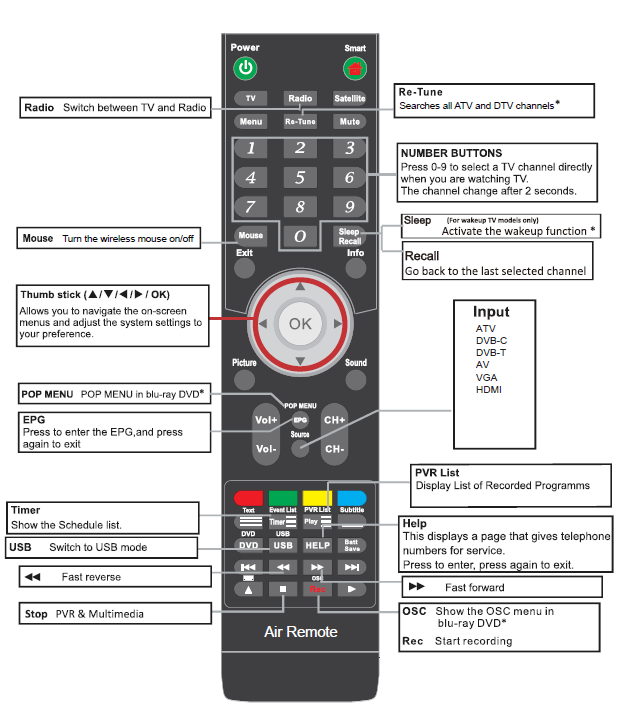
Remote control
Setup
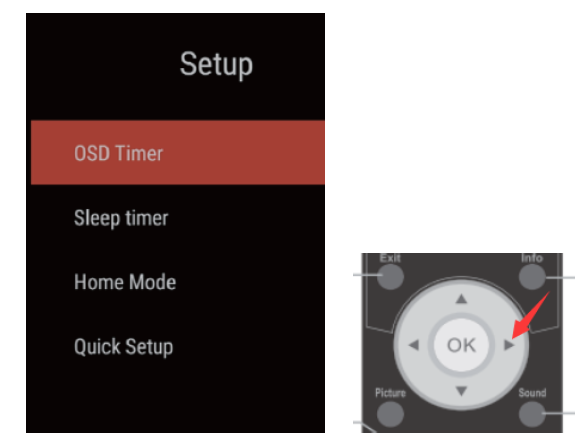
To navigate all menus, use the up/down/left right navigation keys on the remote control. Press the EXIT key on the remote control to return tthe too the previous menu..
- OSD Timer: Select options of the duration the menus remain on screen from 10s/20s/30s/40s/50s/60s/Off
- Sleep Timer: The TV will automatically go to standby if the sleep timer is set. Select from options Off/15min/30min/60min/90min/120min/180min
- Home mode: Select from Home/Max Brightness
- Quick Setup: Reset the TV for TV tuning
Smart Features
Launcher screen
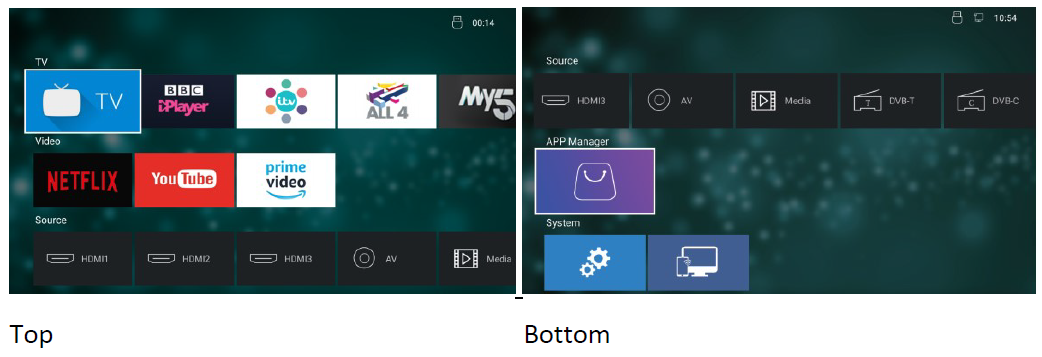
Top Bottom
- The TV on demand apps and streaming apps are listed in the top two rows.
- TV apps: BBC iPlayer, ITV HubAll4/UKTV Play
- Streaming apps: Netflix/YouTube/APrime Prime Video
- The apps are not pre-installed, nd you will need to install them by simply highlighting the app you want to install and pressing the OK key on the remote control. Press the OK key again to activate the download. The app will then download and install automatically.
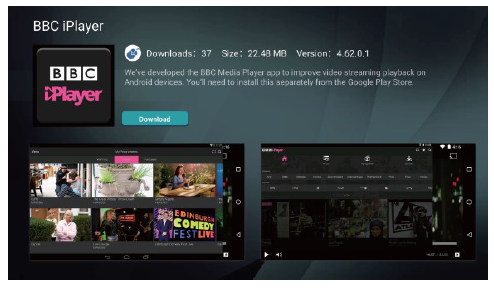
App manager
The app manager is on the 4th row down and shows you what apps are installed and if any app updates are available.
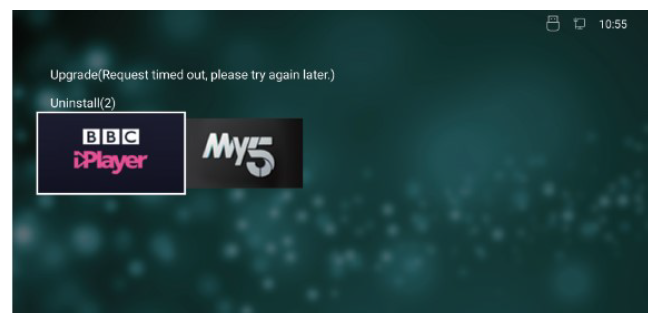
In this folder is also the option to uninstall any app. Uninstall by highlighting the app and pressing the OK key on the remote control. Select OK to uninstall.
If any updates are available, they will be in the app manager. If you find that an app is not opening on the home screen, please check the app manager for any updates.
To activate Netflix or Prime Video, you will need to have a Netflix and or an Amazon account with login details (user name and password)
YouTube will function normally,, but it is not possible to sign in to a Google account..
TV App
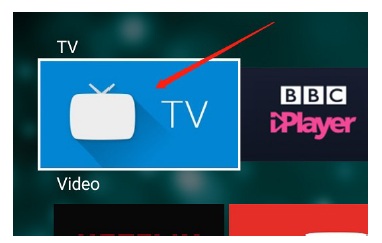
The TV link is a direct link to your television channels.
Screen Mirroring
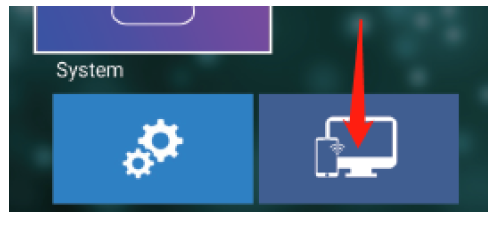
Highlight the Screen mirroring app,, then press the OK key on the remote control to activate.. Now you can cast phones,p/Tablets to the big screen..
Note: The device and the TV must be connected to the same WIFI source
System settings
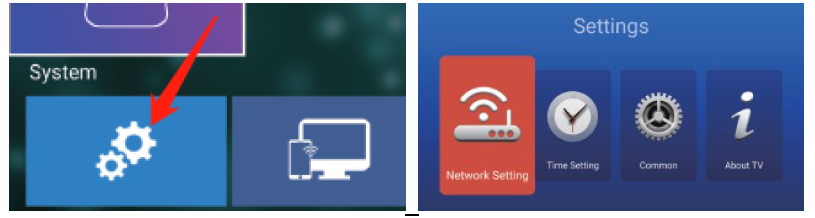
Network Settings
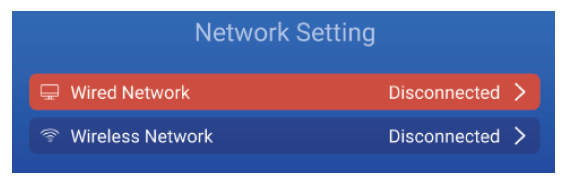
- Highlight and select with the OK key on the remote control to open the wired and WIFI network settings.
Time Settings
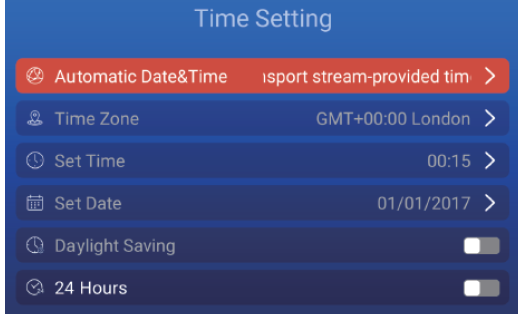
Highlight and select with the OK key on the remote control each option to set your preferences.
Common settings
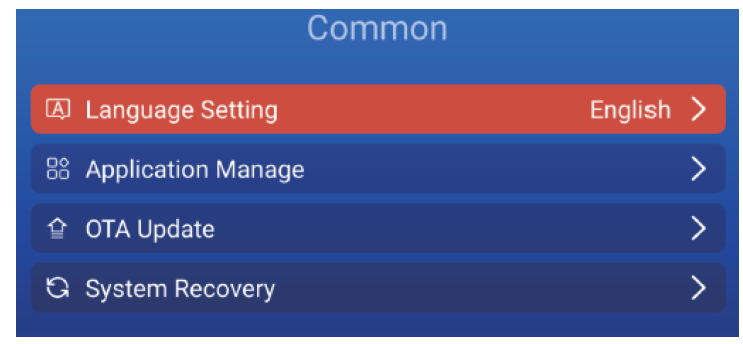
- Highlight and select with the OK key on the remote control each option to set preferences.
- OTA Update: If any updates are available for your TV,, you will receive an upgrade prompt when you start up your TV. If you want to check manually ,y then select OTA Update.
- Note: The update will not delete any apps or personal settings.
- System Recovery: To do a factory data reset,t select System Recovery. This will put the TV software back to factory default settings.
- Note: Be aware that this process will delete all personal settings,, and all apps will need to be reinstalled.
Maintenance
Be sure to disconnect the mains plug before cleaning the TV.
- Use a soft,, ft dry cloth to wipe away the dust from the screen and plastic surfaces..
- Use warm,, soapy water to get rid of stubborn marks. Soak the cloth, then wring it until almost dry before wiping the TV.
- After cleaning,g allow any dampness on the screen to dry before switching on the TV
Important Note:
- Never use alcohol, benzine, paint thinner, cleaning fluid,, or other chemicals
- Do not use compressed air to remove dust.
Trouble shooting
Warning
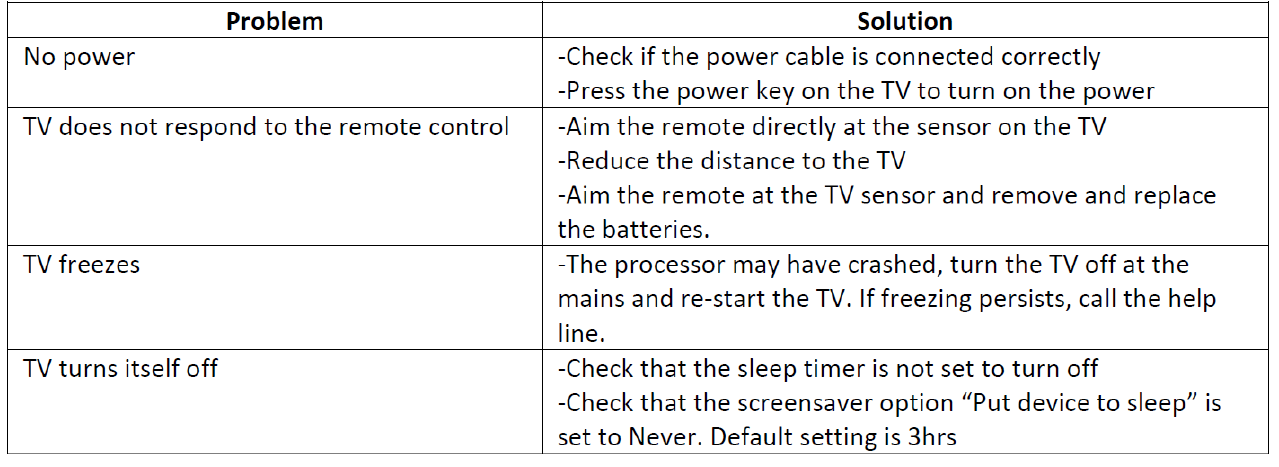
Under no circumstances should you try to repair the TV by yourself, as this will invalidate the warranty. Do not remove the rear cabinet of the, TV, as there is a risk of electric shock. If a fault occurs, first check with the points listed below before calling the service help line ( 03334330312) for assistance.
Technical Specifications
- Screen size and system: 24” LED
- Max Screen resolution: 1366 (H) x 768(V )
- Screen Brightness : 200 Nits
- Contrast Ratio: 1200: 1
- Power Source: AC 100-240V/ DC 12V 3A
- Processor: A53 quad-core CPU @900MHz
- RAM: 1GB DDR4
- GPU : 5-core ARM Mali-470
- Built-in Flash memory : 8GB
- Operating System : Android 7.1
- Energy Efficiency: Class A
- Average Annual Energy Consumption: 36kWh
- Speaker power: 3W + 3W
- Vesa wall mounting size / Screw size: 200 x 100mm / M4 x 8
- Dimension (W x D x H) without stand feet : 550 x 78 x 332 mm
- Dimension (W x D x H) with stand feet: 550 x 153 x 354 mm
- Net Weight 2.3Kg
Pros & Cons
Pros:
- Affordable price point compared to other smart TVs in its class.
- Compact and lightweight design, ideal for small spaces.
- Full HD resolution provides clear and vibrant visuals.
- Android TV platform offers a wide range of apps and streaming services.
- Multiple connectivity, , ns including HDMI and USB ports.
- Easy setup process with intuitive on-screen instructions.
Cons:
- Limited internal storage may require external storage solutions for more apps.
- No 4K resolution; only Full HD.
- Sound quality from built-in speakers could be improved; external speakers are recommended.
- No Ethernet port for a wired internet connection.
Customer Reviews
Customers have generally praised the Ferguson TVs 24-Inch Smart TV F2420RTS for its value for money. Many have appreciated its ease of setup and the wide range of apps available through the Android TV platform. However, some users have noted that the built-in speakers could be better and that the lack of 4K resolution might be a drawback for some viewers.
Common complaints include limited internal storage, which can become an issue if you plan to download many apps. Some users have also mentioned that the TV’s performance can sometimes lag when using multiple apps simultaneously.
Faqs
What is the resolution of the Ferguson TVs 24-Inch Smart TV F2420RTS?
Does the Ferguson TVs 24-Inch Smart TV F2420RTS support 4K resolution?
What operating system does the Ferguson TVs 24-Inch Smart TV F2420RTS use?
How many HDMI ports does the Ferguson TVs 24-Inch Smart TV F2420RTS have?
Can I connect wireless headphones to the Ferguson TVs 24-Inch Smart TV F2420RTS?
What is the estimated price of the Ferguson TVs 24-Inch Smart TV F2420RTS?
Does the Ferguson TVs 24-Inch Smart TV F2420RTS come with a wall mount kit?
How much internal storage does the Ferguson TVs 24-Inch Smart TV F2420RTS have?
Can I use wired internet connection on the Ferguson TVs 24-Inch Smart TV F2420RTS?
Is setup for the Ferguson TVs 24-Inch Smart TV F2420RTS complicated?
Leave a Comment