
Setup: Five F700A Car Multimedia System User Manual
Content
Five F700A Car Multimedia System Review and Product Manual
Introduction
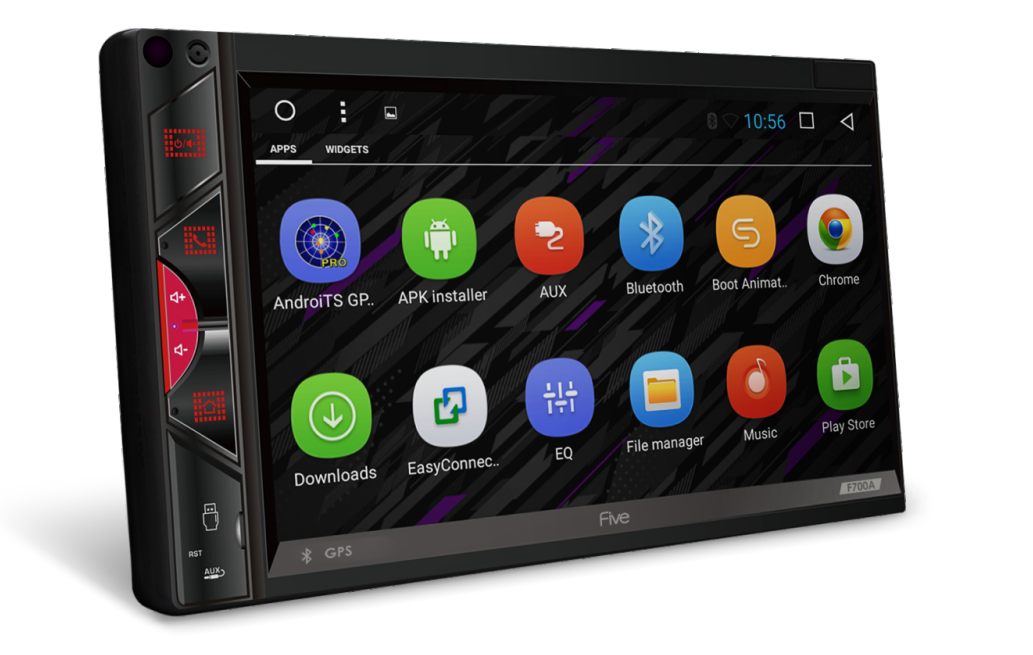
The five F700A Car Multimedia System is a modern in-dash entertainment and connectivity solution designed for drivers who want a smarter, more enjoyable cabin experience. Built around an Android 10.0 multi-touch interface, this car multimedia system combines responsive touch control, Full HD 1080p video support, and broad format compatibility to deliver a feature-rich upgrade for daily driving, road trips, and long commutes. It is especially appealing to users who want a practical head unit that can handle music streaming, video playback, navigation apps, and smartphone integration in one central display.
One of the biggest advantages of the five F700A Car Multimedia System is its balance of performance and convenience. The touchscreen interface is designed for quick operation, while support for multiple video codecs and USB media makes it versatile for modern in-car use. Drivers who regularly use media apps, external storage, or HDMI-connected devices will appreciate the flexible connectivity options. It is also a strong fit for families, rideshare drivers, and car owners looking to modernize an older vehicle without moving to a full premium infotainment package.
In most markets, the estimated price range for the five F700A Car Multimedia System is roughly mid-range rather than budget-tier, typically falling around $250 to $500 depending on screen size, bundle contents, and installation accessories. Availability is generally strongest through specialty car audio retailers, online marketplaces, and regional automotive electronics distributors. For buyers comparing aftermarket car stereos, Android head units, and multimedia receivers, the F700A stands out as a practical option with a good mix of entertainment, usability, and value.
Pros & Cons of the five F700A Car Multimedia System
Pros
- Android 10.0 platform: Supports modern apps, multi-touch controls, and a familiar smartphone-like experience.
- Full HD media support: Handles 1080p playback and common formats such as MPEG, MOV, and H.264-based files, making it useful for video and music libraries.
- Flexible connectivity: Works well with USB media, external devices, and HDMI-based sources for broader in-car entertainment use.
- Good value for money: Offers many premium-style features at a lower price than flagship OEM infotainment systems.
- Useful for daily driving: Ideal for navigation, streaming, hands-free convenience, and back-seat entertainment.
Cons
- Performance can vary: Some users may notice slower response during web browsing or heavier multitasking.
- Installation may require expertise: As with most Android car multimedia systems, proper fitment and wiring can be challenging without professional help.
- Not a premium OEM substitute: Compared with factory systems from top automakers, the interface and polish may feel less refined.
- Feature sets differ by seller: Bundled accessories, screen size, and connectivity options can vary between listings, so buyers should verify specifications carefully.
For shoppers comparing aftermarket car multimedia systems, the five F700A Car Multimedia System offers stronger feature depth than many basic single-DIN or entry-level double-DIN units, but it may not match the smoothness and integration of premium built-in systems.
Customer Reviews for the five F700A Car Multimedia System
User feedback is generally positive, with many buyers rating the system around 4.5 out of 5 stars for overall value and media quality. Common praise focuses on improved sound output, clearer video playback, and the convenience of Android-based controls. One typical comment is, “The screen is responsive, and video playback is much better than my old stock unit.” Another frequent note is, “It made my car feel more modern without spending OEM-level money.”
Common complaints usually involve slower browsing performance, occasional lag with heavier apps, and setup issues during installation. A few users mention that the interface can feel less fluid than premium alternatives, especially when compared with higher-end factory infotainment systems or newer wireless CarPlay and Android Auto receivers. Despite that, most customers say the five F700A Car Multimedia System is a solid purchase for everyday media use and practical in-car upgrades.
Recommendation: Buy it if you want an affordable Android car multimedia system with strong media support and useful daily features. Skip it if your priority is ultra-fast navigation, top-tier OEM integration, or a fully wireless premium dashboard experience.
How to Use the five F700A Car Multimedia System
Basic Setup
- Turn on the ignition and verify that the head unit powers up correctly.
- Use the touch interface to access the home screen, media apps, and settings menu.
- Connect a USB drive or supported external device to test playback and file recognition.
- Adjust brightness, audio balance, and display settings for driving comfort.
Best Use Cases
- Streaming music and podcasts during commuting.
- Playing Full HD video content when parked.
- Using navigation apps for road trips and daily travel.
- Connecting cameras or auxiliary devices for a better driving experience.
Final Verdict
The five F700A Car Multimedia System is a practical and feature-rich choice for drivers who want a modern Android-based upgrade without moving into premium pricing. It delivers a strong mix of multimedia support, touchscreen convenience, and everyday usability, making it a good fit for most aftermarket infotainment buyers. If your goal is better entertainment, improved connectivity, and a more modern dashboard, the five F700A Car Multimedia System is worth considering.
Faqs
How do I set up the five F700A Car Multimedia System for the first time?
Why is my five F700A Car Multimedia System not turning on after installation?
How do I connect Bluetooth on the five F700A Car Multimedia System to my phone?
What should I do if the five F700A Car Multimedia System touch screen is unresponsive?
Is the five F700A Car Multimedia System compatible with steering wheel controls and backup cameras?
How can I improve sound quality on the five F700A Car Multimedia System?
Why does my five F700A Car Multimedia System lose GPS signal or take a long time to locate satellites?
How should I clean and maintain the five F700A Car Multimedia System for long-term use?
Tags
Leave a Comment