
Fusion Entertainment RV-IN801 Infotainment System User Manual
Content
fusion entertainment RV-IN801 Infotainment System: Complete Product Manual and Buyer Guide
Introduction
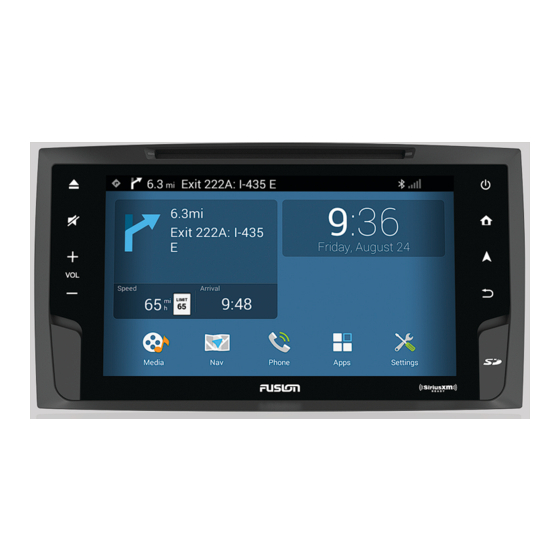
The fusion entertainment RV-IN801 Infotainment System is a feature-rich RV multimedia and navigation solution designed to bring entertainment, connectivity, and vehicle control into one dashboard unit. Built for motorhomes, Class A coaches, and touring RVs, it combines an 8-inch capacitive touchscreen, integrated GPS capabilities, Bluetooth wireless audio, DVD/CD playback, HDMI input, USB, microSD, AUX, and SiriusXM support into a single center console experience. For travelers who want a modern dash system with smartphone-friendly connectivity and RV-specific functionality, this model offers a practical upgrade over basic factory radios.
One of its biggest advantages is its all-in-one approach to in-cab entertainment. The fusion entertainment RV-IN801 Infotainment System is ideal for long-distance drivers, full-time RV owners, and families who want reliable media playback, hands-free audio, and a large touch display that is easy to use while parked or on the road. Its Android-based interface, built-in Wi‑Fi and Bluetooth connectivity, and support for external media sources make it versatile for music, video, and navigation use cases.
Estimated pricing typically falls in the mid-range used and refurbished market, often around $300 to $800 depending on condition, included accessories, and whether the unit is new old stock, refurbished, or pulled from a vehicle. Availability is usually strongest through RV parts resellers, aftermarket marketplaces, and used equipment listings rather than mainstream retail channels. For buyers comparing RV infotainment systems, this model remains appealing because of its RV-focused design, integrated feature set, and broad compatibility with common in-cabin entertainment sources.
Key Features and Technical Overview
- 8-inch capacitive touch panel with anti-shatter glass for everyday RV use
- WSVGA display resolution of 1024 x 600 for clear dashboard visibility
- Typical brightness of 510 nits and maximum brightness of 400 nits listed in product documentation
- Bluetooth, Wi‑Fi, and Wi‑Fi Certified Miracast support for wireless media connectivity
- Compatible with CD, DVD, VCD, MP3, WMA, AAC, DivX, USB media, and microSD content
- Front HDMI and microSD access for quick plug-in playback
- Rear USB, AUX-in, AV-in, AV-out, subwoofer output, SiriusXM, and CAN connections
- 12 V DC operation with 26 W x 4 channels typical output power and 40 W x 4 channels maximum
How to Use the fusion entertainment RV-IN801 Infotainment System
Start by powering on the unit and selecting the desired source from the home interface. For HDMI playback, open the front HDMI cover, connect the external device, and choose the HDMI app or input. For auxiliary audio, connect a media player to the vehicle’s AUX input and switch to the corresponding source. USB and microSD playback are useful for music libraries, video files, and image browsing, especially when cellular service is limited. Bluetooth pairing is recommended for hands-free audio streaming and compatible device integration. When using the navigation and system apps, ensure the unit has stable power and, if needed, a working wireless connection for updates or online functions.
Troubleshooting
Common issues with the fusion entertainment RV-IN801 Infotainment System often involve power, display, audio, or source detection problems. If the unit does not turn on, check the 12 V supply, fuse condition, and harness connections. If audio is present but the screen is blank, verify display brightness settings and inspect the panel connection. If HDMI or USB sources are not detected, reconnect the device, confirm compatibility, and try another cable or storage format. Reported system error messages are often related to no signal, unsupported media, or device pairing failures rather than hard fault codes.
Preventive care helps avoid most problems: keep firmware current when updates are available, avoid forcing media into ports, and disconnect power before any installation or wiring work. Periodically clean the touch panel with a soft cloth and check harnesses for vibration-related loosening in the RV environment. Warranty coverage depends on whether the unit was sold new, refurbished, or used; buyers should confirm coverage with the seller before purchase. For support, use the original installer, the seller’s customer service channel, or Garmin/Fusion support resources tied to the product line. If immediate help is needed, contact the retailer or authorized service provider listed on the purchase receipt or packaging documentation.
Pros & Cons
Pros
- Large 8-inch touchscreen makes menus, navigation, and media controls easier to use than many standard double-DIN units
- Strong RV-oriented feature set with HDMI, Bluetooth, SiriusXM support, and external AV inputs
- Good compatibility with music, video, and image formats for road trips and campground entertainment
- Integrated design reduces the need for separate dash devices
- Offers solid value for RV owners seeking a multifunction infotainment upgrade
Cons
- Android 4.4 and 1 GB RAM are dated by modern infotainment standards
- Availability is often limited to used or refurbished units, which can affect pricing and warranty coverage
- Some users may prefer newer systems with Apple CarPlay, Android Auto, or faster app support
- Installation can be more complex than a basic radio because of CAN and harness connections
- Not as future-proof as newer RV infotainment alternatives from Garmin, Alpine, or Kenwood
For buyers focused on RV-specific convenience, the fusion entertainment RV-IN801 Infotainment System delivers strong utility for the money. For those who want the latest smartphone integration, newer dash systems may be a better long-term choice.
Customer Reviews
Customer feedback on the fusion entertainment RV-IN801 Infotainment System is generally positive among RV owners who value the large screen and all-in-one layout. Many users rate it around 4 out of 5 stars for entertainment flexibility and integrated vehicle compatibility. A common compliment is that it feels purpose-built for motorhomes, especially when used for navigation, media playback, and campground travel planning. One typical user comment is, “The screen is easy to read and the HDMI input is a big plus for travel nights.”
Frequent complaints focus on the dated software platform, occasional connectivity hiccups, and the challenge of finding new units at retail. Another recurring comment is, “Great features, but I wish it had newer phone integration and a more modern interface.” For shoppers considering the fusion entertainment RV-IN801 Infotainment System, it is a good recommendation if RV-specific features matter more than cutting-edge app support. Buyers should verify condition, accessory package, and warranty status before purchase to avoid surprises.
Buying Recommendation
If you want an RV infotainment system that combines navigation, media playback, Bluetooth audio, HDMI input, and a large touch display in one dashboard package, the fusion entertainment RV-IN801 Infotainment System remains a practical option. It is best suited to RV owners who prioritize reliability, broad media compatibility, and an integrated coach-friendly experience over the latest smartphone mirroring features.
Frequently Asked Questions
- What vehicles is it best for? It is best suited for RVs, motorhomes, and coach conversions that support a 12 V dashboard infotainment installation.
- Does it support external media? Yes, it supports HDMI, USB, microSD, AUX, Bluetooth, and disc-based media formats.
- Is it good for long trips? Yes, the large screen, multiple media inputs, and RV-focused design make it well suited for travel use.
- Is it still worth buying? It is worth buying if you want a feature-rich RV unit and can find one in good condition at a fair price.
Faqs
How do I set up the fusion entertainment RV-IN801 Infotainment System for the first time?
Why is my fusion entertainment RV-IN801 Infotainment System not turning on or booting properly?
What devices and media formats are compatible with the fusion entertainment RV-IN801 Infotainment System?
How do I connect Bluetooth on the fusion entertainment RV-IN801 Infotainment System?
Why is the navigation on my fusion entertainment RV-IN801 Infotainment System slow or inaccurate?
How do I improve audio quality on the fusion entertainment RV-IN801 Infotainment System?
What should I do if the touchscreen on the fusion entertainment RV-IN801 Infotainment System is unresponsive?
How often should I maintain the fusion entertainment RV-IN801 Infotainment System and what care is recommended?
Tags
Leave a Comment