
Gotab CN810 Thermal Printer User Manual
Content
gotab CN810 Thermal Printer Review and User Manual
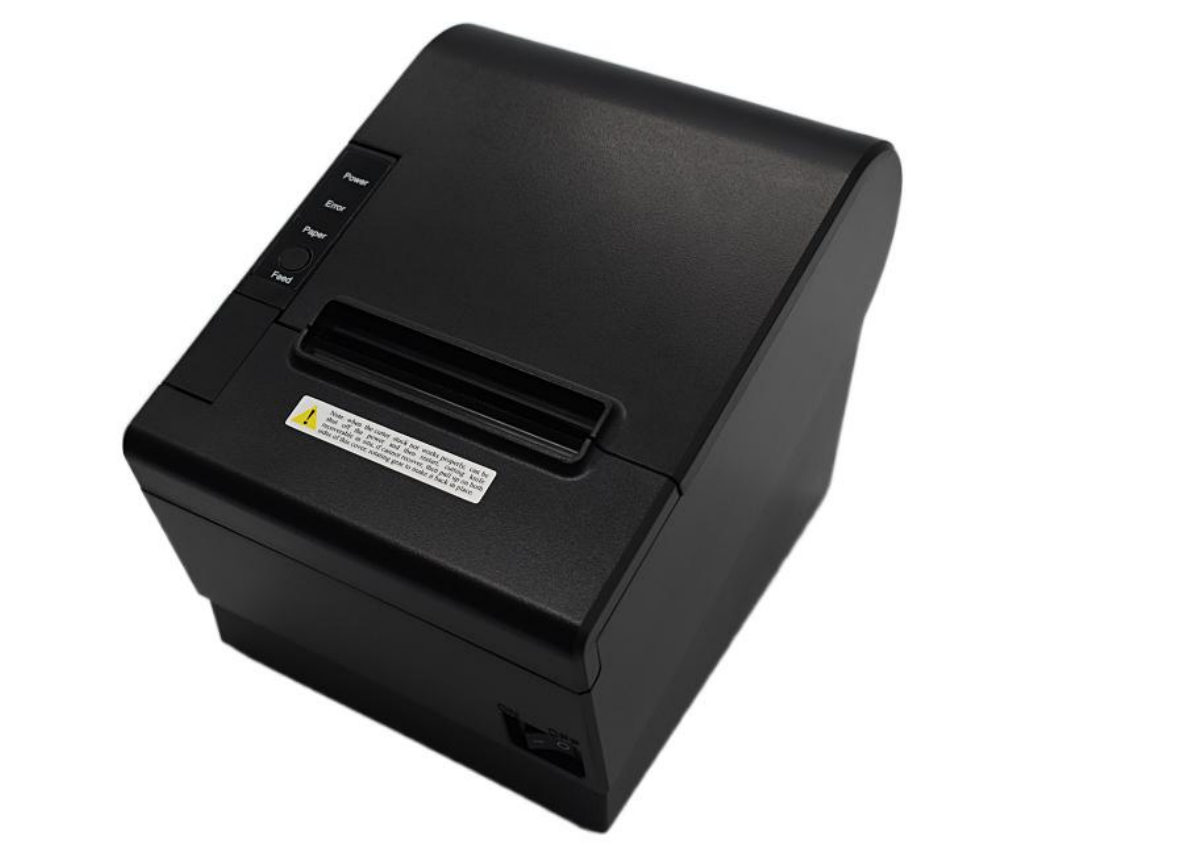
The gotab CN810 Thermal Printer is a compact direct thermal printer designed for fast receipt, ticket, and kitchen printing in retail, hospitality, and point-of-sale environments. It is built for businesses that need reliable everyday printing with low maintenance, since thermal printing does not require ink or toner. That makes the gotab CN810 Thermal Printer a practical choice for restaurants, cafés, convenience stores, delivery counters, and small business checkout stations. Its main appeal is efficiency: quick output, simple paper loading, and dependable performance for high-volume workflows.
For buyers comparing POS printer options, the CN810 is positioned as an affordable, business-friendly model that fits standard thermal paper setups and common receipt-printing use cases. It is typically sold through online marketplaces, resellers, and POS supply channels, with estimated pricing that often falls in the budget-to-midrange segment depending on configuration and bundle options. Availability can vary by region and seller, especially for accessories such as paper rolls, interface cables, and power adapters. Users often look for this printer when they want a straightforward thermal receipt printer that is easier to maintain than ink-based alternatives and simpler to integrate into POS workflows than larger industrial units.
How to Use the gotab CN810 Thermal Printer: Basic Setup and Operation
Set up the printer on a stable, ventilated surface near your POS terminal or host device. Insert the thermal paper with the printable side facing the print head, then close the cover firmly. Connect the power adapter, attach the communication cable if required, and power on the unit. If the printer supports USB, serial, Ethernet, or Bluetooth in your configuration, match the connection method to your POS software settings before testing.
For daily operation, keep the paper path clean and avoid forcing the roll into place. Use quality thermal paper to reduce fading, jams, and print-head wear. To print a test receipt, send a basic test page from the system or POS driver settings. If characters are missing, check the driver, paper orientation, and print density settings first.
Troubleshooting Common gotab CN810 Thermal Printer Problems
Common issues usually involve paper loading, connectivity, or print quality. If the printer does not feed paper, open the cover, reload the roll correctly, and confirm the thermal side faces the print head. If printing is faint, increase print density, replace low-quality paper, or clean the print head with a soft lint-free cloth after the unit cools. If the printer is offline, verify power, cable connections, driver installation, and POS port selection.
Typical status problems may appear as warning lights rather than formal error codes. A paper-out indicator usually means the roll is empty or installed incorrectly. A cover-open alert means the lid is not fully locked. Preventive care includes regular head cleaning, using recommended paper width, and avoiding dusty environments. If problems continue, check the seller’s warranty terms, since support is usually handled through the retailer, marketplace seller, or distributor. For help, contact the seller’s customer service, the product listing support channel, or the GoTab support resources associated with your POS system.
gotab CN810 Thermal Printer Pros and Cons
Pros
- Ink-free thermal printing keeps operating costs low and reduces routine maintenance.
- Fast receipt output suits restaurants, retail checkout counters, and order stations.
- Compact design helps save desk space in crowded POS setups.
- Easy paper replacement makes it practical for staff with minimal technical training.
- Good value for money for businesses needing a basic thermal receipt printer instead of a premium industrial model.
Cons
- Thermal prints can fade over time, especially with heat, light, or poor paper quality.
- Not ideal for businesses that need durable archival labels or color printing.
- Compatibility depends on the exact interface and driver support in your POS environment.
- Some buyers may prefer alternatives with more advanced networking features or stronger brand support.
Compared with similar entry-level POS thermal printers, the gotab CN810 Thermal Printer is best for buyers who want simplicity and affordability over advanced features. If you need more robust connectivity, a larger service network, or stronger long-term documentation, it may be worth comparing it with other 80mm receipt printers in the same class.
Customer Reviews of the gotab CN810 Thermal Printer
Customer feedback on printers in this category is usually positive when the setup is simple and the paper feed is reliable. Many users praise fast printing, easy installation, and low running costs. A typical rating pattern would be around 4 out of 5 stars for business use, especially when the printer works smoothly with a POS system out of the box.
Common complaints usually involve unclear setup instructions, driver confusion, or faded output when low-grade thermal paper is used. A typical testimonial might read: “Works well for our café receipts and saves time during busy hours.” Another common comment is: “Good value, but make sure you buy the correct paper and cable set.” Buyers who want a budget-friendly thermal receipt printer for everyday transactions are usually the best fit for this model.
Who Should Buy the gotab CN810 Thermal Printer?
This printer is a strong option for small businesses that need dependable receipt printing without paying for unnecessary premium features. It is especially useful for point-of-sale counters, kitchens, pickup stations, and service desks. If your priority is straightforward operation, low consumable cost, and compact hardware, the gotab CN810 Thermal Printer is a practical choice.
Frequently Asked Questions
What paper does the gotab CN810 Thermal Printer use?
It typically uses thermal receipt paper in a standard POS format, with the exact width depending on the configuration sold by the retailer.
Does it need ink or toner?
No. It uses direct thermal technology, so printing happens through heat-sensitive paper rather than ink cartridges or toner.
Is it good for restaurants?
Yes. The printer is well suited for order tickets, receipts, and fast front-counter or kitchen workflows.
Faqs
How do I set up gotab CN810 Thermal Printer for the first time?
Why is my gotab CN810 Thermal Printer printing blank pages or faded labels?
What devices and software are compatible with gotab CN810 Thermal Printer?
How can I fix gotab CN810 Thermal Printer not connecting to Bluetooth or Wi-Fi?
Can gotab CN810 Thermal Printer handle shipping labels, barcode labels, and receipts?
What should I do if gotab CN810 Thermal Printer keeps jamming or feeding labels incorrectly?
How do I improve print quality and speed on gotab CN810 Thermal Printer?
How should I clean and maintain gotab CN810 Thermal Printer for long-term use?
Tags
Leave a Comment