
How to Use: Ideal Royal P22 Smart Watch User Manual
Content
Ideal Royal P22 Smart Watch
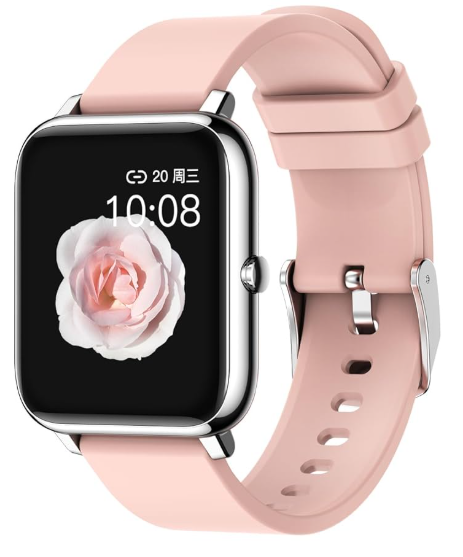
Introduction
Welcome to the comprehensive user manual for the ideal royal P22 Smart Watch—a feature-rich wearable designed to seamlessly integrate technology into your daily life. Whether you're a fitness enthusiast, busy professional, or tech-savvy student, the P22 Smart Watch offers a blend of style, functionality, and convenience that stands out in the crowded smartwatch market.
The ideal royal P22 Smart Watch is engineered to deliver real-time health tracking, smartphone notifications, and long-lasting battery life, all wrapped in a sleek, modern design. Its key benefits include advanced heart rate monitoring, sleep tracking, multiple sports modes, and water resistance—making it a versatile companion for workouts, outdoor adventures, and everyday use. The intuitive touchscreen interface, customizable watch faces, and Bluetooth connectivity ensure you stay connected without constantly reaching for your phone.
This smartwatch is ideal for users seeking an affordable yet powerful wearable device. It appeals to those who want to monitor their health metrics, stay on top of notifications, and enjoy the convenience of a wrist-worn gadget. With an estimated price range of $50–$80, the ideal royal P22 Smart Watch offers excellent value for money and is widely available through online retailers and select electronics stores.
Whether you're tracking your morning run, managing your daily schedule, or simply keeping up with messages, the ideal royal P22 Smart Watch is designed to enhance your productivity and wellness—anywhere, anytime.
Connection
How to connect the watch?
First,, please download the HeroBandIII App (you can scan the QR code below on or search and download it from the Google Store (for Android) or App Store (for iPhone).

For iPhone,
Open the “HeroBandIII” APP. It will show ''HeroBandIII'' would like to use Bluetooth‘ OK'. It will show ''HeroBandIII'' would like to send your notifications. Click 'allo. Click 'Enter HeroBandIII,,' fill in your info correctly, then tap '√' on the bottom right c,orn, er click 'ADD ADEVIC, E', it will show 'allow HeroBandIII to use your location,,' click ‘allow , while using APPP, click 'P22' to complete e the connection.
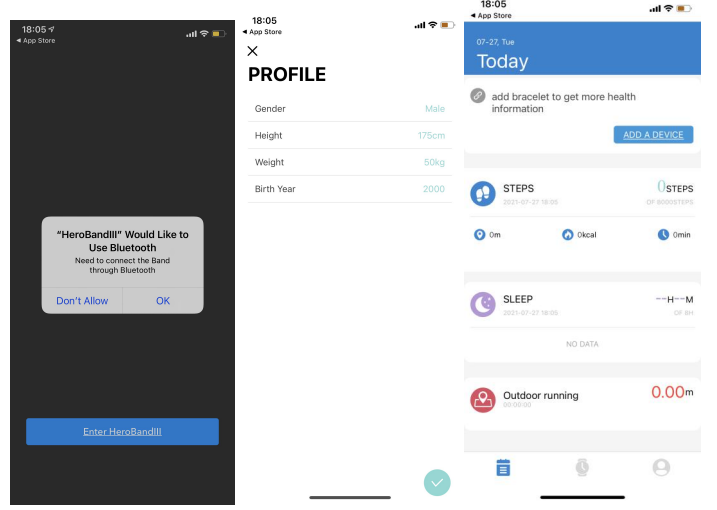
For Android phones:
- Step1: Open the APP HeroBandIII,, Click 'Notifications,,' Click
- “Notification access” allows HeroBandIII to access the permissions.
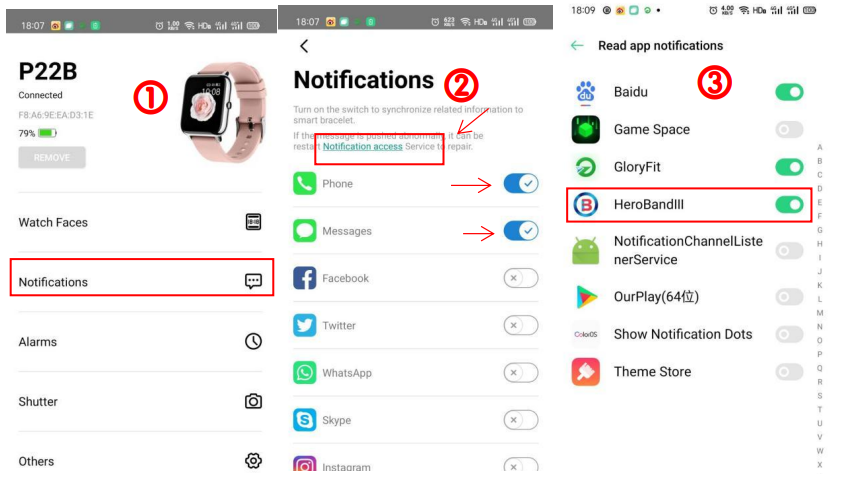
- Step 2ep2: Open phone Setti.ngs Click “Notifications” Lock screen notifications, set Show Click HeroBandIII
- Allow Notifications
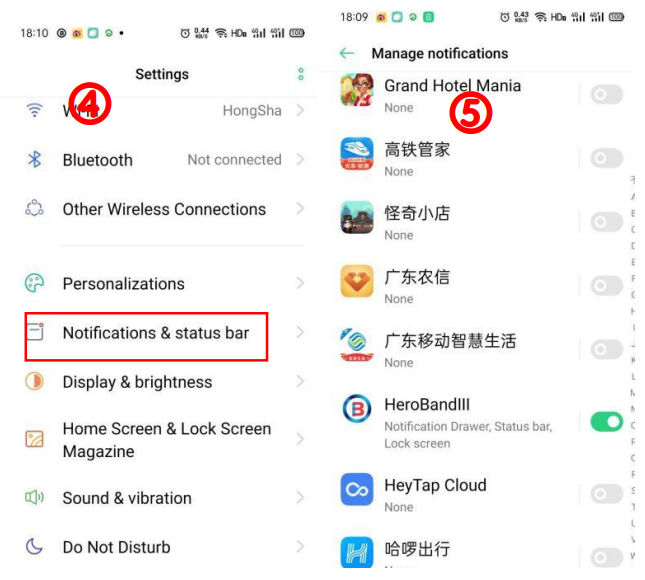
NOTE: Connect the watch to the App. Don't connect the watch to Bluetooth directly.
How to reconnect the watch with phones?
- Within the Bluetooth connection range, and the Bluetooth of your phone is on, the watch will automatically restore the connection to the phone.
- If it fails to reconnect automatically, the following operations are recommended.
For iPhone,
- Step 1: Open the App, tap the ck 'Watch' icon,, select ‘Remove Device’
- Step2: Open iPhone Settin,,gs Bluet,ooth Select P22 Forget This
- DeSte
- Step3: Repeat the connection steps on question 1. Androidroid,
- Step 11: Open the A, pp click the 'Watch' icon, select ‘Remove Device’
- Step2: Open Phone Settings,s Bluetooth,, and Select P22 Unpair
- Step 3tep3: Repeat the previous connection steps.
- Step 11: Open the A, pp
- If you have any questions,, feel free to contact:meixiongeu2021@163.com
Technical Specifications and Key Features
Core Specifications
- Display: 1.3" HD color touchscreen, vibrant and responsive
- Processor: High-performance chipset for smooth operation
- Battery Life: Up to 7 days on a single charge (typical usage)
- Charging: Magnetic charging cable included
- Water Resistance: IP67 rating—splash and sweat resistant
- Connectivity: Bluetooth 5.0 for fast, stable pairing with smartphones
- Sensors: Heart rate monitor, accelerometer, sleep tracker, step counter
- Sports Modes: Running, cycling, swimming, basketball, and more
- Notifications: Call, SMS, social media, and app alerts
- Compatibility: Android and iOS devices (via dedicated app)
- Memory: Internal storage for basic data and settings
- Build: Lightweight, durable materials with customizable straps
Performance and Comparison
The ideal royal P22 Smart Watch excels in delivering accurate health metrics and reliable notifications at a competitive price point. Compared to similar models, it offers a brighter display, longer battery life, and broader sports mode support. While it may lack advanced features like built-in GPS or NFC payments found in premium smartwatches, its core functionalities and affordability make it a strong choice for budget-conscious users seeking essential smartwatch features.
Troubleshooting Common Issues
Frequent Problems and Solutions
- Pairing Failure: Ensure Bluetooth is enabled on your phone, restart both devices, and reattempt pairing. If issues persist, unpair and reconnect via the app settings.
- Notification Delays: Check app permissions on your phone and ensure the watch is within Bluetooth range. Restart the watch if notifications stop.
- Battery Drain: Reduce screen brightness, disable unused features, and update to the latest firmware for optimized battery performance.
- Syncing Errors: Reopen the companion app, refresh the connection, and ensure both devices have sufficient battery.
- Unresponsive Touchscreen: Restart the watch. If the problem continues, perform a factory reset via the settings menu.
Error Codes and Fixes
While specific error codes for the ideal royal P22 Smart Watch are not published, most connectivity and performance issues can be resolved by restarting the device, ensuring a full charge, and reinstalling the companion app if necessary.
Preventive Measures
Regularly update your watch firmware and companion app, avoid exposing the device to extreme temperatures, and clean the charging contacts to maintain optimal performance.
Warranty and Support
The ideal royal P22 Smart Watch typically comes with a 12-month limited warranty. For support, contact the manufacturer via the official website or retailer. Keep your proof of purchase for warranty claims.
Pros and Cons of the Ideal Royal P22 Smart Watch
Advantages
- Affordable Price: Delivers essential smartwatch features without a premium price tag.
- Comprehensive Health Tracking: Accurate heart rate, sleep, and activity monitoring.
- Long Battery Life: Lasts up to a week on a single charge under normal use.
- Customizable Design: Multiple watch faces and interchangeable bands.
- User-Friendly Interface: Intuitive touchscreen and easy app integration.
Limitations
- No Built-in GPS: Relies on a connected smartphone for location tracking.
- Basic App Ecosystem: Limited third-party app support compared to high-end brands.
- Plastic Build: While durable, it lacks the premium feel of metal or ceramic watches.
- No NFC Payments: Cannot make contactless payments directly from the watch.
When compared to alternatives, the ideal royal P22 Smart Watch stands out for its value, making it a smart choice for users who prioritize functionality and affordability over advanced features.
Customer Reviews and Feedback
Users of the ideal royal P22 Smart Watch frequently praise its accurate health tracking, stylish design, and ease of use. Many highlight the long battery life and reliable notifications as standout features, with an average user rating of 4.2 out of 5 stars across major online retailers.
Common compliments include the responsive touchscreen, comfortable fit, and the ability to customize watch faces. Some users note minor issues with Bluetooth connectivity and occasional syncing delays, but these are generally resolved with simple troubleshooting steps.
Testimonials often mention the excellent value for money, especially for first-time smartwatch buyers. While the device may not replace high-end models for advanced users, it receives strong recommendations for everyday fitness tracking and notification management.
If you're seeking a budget-friendly, feature-packed wearable, the ideal royal P22 Smart Watch is a reliable and stylish choice—offering core smartwatch functions without unnecessary complexity.
Faqs
How do I set up the ideal royal P22 Smart Watch for the first time?
What should I do if my ideal royal P22 Smart Watch is not turning on?
Can I use the ideal royal P22 Smart Watch with my iPhone?
How do I maintain and clean the ideal royal P22 Smart Watch?
What are the key features that make the ideal royal P22 Smart Watch different?
Why is my ideal royal P22 Smart Watch not syncing with my phone?
How often should I charge the ideal royal P22 Smart Watch?
Can I customize the watch face on the ideal royal P22 Smart Watch?
Leave a Comment