
Setup: Kalinco P22 SMART WATCH User Manual
Content
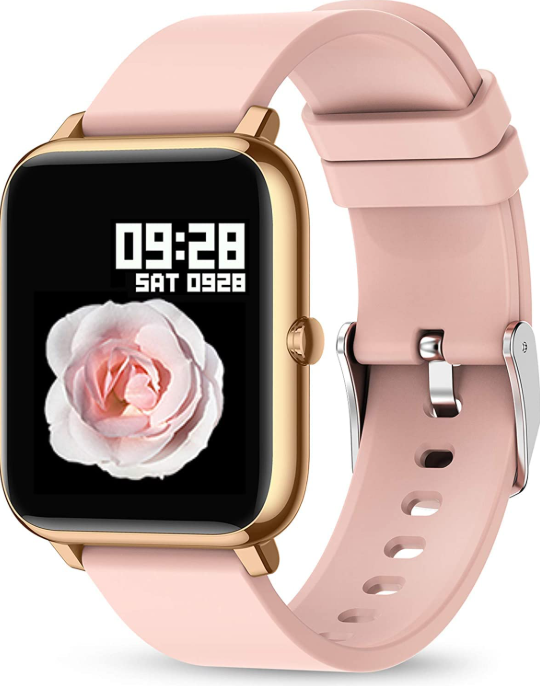
Kalinco P22 SMART WATCH
Introduction
Welcome to the future of wearable technology with the Kalinco P22 SMART WATCH – a feature-rich, stylish, and affordable smartwatch designed for modern lifestyles. The Kalinco P22 SMART WATCH stands out with its sleek design, intuitive interface, and a robust suite of health and fitness tracking features, making it an excellent companion for tech-savvy users, fitness enthusiasts, and busy professionals alike.
Key benefits of the kalinco P22 SMART WATCH include advanced heart rate monitoring, sleep tracking, multi-sport modes, and seamless smartphone integration. Whether you’re tracking your daily activity, monitoring your heart health, or staying connected with notifications, this smartwatch delivers reliable performance and convenience. Its long-lasting battery ensures you stay powered through your busiest days, while customizable watch faces let you personalize your experience.
Targeted at active individuals who value both style and substance, the Kalinco P22 SMART WATCH is ideal for daily wear, workouts, and even casual outings. Use cases range from fitness tracking and health monitoring to receiving calls, messages, and app alerts directly on your wrist. The estimated price range positions the Kalinco P22 SMART WATCH as a budget-friendly option compared to premium brands, offering exceptional value without compromising on essential features. Availability includes major online retailers and select electronics stores, ensuring easy access for customers worldwide.
With the kalinco P22 SMART WATCH, you’re not just buying a timepiece – you’re investing in a smarter, healthier, and more connected lifestyle.
Q1: How to download the app “HeroBandIII”?
Scan the QR code to download it or download it from Google Play (for Android phones) or App Store (for iPhone).

NOTE: The App is only compatible with Android 5.0 / iOS 9.0 and above smartphones.
Q2: Didn’t get rthe ight time, how to set the time?
For iPhone:
- Step1: HeroBandIII > Remove Device
- Step 22: Open iPhone Settings > Bluetooth > Select P22 > Forget This Device > Repeat the connection steps below.
- Step 3p3: Swipe down on the homepage in the App to sync data.
For Android phones:
- Step1: HeroBandIII > Remove Device
- Step 22: Reconnect the watch, then swipe down on the homepage in the APP to sync data.
Q3: How to connect the watch to the phone?
For iPhone:
Open App HeroBandIII → it will show ''HeroBandIII'' would like to use Bluetooth‘→ click 'OK' → it will show ''HeroBandIII'' would like to send your notifications →click 'allow' → click 'Enter HeroBandIII' → fill in your info correctly → tap '√' on the bottom right corner → click 'ADD A DEVICE' → it will show 'allow HeroBandIII to use your location' → click 'allow while using APP' → click 'P22' to complete connection.
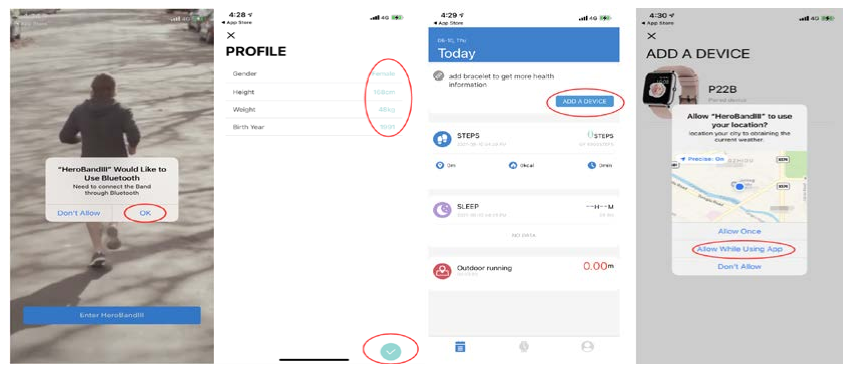
For Android phones:
Turn on Bluetooth on your phone > Open App HeroBandIII > Click 'to add' > Click 'P22' to connect it.
NOTE: Connect the watch to the App. Don’t connect the watch with Bluetooth directly.
Q4: How to see messages on the watch?
If you allow all permissions when connect it, just follow the steps: Connect the watch with HeroBandIII App > click 'Watch' icon > click Notification > choose the App you want to receive messages.
NOTE: Please make sure you set the message preview on your phone so that you can view the messages on your phone.
If you do not allow the App to receive phone notifications when installing HeroBandIII, please follow the steps:
For iPhone:
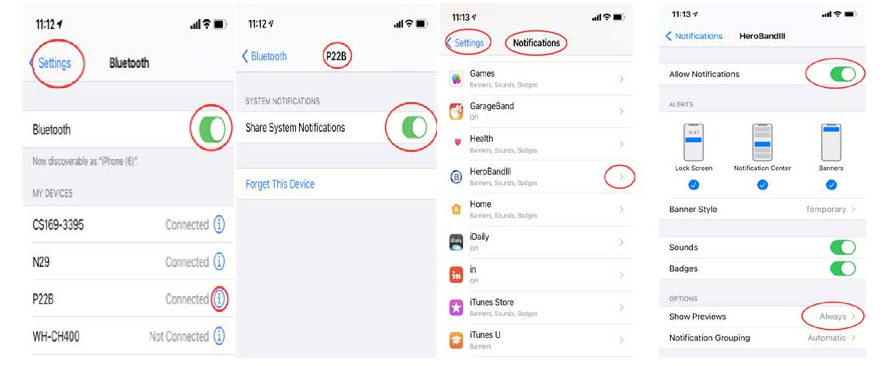
- Step1: Open iPhone Settings > Bluetooth > Select P22 > Click > Turn on Share Systems Notifications
- Step2: Open iPhone Settings > Notifications > Select HeroBandIII > Turn on Allow Notifications > Show Preview > Choose Always
For Android phones:
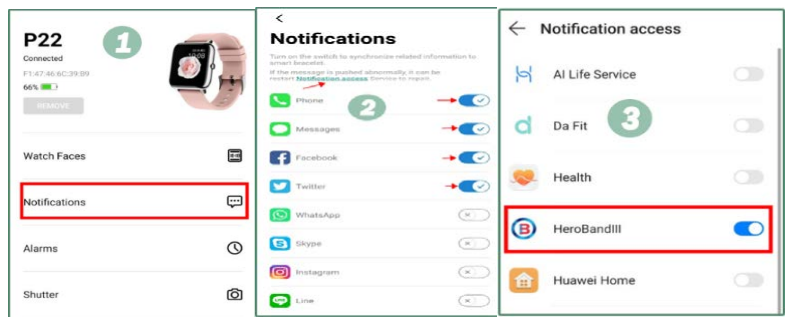
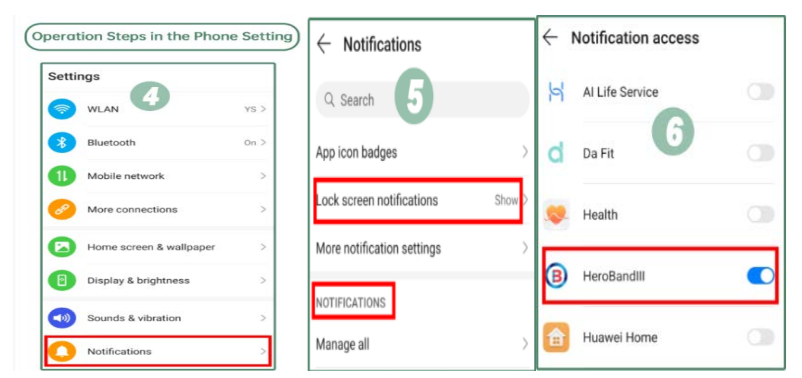
- Step1: Open the APP HeroBandIII > Click 'Notitications' > Click “Notification access” > Allow HeroBandIII to access the permissions.
- Step2: Open phone Settings > Click “Notitications” > Lock screen notifications, set Show > Click HeroBandIII > Allow Notifications
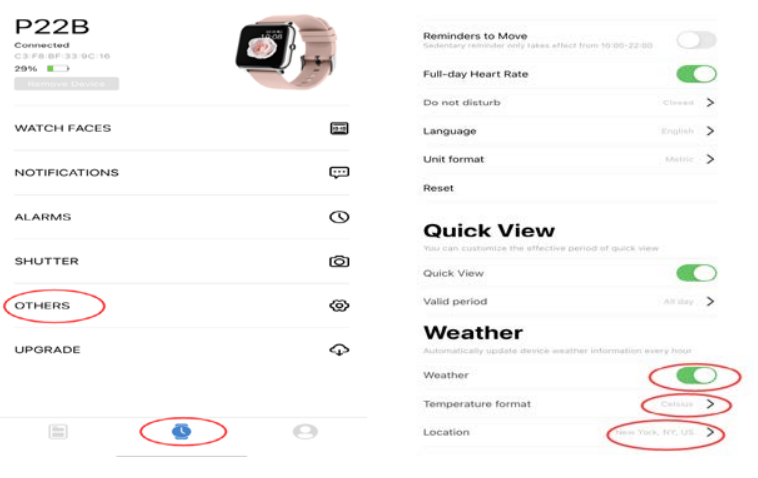
Q5: How to set the weather display? / How to change the weather from Celsius to Fahrenheit?
- Step1: HeroBandIII > Watch icon > OTHERS > Scroll to the Weather section towards the bottom > Location> Search city
- Step 2: HeroBandIII > Watch icon > OTHERS > Scroll to the Weather section towards the bottom > Temperature format> Choose Celsius or Fahrenheit
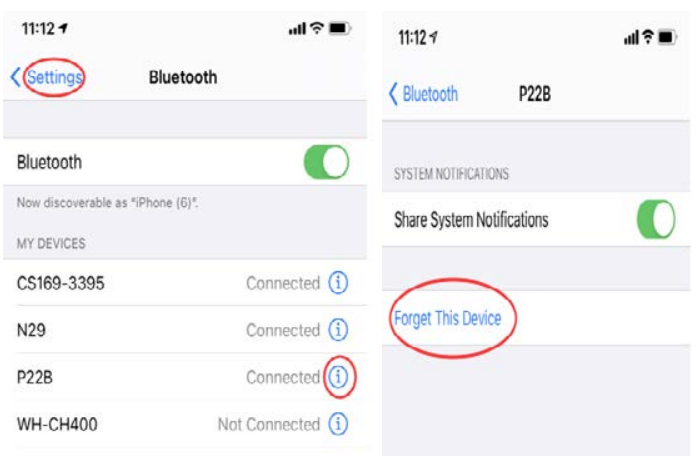
Q6: How to reconnect the watch with phones?
For iPhone: Open iPhone Settings > Bluetooth > Select P22 > Forget This Device > Repeat the connection steps above.
For Android phones: Turn on Bluetooth on your phone > HeroBandIII > Add a Device > Connect it.
NOTE: Connect the watch to the App. Don’t connect the watch with Bluetooth directly.
Kalinco P22 SMART WATCH Specifications
- Display: 1.4-inch HD color touchscreen with adjustable brightness
- Compatibility: Android and iOS smartphones
- Connectivity: Bluetooth 5.0 for fast, stable pairing
- Battery Life: Up to 7 days on a single charge (varies with usage)
- Water Resistance: IP67 rating – sweat and splash resistant
- Health Monitoring: 24/7 heart rate tracking, sleep analysis, SpO2 (blood oxygen) monitoring
- Fitness Features: Multiple sports modes (running, cycling, swimming, etc.), step counter, calorie tracker
- Smart Features: Call and message notifications, music control, weather updates, alarm, stopwatch, timer
- Customization: Multiple watch faces, interchangeable bands
- Additional Features: Sedentary reminder, women’s health tracking, breathing exercises, find my phone
- Sensors: Optical heart rate sensor, accelerometer, gyroscope
- Materials: Durable silicone strap, lightweight aluminum alloy case
- App Support: Dedicated companion app for data syncing and settings
Compared to similar smartwatches, the Kalinco P22 SMART WATCH offers a wider range of health and fitness features at a more accessible price point. While premium brands may offer more advanced sensors or cellular connectivity, the P22 excels in delivering core functionalities for everyday users seeking reliability and value.
Kalinco P22 SMART WATCH Setup Guide
Step-by-Step Setup Instructions
- Charge Your Watch: Connect the included magnetic charging cable to your Kalinco P22 SMART WATCH and a USB power source. A full charge typically takes 1-2 hours.
- Power On: Press and hold the side button until the screen lights up.
- Download the App: Install the official Kalinco companion app from the Google Play Store or Apple App Store.
- Pair with Your Phone: Enable Bluetooth on your smartphone, open the app, and follow the on-screen instructions to pair your Kalinco P22 SMART WATCH.
- Configure Settings: Customize watch faces, notification preferences, and health tracking options via the app.
- Wear Your Watch: Adjust the strap for a comfortable fit—snug but not too tight for accurate heart rate readings.
Configuration Options
- Change watch faces by long-pressing the screen and swiping to select your preferred style.
- Adjust screen timeout, vibration intensity, and notification settings in the device menu.
- Sync time automatically when connected to your phone.
Pairing and Connectivity Tips
Ensure Bluetooth is enabled on your phone and the watch is within range during pairing. If pairing fails, restart both devices and try again. For persistent issues, unbind the device in the app and repeat the pairing process..
Safety Warnings and Precautions
- Avoid the Kalincooooo P22 SMART WATCH in extreme temperatures or water submersion beyond its IP67 rating.
- Do not wear the watch too tightly to prevent skin irritation or inaccurate readings.
- Keep the device away from children and pets.
- Refer to the safety guidelines in the user manual before first use[3].
Troubleshooting the Kalinco P22 SMART WATCH
Common Problems and Solutions
- Pairing Failure: Restart both the watch and your phone. Ensure Bluetooth is enabled and the devices are within range. If issues persist, unbind the watch in the app and try pairing again.
- No Notifications: Check that app permissions are granted on your phone and notifications are enabled in the companion app.
- Battery Drains Quickly: Reduce screen brightness, disable unnecessary notifications, and ensure the firmware is up to date.
- Heart Rate Inaccuracy: Wear the watch higher on your wrist during exercise and ensure the band is snug but not too tight
Preventive Measures
- Regularly update the watch firmware via the companion app.
- Avoid exposing the device to water beyond its rated resistance.
- Clean the watch and band regularly to prevent skin irritation.
Warranty and Support
The Kalinco P22 SMART WATCH comes with a standard manufacturer’s warranty. For technical support, refer to the user manual or contact customer service via the official website. Keep your purchase receipt for warranty claims.
Contact Information
For further assistance, visit the kalinco support page or email customer service directly. Include your device serial number and a description of the issue for faster resolution.
Pros & Cons of the kalinco P22 SMART WATCH
Advantages
- Affordable Price: Offers premium features at a fraction of the cost of leading brands.
- Comprehensive Health Tracking: 24/7 heart rate, sleep, SpO2, and multi-sport modes.
- Long Battery Life: Lasts up to 7 days, reducing frequent charging.
- Smart Notifications: Stay connected with call, message, and app alerts.
- Customizable Design: Multiple watch faces and interchangeable bands.
Disadvantages
- Limited Third-Party App Support: Fewer apps compared to Apple Watch or Wear OS devices.
- No Cellular Connectivity: Requires a paired smartphone for full functionality.
- Basic Build Quality: While durable, it may not match the premium feel of higher-end models.
- Occasional Sync Issues: Some users report intermittent Bluetooth connectivity.
Overall, the Kalinco P22 SMART WATCH delivers exceptional value for budget-conscious buyers who prioritize health tracking and essential smart features. While it may lack some advanced integrations, it excels in core functionalities and ease of use.
Customer Reviews: Kalinco P22 SMART WATCH
Users consistently praise the Kalinco P22 SMART WATCH for its affordability, accurate health tracking, and stylish design. Many highlight the long battery life and ease of setup as standout features. Fitness enthusiasts appreciate the variety of sports modes and reliable heart rate monitoring.
Common complaints include occasional Bluetooth disconnections and limited customization options compared to premium brands. Some users note that the companion app could be more intuitive. Despite these minor issues, the majority of reviews are positive, with many recommending Kalincoinco P22 SMART WATCH as a great entry-level smartwatch.
Star ratings average around 4 out of 5, reflecting strong satisfaction with value and performance. Testimonials frequently mention the watch as a “great alternative to expensive brands” and “perfect for daily fitness tracking.”
If you’re seeking a reliable, feature-packed smartwatch without breaking the bank, the Kalinco P22 SMART WATCH is a smart choice—especially for first-time smartwatch buyers and fitness-focused users.
Faqs
How do I set up my kalinco P22 SMART WATCH for the first time?
What should I do if my kalinco P22 SMART WATCH is not syncing notifications?
Can the kalinco P22 SMART WATCH control music and camera on my smartphone?
Is the kalinco P22 SMART WATCH water-resistant, and what precautions should I take?
How accurate are the health tracking features like heart rate and blood pressure on the kalinco P22 SMART WATCH?
What are the best practices to maintain and clean my kalinco P22 SMART WATCH?
How long does the battery last on a full charge for the kalinco P22 SMART WATCH, and how should I optimize battery life?
Is the kalinco P22 SMART WATCH compatible with all smartphones, and what are the requirements?
Leave a Comment