
Kinesis Gaming KB975 Split Mechanical Gaming Keyboard User Manual
Content
Kinesis Gaming KB975 Split Mechanical Gaming Keyboard Review and Manual
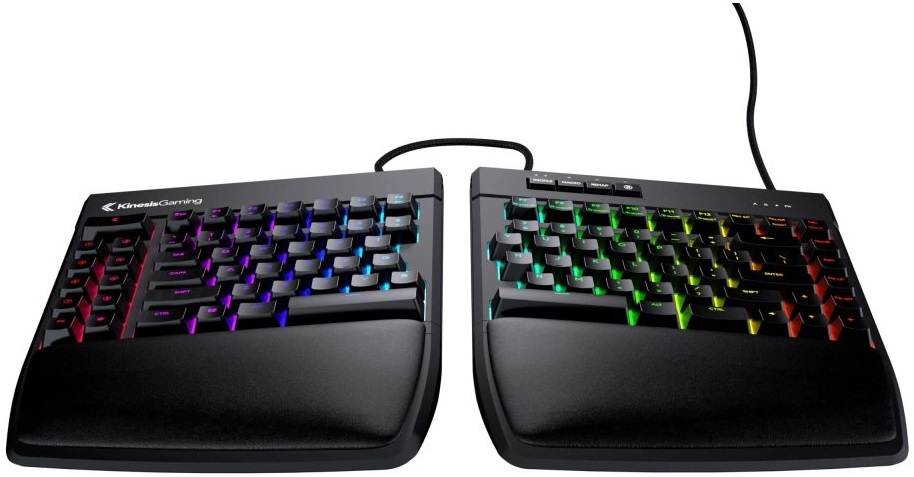
The Kinesis Gaming KB975 Split Mechanical Gaming Keyboard, also known as the Freestyle Edge RGB, is a premium ergonomic gaming keyboard built for players and typists who want comfort, speed, and customization in one split design. Its separated key modules let users position each half to match shoulder width, which can reduce strain during long gaming sessions, coding work, or all-day typing. The keyboard combines a compact tenkeyless layout with mechanical switches, per-key RGB lighting, onboard programming, and a gaming-focused feature set that appeals to both competitive players and productivity users.
One of its biggest strengths is flexibility. The adjustable linking cable allows the two halves to be placed close together for standard use or spread apart for a more natural posture. The keyboard also supports game mode, NKRO, and 1 ms response time on supported configurations, making it suitable for fast-paced shooters, MOBAs, and MMO play. The Kinesis Gaming KB975 Split Mechanical Gaming Keyboard is commonly priced in the premium range, typically around $200 to $220 depending on the switch type and retailer, with availability through the official Kinesis store and select electronics sellers. For users seeking an ergonomic mechanical keyboard with strong build quality, customizable lighting, and long-term comfort, this model remains a compelling option.
Detailed Specifications for the Kinesis Gaming KB975 Split Mechanical Gaming Keyboard
- Type: Split mechanical gaming keyboard with ergonomic two-piece design
- Layout: Compact tenkeyless layout with standard US ANSI key arrangement
- Switches: Available with Cherry MX mechanical switches and other Kinesis-supported variants depending on model
- Lighting: Per-key RGB backlighting with up to 16.8 million colors
- Connectivity: Wired USB connection with a 6-foot cable and adjustable 20-inch linking cable
- Performance: 1 ms response time, NKRO support, and game mode for fast input recognition
- Programming: Onboard macro and profile support with multiple programmable profiles
- Compatibility: Works with Windows, Mac, Linux, and Chrome systems in plug-and-play mode
- Build: Detachable palm supports and support for tenting accessories for improved ergonomics
- Warranty: 2-year limited warranty
- Dimensions: Approximately 15.5 inches wide and 10.25 inches deep with palm supports attached
- Weight: About 3 to 8 pounds depending on configuration and support accessories
Compared with standard gaming keyboards, the KB975 stands out for its split ergonomic design and stronger comfort features. Compared with compact gaming boards, it is more specialized and less portable, but it offers better posture support and more advanced customization for long sessions.
Troubleshooting the Kinesis Gaming KB975 Split Mechanical Gaming Keyboard
- Keyboard not detected: Check the USB connection, try another port, and confirm the linking cable between halves is fully seated.
- Keys not registering: Verify Game Mode is enabled or disabled as needed, and test the switch in another profile.
- RGB lighting not working: Restore lighting settings through onboard controls and confirm the keyboard is receiving enough USB power.
- Unexpected remaps or macros: Reset the active profile and review onboard programming before saving changes.
- Frequent input lag: Use a direct motherboard USB port instead of a hub and ensure no cable damage is present.
Some users may interpret profile or macro issues as an error state, but most problems are resolved by reconnecting the keyboard, switching USB ports, or restoring factory settings. Preventive care includes keeping firmware and profiles organized, avoiding excessive cable strain, and cleaning the keyboard regularly to protect mechanical switch performance.
The product includes a limited warranty, and direct purchasers may also qualify for a 60-day money-back guarantee through Kinesis support. For help, users should contact the official Kinesis Gaming support team through the company’s support channel or customer service portal for warranty claims, troubleshooting, and replacement guidance.
Pros and Cons of the Kinesis Gaming KB975 Split Mechanical Gaming Keyboard
Pros
- Ergonomic split layout improves wrist and shoulder positioning during long sessions
- Mechanical switches deliver a responsive, tactile gaming feel
- Per-key RGB lighting adds strong customization and visual appeal
- Onboard macros and profiles make it useful for gaming and productivity
- Detachable palm supports increase comfort for extended use
- Wired connection offers stable performance without battery concerns
Cons
- Premium price makes it less accessible than entry-level mechanical keyboards
- Split design has a learning curve for users moving from standard keyboards
- Bulkier footprint may not suit small desks or travel setups
- Advanced features can feel excessive for users who only want basic typing
- Some alternatives offer wireless support or newer hot-swap options at similar prices
For value for money, the Kinesis Gaming KB975 Split Mechanical Gaming Keyboard is strongest for users who prioritize ergonomics and customization over low cost. If the main goal is competitive gaming on a budget, a standard mechanical board may be a better fit. If comfort, layout flexibility, and long-term typing health matter most, the KB975 is a better investment than many conventional gaming keyboards.
Customer Reviews of the Kinesis Gaming KB975 Split Mechanical Gaming Keyboard
Customer feedback is generally positive, with many users giving it around 4 to 5 stars for comfort, build quality, and RGB customization. Players often praise the split layout for reducing strain and the mechanical switches for their crisp, reliable feel. One common testimonial style comment is: “After a week of adjustment, this became the most comfortable keyboard I’ve ever used.”
Frequent complaints usually mention the high price, the size of the keyboard on a desk, and the adjustment period required to get used to the split layout. Some users also note that it is more specialized than a typical gaming keyboard. Buyers who want an ergonomic mechanical keyboard with strong gaming performance tend to recommend it, while casual users sometimes prefer simpler alternatives.
Frequently Asked Questions About the Kinesis Gaming KB975 Split Mechanical Gaming Keyboard
Is the KB975 good for gaming? Yes, it is designed for gaming with fast response, NKRO support, RGB lighting, and programmable controls.
Is it good for typing? Yes, the split ergonomic design makes it especially appealing for long typing sessions and office work.
Is it worth the price? It is worth considering if ergonomic comfort, mechanical switches, and advanced customization are high priorities.
Who should buy it? Gamers, programmers, writers, and professionals who want a premium split mechanical keyboard with long-session comfort.
Faqs
How do I set up the kinesis gaming KB975 Split Mechanical Gaming Keyboard for the first time on a Windows PC?
Why is my kinesis gaming KB975 Split Mechanical Gaming Keyboard not responding, and what troubleshooting steps should I try?
What features of the kinesis gaming KB975 Split Mechanical Gaming Keyboard improve gaming performance and comfort?
Is the kinesis gaming KB975 Split Mechanical Gaming Keyboard compatible with Mac, consoles, and laptops?
How can I optimize the kinesis gaming KB975 Split Mechanical Gaming Keyboard for faster typing and gaming macros?
What should I do if some keys on the kinesis gaming KB975 Split Mechanical Gaming Keyboard feel sticky or inconsistent?
How do I clean and maintain the kinesis gaming KB975 Split Mechanical Gaming Keyboard without damaging the switches?
Can I customize the lighting and key layout on the kinesis gaming KB975 Split Mechanical Gaming Keyboard for different games?
Tags
Leave a Comment