
Setup: Leawo Blu-ray Player User Manual
Content
Leawo Blu-ray Player: Complete Product Manual for Blu-ray, DVD, and 4K Playback
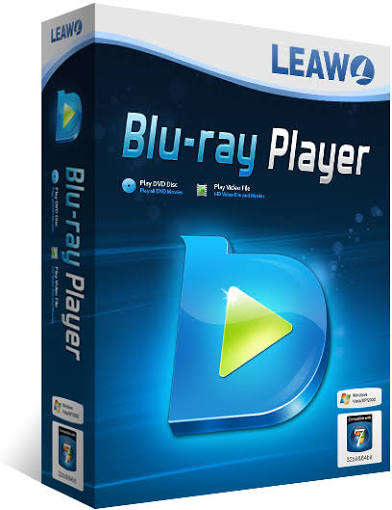
Leawo Blu-ray Player is a free media player for Windows and Mac that handles Blu-ray discs, DVDs, ISO files, folders, and a wide range of digital video and audio formats. It is designed for users who want reliable disc playback without investing in expensive hardware players, while still getting advanced features such as region-free playback, full menu navigation, subtitle and audio track switching, and support for 4K UHD content. For home theater fans, collectors, travelers, and anyone with a large disc library, it offers a practical all-in-one playback solution.
The software is especially useful for users who need a simple way to play commercial Blu-ray movies, personal DVD collections, or archived disc images on a laptop or desktop. Its free version covers core playback needs, while the premium edition adds disc-to-MKV conversion with preserved subtitles and audio tracks. This makes Leawo Blu-ray Player appealing to both casual viewers and users who want more flexible media management. Pricing is straightforward: the free version is available at no cost, while paid plans typically include a one-year license and a lifetime license, with availability through the official website and regional storefronts. For users searching for a region-free Blu-ray player, a lightweight 4K media player, or a DVD and ISO player for Windows or Mac, this software remains a strong option.
Technical Specifications and Key Features
What Leawo Blu-ray Player supports
- Playback for Blu-ray discs, DVD discs, ISO image files, and disc folders.
- Support for 4K Blu-ray and UHD video playback.
- Compatibility with Windows and macOS platforms.
- Region-free playback for many commercial Blu-ray and DVD discs.
- Full menu navigation for Blu-ray and DVD titles.
- Subtitle switching, audio track selection, and snapshot capture.
- Support for common video and audio formats, including MKV, MP4, AVI, MOV, FLAC, and other popular media types.
- Premium features include Blu-ray/DVD to lossless MKV conversion with original subtitles and audio retained.
System requirements and performance overview
- Windows support includes older and current desktop environments, with modest hardware requirements for basic playback.
- Mac support extends across multiple macOS versions, making it usable on many older and newer Apple systems.
- Minimum hardware needs are lightweight, with low RAM and a basic processor sufficient for standard playback.
- Performance is generally smooth for standard discs and local files, with UHD playback depending on system graphics capability and drive quality.
- Compared with VLC, Leawo Blu-ray Player is stronger for disc menu navigation and Blu-ray handling.
- Compared with paid suites like DVDFab Player, it is more affordable because the free version covers core playback needs.
Troubleshooting Common Leawo Blu-ray Player Problems
Typical issues and fixes
- Disc not playing: Check whether the drive can read the disc, verify that the disc is clean, and confirm that the disc format is supported.
- Region code error: Make sure the software is updated and that the disc is not locked by unsupported protection or damaged authoring.
- Black screen or no video: Update graphics drivers, switch display modes, and confirm that hardware acceleration is compatible with the system.
- No audio: Select the correct audio track, verify OS volume settings, and test another output device.
- ISO or folder will not open: Recheck file integrity and confirm that the image was not corrupted during transfer.
If you encounter error codes or repeated playback failures, reinstalling the program, restarting the computer, or trying another disc drive often resolves the issue. Preventive maintenance includes keeping the app updated, using quality discs, cleaning the optical drive, and avoiding incomplete ISO files. Support is typically available through the official Leawo help channels, including product documentation, email-based assistance, and license or upgrade support. Warranty coverage depends on the plan purchased, with free upgrades and technical support generally included in paid licenses for their active term. For help, users should contact Leawo through its official support and customer service pages.
Pros and Cons of Leawo Blu-ray Player
Pros
- Free version covers core Blu-ray, DVD, ISO, and 4K playback needs.
- Strong disc support with menu navigation, subtitles, and multiple audio tracks.
- Region-free playback is a major advantage for international disc collections.
- Premium edition adds useful MKV conversion features for archiving and backup.
- Lightweight enough for everyday use on modest systems.
Cons
- Some advanced features are locked behind the paid version.
- Performance can vary depending on drive quality and GPU support for UHD content.
- Interface and workflow may feel less polished than some premium competitors.
- Users who only need basic file playback may prefer a simpler general-purpose player.
Overall, Leawo Blu-ray Player offers strong value for money because the free version is already useful for most disc playback tasks. It is a better fit than VLC for users who need full Blu-ray menu support and a more disc-focused workflow, while paid rivals may be worth considering only if you want additional media library or conversion features.
Customer Reviews and User Feedback
User feedback for Leawo Blu-ray Player is generally mixed to positive, with many customers praising the free playback features and region-free support. Typical ratings often fall around 4 out of 5 stars on third-party review platforms, though app store feedback can be lower on macOS due to varying expectations and system-specific issues.
- 4.5/5: “Great for watching my Blu-ray collection on a laptop without extra hardware.”
- 4/5: “The free version works well, and menu navigation is a big plus.”
- 3/5: “Solid playback, but the premium upsell appears often.”
Common praise includes easy disc playback, support for ISO files, and compatibility with many media formats. Common complaints mention occasional playback instability on older Macs, interface limitations, and the gap between the free and premium feature sets. For most users searching for a dependable Blu-ray player for Windows or Mac, the free version is worth trying first before deciding whether the premium upgrade is necessary.
Faqs
How do I set up leawo Blu-ray Player for the first time on my Windows PC?
Why is leawo Blu-ray Player not detecting my Blu-ray disc, and how can I fix it?
What video and audio formats does leawo Blu-ray Player support besides Blu-ray discs?
How do I change subtitle and audio track settings in leawo Blu-ray Player?
Is leawo Blu-ray Player compatible with 4K video and modern Windows versions?
Why does leawo Blu-ray Player stutter or lag during playback, and what are the best performance fixes?
Can leawo Blu-ray Player play region-locked discs, and what should I know about Blu-ray region codes?
How should I maintain leawo Blu-ray Player and keep it working reliably over time?
Tags
Leave a Comment