
Pairing & Usage: Marc Jacobs Riley Smartwatch Instruction Guide
Content
Marc Jacobs Riley Smartwatch
Introduction
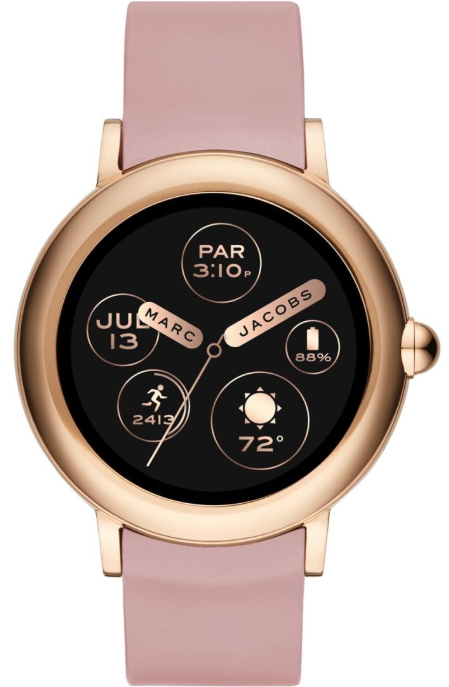
The Marc Jacobs Riley Smartwatch is a stylish and functional wearable designed for fashion-conscious users who seek modern technology with a designer edge. As Marc Jacobs’ first full touchscreen smartwatch powered by Wear OS, it combines the brand’s iconic fashion appeal with smart features suitable for everyday use. The watch targets trend-savvy individuals, especially women, looking to enhance their lifestyle with activity tracking, notifications, and voice assistant capabilities packed into an elegant aluminum case.
Key benefits include a vibrant 1.19-inch AMOLED touchscreen display, seamless integration with both Android and iOS devices, and the trusted Qualcomm Snapdragon Wear 2100 processor, ensuring smooth performance. With IP67 water resistance, the smartwatch withstands daily activities and occasional splashes, making it practical as well as fashionable.
The Marc Jacobs Riley Smartwatch is available in three sophisticated colorways: Black, Gold/White, and Rose Gold/Cement, all equipped with comfortable silicone straps. The retail price typically ranges from $295 to $350, depending on the model and retailer, available through official Marc Jacobs outlets and select stores such as Target. This smartwatch is ideal for users wanting a balance of fashion, smart functionality, and Wear OS versatility in a compact and elegant design.
Marc Jacobs Riley Smartwatch Specifications and Features
- Display: 1.19-inch AMOLED touchscreen, 390 x 390 resolution for crisp visuals
- Processor: Qualcomm Snapdragon Wear 2100 chipset optimized for Wear OS
- Operating System: Google Wear OS compatible with Android 4.4+ and iOS 8.1+
- Connectivity: Bluetooth for seamless pairing with smartphones
- Battery Life: Approximately 24 hours per full charge; 2-hour recharge time
- Water Resistance: Rated IP67, dustproof and water-resistant up to 1 meter depth
- Materials: 42mm aluminum case with silicone strap available in multiple fashion-forward colors
- Fitness and Activity Tracking: Basic activity monitoring, including steps and movement; no heart rate sensor
- Smart Features: Notifications, music control, Google Assistant voice commands, customizable watch faces (1000+ options)
Compared to other fashion smartwatches, the Marc Jacobs Riley offers a distinctive designer look paired with Wear OS flexibility but lacks some health sensors common in competitors (e.g., no heart rate monitor). Its pricing positions it slightly higher than many entry-level Wear OS watches, emphasizing fashion over advanced fitness tracking.
GENERAL SET-UP & APP
WHICH PHONES ARE COMPATIBLE WITH MY SMARTWATCH?
Wear OS by Google™ works with phones running iOS 9.3+. Supported features may vary between platforms and countries. All devices are Bluetooth® smart-enabled with an improved data transfer of 4.1 Low Energy.
HOW DO I DOWNLOAD THE WEAR OS BY GOOGLE™ APP?
Go to the App Store® and select Search from the bottom menu. Type “Wear OS by Google” in the search bar, select the Wear OS by Google App, and tap Get. Wait for the app to download to your phone.
HOW DO I UNINSTALL THE WEAR OS BY GOOGLE APP?
On the phone, long-press the Wear OS by Google App until the home screen icons shake and a red "X" appears. Click the red "X" on the Wear OS by Google App to remove it.
HOW DO I SET UP MY SMARTWATCH?
To set up your smartwatch, reference the Quick Start Guide that accompanied your smartwatch or follow these steps:
- Connect your smartwatch to the charger by placing it against the back of the smartwatch. Magnets in the charger will hold it in place.
- On your phone, download and install the Wear OS by Google App from the App Store. Open the app on your device and follow the prompts to pair your smartwatch.
- Plug the included charger into a USB outlet.
HOW DO I POWER ON MY SMARTWATCH?
Make sure the smartwatch is charged before trying to power it on. Press and hold down the middle pusher button for at least three seconds. The smartwatch will also power on when connected to the charger.
HOW DO I POWER OFF MY SMARTWATCH?
If the display is off (the watch is asleep but still powered on), follow these steps:
- Press the middle pusher button to power up the display.
- Press the middle pusher button to enter the app menu.
- Scroll and tap on Settings.
- Tap on System.
- Swipe up and tap Power Off.
- Tap the checkmark to confirm.
- If the display is on, follow these steps:
- Press the middle pusher button to enter the app menu.
- Scroll and tap on Settings.
- Tap on System.
- Swipe up and tap Power Off.
- Tap the checkmark to confirm.
HOW DO I RESET MY SMARTWATCH TO FACTORY SETTINGS?
By resetting your watch to the factory settings, you will erase all data stored on the smartwatch. This data cannot be restored. Data includes your active notifications and cards, fitness data, any installed third-party apps, and any data they have stored, system settings, and preferences. The data stored in your Google Account, however, is not affected. Resetting your watch will not factory reset your phone or tablet.
To reset to factory settings, follow these steps:
- Press the middle pusher button to power up the display.
- Press the middle pusher button to enter the app menu.
- Scroll and tap on Settings.
- Tap on System.
- Tap on Disconnect & Reset.
- Tap the checkmark to confirm.
- After you reset your watch to factory settings, you need to pair your smartwatch with your phone again.
HOW FAR AWAY CAN MY SMARTWATCH BE FROM MY PHONE AND STILL BE CONNECTED?
The range of the wireless Bluetooth connection between your phone and your smartwatch can vary greatly depending on the environment. In general, you should have at least 10 meters (or 30 feet) of connectivity. Your smartwatch can also use your home Wi-Fi network for connectivity in any areas covered by your home network.
HOW DO I CONNECT THE SMARTWATCH TO WI-FI?
- Press the middle pusher button to power up the display.
- Press the middle pusher button to enter the app menu.
- Scroll and tap on Settings.
- Tap on Connectivity.
- Tap on Wi-Fi.
- Tap on Wi-Fi off, to turn it on. When on, the Wi-Fi should say Automatic.
- If Wi-Fi is set to Automatic, your watch will automatically connect to any known, available network when your watch does not have a Bluetooth connection to your phone.
- Tap on Add network.
- Scroll to find your network and tap.
- Power on the phone and start the Wear OS by Google app.
- Tap Enter on the hphoneto complete password entry.
- Enter the password on the phone
PAIRING/SYNCING
HOW DO I PAIR MY SMARTWATCH TO MY PHONE?
To pair your smartwatch, follow these steps:
- In the Wear OS by Google App on your phone, you’ll see a list of nearby devices. You can check the name of your watch on its screen.
- Before you start, ensure your watch is charging.
- Select a language, then scroll down to watch Identity.
- On your phone, touch your watch’s name. If your phone is already paired to another watch, you won't see a pairing code. Instead, touch Pair with A New Wearable and continue to follow the steps.
- On your watch, you’ll see a pairing code.
- On your phone, you should see the same pairing code shown on your watch. Then, touch Pair. You’ll see a confirmation message once your watch is paired. This can take a few minutes.
- On your phone, follow the onscreen instructions to turn on watch notifications, location, and calendar access.
- If you are pairing your watch after a factory reset, you'll need to open the Wear OS by Google App on your phone. Then, touch the menu icon, select Pair with New Watch, and continue with the steps above.
Note: Your watch may automatically install an update and restart after it’s paired with your phone. If it begins downloading an update, keep the phone near your watch and ensure your watch stays charging until the update is finished.
WHY CAN'T I PAIR MY SMARTWATCH TO MY PHONE?
Ensure that your smartwatch is powered on and Bluetooth is enabled on your phone. Launch the Wear OS by Google App and follow the on-screen instructions for pairing your watch. If it fails to connect, check the Bluetooth menu on your phone. If you see the smartwatch in the device list, remove it. Launch the Wear OS by Google App and repeat the pairing process.
If you are still having issues, click here for troubleshooting tips.
HOW DO I PAIR A NEW SMARTWATCH TO MY PHONE?
In the Wear OS by Google App, tap Pair with a new wearable and follow the on-screen instructions.
HOW DO I UNPAIR MY SMARTWATCH FROM MY PHONE?
You can unpair your watch by performing a Factory Reset from the Settings menu on your watch. For instructions on how to perform a factory reset, go to "HOW DO I RESET MY SMARTWATCH TO FACTORY SETTINGS?"
HOW DO I RE-PAIR THE SAME SMARTWATCH WITH THE APP?
In the Wear OS by Google App, tap Pair with a new wearable and follow the on-screen instructions.
HOW MANY SMARTWATCHES CAN I PAIR WITH THE APP AT ONE TIME?
Only one watch can be paired with the app at a time.
FEATURES
HOW DO MY SMARTWATCH PUSHER BUTTONS WORK?
Press the middle pusher button to enter the app menu. Long-press the middle pusher button to launch the Google Assistant and ask questions or get things done. If your model has three pusher buttons, the top pusher button launches the brand app, and the bottom pusher button launches the Google Play Store
HOW DOES WEAR OS BY GOOGLE WORK WITH IPHONE?
Here are some of the things that Wear OS by Google for iPhone can do for you.
GET NOTIFICATIONS
See notifications from your phone on your watch for the following:
- Texts
- Incoming phone calls
- Emails
- Calendar events
- Apps
- Your watch uses the notifications settings on your phone. If you have notifications set up, you’ll be able to read messages on your watch.
ACCOUNT & DEVICE SETTINGS
HOW CAN I ACCESS THE SETTINGS MENU?
Open the Wear OS by Google App. Click the gear symbol in the top right navigation to view all account and device settings.
HOW CAN I EDIT MY NAME?
Your name is based on your Google account settings. Change your name within your Google account.
HOW CAN I CHANGE MY PASSWORD?
Your password is based on your Google account settings. Change your password within your Google account.
HOW CAN I OPT OUT of emails?
Your email message settings are based on your Google account settings. Change opt-out settings within your Google account.
HOW CAN I CHANGE THE LANGUAGE OF THE WEAR OS BY GOOGLE APP?
The language of the app is determined by the language set on your phone. Change the language settings on your smartphone to affect the language on your smartwatch.
I FORGOT THE PASSCODE I SET TO MY SMARTWATCH AND AM LOCKED OUT. HOW DO I FIX THIS?
To regain access to your smartwatch, you will need to prompt a Factory Reset.
Follow these steps:
- Enter an invalid passcode 3 times in a row. Wait 15 seconds.
- Enter an invalid passcode again, another 3 times in a row. Wait 15 seconds.
- Enter an invalid passcode for the last time, another 3 times in a row. Wait 15 seconds.
- The watch will produce a pop-up card prompting a Factory Reset. Tap on the check mark, or Done, button.
- Once Factory Reset is complete, you will need to re-pair your smartwatch to your phone.
- Remove the device name from the Bluetooth cache before pairing in the app.
WARRANTY
WHAT IS THE WARRANTY ON MY SMARTWATCH?
Your smartwatch has a 2-year limited warranty. Available service options are dependent on the country in which the service is requested and may be restricted to the original country of sale. Visit services.fossilgroup.com for additional information.
For more information: https://support.google.com/wearos/?hl=en#topic=6056410
Troubleshooting Guide for Marc Jacobs Riley Smartwatch
- Watch Not Turning On: Ensure the device is charged. Connect to the official charger and allow up to 2 hours for a full charge. If unresponsive, perform a soft reset by holding the power button for 10 seconds.
- Bluetooth Connection Issues: Restart both the watch and the phone. Ensure Bluetooth is enabled on your smartphone and the latest Wear OS app is installed. Unpair and re-pair if necessary.
- Battery Drains Quickly: Reduce screen brightness, disable always-on display, and close unused apps. Limit background syncing if possible.
- Software Updates Failing: Confirm a stable internet connection. Restart the watch and try again. If persistent, reset the watch to factory settings (backup data first).
- Error Codes: No specific error codes documented; general Wear OS errors follow Google's troubleshooting protocols.
- Preventive Tips: Avoid exposing the watch to extreme temperatures and liquids beyond the IP67 rating. Keep software updated and use official accessories for charging.
Warranty & Support: The Marc Jacobs Riley Smartwatch includes a standard 1-year warranty covering manufacturing defects. For support, contact Marc Jacobs customer service or authorized retailers. Official help can be accessed through the Marc Jacobs website or Target customer support.
Pros & Cons of the Marc Jacobs Riley Smartwatch
- Pros:
- Elegant, fashionable design with premium aluminum casing and color options
- Bright AMOLED touchscreen with over 1000 customizable watch faces
- Full Wear OS support: notifications, Google Assistant, music control
- Compatible with both Android and iOS devices, offering broad usability
- IP67 water resistance suited for everyday wear
- Cons:
- Battery life is limited to about 24 hours, requiring daily charging
- Lacks a heart rate sensor and advanced health tracking features
- Relatively high price compared to similarly specced Wear OS watches
- The processor (Snapdragon Wear 2100) is older compared to newer chipset models
- Only a single side button, which may limit some shortcut options for power users
The Marc Jacobs Riley Smartwatch balances style and smart functionality well, making it a strong choice for fashion-focused users, though fitness enthusiasts may find it less comprehensive than other options like Fossil Gen 6 or Samsung Galaxy Watch series.
Customer Reviews and Feedback on Marc Jacobs Riley Smartwatch
Users generally praise the Marc Jacobs Riley Smartwatch for its chic aesthetic and comfortable wearability, especially appreciating the vibrant AMOLED display and fashion-forward design. The ability to customize watch faces extensively receives positive remarks, with many noting it complements their style effortlessly.
Common complaints focus on the short battery life, often requiring daily charging, which some find inconvenient compared to fitness bands with multi-day endurance. The absence of a heart rate sensor and more advanced health features is also frequently mentioned. Some users highlight minor Bluetooth pairing issues but generally find Wear OS functionality satisfactory.
The smartwatch holds an average user rating of around 4 out of 5 stars, with recommendations largely aimed at fashion-oriented buyers rather than hardcore fitness users. Buyers emphasize the value lies in its designer branding and Wear OS experience rather than technical specs alone.
Faqs
How do I set up my marc jacobs Riley Smartwatch for the first time?
What should I do if my marc jacobs Riley Smartwatch is not syncing with my phone?
Can I use marc jacobs Riley Smartwatch with a non-Android device?
How do I customize watch faces on my marc jacobs Riley Smartwatch?
What are the key features that make marc jacobs Riley Smartwatch different?
How often should I charge my marc jacobs Riley Smartwatch?
Is the marc jacobs Riley Smartwatch water-resistant?
How do I maintain my marc jacobs Riley Smartwatch to prolong its lifespan?
Leave a Comment