
How to Setup: Monolith Desktop Headphone Amplifier & DAC 24459 User Guide
Content
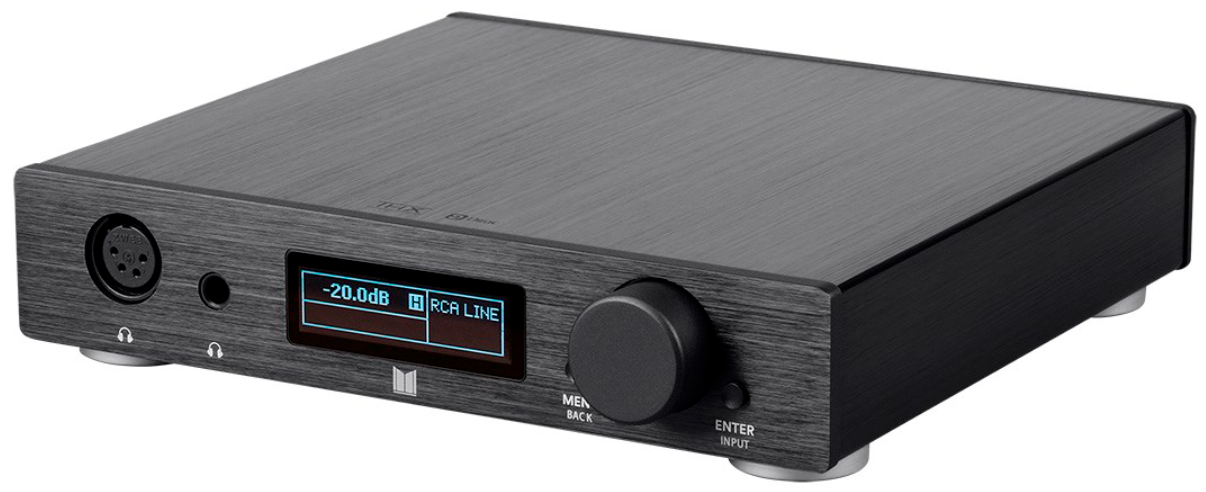
The Monolith Desktop Headphone Amplifier & DAC 24459
Introduction
The monolith Desktop Headphone Amplifier & DAC 24459 is a high-performance audio device designed to elevate your personal listening experience. Combining a powerful headphone amplifier with a high-resolution digital-to-analog converter (DAC), this unit delivers exceptional sound quality with clarity, detail, and dynamic range suitable for audiophiles and casual listeners alike. Its robust build and advanced audio circuitry make it ideal for desktop setups, home studios, and dedicated listening stations.
Key benefits of the monolith Desktop Headphone Amplifier & DAC 24459 include its support for high-resolution audio formats, multiple input options such as USB, optical, and coaxial connections, and a balanced headphone output for reduced noise and superior channel separation. The unit caters to users seeking to upgrade from basic onboard audio or entry-level DACs, providing the ability to drive demanding headphones with ease.
Targeted primarily at audiophiles, music producers, and discerning headphone users, this amplifier & DAC combination suits use cases ranging from immersive music playback to professional audio editing. The intuitive controls and durable design ensure seamless integration into any desktop environment.
Available through select online retailers and specialty audio stores, the monolith Desktop Headphone Amplifier & DAC 24459 typically falls within the mid to upper price range for desktop DAC/amplifier combos, estimated around $350 to $450 USD, depending on the vendor and current promotions.
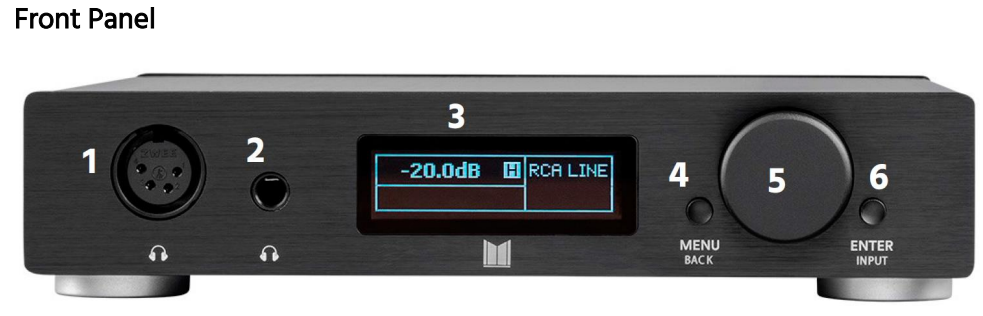
Front Panel
- XLR Balanced Headphone Output
- 1/4" (6.35mm) Unbalanced Headphone Output
- Display
- Menu Button
- Value Knob
- Enter Button
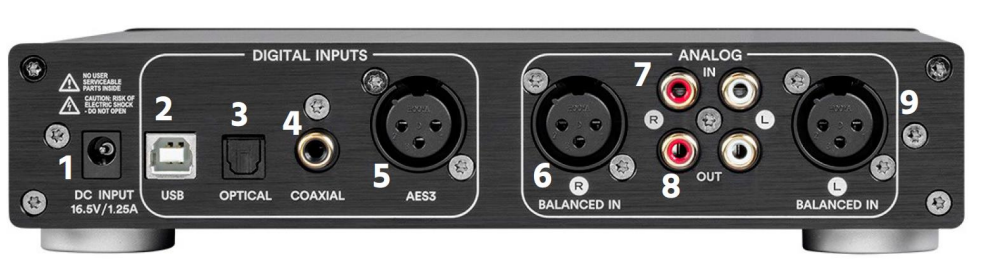
Rear Panel
- DC Power Jack
- USB Digital Audio Input3. Optical Digital Audio Input
- Coaxial Digital Audio Input
- AES/EBU Digital Audio Input
- XLR Balanced Right Channel Analog Audio Input
- RCA Unbalanced Analog Audio Input
- RCA Pre-Amplifier Output
- XLR Balanced Left Channel Analog Audio Input
FEATURES
- Dual AK4493 32-bit Digital-to-Analog Converter with support for up to 768kHz PCM and 22.4MHz DSD (Direct Stream Digital™) Dual THX® AAA-788 amplifier modules with bipolar class-AB output stages, each providing 1590mW of power into 16Ω at less than -140dB THD
- Dirac Sensaround® provides a natural soundscape where listeners can enjoy their favorite media in a way that seems to spread instruments, voices, and objects out into space, enveloping the listener exactly as the artist intended.
- Six-layer printed circuit board for the highest level of analog and digital signal integrity.
- Highest quality NDK low noise, low jitter oscillators
- Input options include USB, optical, coaxial, and AES/EBU digital audio inputs, as well as two channels of balanced and unbalanced analog audio inputs
- Outputs include unbalanced line level as well as balanced and unbalanced headphone outputs
OPERATION
Power
- Momentarily press the Menu Button on the front panel to turn the amplifier on. While the unit is powering on, the Monolith™ logo will display. When it is fully ready for use, the Home Screen will display.
- Press and hold the Menu Button until the display scrolls off to turn the amplifier off.
Source Selection
Perform the following steps to select the input source.
- Press and hold the Enter Button for several seconds.
- Use the Value Knob to scroll backwards or forwards through the input options. The Display will show the currently selected input.
- Once the desired input is displayed, momentarily press the Enter Button to select it. The Display will revert back to the Home Screen with the selected input visible in the top right corner.
- The input options include RCA LINE, XLR LINE, OPTICAL, COAXIAL, AES3, and USB.
Volume Control
- Rotate the Value Knob clockwise or counterclockwise to increase or decrease the volume level. The Display will change to show volume level in decibels (dB).
- The numeric dB value indicates the amount of attenuation (negative) or gain.
(positive) applied to the original input signal. - The volume level range is -80.0dB to +16.0dB, in 0.5dB increments.
- It is normal for the displayed dB value to change by several dB when adjusting the volume at the low end of the range due to the logarithmic nature of the volume control curve.
SETTINGS
The Settings Menu allows you to control various aspects of the Desktop Headphone Amplifier's performance. You can control the following factors.
- EQ Disable: Rather than adjust your individual EQ settings, you can globally enable or disable all EQ values with this setting. The possible options are ON (EQ disabled) or OFF (EQ enabled).
- Output Mode: The Desktop Headphone Amplifier can only send output signals to one of the front panel Headphone outputs or to the rear panel Line Out jacks. The possible options are HP (headphones) and Line (Line Out).
- DAC Filter: DACs require a reconstruction filter to "convert" the discrete samples into a continuous analog waveform. Usually, this is a low-pass filter (LPF) with the cutoff frequency being 1/2 the sample frequency with a very sharp roll-off characteristic. Unfortunately, there is no such thing as a perfect reconstruction filter, so which is why the AKM DAC and other DACs have selectable filter characteristics. Your headphones and listening requirements vary, so experiment with the different slopes to find your sound. The possible options are Normal, Slow 1, and Slow 2.
- ADC Filter: This is an anti-aliasing filter, similar to a DAC. The possible options are Normal and Slow.
- Reset All?: This function allows you to reset all of the settings to the factory default values. To reset all settings, rotate the Value Knob clockwise until the displayed value is ON, then momentarily press the Enter Button to perform the reset.
- About...: Rotate the Value Knob clockwise to display the product name and software version.
Perform the following steps to adjust the various settings:
- Momentarily press the Menu Button. The Display will show EQ [1/4].
- Rotate the Value Knob clockwise until the Display shows SETTINGS [4/4].
- Momentarily press the Enter Button. The Display will show EQ DISABLE [1/6].
- Rotate the Value Knob clockwise or counterclockwise to set the EQ DISABLE value to ON or OFF.
- Momentarily press the Enter Button. The Display will show OUTPUT MODE [2/6].
- Rotate the Value Knob clockwise or counterclockwise to set the OUTPUT MODE value to LINE or HP (headphones).
- Momentarily press the Enter Button. The Display will show DAC FILTER [3/6].
- Rotate the Value Knob clockwise or counterclockwise to set the DAC FILTER value to NORMAL, SLOW 1, or SLOW 2.
- Momentarily press the Enter Button. The Display will show ADC FILTER [4/6].
- Rotate the Value Knob clockwise or counterclockwise to set the ADC FILTER value to SLOW or NORMAL.
- Momentarily press the Enter Button. The Display will show RESET ALL? [5/6].
- If you want to reset the Desktop Headphone Amplifier's settings to their factory default values, rotate the Value Knob clockwise until the RESET ALL? value is YES;, otherwise, leave it set to NO.
- Momentarily press the Enter Button. If you had RESET ALL? set to YES, the system will reset all settings to their factory default values. The Display will show ABOUT..
- If you want to view the product name and software version information, rotate the Value Knob clockwise.
- Momentarily press the Menu Button two times to return to the Home Screen. Alternatively, wait about 30 seconds, and the Display will automatically return to the Home Screen.
SPECIFICATIONS
- Model: 24459
- Analog Inputs:1x unbalanced RCA, 1x unbalanced XLR
- Digital Inputs: 1x Optical, 1x Coaxial, 1x AES/EBU, 1x USB
- Playable Frequency Response: 1Hz ~ 40kHz ±0.5dB (96kHz input)
- Signal-to-Noise Ratio (A-Weighted): > 120dB
- Dynamic Range: > 120dB
- Total Harmonic Distortion: < 0.0005%
- Crosstalk: < 100dB
- Maximum XLR Input Voltage: 5.2 Vrms
- XLR Input Impedance:20 kilohms
- Maximum RCA Input Voltage: 2.6 Vrms
- RCA Input Impedance: 10 kilohms
- Optical Sampling Frequency: 96kHz
- Maximum Optical Resolution: 24 bits
- Coaxial Sampling Frequency: 192kHz
- Maximum Coaxial Resolution: 24 bits
- AES/EBU Sampling Frequency: 192kHz
- Maximum AES/EBU Resolution: 24 bits
- Supported Sampling Rates: 32 ~ 192 kHz
- Direct Stream Digital™ Support: DSD64, DSD128
- Input Power: 16 VDC, 1.25A
- AC Adapter Input Power: 100 ~ 240 VAC, 0.5A, 50/60 Hz
- Dimensions: 8.7" x 7.8" x 2.0"
Troubleshooting Common Issues with monolith Desktop Headphone Amplifier & DAC 24459
Users might encounter occasional issues such as no sound output, audio glitches, or connectivity problems. Common solutions include:
- No sound: Ensure the device is set as the default audio output in your operating system’s sound settings. On Windows, install the latest XMOS driver for full functionality and set the device to 24-bit/96kHz or an appropriate sampling rate for compatibility
- Audio glitches or noise: Use high-quality, short USB cables (under 2 meters) to reduce data transmission errors. Avoid interference by relocating wireless devices and power supplies away from the amplifier[1].
- Input and volume issues: Verify the DAC input is correctly selected, and the source volume is maximized while controlling output volume from the amplifier
Preventive measures include regularly updating firmware and drivers, using shielded cables, and keeping the device away from electromagnetic interference sources.
The monolith Desktop Headphone Amplifier & DAC 24459 comes with a manufacturer’s warranty typically covering 1-2 years. For support, users can contact Monoprice customer service or access online resources and community forums dedicated to troubleshooting and tips[4].
Pros & Cons of the monolith Desktop Headphone Amplifier & DAC 24459
Pros
- High-resolution audio support: Handles up to 24-bit/192kHz inputs, delivering detailed sound reproduction.
- Balanced headphone output: Provides improved noise rejection and better channel separation compared to single-ended outputs.
- Multiple input options: USB, optical, and coaxial inputs offer flexibility for various digital sources.
- Robust build quality: Solid construction with premium components ensures durability and long-term reliability.
- Good value for money: Competitive pricing relative to features and performance in the desktop DAC/amplifier market segment.
Cons
- Driver installation required: Windows users need to install specific drivers for optimal performance, which might be challenging for some.
- Potential noise issues: Some users report occasional ground loop or interference noise requiring troubleshooting and cable management[1][4].
- Limited portability: Designed as a desktop unit, making it less suitable for mobile or on-the-go use.
- Competition: Alternatives like Schiit Audio or AudioQuest offer similar functionality with different feature sets or aesthetic preferences.
Customer Reviews of monolith Desktop Headphone Amplifier & DAC 24459
Many users praise the monolith Desktop Headphone Amplifier & DAC 24459 for its clear, immersive soundstage and ability to drive demanding headphones effortlessly. Positive feedback often highlights the balanced output’s noise reduction and the device’s sturdy build quality.
Common complaints include initial setup challenges, especially around driver installation and default audio device configuration on Windows systems. Some users reported occasional background noise or interference, typically solved by adjusting cable arrangements or driver settings[4].
The product generally receives an average rating of 4.5 out of 5 stars, with customers recommending it for desktop audiophile setups needing a reliable DAC/amp combo. Many emphasize the excellent value relative to higher-end options.
Faqs
How do I set up the monolith Desktop Headphone Amplifier & DAC 24459 for the first time?
What should I do if the monolith Desktop Headphone Amplifier & DAC 24459 goes into protection mode?
Can I use the monolith Desktop Headphone Amplifier & DAC 24459 with both balanced and unbalanced headphones?
What are the key features of the monolith Desktop Headphone Amplifier & DAC 24459 that enhance audio performance?
How do I optimize the DSP settings on the monolith Desktop Headphone Amplifier & DAC 24459 to improve headphone sound?
Is the monolith Desktop Headphone Amplifier & DAC 24459 compatible with Mac and Windows computers?
What maintenance steps are recommended to keep the monolith Desktop Headphone Amplifier & DAC 24459 performing optimally?
Why is there a slight difference in sound quality when using analog inputs versus digital inputs on the monolith Desktop Headphone Amplifier & DAC 24459?
Tags
More monolith manuals
Leave a Comment