
How to Use: Multi Tech MultiModem® ZDX MT5656ZDX-Series Voice/Data/Fax Modem User Manual
Content
MultiTech MultiModem ZDX MT5656ZDX-Series Voice/Data/Fax Modem Manual
Introduction
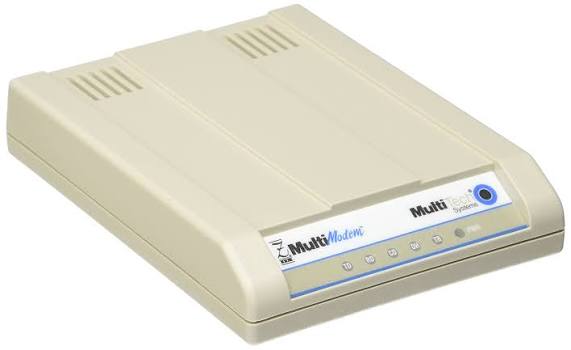
The multi tech MultiModem® ZDX MT5656ZDX-Series Voice/Data/Fax Modem is an external analog desktop modem designed for dependable dial-up connectivity, fax transmission, and legacy business communications. Built around V.92 and V.90 technology, it supports up to 56 Kbps downstream data rates and 14.4 Kbps fax transfer speeds, making it a practical choice for organizations that still rely on serial modem connections, point-of-sale systems, remote equipment access, and fax workflows. The unit connects through an RS-232 serial interface and includes RJ-11 phone-line ports, which makes it suitable for older PCs, industrial devices, and systems that need stable analog communication rather than modern broadband networking.
This modem is especially useful for IT teams, field technicians, small offices, and embedded system operators who need a proven voice/data/fax solution with straightforward installation and broad protocol support. The multi tech MultiModem® ZDX MT5656ZDX-Series Voice/Data/Fax Modem also stands out for its support for multiple modulation standards, error correction, and data compression features that help improve compatibility with varied telephone networks. Typical package availability includes the modem, serial cable, RJ-11 cable, power supply, and quick-start documentation. As of 2026, pricing generally falls in the mid-range for specialized legacy connectivity hardware, often around the $150 to $200 range depending on seller, kit contents, and stock availability. Because this is a niche product, availability is limited and may vary by distributor, reseller, or remaining inventory.
Specifications for MultiTech MultiModem ZDX MT5656ZDX-Series
- Product type: External voice/data/fax desktop modem
- Interface: RS-232 serial connection with DB25-style serial support
- Data speed: Up to 56 Kbps with V.92/V.90 support
- Fax speed: Up to 14.4 Kbps
- Protocols: V.92, V.90, V.34, V.34bis, V.32, V.22bis, V.22, Bell 103, Bell 212A
- Fax standards: Group 3, Class 1, Class 2, Class 2.1, Super G3 compatibility features
- Compression and correction: MNP-5, V.42, V.42bis, V.44
- Ports: 2 RJ-11 phone-line/modem ports
- Form factor: Desktop external unit
- Dimensions: Approximately 4.25 x 5.8 x 1.15 in
- Weight: About 8 oz
- Power: 9 VDC external power supply, low power consumption
Compared with generic USB dial-up adapters, the MT5656ZDX is better suited to professional environments that need direct serial compatibility, voice support, and traditional modem command control. Compared with entry-level fax modems, it offers stronger legacy protocol coverage and more complete compatibility with older telecommunications equipment.
Setup Guide for Voice/Data/Fax Modem Installation
To install the multi tech MultiModem® ZDX MT5656ZDX-Series Voice/Data/Fax Modem, place the modem on a stable, ventilated surface and connect the included power adapter before attaching signal cables. Next, connect the RJ-11 cable from the modem to an active analog phone line. If you need pass-through phone access, attach the telephone handset or downstream device to the second phone port. Then connect the RS-232 cable between the modem and the host computer or serial device.
After cabling is complete, power on the modem and verify that indicator lights are active. On the host system, configure the serial port parameters according to the device or software requirements, then install the modem drivers or communication software if needed. Typical options include baud rate selection, speaker volume, auto-answer, dial mode, and command set configuration through AT commands. For voice-capable variants, confirm that your application supports voice playback and capture functions.
Safety precautions are essential: use only the supplied power adapter, avoid connecting the modem to digital PBX lines unless the line is explicitly analog-compatible, and disconnect power before moving cables. If the modem does not initialize, reseat the serial cable, confirm the COM port assignment, and test the analog line with another device.
Troubleshooting the MultiModem ZDX MT5656ZDX-Series
Common issues usually relate to line quality, serial settings, or incorrect modem commands. If the modem does not dial, confirm that the phone line is analog and that the RJ-11 cable is seated securely. If connection speeds are low, check line noise, reduce extension wiring, and verify that V.92 or V.90 service is supported by the remote side and telephone network.
- No dial tone: Test the wall jack, replace the RJ-11 cable, and confirm the line is active.
- Busy or no connect: Check telephone number accuracy, dialing mode, and carrier availability.
- Garbage characters in terminal software: Match baud rate, parity, data bits, and stop bits on both ends.
- Fax failure: Verify Class 1 or Class 2 settings, reduce retries, and confirm the remote fax machine is online.
- Initialization errors: Reboot the host, reassign the COM port, and restore factory defaults with standard AT reset commands.
Preventive maintenance includes using a clean analog line, avoiding surge-prone connections, and keeping driver files and application settings documented. Warranty coverage is typically limited and may depend on the reseller and unit condition. For support, contact the original supplier or MultiTech product support through the company’s official customer service channels, and keep the model number MT5656ZDX ready when requesting help.
Pros and Cons of MultiTech MultiModem ZDX MT5656ZDX-Series
Pros
- Reliable analog voice/data/fax performance for legacy systems
- Strong protocol compatibility, including V.92, V.90, and multiple fax standards
- External desktop design is easy to install and service
- RS-232 serial connectivity works well with industrial and older business equipment
- Useful for fax servers, alarm systems, POS terminals, and remote console access
Cons
- Requires an analog phone line, which limits modern home and office use
- Slower than broadband or cellular alternatives
- Availability can be limited because it is a niche legacy product
- Setup may be challenging for users unfamiliar with serial COM ports and AT commands
- Better suited to specialized workflows than general consumer internet access
For value for money, this modem makes sense when compatibility matters more than speed. Compared with newer USB fax modems or VoIP solutions, it offers better legacy reliability but less convenience and flexibility.
Customer Reviews of the MultiTech MultiModem ZDX MT5656ZDX-Series
Users commonly rate this modem around 4 out of 5 stars for dependable operation in legacy environments. Praise often focuses on easy physical setup, stable serial communication, and strong fax reliability. One typical testimonial says, “It worked immediately with our old serial-based equipment and saved us from replacing a functioning system.”
Common complaints include the need for an analog line, limited availability, and occasional configuration issues on modern operating systems. Another frequent comment is, “Great hardware for old-school connectivity, but not ideal if you want plug-and-play simplicity.” Buyers who need dependable dial-up, fax, or serial modem support generally recommend it, especially when maintaining older infrastructure. Users looking for modern internet access, however, should consider broadband or IP-based alternatives instead.
Faqs
How do I set up the multi tech MultiModem® ZDX MT5656ZDX-Series Voice/Data/Fax Modem for the first time?
What communication settings should I check on the multi tech MultiModem® ZDX MT5656ZDX-Series Voice/Data/Fax Modem for reliable dial-up performance?
Why is the multi tech MultiModem® ZDX MT5656ZDX-Series Voice/Data/Fax Modem not connecting to the telephone line?
Can the multi tech MultiModem® ZDX MT5656ZDX-Series Voice/Data/Fax Modem work with modern computers and software?
How do I troubleshoot slow data transfer speeds on the multi tech MultiModem® ZDX MT5656ZDX-Series Voice/Data/Fax Modem?
How do I use the voice and fax features on the multi tech MultiModem® ZDX MT5656ZDX-Series Voice/Data/Fax Modem?
What maintenance should I do to keep the multi tech MultiModem® ZDX MT5656ZDX-Series Voice/Data/Fax Modem working well?
What should I do if the multi tech MultiModem® ZDX MT5656ZDX-Series Voice/Data/Fax Modem drops calls or fails during fax transmission?
Leave a Comment