
How to Use: My Q Smart Garage Camera Gen 2 User Manual
Content
myQ Smart Garage Camera Gen 2: Complete Product Manual and Buyer Guide
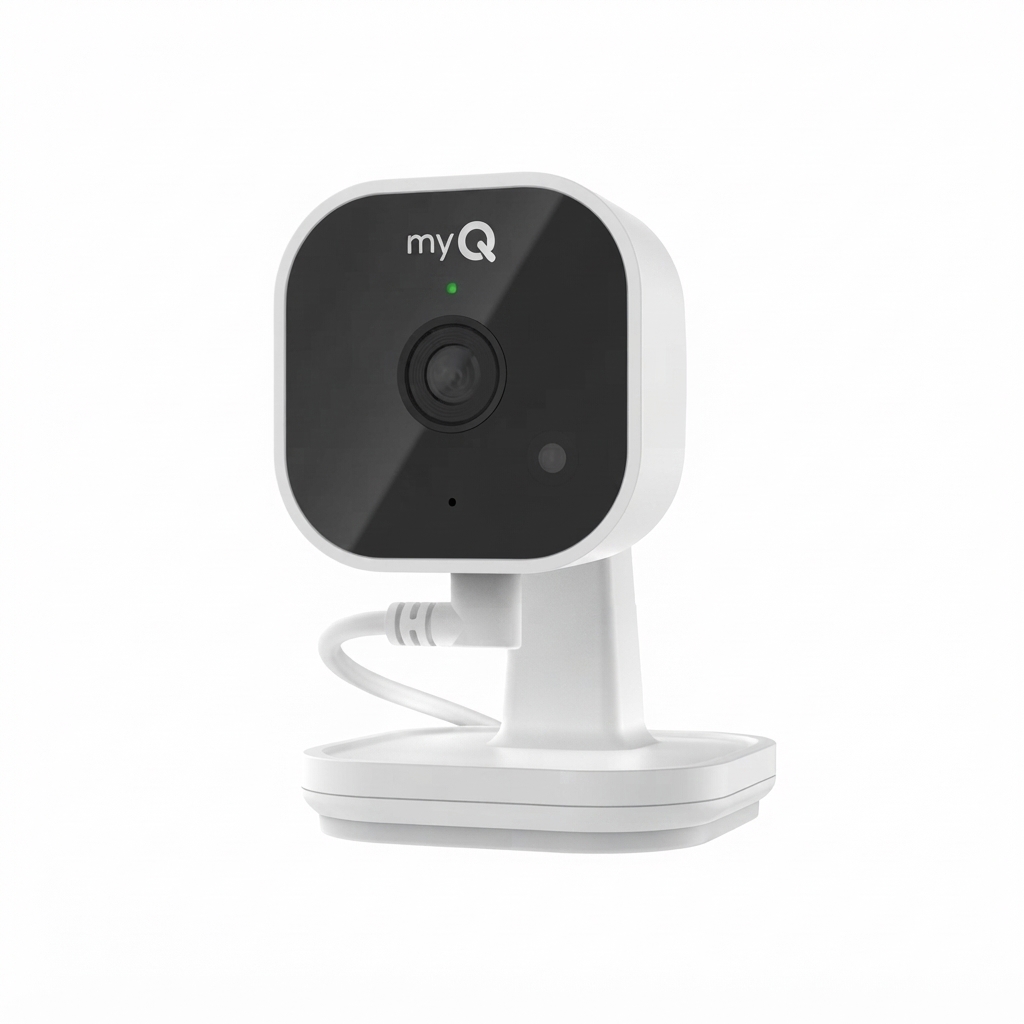
The myQ Smart Garage Camera Gen 2 is a dedicated garage monitoring camera designed to give homeowners a clear, reliable view of garage activity day and night. With 2K video, night vision, a 130° wide-angle lens, and two-way audio, it helps users monitor deliveries, vehicles, tools, and family access from the myQ app. It is especially useful for homeowners who already use myQ garage door openers or want a simple smart security camera for indoor garage use.
This model stands out for its easy plug-in setup, magnetic base, motion alerts, and smart detection options that can identify people, animals, vehicles, packages, and faces when paired with a Video Monitoring Plan. The camera connects through 2.4 GHz Wi‑Fi and Bluetooth, supports live viewing, and is built to handle garage temperatures from -4°F to 122°F. That makes it a practical choice for garages that experience seasonal heat and cold.
The myQ Smart Garage Camera Gen 2 typically falls in the budget-to-midrange smart security category, with common retail pricing around the $40 to $60 range depending on promotions and sellers. Availability is generally strongest through the myQ store and major home improvement or online retailers. For users looking for a compact, app-controlled garage camera with strong visibility and simple installation, the myQ Smart Garage Camera Gen 2 is a solid fit.
Specifications for myQ Smart Garage Camera Gen 2
- Video resolution: 2K with night vision for clearer garage monitoring.
- Field of view: 130° wide-angle lens for broad coverage.
- Audio: Two-way talk with built-in speaker and microphone.
- Connectivity: Wi‑Fi and Bluetooth support, using 2.4 GHz Wi‑Fi only.
- Power: AC power adapter with a 6 ft USB-C cable.
- Mounting: Magnetic base and tabletop placement.
- Operating temperature: -4°F to 122°F.
- Smart features: Face, person, animal, vehicle, and package detection with customizable zones when using a Video Monitoring Plan.
- Dimensions: 2.64 x 2.64 x 3.8 inches.
- Warranty: 1 year.
Compared with older garage cameras that offer only 1080p video, the myQ Smart Garage Camera Gen 2 provides sharper 2K footage and better detail for identifying motion events. It also competes well with other plug-in indoor security cameras thanks to its wide-angle lens, app-based alerts, and garage-optimized temperature range.
Setup Guide: How to Install the myQ Smart Garage Camera Gen 2
Start by placing the camera in your garage where it has a clear view of the door, parked vehicles, and entry points. Connect the included USB-C cable to power, then attach the camera to a stable surface using the magnetic base or set it on a tabletop or shelf. Make sure the camera is not blocked by storage bins, rafters, or garage door tracks.
Next, open the myQ app and follow the pairing prompts. The camera connects directly to your home Wi‑Fi network and then links to the app for live viewing, alerts, and settings. During setup, choose motion zones, notification preferences, and audio settings to reduce false alerts. If you plan to use smart detection, confirm that your Video Monitoring Plan is active.
For best results, keep the camera within strong Wi‑Fi range and avoid placing it near heavy metal objects that can affect signal quality. If pairing fails, restart the camera, verify you are using 2.4 GHz Wi‑Fi, and recheck your app permissions. Always unplug the device before moving it, and keep the cable away from garage door mechanisms and walking paths to reduce tripping hazards.
Troubleshooting the myQ Smart Garage Camera Gen 2
If the camera is offline, first check power, Wi‑Fi strength, and router compatibility. Since the device uses 2.4 GHz Wi‑Fi only, connection failures often happen when a phone is trying to join a 5 GHz network during setup. Move the camera closer to the router temporarily to confirm signal stability.
- No live video: Reopen the myQ app, confirm internet access, and power-cycle the camera.
- Frequent motion alerts: Adjust detection zones and lower sensitivity in the app.
- Poor night vision: Clean the lens and make sure nearby lights are not reflecting into the camera.
- Pairing failure: Reset the camera and repeat setup using the correct Wi‑Fi band.
- Audio issues: Check microphone and speaker permissions in the app and phone settings.
No publicly listed error-code system is commonly referenced for this model, so most issues are resolved through app resets, Wi‑Fi troubleshooting, or device re-pairing. To prevent problems, keep firmware updated, maintain strong wireless coverage, and avoid mounting the camera in direct sunlight or behind obstructions. The product includes a 1-year warranty, and support is available through myQ customer support channels for installation, connectivity, and account assistance.
Pros and Cons of the myQ Smart Garage Camera Gen 2
Pros
- Sharp 2K video improves detail over standard 1080p garage cameras.
- 130° wide-angle view covers large garage spaces effectively.
- Two-way audio lets users speak to family members or visitors.
- Magnetic base and plug-in power make installation fast and simple.
- Works well with the myQ ecosystem for garage door monitoring.
- Useful temperature tolerance for garages in hot or cold climates.
Cons
- Only supports 2.4 GHz Wi‑Fi, which can limit router flexibility.
- Advanced smart detection requires a paid Video Monitoring Plan.
- Best suited for indoor garage use rather than full outdoor exposure.
- Two-way talk and camera features are solid, but not as feature-rich as premium home security systems.
For the price, the myQ Smart Garage Camera Gen 2 offers strong value if the goal is garage-specific monitoring rather than full-property surveillance. It is a practical alternative to more expensive smart cameras when users want simple app control, motion alerts, and garage-friendly design.
Customer Reviews and User Feedback
Customer feedback for the myQ Smart Garage Camera Gen 2 is generally positive, with many users praising the easy installation, wide viewing angle, and reliable app notifications. A common rating theme is around 4 out of 5 stars, especially among homeowners who already use myQ devices and want one app for garage access and monitoring.
Typical praise includes comments like, “Setup was quick and the camera covers my whole garage,” and “The 2K image is much clearer than my old 1080p camera.” Common complaints focus on 2.4 GHz Wi‑Fi limitations and the need for a subscription for advanced detection. Some users also note that best results depend on placing the camera carefully to avoid glare and blind spots.
Overall, the camera is recommended for buyers who want a dependable garage monitoring solution, basic smart home integration, and easy daily use. It is less ideal for users who need advanced outdoor security features or who prefer a fully subscription-free smart camera experience.
Faqs
How do I set up my q Smart Garage Camera Gen 2 for the first time?
Why is my q Smart Garage Camera Gen 2 not connecting to Wi‑Fi during setup?
How do I improve motion detection on my q Smart Garage Camera Gen 2?
What should I do if my q Smart Garage Camera Gen 2 shows a live view but no recorded events?
Is my q Smart Garage Camera Gen 2 compatible with smart home systems and voice assistants?
How can I get the best video quality from my q Smart Garage Camera Gen 2?
How do I reset my q Smart Garage Camera Gen 2 when troubleshooting problems?
What maintenance does my q Smart Garage Camera Gen 2 need to stay reliable?
Leave a Comment