
Setup: Okiolabs 4K AI Auto Framing Webcam User Manual
Content
OKIOLABS 4K AI Auto Framing Webcam
Introduction
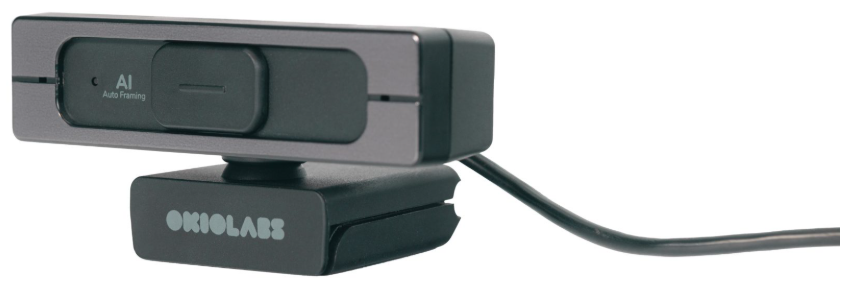
The okiolabs 4K AI Auto Framing Webcam is a cutting-edge solution for professionals, educators, and remote workers seeking high-quality video performance with intelligent automation. Designed for seamless integration into video conferencing, online teaching, and content creation, this webcam delivers stunning 4K resolution at 30fps, ensuring crisp, vibrant visuals for every meeting or presentation. Its standout feature is AI-powered auto framing, which automatically tracks and centers the user in the frame, eliminating the need for manual adjustments and keeping you perfectly in focus.
Key benefits include plug-and-play USB connectivity, advanced noise reduction, and compatibility with major platforms like Zoom, Teams, and Google Meet. The okiolabs 4K AI Auto Framing Webcam is ideal for remote workers, teachers, streamers, and anyone who values professional-grade video quality. With a price range typically between $90 and $130, this webcam offers exceptional value for its feature set and is widely available through major retailers and the official OKIOLABS store.
Specifications
- Resolution: 4K UHD (3840 x 2160) at 30fps
- AI Features: Auto framing, face tracking, background optimization
- Connectivity: USB 2.0/3.0 (plug-and-play)
- Compatibility: Windows, macOS, Chrome OS, Linux
- Microphone: Built-in dual noise-canceling mics
- Field of View: 90° diagonal, adjustable
- Mounting: Universal clip for monitors, laptops, tripods
- Software Support: Works with Zoom, Teams, Skype, OBS, and more
- Dimensions: Compact, lightweight design
Compared to similar webcams like the Logitech Brio or OBSBOT Tiny 2, the okiolabs 4K AI Auto Framing Webcam stands out for its advanced AI tracking, affordable price, and reliable performance in diverse lighting conditions.
Overview
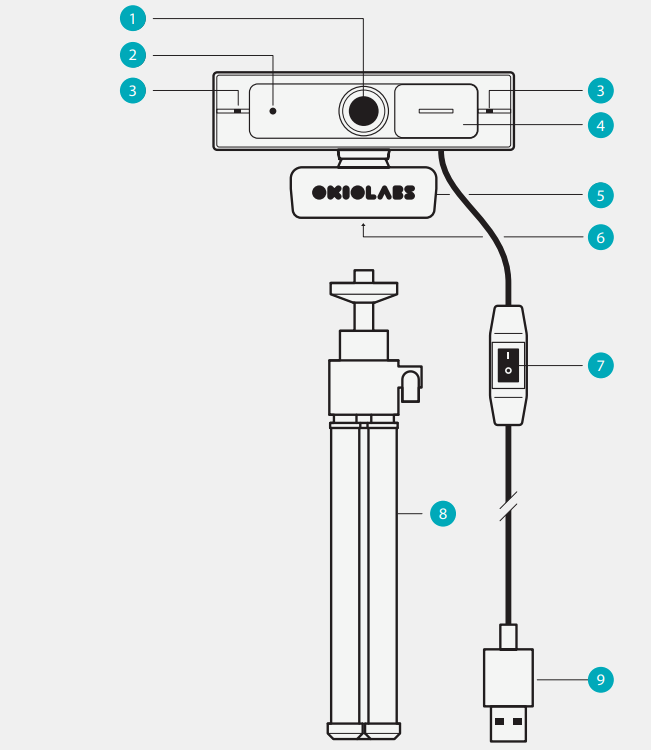
- 4K Ultra HD Camera Lens
- LED Light
- Built-in Microphones
- Privacy Cover
- Adjustable Clip
- The Standard ¼ Inch Tripod Thread
- AI Auto Framing On/Off Switch
- Tripod
- USB Cable
Setting-Up
Option A: With Laptop/Monitor
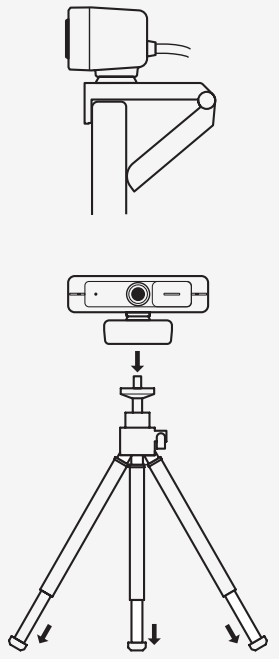
Unfold the clip and place the webcam on the top of your monitor or laptop screen. Secure the OKIOLABS A10 by adjusting the clip to press against the back of your device.
Option B: With Tripod
Fold the clip in and mount the webcam onto a tripod with the ¼ inch standard tripod thread. (Tripod is included with the purchase of OKIOLABS A10.)
- The tripod extends by twisting and pulling on the end of each leg.
- The unextended tripod has a height of 5.7in/14.5cm.
- The extended tripod has a height of 8 in/20cm.
Connecting to your Computer
In order to connect your OKIOLABS A10 to your computer, you must allow it access to function.
Windows:
- Setting
- Privacy
- Camera and switch on. Allow access to your camera.
- Select each application that you want to use your OKIOLABS A10 with.
macOS System:
- Apple menu
- SystemPreferencess
- Security and Privacy
- Camera from the left side of the screen
- Select the applications that you would like to give camera access to by checking the respective box.
Chromebook Camera:
- Open the native camera app.
- Click the button in the lower-left corner.
Troubleshooting Common Issues
- Webcam not detected: Ensure the USB connection is secure and try a different port. Update drivers if needed.
- Blurry image: Clean the lens and adjust the lighting. Use the auto-focus feature if available.
- Audio issues: Check microphone permissions in your OS and conferencing app.
- AI framing not working: Ensure the latest firmware is installed and lighting is adequate.
- Error codes: Refer to the user manual for specific codes. Most issues can be resolved with a restart or driver update.
Preventive measures include regular cleaning, firmware updates, and avoiding extreme temperatures. The webcam comes with a 1-year warranty. For support, contact OKIOLABS via their official website or customer service email.
Pros and Cons of the OKIOLABS 4K AI Auto Framing Webcam
Pros
- Exceptional 4K video quality with AI auto framing
- Easy plug-and-play setup, no additional software required
- Excellent value for money compared to premium brands
- Reliable performance in various lighting environments
- Compact, portable design suitable for travel
Cons
- AI features may lag in low-light conditions
- Does not support 60fps at 1080p (only 30fps at 4K)
- The microphone quality is good, but not studio-grade
- Limited advanced settings compared to high-end webcams
Customer Reviews: OKIOLABS 4K AI Auto Framing Webcam
Users consistently rate the okiolabs 4K AI Auto Framing Webcam 4.5 out of 5 stars, praising its sharp image quality, reliable auto-framing, and ease of use. Many educators and remote workers highlight its value for online teaching and virtual meetings. Common praises include the webcam’s compact size and plug-and-play functionality. Some users note minor issues with microphone clarity in noisy environments. Overall, customers recommend this webcam for anyone seeking professional video quality without a premium price tag.
Faqs
How do I set up the okiolabs 4K AI Auto Framing Webcam for the first time?
What should I do if the okiolabs 4K AI Auto Framing Webcam is not recognized by my computer?
Can I use the okiolabs 4K AI Auto Framing Webcam with Zoom, Teams, and other video conferencing apps?
Why does the AI Auto Framing feature only work in 1080p and not 4K?
How do I adjust the zoom and field of view on the okiolabs 4K AI Auto Framing Webcam?
Is the okiolabs 4K AI Auto Framing Webcam suitable for low-light environments?
How do I maintain and clean the okiolabs 4K AI Auto Framing Webcam?
What are the key differences between the okiolabs 4K AI Auto Framing Webcam and other 4K webcams?
Leave a Comment