
Setup & Usage: Plustek OpticFlim 8300i Scanner User Manual
Content
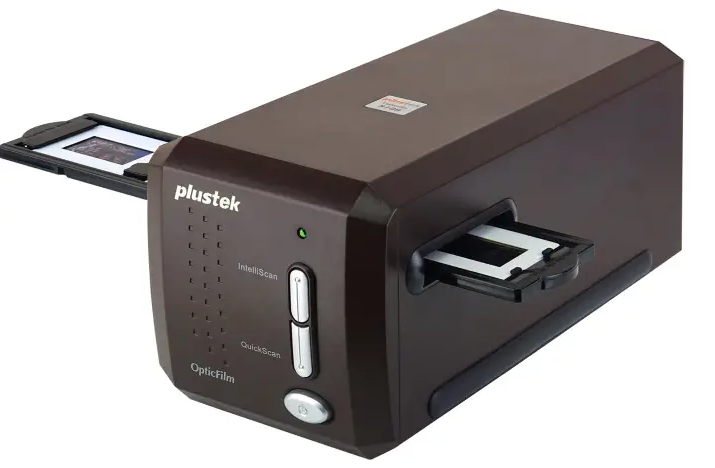
Plustek OpticFlim 8300i Scanner
Introduction
The Plustek OpticFilm 8300i Scanner is a high-performance 35mm film and slide scanner designed for photographers, archivists, and film enthusiasts seeking to transform analog film into stunning digital images. Featuring a true optical resolution of up to 7200 dpi, this scanner delivers exceptionally sharp and vivid scans, producing digital files that can reach up to 68.9 megapixels. Its advanced hardware,, combined with professional-grade software, makes it a top choice for precise film digitization.
Equipped with a new generation chip, the OpticFlim 8300i enhances scanning speed by approximately 38% compared to its predecessors, enabling efficient workflows without compromising image quality. The scanner bundles SilverFast Ai Studio 9, an industry-leading imaging software with over 100 advanced functions, and Plustek’s QuickScan Plus for straightforward archiving and digitization.
This scanner is ideal for professional photographers, film restoration experts, and hobbyists who require superior image detail and color accuracy from their 35mm negatives and slides. It's built-in infrared channel helps remove dust and scratches automatically, reducing the need for manual post-processing.
Available through authorized retailers and online stores, the Plustek OpticFlim 8300i Scanner typically ranges around $539 USD, offering excellent value for a specialized film scanning solution with comprehensive software support.
Specifications of the Plustek OpticFilm 8300i Scanner
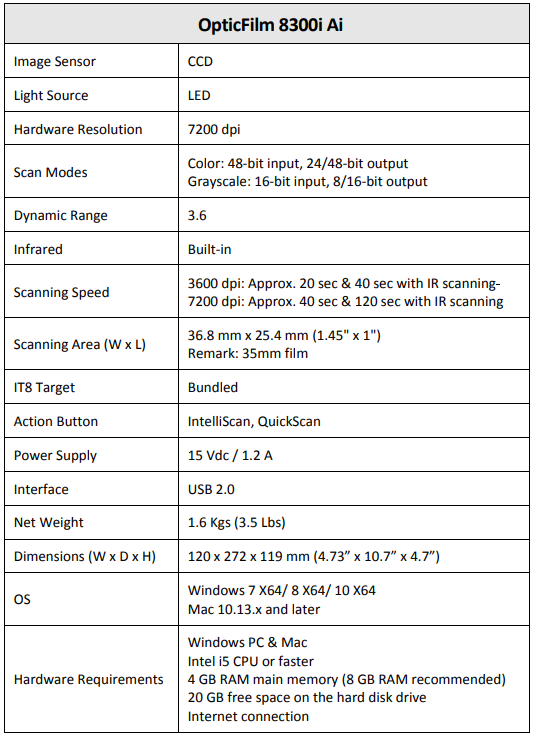
OpticFilm 8300i Ai
- Scanner Type: Dedicated 35mm film and slide scanner
- Optical Resolution: True 7200 dpi for ultra-high detail
- Image Sensor: CCD (Charge-Coupled Device), ensuring sharp image capture
- Light Source: LED for consistent illumination
- Dynamic Range: Up to 3.91 Dmax for smooth tonal gradation and shadow detail
- Scanning Speed: Approx. 40 seconds for 7200 dpi without IR; up to 120 seconds with infrared dust and scratch removal
- Color Depth: 48-bit input with 24/48-bit output; grayscale 16-bit input with 8/16-bit output
- Infrared Channel: Built-in iSRD technology for automatic dust and scratch removal
- Scan Area: 36.8 mm x 25.4 mm (standard 35mm film size)
- Interface: USB 2.0 Type B for reliable connectivity
- Operating System Compatibility: Windows 7/8/10/11 (64-bit) and Mac OS 10.13 through 15.x
- Software Included: SilverFast Ai Studio 9 and Plustek QuickScan Plus
- Dimensions: 120 x 272 x 119 mm (4.73" x 10.7" x 4.7")
- Weight: 1.6 kg (3.5 lbs)
Compared to similar film scanners like the OpticFilm 8200i, the 8300i offers a 38% scan speed increase and improved image processing algorithms, making it a superior choice for speed and quality in the 35mm film scanner market.
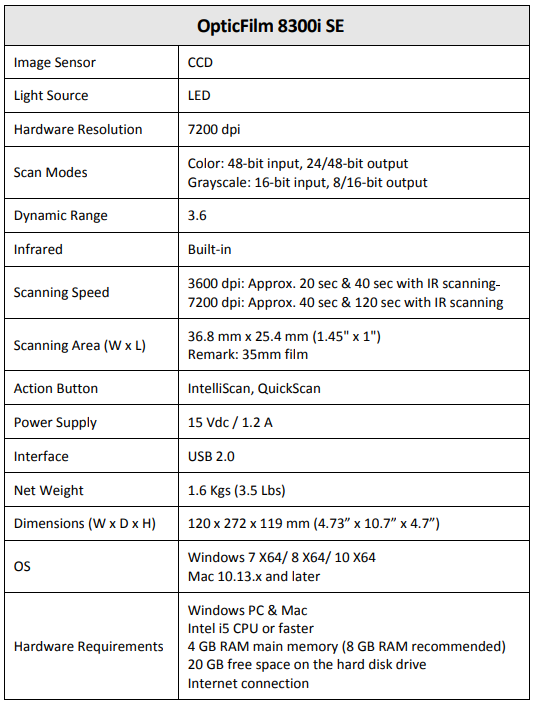
OpticFilm 8300i SE
Product Overview
Box Contents
- Scanner
- Padded carrying bag
- Mounted Slide Holder and Filmstrip Holder
- USB Cable
- Power Adapter
- Quick Guide
- Set up / Application USB stick
- Activation card
- 35 mm IT‐8 Target (35 mm IT‐8 Target is not included in all scanner models)
Scanner Overview
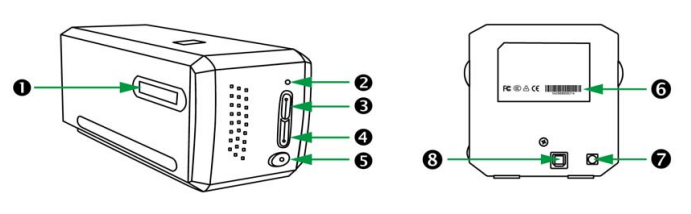
- Film Holder Slot: Insert the film holder into the scanner through the dust cover. The film holder can be inserted from either side. The m holder will index at each frame using the notches on its side rails.
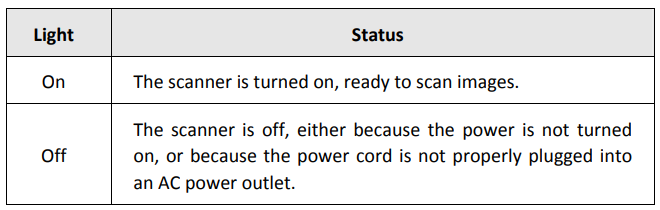
Power LED: It indicates the scanner status.
- IntelliScan Button: You may press the button to launch the SilverFast application.
- QuickScan Button: You may press he button to launch the QuickScan Plus papplication
- Power Button: Use this to turn the scanner ON or OFF.
- Serial Number Sticker: Located at the rear of the scanner.
- Power Receptor
- USB Port
Before Installing the Scanner
Connecting the Scanner to Your Computer
- Plug the power adapter into the scanner’s power receptacle.
- Plug the other end of the power adapter into a standard AC power outlet.
- Plug the square end of the included USB cable into the USB port at the rear of the canner.
- Plug the rectangular end of the USB cable into the USB port on the back of your computer.
Note: If there is another USB device connected to the computer scanner to an available USB port.
Safety Precautions
Before using this device, please read the following important information to eliminate or reduce any possibility of causing damage and personal injury.
- Usage: The product is for indoor use in dry locations. Moisture condensation may occur inside this device and cause a malfunction under these conditions:
- When this device is moved directly from a cold to a warm location;
- after a cold room is heated;
- When this device is placed in a damp room.
To avoid moisture condensation, you are recommended to follow the procedure:- Seal this device in a plastic bag for it to adapt to room conditions.
- Wait for 1‐2 hours before removing this device from the bag.
- Do use the power adapter and USB cable provided with the scanner. Use of other power adapters and cables may lead to a malfunction.
- Keep the space around the AC adapter clear in case you need to quickly unplug the AC adapter during emergencies.
- Damaged wire could cause fire or electrical shock. Keep the power cord straight and without being twisted, bent, or scraped.
- Unplug this device if you don’t need to use it for a certain period of time, such as, during the night or a long weekend, to avoid any risks of causing fire.
- Do not attempt to disassemble the scanner. There is a danger of an electrical shock,, and opening your scanner will void your warranty.
- Be sure not to bump or knock the scanner, er as it is fragile and could break.
- Before installing the device drivers, please disconnect all other incoming devices (other scanners, printers, digital cameras, web cameras) from the PC.
- Save the Setup/Application USB stick. You may need to reinstall the river and software in the future.
- Please make sure your hands are clean before handling slides and negatives. If there is dust on your film material, please clean it by blowing it off or wiping it with a non-abrasive cloth.
- Please keep your slides and negatives in a cool, dry place out of direct sunlight. Handle with care, as improper storage and handling can lead to deterioration and ultimately affect your scan results.
Maintenance
Caution: To keep your scanner working smoothly, take a moment to review the following maintenance tips.
- Avoid using the scanner in a dusty environment. When it is not in use, keep the canner covered. Dust particles and other foreign objects may damage the unit.
- Do not attempt to disassemble the scanner. There is da anger of an electrical shock,, nd opening your scanner will void your warranty.
- Do not subject the canner to severe vibration of the external components.
- Your scanner operates best in temperatures between 10° C to 40° C (50° F to 104° F).
Troubleshooting Common Issues with the Plustekk OpticFilm 8300i Scanner
- Problem: Scanner not recognized by the computer
Solution: Ensure the USB cable is securely connected and try a different USB port. Verify that the scanner drivers and SilverFast software are correctly installed and updated. - Error Code: Software freezes or scan fails
Fix: Restart the computer and scanner. Close other software that may interfere. Update SilverFast Ai Studio to the latest version. - Issue: Dust or scratches visible on scans
Prevention: Use the built-in infrared iSRD function to automatically remove dust and scratches; clean films before scanning for best results. - Slow Scanning Speed:
Tip: Use 3600 dpi mode when high resolution is not required, and ensure your PC meets recommended hardware specs (Intel i5 or better, 8GB RAM, fast storage).
The Plustek OpticFilm 8300i Scanner comes with a standard manufacturer's warranty. For expert support, users can contact Plustek’s US-based customer service via phone or online support channels for installation or technical assistance.
Customer Service and Warranty
If you encounter problems with our scanner, please review the installation instructions and troubleshooting suggestions contained in this guide.
Visit our website www.plustek.com for more customer service information.. To avoid delays, please have the following information available:
- Scanner name and model number
- Scanner serial number (located at the rear of the scanner near the port connectors)
- A detailed description of the problem
- Your computer manufacturer and its model number
- The speed of your CPU
- Your current operating system and BIOS (optional)
- Name of software package(s), version or release number,, and manufacturer of the software
- Other USB devices installed
Pros & Cons of the Plustek OpticFilm 8300i Scanner
- Pros:
- Exceptional 7200 dpi optical resolution producing highly detailed digital images
- Fast scanning speed with 38% improvement over previous models
- Bundled professional software SilverFast Ai Studio 9 and QuickScan Plus for versatile image processing
- Automatic dust and scratch removal via built-in infrared channel (iSRD)
- Supports both Windows and Mac operating systems
- Compact and lightweight design for easy setup and portability
- Cons:
- High-resolution scans (7200 dpi with IR) can be slow, requiring patience
- SilverFast software may have a steep learning curve for beginners
- Limited to 35mm film and slides only, no medium or large format support
- Relatively high price compared to consumer-grade scanners
- Value for Money: Considering its professional-grade hardware and software bundle, the Plustek OpticFlim 8300i offers strong value for photographers and archivists needing precise 35mm film digitization, outperforming many alternatives in quality and features.
Customer Reviews and Feedback on the Plustek OpticFlim 8300i Scanner
The Plustek OpticFilm 8300i Scanner holds a solid user rating averaging around 4.5 stars out of 5 from verified buyers. Customers praise its superior image quality, sharpness, and color accuracy when scanning 35mm negatives and slides. Many highlight the advantage of the bundled SilverFast Ai Studio software for professional-level image enhancement and dust removal.
Common complaints include the relatively slow scan times at the highest resolution settings and the complexity of the SilverFast software interface, which can pose a learning curve for casual users. However, overall, users recommend the scanner for serious film digitization projects, citing excellent value, reliable performance, and strong customer support.
Most reviewers confirm the device’s compatibility with current Windows and Mac systems, appreciating the easy installation process and included IT8 calibration targets for color accuracy.
Leave a Comment