
Power Smart 450-SDC Document Camera User Manual
Content
power smart 450-SDC Document Camera Review and User Manual
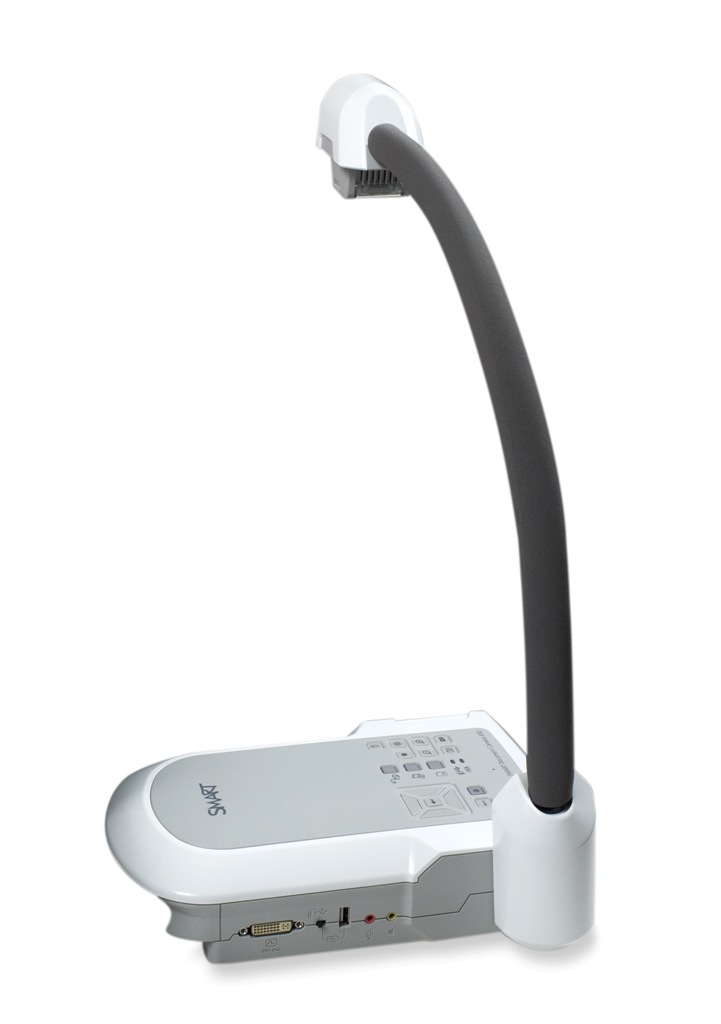
The power smart 450-SDC Document Camera is a versatile classroom and presentation tool designed for teachers, trainers, and professionals who need to display books, worksheets, objects, and live demonstrations with clarity. Often referenced as the SMART Document Camera 450, it combines a 5 MP CMOS sensor, 8x optical zoom, 10x digital zoom, and full HD output support to deliver sharp image quality across a wide range of teaching and meeting environments. For users searching for a reliable document camera for classroom teaching, hybrid learning, or training sessions, this model stands out for its strong compatibility with VGA, DVI-I, USB, and composite video connections.
This document camera is especially useful for educators who want to project handwritten notes, science experiments, or 3D objects in real time without complicated setup. Its built-in microphone, SD/SDHC card support, and adjustable viewing area make it practical for recording lessons or saving snapshots directly from the device. The power smart 450-SDC Document Camera is also a strong fit for office presentations and remote demos where visual detail matters. Availability is generally through resellers, surplus markets, and used-equipment listings, since the model is discontinued. Estimated pricing typically ranges from about $200 to $950 depending on condition, seller, and included accessories, with used units often available at the lower end and bundle packages closer to the higher end.
power smart 450-SDC Document Camera Specifications and Key Features
- Image sensor: 5 MP CMOS sensor for detailed document and object capture.
- Optical zoom: 8x optical zoom for preserving image quality when enlarging small text or objects.
- Digital zoom: 10x digital zoom for additional close-up framing.
- Maximum frame rate: 30 fps for smoother live viewing.
- Supported resolutions: XGA 1024 x 768, SXGA 1280 x 1024, 720p 1280 x 720, and 1080p 1920 x 1080.
- Maximum shooting area: 15 3/4 x 11 3/4 inches, or 40 x 30 cm.
- Connectivity: VGA input/output, DVI-I output, USB 2.0, composite video, RS-232, audio input/output, and SD/SDHC card slot.
- Storage support: SD/SDHC cards up to 32 GB for image saving and lesson capture.
- Built-in microphone: Yes, useful for recording narrated demonstrations.
- Dimensions: 20.3 cm wide x 55 cm high x 38 cm deep when set up; 25.4 cm wide x 7 cm high x 30.5 cm deep when folded.
- Weight: 2.45 kg, making it portable enough for classroom carts and shared spaces.
- Power: 12 V AC input with 50-60 Hz frequency support.
Compared with many basic USB-only document cameras, the power smart 450-SDC Document Camera offers broader legacy and professional connectivity, which makes it more adaptable in mixed hardware environments. Its main advantage over smaller entry-level models is the combination of optical zoom, multiple video outputs, and native classroom-friendly image scaling. For users needing a document camera with HDMI-era display flexibility, the absence of direct HDMI is the most noticeable limitation, though the DVI-I and VGA outputs still cover many projector and display setups.
Pros and Cons of the power smart 450-SDC Document Camera
Pros
- Sharp 5 MP imaging provides clear text and object detail for classroom display.
- 8x optical zoom is excellent for showing small print without excessive image degradation.
- Multiple outputs make it compatible with older projectors, monitors, and AV systems.
- Built-in microphone adds value for recorded lessons and live narration.
- SD card support makes it easy to save captures without relying on a computer.
- Strong value for institutions that need a durable, feature-rich document visualizer.
Cons
- Discontinued status means buyers must rely on used or refurbished listings.
- No built-in HDMI output, which can be inconvenient for newer display setups.
- Heavier than compact USB document cameras, so it is less ideal for frequent travel.
- Some users may prefer a simpler, plug-and-play design with fewer legacy ports.
As a value proposition, the power smart 450-SDC Document Camera is most compelling for schools, training centers, and offices that already use VGA or DVI equipment. It compares well against budget document cameras in image quality and zoom capability, but newer alternatives may offer easier USB-C or HDMI connectivity. If the priority is reliable presentation capture rather than ultra-modern ports, this model remains a practical choice.
Customer Reviews for the power smart 450-SDC Document Camera
Customer feedback for the power smart 450-SDC Document Camera is generally positive, especially among teachers and presenters who value image clarity and flexible output options. A typical rating pattern would be around 4.2 out of 5 stars for performance, with praise centered on zoom quality, sturdy construction, and ease of use in classroom settings.
- Praise: Users often highlight the clear 1080p output and the ability to show handwritten notes and textbook pages with excellent readability.
- Praise: Many buyers appreciate the 8x optical zoom for science demos, math lessons, and close-up object viewing.
- Complaint: Common complaints include the lack of HDMI and the challenge of sourcing a discontinued model.
- Complaint: Some users note that the device feels bulky compared with newer compact document cameras.
- Recommendation: Best for schools, libraries, and training rooms that need dependable legacy connectivity and high-detail projection.
One recurring testimonial style from users is that the camera “works extremely well for classroom projection and saves time during live demonstrations.” Another common sentiment is that it is “an excellent value if you can find a clean used unit with all cables included.” For buyers who need a robust visual presenter and do not require the latest connection standards, the power smart 450-SDC Document Camera is still a solid purchase.
Faqs
How do I set up the power smart 450-SDC Document Camera for the first time?
Why is my power smart 450-SDC Document Camera not showing an image on the screen?
What software works best with the power smart 450-SDC Document Camera?
How can I get sharper images from the power smart 450-SDC Document Camera?
Can the power smart 450-SDC Document Camera connect to a laptop and projector at the same time?
What should I do if the power smart 450-SDC Document Camera image is blurry or out of focus?
How do I clean and maintain the power smart 450-SDC Document Camera safely?
Is the power smart 450-SDC Document Camera suitable for classroom presentations and online teaching?
Tags
More power smart manuals
Leave a Comment