
How to Use: Quican Smart Watch IDW19 User Guide
Content
Quican Smart Watch IDW19
Introduction
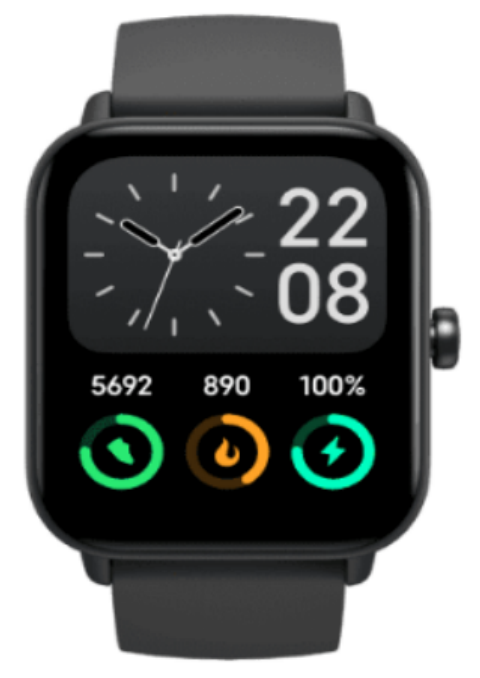
The Quican Smart Watch IDW19 is a versatile and modern wearable designed to seamlessly blend functionality with style. It caters to tech-savvy individuals, fitness enthusiasts, and busy professionals who seek to stay connected and monitor their health on the go. This smartwatch offers comprehensive health tracking, real-time notifications, and customizable interfaces that make daily management effortless.
Equipped with advanced sensors, the Quican Smart Watch IDW19 monitors heart rate, sleep quality, and blood oxygen levels, and supports multiple sports modes, making it ideal for users aiming to enhance their wellness routines. Its intuitive touchscreen and smartphone app integration allow easy synchronization with Android and iOS devices, enabling call, message, and app notifications directly on the wrist.
Priced competitively in the mid-range smartwatch market, the Quican Smart Watch IDW19 offers excellent value for its rich feature set and durable build. It is widely available through online retailers and select electronics stores. Whether you want to track fitness goals, manage daily notifications, or simply wear a stylish gadget, this model fits a broad range of use cases with reliable performance and sleek design.
Set Up and Use
Q1: How can I charge and turn on the watch?
- To charge the watch, please connect one end of the magnetic charging cable to a USB 5V port, and the other end to the watch.
Q2: What is the standby time of the watch?
- The standby time of the watch is about 20 days, and the normal service time is 5~7 days. The battery endurance of different product models may vary, depending on the battery level, screen brightness, and actual working conditions.
Q3: Can I charge the watch using a mobile power pack?
- There will be a problem of compatibility, because the intended use othe f the mobile power pack is to charge mobile phones. When the mobile phone gets fully charged, the charging current will become very low, and the mobile power pack will stop charging for power-saving purposes. The charging current of the watch is lower than 100mA, so the mobile power pack will mistakenly believe that the watch has been fully charged and thus stop charging.
Q4: Should I fully discharge the watch before charging?
- When the watch runs out of power, it will shut down automatically and lose the data 2 . If the watch is not charged soon after running out of power, it may fail to turn on when charged. Therefore, you are recommended to charge the watch when the battery voltage becomes low.
Q5: How can I check the battery level of the watch?
- Turn on the watch screen and check the battery level in the upper right corner, or start the App and click "Device" to check the battery level.
Q6: How can I synchronize the App and the watch?
- Turn on Bluetooth on your mobile phone. Start the App, bind the watch,, and then pull down the Home page to synchronize with the watch.
- Turn on the watch screen, and the watch will send a 60s broadcast signal. The App will receive such h signal in 60s and synchronize with the watch automatically.
Q7: What is the watch strap made of?
- The watch strap is made of silicone, which is soft and wearable. The strap buckle is made of stainless steel (powder metallurgy).
Q8: Is the watch strap environmentally friendly?
- Our production system has passed ISO9001, so our production quality is guaranteed.
- The products have passed RoHS certification issued by the SGS agency and comply with MSDS requirements.
Q9: Does the watch record and store data when my mobile phone is not around? How much data can be stored?
- The watch can store data separately. You do not need to carry your mobile phone while running or sleeping. To synchronize data to the App, please bring the watch close to your mobile phone, and then perform the data synchronization operation in the App.
- The watch can store up to 7 days of your exercise data
Specifications and Features of Quicann Smart Watch IDW19
- Display: 1.75-inch full-color TFT touchscreen with 320x385 resolution for crisp visuals
- Processor & Memory: Low-power chipset with sufficient RAM for smooth operation
- Connectivity: Bluetooth 5.0 for seamless pairing with Android and iOS devices
- Sensors: Heart rate monitor, blood oxygen (SpO2) sensor, accelerometer, gyroscope, sleep tracker
- Health Tracking: 24/7 heart rate monitoring, sleep analysis, blood oxygen saturation, sedentary reminders
- Sports Modes: Multiple exercise types,, es including running, cycling, walking, and more
- Battery Life: Up to 7 days on a single charge under typical usage conditions
- Water Resistance: IP68 rating suitable for sweat, rain, and occasional splashes
- App Integration: Compatible with the WearHealth app for data syncing and cloud storage
- Additional Features: Call/message notifications, music control, customizable watch faces
Compared to similar models in its price range, the Quican Smart Watch IDW19 stands out with its balanced combination of health monitoring, battery endurance, and extensive compatibility, making it a competitive choice for everyday wear.
Setup Guide for Quican Smart Watch IDW19
- Charge the Smartwatch: Use the provided magnetic charging cable and connect to a USB power source until the battery is full.
- Power On: Press and hold the side button until the screen lights up.
- Download the WearHealth App: Scan the QR code in the manual or search for "WearHealth" in the App Store or Google Play Store.
- Pair the Device: Enable Bluetooth on your smartphone, open the WearHealth app, and follow prompts to add the quican Smart Watch IDW19 by selecting it from the device list.
- Configure Settings: Customize watch faces, notification preferences, vibration intensity, and screen timeout via the watch settings or app control panel.
- Sync Health Data: Allow the app to access permissions for health monitoring and enable real-time data synchronization.
Troubleshooting Tips: If pairing fails, restart both devices and ensure Bluetooth is enabled and within range. Perform a factory reset through the watch settings if issues persist. Avoid exposing the watch to extreme temperatures or moisture beyond its IP68 rating.
Safety Precautions: Do not use the watch as a medical device. Keep the watch clean and avoid strong impacts to preserve sensor accuracy and device longevity.
Troubleshooting Common Issues with the uican Smart Watch IDW19
- Pairing Failure: Ensure Bluetooth is on and the watch is in pairing mode. Restart devices and reinstall the WearHealth app if necessary.
- Inaccurate Health Data: Make sure sensors are clean and wrist placement is correct; keep the watch snug but comfortable.
- Battery Draining Quickly: Reduce screen brightness, limit notifications, and close background apps on the smartphone.
- No Notifications: Check app permissions, ensure Do Not Disturb mode is off on both devices, and verify Bluetooth connectivity.
- Error Codes: Refer to the WearHealth app for specific error messages; a factory reset often resolves persistent errors.
Preventive Measures: Regularly update the device firmware via the app, avoid water exposure beyond the IP68 limit, and charge the watch with the original charger.
The Quican Smart Watch IDW19 comes with a standard one-year warranty covering manufacturing defects. For technical support, contact the official Quican customer service through their website or authorized retailers.
Pros and Cons of Quican Smart Watch IDW19
- Pros:
- Comprehensive health tracking with heart rate, SpO2, and sleep monitoring
- Long battery life up to 7 days for uninterrupted use
- IP68 water resistance is suitable for everyday activities
- Intuitive WearHealth app for seamless data synchronization
- Affordable price compared to similar feature-rich smartwatches
- Customizable watch faces and vibration intensity
- Cons:
- Lacks built-in GPS, relying on phone GPS for location tracking
- Display brightness could be insufficient in direct sunlight
- Limited third-party app support beyond the WearHealth ecosystem
- Occasional Bluetooth connectivity drops are reported by some users
Customer Reviews and Feedback on Quican Smart Watch IDW19
Users generally praise the Quican Smart Watch IDW19 for its affordable price point combined with strong health monitoring features. Many highlight its comfortable fit and clear display as positives. Common complaints include occasional Bluetooth disconnections and the lack of built-in GPS functionality.
Star ratings average around 4 out of 5, with testimonials noting its suitability for daily fitness tracking and notification management. Several customers recommend it as an excellent entry-level smartwatch that delivers good value for money. Frequently mentioned issues often relate to app pairing glitches, which are usually resolved through software updates.
Faqs
How do I set up Alexa on my quican Smart Watch IDW19 for voice control?
Why does my quican Smart Watch IDW19 not record steps accurately?
Can I use the quican Smart Watch IDW19 with my iPhone?
How do I customize watch faces on my quican Smart Watch IDW19?
What should I do if the screen of my quican Smart Watch IDW19 doesn't turn on during charging?
How does the quican Smart Watch IDW19 track calories burned during exercise?
Can I use the quican Smart Watch IDW19 for swimming?
How often should I clean my quican Smart Watch IDW19 for maintenance?
Leave a Comment