
Installation: Smartwares C935IP Wireless APP Camera User Manual
Content
smartwares C935IP Wireless APP Camera Manual
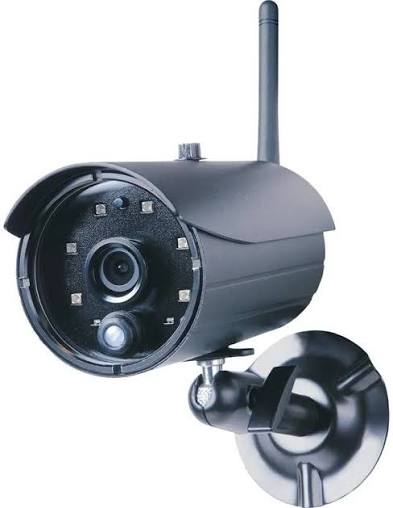
The smartwares C935IP Wireless APP Camera is an outdoor IP security camera built for users who want simple app-based monitoring without complicated setup. It combines wired and wireless connectivity, HD 720p video, motion detection, and infrared night vision in a compact bullet-style design suited for homes, driveways, garages, small businesses, and entry points. With IP66 weather resistance, the camera is designed to handle outdoor conditions while still delivering live viewing on a smartphone, tablet, or computer.
One of the biggest advantages of the smartwares C935IP Wireless APP Camera is its plug-and-play convenience. Users can connect it through Wi-Fi or Fast Ethernet, then manage viewing and alerts through the OMGuard HD app. The camera records at up to 1280 x 720 resolution, uses H.264 compression, and supports 30 fps video for smooth live monitoring. The 60-degree horizontal lens view provides focused coverage for entrances and other targeted areas. Its motion sensor and infrared LEDs make it useful for day-and-night surveillance, while the external antenna helps improve wireless stability.
This model is best suited for homeowners, renters, and small office users looking for an affordable outdoor wireless security solution. Typical pricing for the smartwares C935IP Wireless APP Camera usually falls in the budget-to-midrange segment, often around €40 to €90 depending on condition, retailer, and stock availability. It is commonly found through online marketplaces and legacy electronics retailers, though availability may vary because it is an older model. For users who want a practical, app-connected outdoor camera with essential security features, it remains a solid value-focused choice.
Troubleshooting the smartwares C935IP Wireless APP Camera
If the camera does not appear in the app, first confirm that the phone is connected to the camera’s temporary Wi-Fi network during setup and that the OMGuard HD app is installed correctly. If live video is blank or delayed, check the router connection, verify that the camera is within wireless range, and restart both the camera and the router. If night vision is weak, make sure the infrared LEDs are not blocked by dirt, spider webs, or a reflective surface close to the lens.
Common setup issues may also be caused by incorrect Wi-Fi credentials, weak signal strength, or a storage card problem. If the camera fails to save recordings, reformat the microSD card and confirm that it supports up to 32 GB. Error codes are not widely standardized for this model, but network errors usually point to Wi-Fi pairing problems, while recording errors often indicate card incompatibility or a full memory card. Preventive maintenance includes updating router settings, keeping the lens clean, checking the antenna position, and ensuring the camera remains sheltered even though it is IP66-rated.
For warranty or service support, check the retailer’s purchase terms and the manufacturer’s regional support channels. If further help is needed, contact Smartwares customer support through the official support portal or the retailer that supplied the camera. Keep the model number C935IP, proof of purchase, and a description of the issue ready when requesting assistance.
Pros and Cons of the smartwares C935IP Wireless APP Camera
Pros
- Easy app-based viewing with smartphone, tablet, and computer access.
- Outdoor-ready IP66 housing for driveways, porches, and garden areas.
- 720p HD video is enough for general home security monitoring.
- Motion detection and night vision add useful 24-hour surveillance coverage.
- Wired and wireless connectivity gives flexible installation options.
- Good value for users who want basic security without paying for premium smart features.
Cons
- 720p resolution is lower than modern 1080p or 2K alternatives.
- App and setup flow may feel dated compared with newer smart home cameras.
- Limited 60-degree horizontal viewing angle may require multiple cameras for wider coverage.
- MicroSD support is capped at 32 GB, which limits local storage capacity.
- Best suited for essential monitoring, not advanced AI detection or cloud-heavy ecosystems.
Overall, the smartwares C935IP Wireless APP Camera offers strong value for money if the goal is straightforward outdoor monitoring. Compared with newer alternatives from brands like TP-Link, Imou, or Eufy, it is less advanced but can still be a practical budget choice for users who prioritize simplicity over premium resolution and app intelligence.
Customer Reviews and User Feedback
Customer feedback for the smartwares C935IP Wireless APP Camera is generally mixed-to-positive, with many users rating it around 3.8 to 4.2 out of 5 stars for basic home security use. Buyers often praise the easy installation, reliable outdoor design, and useful night vision for driveway and entrance monitoring. A common positive comment is that the camera offers decent image quality for the price and performs well when positioned correctly.
Frequent complaints mention the lower 720p resolution, occasional Wi-Fi setup difficulty, and the limited storage size. Some users also report that the app experience feels outdated compared with newer cameras. A typical testimonial might say, “Good value for watching the front of the house, but the setup took patience.” Another might note, “Solid outdoor camera for the price, especially if you only need essential live viewing and motion alerts.” For buyers seeking a budget-friendly outdoor camera, it remains a reasonable purchase, especially when advanced smart features are not required.
Faqs
How do I set up the smartwares C935IP Wireless APP Camera for the first time?
Why is my smartwares C935IP Wireless APP Camera not connecting to Wi-Fi?
What app do I need for the smartwares C935IP Wireless APP Camera?
How do I add a second smartwares C935IP Wireless APP Camera to the app?
What should I do if the smartwares C935IP Wireless APP Camera shows a black screen or no video?
How do motion alerts work on the smartwares C935IP Wireless APP Camera?
Is the smartwares C935IP Wireless APP Camera compatible with Android and iPhone?
How should I maintain and clean the smartwares C935IP Wireless APP Camera?
Leave a Comment