
Solid State Supplies MF833V USB Modem User Manual
Content
Solid State Supplies MF833V USB Modem Review and Setup Guide
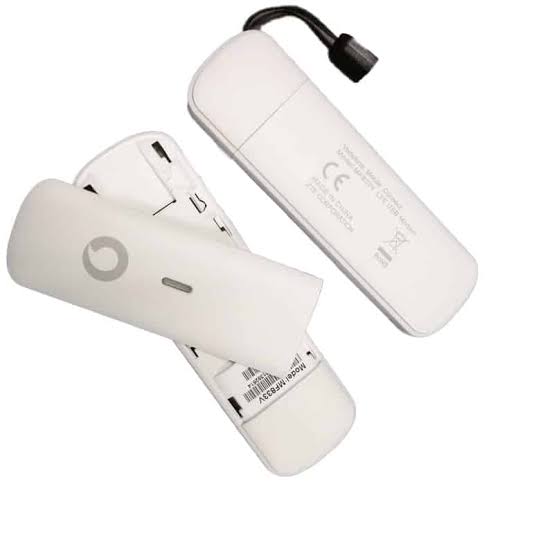
The solid state supplies MF833V USB Modem is a compact 4G LTE mobile broadband dongle designed for fast, portable internet access on laptops, desktops, and compatible networking devices. It is widely used by home users, field technicians, remote workers, and small businesses that need a simple plug-and-play connectivity solution without relying on fixed-line internet. Its main appeal comes from its balance of speed, portability, and ease of use, making it a practical choice for travel, backup internet, and temporary installations.
One of the strongest advantages of the solid state supplies MF833V USB Modem is its LTE Cat 4 performance, which supports download speeds up to 150 Mb/s and upload speeds up to 50 Mb/s under ideal network conditions. The device also supports 3G fallback, broad band compatibility, and SIM-based connectivity, allowing users to stay connected in areas where fixed broadband is unavailable. Its compact USB-stick design makes it easy to carry, while the internal antenna and low-power operation help keep setup straightforward.
For buyers researching the solid state supplies MF833V USB Modem, typical pricing is usually in the budget-to-midrange category, with market availability often falling around the $30 to $55 range depending on whether it is sold as an unlocked unit or bundled with a carrier plan. Availability may vary by region and retailer, especially for prepaid or carrier-branded versions. This modem is best suited for users who want reliable 4G internet for travel, backup connectivity, IoT deployments, and basic mobile office use.
Specifications for Solid State Supplies MF833V USB Modem
- Network type: LTE Cat 4 mobile broadband with 3G fallback for wider coverage.
- Download speed: Up to 150 Mb/s under LTE conditions.
- Upload speed: Up to 50 Mb/s under LTE conditions.
- Supported bands: LTE-FDD bands commonly include B1, B2, B3, B4, B5, B7, B8, B12, B17, and B20; UMTS bands include B1, B2, B4, B5, and B8; GSM support includes 850, 900, 1800, and 1900 MHz.
- Chipset: Qualcomm MDM9X07 or MDM9207 family depending on batch and carrier variant.
- Interface: Standard USB-A with USB 2.0 high-speed support.
- SIM support: 3FF micro SIM, compatible with 3V and 1.8V SIM cards.
- Memory: 128 MB SDRAM and 256 MB NAND storage in documented variants.
- Dimensions: Approximately 93.8 x 28.6 x 13.5 mm.
- Weight: About 28 g to 31 g depending on version.
- Operating systems: Commonly supports Windows 7, 8, 10, 11 and macOS 10.7 or later in supported versions.
- Comparison: Compared with basic 3G USB sticks, the MF833V offers much faster LTE performance; compared with newer Wi-Fi hotspot modems, it is simpler and usually more affordable, but it does not provide battery-powered wireless sharing.
Troubleshooting Solid State Supplies MF833V USB Modem Issues
If the modem is not detected, try a different USB port, restart the computer, and confirm that the SIM card is inserted correctly. If the device powers on but does not connect, check whether the network mode is set correctly and confirm that the SIM has an active data plan.
- No device detected: Reinsert the modem, test another USB port, and avoid using unpowered USB hubs.
- Connection failed: Check APN settings from your mobile carrier and verify that roaming is enabled when required.
- Slow speed: Move to a stronger signal area, disconnect unused apps, and confirm that LTE service is available on the carrier network.
- SIM error: Remove and clean the SIM lightly, then reinsert it with correct orientation. Test with another SIM if available.
- Driver issue: Reinstall modem drivers or use a supported operating system version.
- Error code example: A network registration failure often points to an invalid APN, weak signal, or inactive SIM plan.
To prevent recurring problems, keep firmware and drivers updated, use supported SIM sizes, and avoid physical stress on the USB connector. Warranty coverage is typically offered by the retailer or carrier bundle, often around 12 months for branded units. For help, contact the seller’s support team, the mobile carrier that supplied the SIM, or the manufacturer’s regional customer service line listed in the product documentation.
Pros and Cons of the Solid State Supplies MF833V USB Modem
Pros
- Fast LTE Cat 4 speeds for everyday browsing, email, video calls, and basic hotspot-style connectivity.
- Compact plug-and-play form factor that is easy to carry in a laptop bag.
- Useful as a backup internet option during NBN, cable, or fiber outages.
- Broad band support improves compatibility with many carriers and regions.
- Usually offers strong value for money compared with full-featured mobile routers.
Cons
- Does not include built-in Wi-Fi sharing, so it is less flexible than a portable hotspot router.
- Performance depends heavily on carrier coverage and signal quality.
- Some versions may require driver installation or carrier-specific setup.
- Limited feature set compared with premium 4G/5G modems and travel routers.
- Best suited for single-device or simple deployment use rather than advanced networking needs.
Overall, the solid state supplies MF833V USB Modem is a strong budget-friendly choice for users who want dependable mobile broadband without extra complexity. Alternatives such as pocket Wi-Fi devices or newer 5G modems offer more flexibility, but they also cost more.
Customer Reviews for Solid State Supplies MF833V USB Modem
Customer feedback on the MF833V is generally positive, with many users rating it around 4 out of 5 stars for reliability, portability, and setup speed. Buyers often praise its compact design and steady 4G performance for travel and backup internet use.
- Praise: “Works straight out of the box and gives me a stable connection when I travel.”
- Praise: “Small, light, and easy to keep in my laptop case as a backup modem.”
- Complaint: “Signal drops when I move away from strong coverage areas.”
- Complaint: “Driver setup took longer than expected on my older laptop.”
Most purchase recommendations favor users who need a simple USB modem for one computer or a backup connection. Buyers who need Wi-Fi sharing, advanced admin controls, or multi-device support may prefer a mobile hotspot instead. Commonly mentioned issues include carrier lock, APN setup, and varying real-world speeds depending on network conditions.
Faqs
How do I set up the solid state supplies MF833V USB Modem for the first time on a Windows laptop?
Why is my solid state supplies MF833V USB Modem not being detected when I plug it in?
What drivers do I need for the solid state supplies MF833V USB Modem, and how do I install them correctly?
How do I fix slow internet speeds on the solid state supplies MF833V USB Modem?
Can the solid state supplies MF833V USB Modem work with routers, tablets, or Linux systems?
What should I do if the solid state supplies MF833V USB Modem connects but keeps dropping the signal?
How can I optimize the solid state supplies MF833V USB Modem for better signal strength and stability?
How should I clean and maintain the solid state supplies MF833V USB Modem for long-term use?
Tags
Leave a Comment