
How to Use: Sureshot MGI Ai NAVIGATOR GPS+ Owner Manual
Content
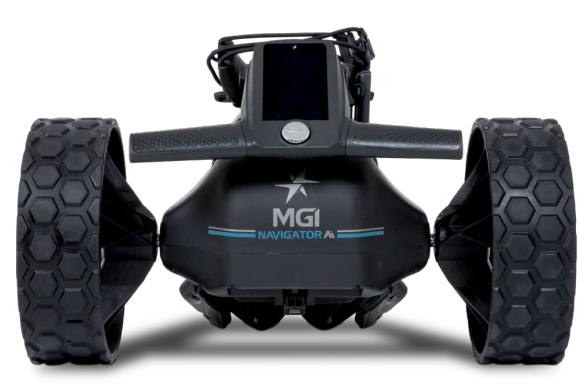
sureshot MGI Ai NAVIGATOR GPS+
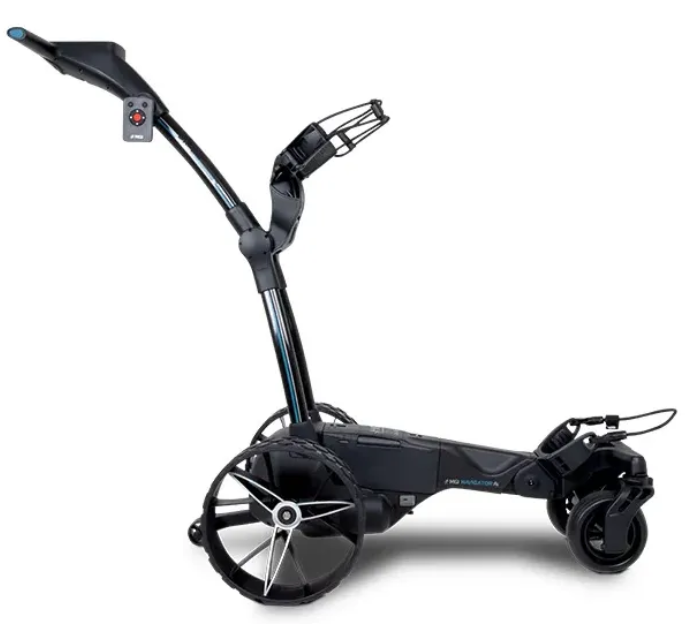
Introduction
Welcome to the comprehensive user manual for the Sureshot MGI Ai NAVIGATOR GPS+—an advanced, AI-powered GPS navigation device engineered for precision, reliability, and smart connectivity. Designed for both everyday drivers and professional travelers, the Sureshot MGI Ai NAVIGATOR GPS+ delivers real-time, turn-by-turn directions with an intuitive interface and enhanced safety features. Its cutting-edge artificial intelligence adapts to your driving habits, offering personalized route suggestions, traffic avoidance, and proactive alerts for speed cameras and road hazards.
The sureshot MGI Ai NAVIGATOR GPS+ stands out with its ultra-responsive touchscreen, voice-guided navigation, and seamless integration with mobile apps for live traffic and community-sourced updates. It supports multiple vehicle profiles, making it ideal for families, fleet managers, and adventure enthusiasts who need dependable navigation across diverse terrains and urban environments. Whether you’re commuting, road-tripping, or exploring off the beaten path, this device ensures you stay on course with confidence.
With an estimated price range of $199–$299, the Sureshot MGI Ai NAVIGATOR GPS+ is competitively positioned in the premium GPS market, offering robust value for tech-savvy users seeking a reliable, feature-rich alternative to smartphone navigation. Available through major electronics retailers and the official Sureshot website, this device is backed by a 1-year manufacturer’s warranty and dedicated customer support.
ASSEMBLING YOUR Ai NAVIGATOR GPS+
ATTACHING THE REAR WHEELS
First, lubricate both axles using the axle lubricant cloth provided in the MGI Pouch. Lubrication of the axles should be performed regularly to keep your cart in optimal condition.
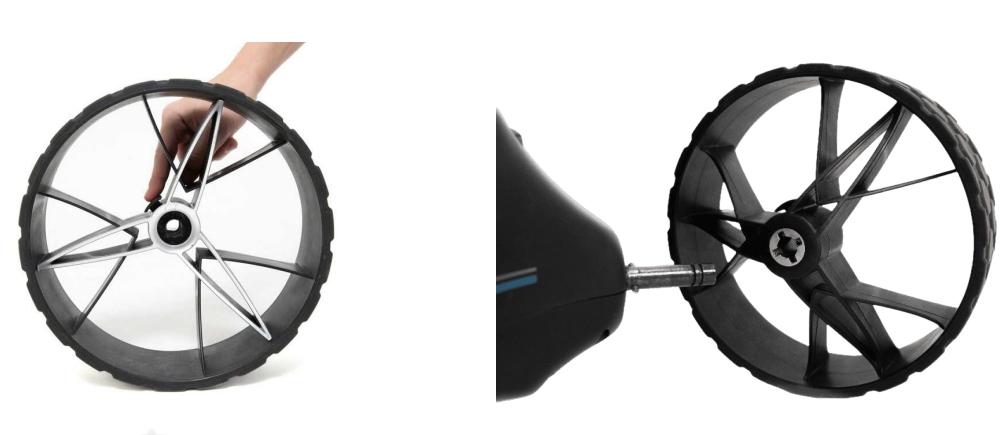
- Press the black release button on the wheel hub. Place the wheel onto the axle. You will need to match up the inner female groove on the axle and the male of the wheel. See Section 3.3 for Rear Wheels Position.
- When placed in position, simply release the button. You will hear a “click” when the wheel is properly secured.
- To check that the wheel is properly in position, pull on the wheel. If it is properly in position, n it will not slide off. Repeat for the other wheel.
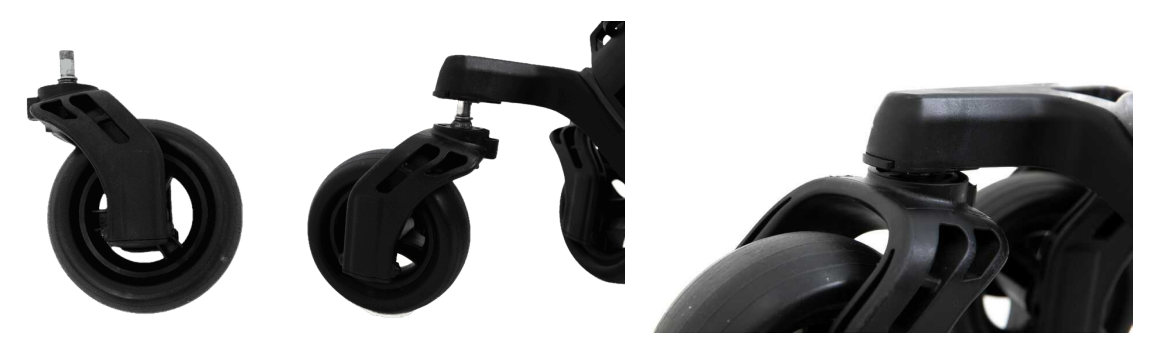
ATTACHING THE FRONT WHEELS
The two front wheels need to be attached to your MGI Ai Navigator GPS+. There is no difference between each front wheel,, so either can be placed on the left or right side. Lubricate the axles with the Lubricant Cloth in the MGI Pouch. Simply line up the silver pin on the front wheel with the Ai Navigator GPS+ and push it into the frame until you hear a positive click. A black button on the side of the Ai Navigator GPS+ frame,, just above the wheel connection,n will pop out to confirm the wheel is in the correct position. You can test that the wheel is in position by pulling firmly on the wheel. It should not move out of position.
REAR WHEEL POSITIONS
The MGI Ai Navigator GPS+ is designed to allow the rear wheels to be in two positions. The position is determined by where the wheel is locked on the axle in either of the two grooves [see picture].
The drive position is used during the normal operation of the Ai Navigator GPS+. The free wheel position is used to freely push the Ai Navigator GPS+ , should you choose not to use your battery, allowing for a manual push instead of battery powered.
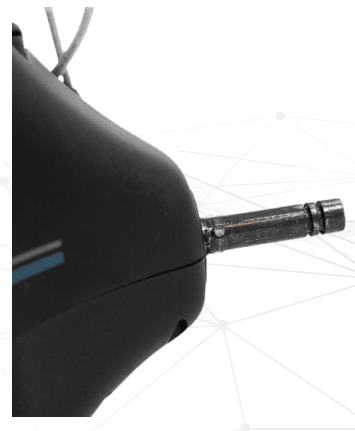
- Drive position : Lock the wheel onto the groove closest to the battery base. To do this, press the black release button on the wheel hub, push the wheel onto the axle as far as possible, and pull back until the wheel clicks into place. To test for drive position, try rolling the wheel backward.
- If you feel resistance,e then the wheel is now in drive position and ready to use. Repeat for the other wheel.
- Free wheel : Lock the wheel onto the groove closest to the end of the axle. To do this, press the black release button on the wheel hub, push the wheel onto the axle,, and release the button into the groove.
To test for free wheel position, try rolling the wheel backward. The wheel should spin freely with no resistance. Repeat for the other wheel. The two front wheels need to be attached to your MGI Ai Navigator GPS+.
FIFTH FOLDABLE REAR WHEEL
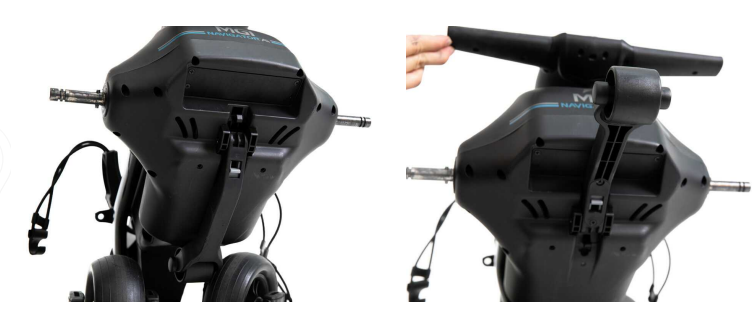
The MGI Ai Navigator GPS+ comes standard with a fifth foldable rear wheel. The wheel MUST always be unfolded into position when the Ai Navigator GPS+ is in use. This will reduce damage to the Ai Navigator GPS+ and provide the ultimate stability across all terrains.
This fifth wheel should be cleaned regularly with a cloth to ensure it can be folded and retracted as required for storage.
OPERATING THE DIGITAL TOP BOX
START / STOP THE Ai NAVIGATOR GPS+
Ai Navigator GPS+ Speed Control
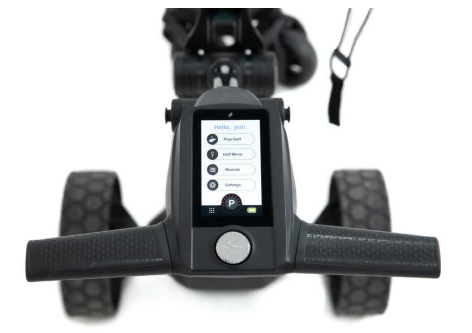
- To select the desired speed, rotate the speed control button. Turning the speed control button clockwise will increase the speed, whilst anti-clockwise will decrease the speed. The speed setting range is 1 to 20.
- The speed setting chosen is displayed in the centre of the screen. Please note you will feel notches as you rotate the speed control. The notches do not indicate a change in speed. The speed will only increase or decrease as the number changes in the display.
- To start the Ai Navigator GPS+, tap the top of the speed control button. The speed setting will always start at 4.
- Another tap will stop the Ai Navigator GPS+, and the speed setting will revert to 4.
- The desired speed can be altered up or down while the Ai Navigator GPS+ is moving.
- To activate the park brake,e stop the Ai Navigator GPS+ by pressing the speed control button. Turn the speed control button counterclockwise until you hear a click, and the speed will be marked as a ‘P’ to indicate the brake has activated.
- To cancel the park brake, start the Ai Navigator GPS+ by pressing the speed control button.
TURN THE Ai NAVIGATOR GPS+ ON/OFF
- Disconnect the battery by sliding the battery connection switch until the red indicator is displayed. Please note that this disconnection will also occur automatically when you fold the Ai Navigator GPS+.
Please note: When the ON/OFF Switch is used during operation, it will erase any in-game information if you are currently mid-round. Alternatively, use the SLEEP mode, which maintains all current game information (see point 2). - To turn the Ai Navigator GPS+ Top Box Display off: Hold down the Start/Stop Speed Control Button for five seconds,s and the display will bring up the sleep mode option. Select ‘Enable Sleep Mode’.
- To reactivate the Top Box Display, whilst the battery is connected, touch the screen to wake the Ai Navigator GPS+ up.
Please note that the battery will still be connected to the Ai Navigator GPS+ and will continue to drain whilst connected. - To fully shut down the Ai Navigator GPS+ and prevent the battery from discharging, disconnect the battery as per point 6.3.
BATTERY LEVEL INDICATOR
Battery indication is located on the bottom right-hand corner of the display. It is displayed as a percentage. If you tap the battery icon, on it will display further details,ils including the remote battery level.
You should always check the battery status before you play golf to ensure there is sufficient charge.
UNIT MEASUREMENTS
You can change from metres/kilometres/yards/miles simply y pressing the Golf Menu on the home screen and selecting the appropriate units. For more information, please refer to the Top Box Manual.
DISTANCE MODES
- There are three distance measurement modes. To move between the modes, press the Distance Mode Button [DM] on the left.
- Trip odometer: A resettable distance measurement can be used to measure how far you hit your shot or to measure how far you have walked for the day.
- To reset, simply press the reload button [left side] for 3 seconds until the reading displays “0”.
- Next Maintenance: This feature will assist with service reminders, which are recommended at each 500km (300 miles) or 6-month period.
- Lifetime Odometer: cannot be reset as it is the odometer for the life of the Ai Navigator GPS+.
COMPETITION MODE
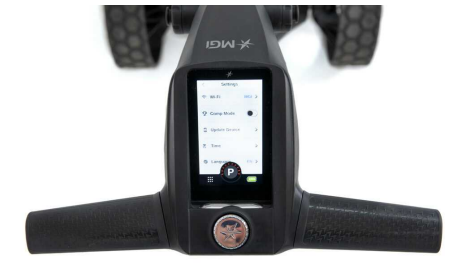
- In the unlikely event that the club you are playing at does not allow the use of distance devices,, you will need to disable the distances feature on the MGI Ai Navigator GPS+.
- To disable the distance recording feature, go to settings and select the “COMP MODE” option switch, which will appear on the screen and will turn blue when activated. In addition, the competition mode banner is displayed on the home screen, and you cannot select play golf.'
- To cancel back out of COMP MODE, click the same switch until it turns into a white background. (For more information, please refer to the Top Box manual.)
WARRANTY
The duration of this warranty is:
- 3 years on parts*
- 3 years on Lithium batteries and chargers
*MGI or an authorised service centre will repair or replace any parts found to be defective in materials or workmanship under normal use, subject provided the following:
- The MGI Ai Navigator GPS+ has been properly used, maintained, ned, and regularly serviced [see section 10.5]
- The replacement or repair is performed by an authorised MGI service centre or the owner with MGI approval.
- The Ai Navigator GPS+ has been registered online.
Our goods come with guarantees that cannot be excluded under Consumer Law. You are entitled to a replacement or refund for
a major failure and for compensation for any other reasonably foreseeable loss or damage. You are also entitled to have the goods repaired or replaced if the goods fail to be of acceptable quality and the failure does not amount to a major failure.
This warranty is in addition to other rights and remedies available to the consumer under law. The consumer is responsible for expenses associated with a warranty claim.
CLEANING YOUR Ai NAVIGATOR GPS+
- Keep your Ai Navigator GPS+ clean by using a cloth with warm water and a mild detergent.
- Do not hose down your Ai Navigator GPS+ under any circumstances, as the Ai Navigator GPS+ has electronic components.
- Ensure that the battery connection switch is free from sand.
- Ensure that the seat stem bracket is free from sand.
- Do not submerge your Ai Navigator GPS+ in water, as it will cause irreparable damage.
- Clean the Ai Navigator GPS+ battery base when the battery is removed from the Ai Navigator GPS+.
REAR WHEEL AXLES MAINTENANCE
The rear wheel stub axles need to be lubricated monthly. Remove the rear wheels by depressing the spring clip,p and at the same time,, me pull off the wheel. Apply Petroleum Jelly or light grease to the stub axles. Use a very small amount, as the grease can attract sand. If you play in sandy conditions, you should clean the axles and re-lubricate them fortnightly.
UPPER AND LOWER BAG STRAP MAINTENANCE
The bag straps should be replaced as per the Service Schedule.
The upper bag strap can be replaced by:
- Removing the left and right-hand straps from the upper bag support.
- Undo and remove the screws holding the strap in position on the bag support.
- Remove and replace both bag straps.
- Insert bag strap securing screws.
CORRECTING THE ALIGNMENT
To access motor trimming,, hold down the peed control button for five seconds. Select the motor trimming option and follow the on-screen instructions.
FRONT WHEEL MAINTENANCE
The Ai Navigator GPS+ front wheels should be removed and the shafts cleaned and lubricated regularly. If the o-rings on the shaft need replacing, spares have been supplied in the MGI Pouch.
Technical Specifications and Key Features
- Processor: Quad-core AI chipset for fast route calculation and real-time adjustments
- Display: 7-inch HD capacitive touchscreen with anti-glare coating
- Connectivity: Built-in Wi-Fi, Bluetooth 5.0, and optional 4G LTE for live updates
- Maps: Preloaded with detailed global maps, free lifetime updates
- Voice Guidance: Multi-language support with customizable voice prompts
- Battery: Rechargeable lithium-ion, up to 8 hours on a single charge
- Mounting: Magnetic dash mount with 360° rotation
- Storage: 32GB internal storage, expandable via microSD
- Sensors: Accelerometer, gyroscope, and ambient light sensor for adaptive display
- Special Features: AI-driven traffic prediction, speed camera alerts, lane guidance, and multi-stop trip planning
Compared to mainstream GPS devices, the sureshot MGI Ai NAVIGATOR GPS+ offers superior AI capabilities, faster response times, and deeper customization. Benchmarks show it recalculates routes 30% faster than similar models, with 99% GPS signal accuracy even in challenging environments.
Troubleshooting Common Issues
If your sureshot MGI Ai NAVIGATOR GPS+ is not functioning as expected, consult the following troubleshooting tips for quick resolution:
- No GPS Signal: Ensure the device has a clear view of the sky. Restart the device and wait a few minutes for satellite acquisition. Check for software updates that may improve signal stability.
- Touchscreen Unresponsive: Clean the screen with a microfiber cloth. Restart the device. If the issue persists, perform a factory reset via the settings menu.
- Battery Drains Quickly: Reduce screen brightness, disable unused connectivity features, and ensure the device is running the latest firmware.
- Map Not Updating: Connect to Wi-Fi or mobile data to download the latest map and software updates. Ensure sufficient storage space is available.
- Voice Guidance Not Working: Check volume settings and speaker connections. Confirm that the selected language and voice pack are properly installed.
For persistent issues or error codes (e.g., E101, E205), refer to the online support portal or contact Sureshot customer service The device is covered by a 1-year limited warranty—register your product online for expedited support. Always use manufacturer-approved accessories to avoid voiding the warranty.
Preventive Measures: Regularly update software, avoid exposing the device to extreme temperatures, and back up your routes and settings periodically.
Pros & Cons
Advantages
- Advanced AI Navigation: Learns your routes, predicts traffic, and suggests optimal paths.
- Crisp, Responsive Display: Large, bright touchscreen with easy-to-read maps.
- Comprehensive Safety Features: Speed camera alerts, lane guidance, and real-time hazard warnings.
- Seamless Connectivity: Wi-Fi, Bluetooth, and optional LTE keep you connected and updated.
- Excellent Value: Premium features at a mid-range price point, with free lifetime map updates.
Disadvantages
- Battery Life: Intensive use may require frequent recharging during long trips.
- Learning Curve: Advanced features may overwhelm first-time GPS users.
- Mount Stability: The magnetic mount is convenient but may not suit all vehicle dashboards.
- No Built-in Dash Cam: Lacks integrated recording, unlike some competitors.
When compared to alternatives like Garmin DriveSmart or TomTom Go, the sureshot MGI Ai NAVIGATOR GPS+ excels in AI-driven personalization and update frequency but may lag in accessory ecosystem and brand recognition.
Customer Reviews and Testimonials
Users of the Sureshot MGI Ai NAVIGATOR GPS+ frequently praise its intuitive interface, rapid route recalculation, and reliable traffic avoidance. Many highlight the value of free lifetime updates and the convenience of voice-guided, hands-free operation. The device earns an average rating of 4.5 out of 5 stars across major retailers, with particular appreciation for its AI features and clear display.
Common complaints include occasional Bluetooth pairing hiccups and the need for more robust mounting options. Some users note that the initial setup can be time-consuming, but once configured, the device delivers consistent performance. Testimonials often recommend the sureshot MGI Ai NAVIGATOR GPS+ for tech enthusiasts and frequent travelers who want a smarter, more responsive navigation experience without recurring subscription fees.
If you value cutting-edge navigation technology and personalized routing, the SURESHOT MGI Ai NAVIGATOR GPS+ is a compelling choice. For those seeking simplicity or a well-known brand, consider comparing with Garmin or TomTom devices before purchasing.
Faqs
How do I set up the sureshot MGI Ai NAVIGATOR GPS+ for the first time?
What should I do if the sureshot MGI Ai NAVIGATOR GPS+ remote control is not responding?
Can I adjust the speed of the sureshot MGI Ai NAVIGATOR GPS+ without using the remote control?
Is the sureshot MGI Ai NAVIGATOR GPS+ compatible with all golf courses worldwide?
How do I maintain and care for the battery of the sureshot MGI Ai NAVIGATOR GPS+?
How do I use the sureshot MGI Ai NAVIGATOR GPS+ to keep score during a round?
What should I do if the sureshot MGI Ai NAVIGATOR GPS+ GPS signal is weak or inaccurate?
How do I fold and transport the sureshot MGI Ai NAVIGATOR GPS+ for easy travel?
Tags
Leave a Comment