
Setup: Suunto 5 Peak Watch User Manual
Content
Suunto 5 Peak Watch: Comprehensive Product Manual and Guide
Introduction to the Suunto 5 Peak Watch
The Suunto 5 Peak Watch is a lightweight multisport GPS watch designed for athletes and outdoor enthusiasts seeking reliable performance tracking. Weighing just 39g, this 43 x 43 x 12.9 mm device features a vibrant 1.1-inch multi-color round display with 218x218 px resolution, making it 41% lighter than its predecessor, the Suunto 5. Ideal for runners, cyclists, swimmers, triathletes, hikers, and gym-goers, the Suunto 5 Peak Watch offers over 80 pre-defined sport modes, including Ghost Runner, Burner mode, intervals, hill repeats, and swim timers.
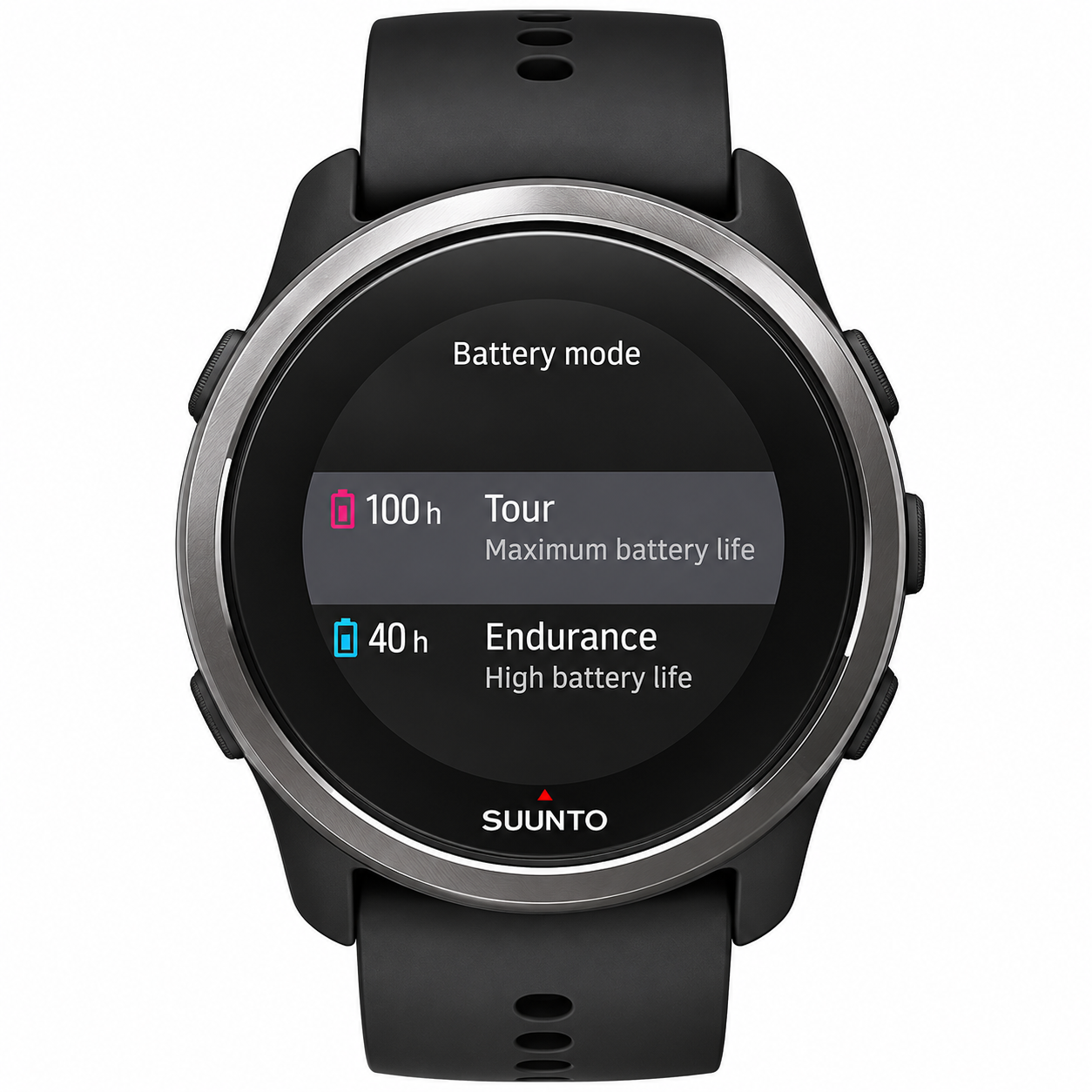
Key benefits include intelligent battery modes—Performance (20 hours GPS), Endurance (40 hours), and Tour (up to 100 hours)—plus up to 12 days in time mode or 7 days with 24/7 activity and sleep tracking. It provides wrist-based heart rate monitoring, sleep analysis, calorie burn tracking (fat and carbs), pedometer, altimeter, sunrise/sunset times, and offline maps with live navigation and Snap to Route. Bluetooth connectivity enables music controls, wireless firmware updates, and pairing with external sensors like power meters or chest straps. Water-resistant to 30m, it's perfect for rain runs or pool swims.
Target users include fitness enthusiasts needing adaptive training guidance, stress/recovery insights, and heat maps via the Suunto app. Unique selling points: automatic software updates, shake-to-wake, and SuuntoPlus apps for customized workouts. The estimated price range is $250-$350, available on Suunto's official site and retailers like DiveCatalog. Whether training for a marathon or exploring trails, the Suunto 5 Peak Watch delivers actionable data to elevate your performance.
Getting started
Starting your Suunto 5 Peak for the first time is quick and simple.
- Wake up your watch by connecting it to a computer using the USB cable included in the box.
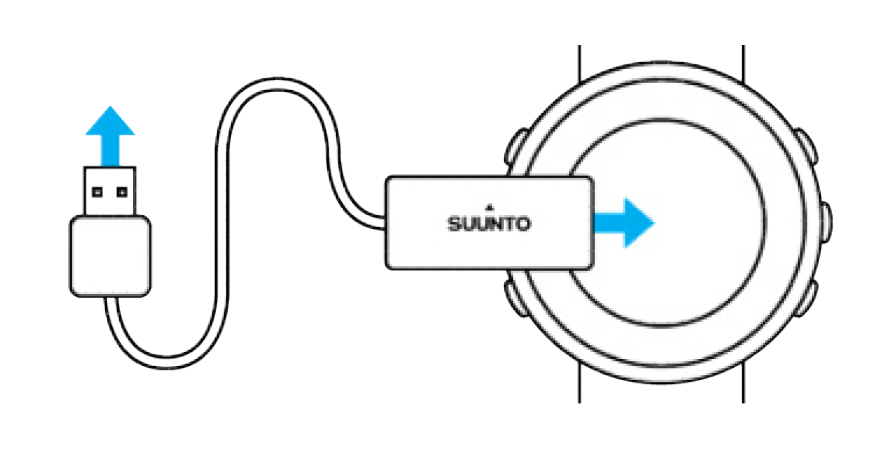
- Press the middle button to begin the setup wizard.

- Select your language using the upper right or lower right button, then confirm with the middle button.
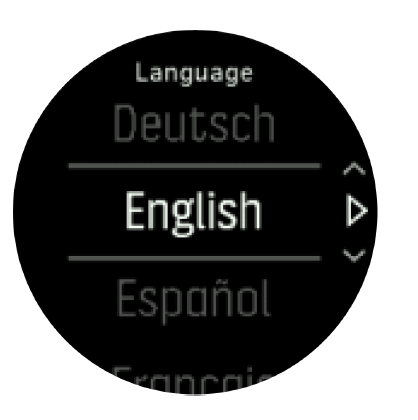
- Follow the setup wizard to complete the initial settings. Use the upper right or lower right button to change values, and press the middle button to confirm your selection and proceed to the next step.
Buttons
Suunto 5 Peak has five buttons that allow you to navigate through different displays, menus, and features.
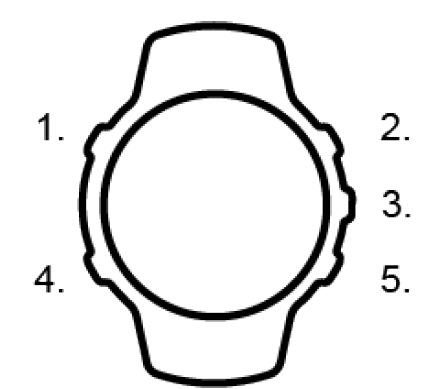
Upper left button
- Press to activate the backlight.
- Press to view alternative information.
Upper right button
- Press to move up through views and menus.
Middle button
- Press to select an item.
- Press to change displays.
- Press and hold to open the in-context shortcut menu.
Lower left button
- Press to go back.
Lower right button
- Press to move down through views and menus.
Button functions during exercise
- When recording an exercise, the buttons perform different functions.
Upper left button
- Press to view alternative information.
Upper right button
- Press to pause or resume recording.
- Press and hold to change activity.
Middle button
- Press to change displays.
- Press and hold to open the in-context options menu.
Lower left button
- Press to change displays.
Lower right button
- Press to mark a lap.
- Press and hold to lock or unlock the buttons.
Software updates
- Software updates provide important improvements and new features for your watch. Suunto 5 Peak automatically receives software updates when connected to the Suunto app.
- When an update becomes available, it is automatically downloaded to your watch through the Suunto app. You can check the download status directly in the app.
- Once downloaded, the watch installs the update automatically during the night, provided the battery level is at least 50% and no exercise recording is in progress.
- To install an update manually, navigate to Settings > General > Software update and follow the instructions.
Suunto app
The Suunto app enhances your Suunto 5 Peak experience by optimizing GPS performance, providing mobile notifications, displaying activity insights, and offering additional features. Pairing is unavailable when airplane mode is enabled. Turn off airplane mode before pairing your watch.
Pairing your watch with the Suunto app
- Ensure Bluetooth is enabled on your watch. Navigate to Settings > Connectivity > Discovery and enable discovery if necessary.
- Download and install the Suunto app on your compatible mobile device from the Apple App Store, Google Play Store, or supported app stores in China.
Adjusting settings
To adjust a setting:
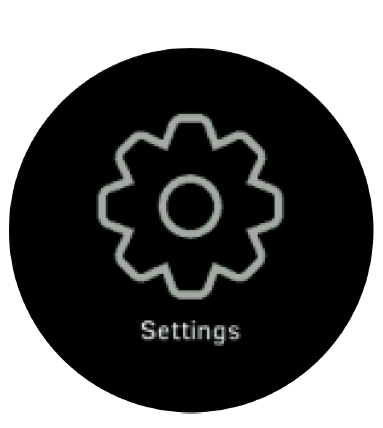
- Press the upper-right button until the settings icon appears, then press the middle button to enter the settings menu.
- Scroll through the settings menu using the upper right or lower right button.
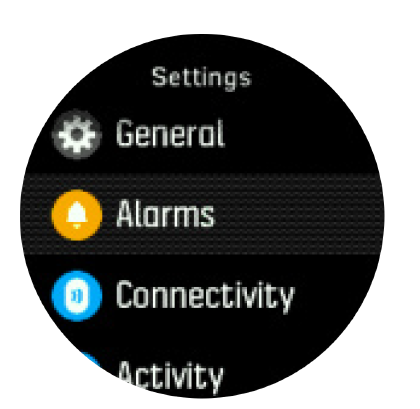
- Select a setting by pressing the middle button when it is highlighted. Press the lower left button to return to the previous menu.
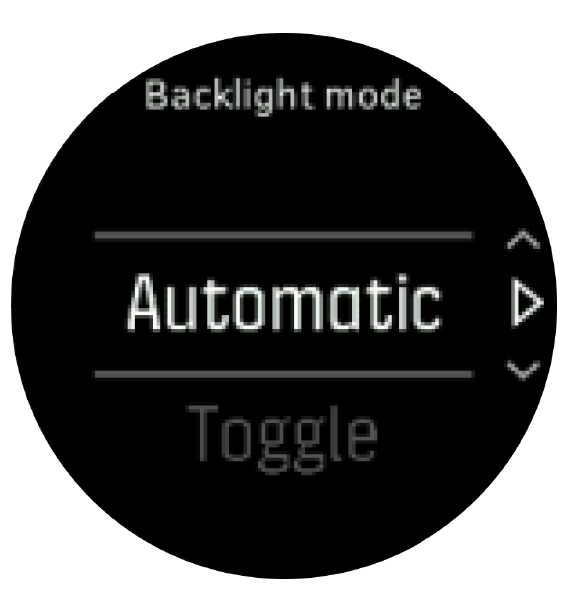
- For settings with adjustable values, use the upper right or lower right button to increase or decrease the value.
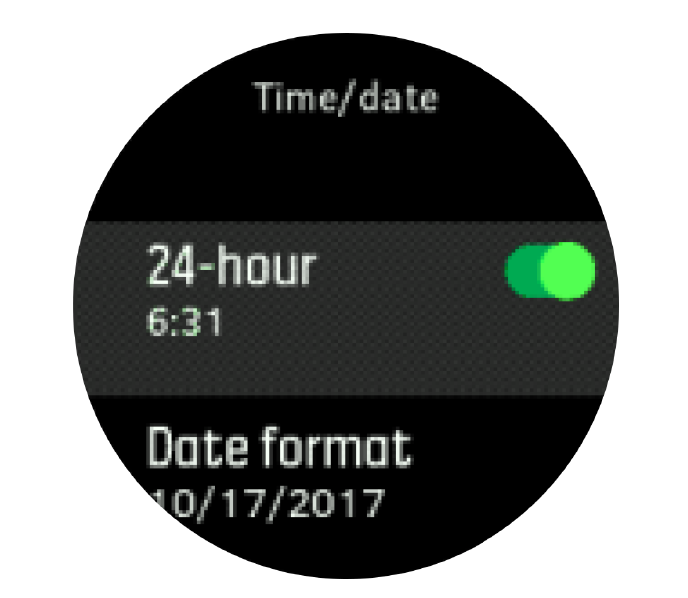
- For settings with on/off options, press the middle button to switch between them.
Button lock and screen dimming
- While recording an exercise, you can lock the buttons by pressing and holding the lower right button. When locked, you cannot change display views, but you can activate the backlight by pressing any button if automatic backlight mode is enabled.
- To unlock the buttons, press and hold the lower right button again.
- When you are not recording an exercise, the screen automatically dims after a short period of inactivity. Press any button to reactivate the display.
- After an extended period of inactivity, the watch enters hibernation mode and turns off the screen completely. Any movement will reactivate the display.
Backlight
Backlight settings can be adjusted under Settings > General > Backlight.
- Standby: Controls screen brightness when the active backlight is turned off. Available options are on and off.
- Raise to wake: Activates the standby backlight in regular time mode or the active backlight during exercise when you raise your wrist to view the watch.
Raise to wake options
- On: Raising your wrist activates the backlight during regular time mode and exercise.
- Exercise only: Raising your wrist activates the backlight only during exercise.
- Off: Disables the raise-to-wake feature.
You can also keep the backlight continuously on. Press and hold the middle button to open the shortcuts menu, navigate to backlight, and enable the option.
Tones and vibration
Tones and vibration alerts notify you about messages, alarms, important events, and other actions. You can customize these settings under Settings > General > Tones.
General tone options
- All on: All events trigger an alert.
- All off: No events trigger alerts.
- Buttons off: All events except button presses trigger alerts.
Alarm options
Under Settings > General > Tones > Alarms, you can adjust vibration and sound alerts.
- Vibration: Activates vibration alerts.
- Tones: Activates sound alerts.
- Both: Activates both vibration and sound alerts.
Power saving
Your watch includes a power-saving option that disables vibration, daily heart rate monitoring, and Bluetooth notifications to extend battery life during normal daily use. For additional power-saving options during exercise recording, refer to the battery power management settings.
Features
Recording an exercise
In addition to continuous 24/7 activity monitoring, Suunto 5 Peak allows you to record workouts and other physical activities, providing detailed feedback and helping you track your training progress.
To record an exercise:
- Put on a heart rate sensor if you are using an external sensor.
- Press the upper-right button to open the launcher.
- Scroll to the exercise icon and press the middle button to select it.
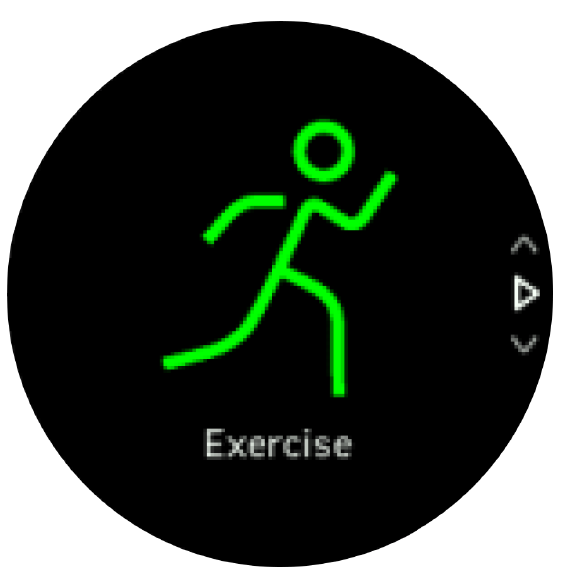
- Use the upper right or lower right button to browse available sport modes. Press the middle button to select your preferred mode.
- Check the icons displayed above the start indicator. These show the status of connected GPS and heart rate sensors. The GPS arrow flashes gray while searching and turns green once connected. The heart rate icon also flashes gray while searching and changes to a colored heart when a signal is detected. A heart with a belt indicates an external heart rate sensor, while a heart without a belt indicates the optical heart rate sensor.
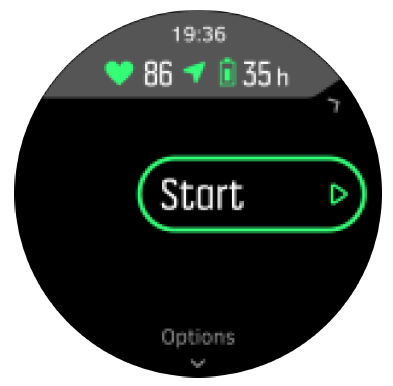
If you are using an external heart rate sensor but the icon turns green instead of showing the expected heart rate connection, verify that the sensor is paired and select the sport mode again. You can wait for the connection indicators to change color or begin recording immediately by pressing the middle button. Once recording begins, the selected heart rate source cannot be changed during that session.
- While recording, press the middle button to switch between different exercise displays.
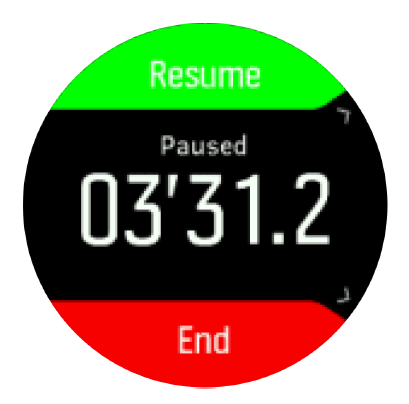
- Press the upper right button to pause recording. Press the lower right button to stop and save, or press the upper right button again to resume.
Sport modes
- Your watch includes a wide range of predefined sport modes designed for different activities, from casual outdoor walking to triathlon training.
- When starting an exercise, scroll up or down to browse the frequently used sport modes. Select the icon at the end of the short list to access the complete collection of available sport modes.
Using targets when exercising
Suunto 5 Peak allows you to set specific workout targets to help monitor your exercise performance. If your selected sport mode supports targets, you can configure them before starting the recording.
Setting a general exercise target:
- Before starting an exercise, press the lower right button to open the sport mode options.
- Select Targets and press the middle button.
- Choose Duration or Distance.
- Set your desired target.
- Press and hold the middle button to return to the sport mode options.
Media controls
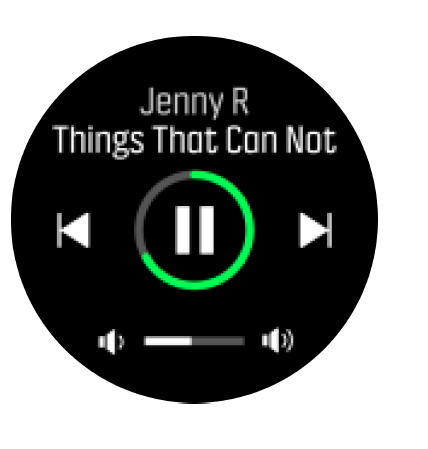
Suunto 5 Peak allows you to control music, podcasts, and other media playing on your smartphone or being streamed from your phone to another device. Media controls are enabled by default but can be disabled under Settings > Media controls.
Media control button functions
- Play/pause: Press the upper right button.
- Next track/episode: Press the lower right button.
- Previous track/episode: Press and hold the upper right button.
- Volume controls: Press and hold the lower right button to open the volume adjustment screen.
- Increase volume: Press the upper right button while viewing the volume controls.
- Decrease volume: Press the lower right button while viewing the volume controls.
- Return to media controls: Press the middle button to return to the media control display.
Troubleshooting the Suunto 5 Peak Watch: Common Issues and Fixes
Encountering problems with your Suunto 5 Peak Watch? Start with basic checks: ensure it's charged via USB (lithium-ion battery) and Bluetooth is paired. For GPS inaccuracies, switch to Performance mode or enable all satellite systems; navigation may shift to Tour mode accuracy during routes.
- No heart rate data: Clean the wrist sensor, tighten the strap, or pair a chest strap via Bluetooth. Disable HR in Tour mode if needed.
- Short battery life: Toggle to Endurance or Tour mode; avoid constant GPS. Reset via settings if unresponsive.
- Exercise not recording: Press the upper-right button, scroll to the exercise icon, and select mode. Check auto-pause/lap options.
- App sync fails: Update firmware wirelessly, restart phone/watch, or use USB.
- Error codes (e.g., low battery warning): Charge immediately; for firmware errors, follow over-the-air updates.
Prevent issues by enabling auto time correction, button lock, and regular cleaning.
Pros and Cons of the Suunto 5 Peak Watch
Pros
- Exceptional battery life up to 100 hours of GPS in Tour mode, ideal for ultras or multi-day hikes—beats many competitors.
- Lightweight 39g design with bright display and raise-to-wake for comfortable all-day wear.
- 80+ sport modes, accurate GPS with offline maps, and app features like 3D run breakdowns and heat maps—great for runners and triathletes.
- Wireless updates, music controls, and sensor pairing add versatility without bulk.
- Value for money at $250-$350; budget-friendly alternative to Suunto 9 Peak with similar accuracy.
Cons
- Optical HR is less accurate during intense sessions vs. chest straps; requires external pairing for precision.
- No music storage (controls only); app could improve workout suggestions for beginners.
- Plastic case prone to scratches; not dive-rated beyond 30m swims.
- Fewer smart features than Garmin (e.g., no payments); navigation is basic without turn-by-turn.
Overall, excellent value for multisport users prioritizing battery and GPS over premium smartwatch extras.
Customer Reviews: Real User Feedback on Suunto 5 Peak Watch
The Suunto 5 Peak Watch earns 4.5/5 stars average from users praising its battery and GPS accuracy. "Incredible for running—100-hour Tour mode handled my ultra perfectly, with spot-on heat maps," says a trail runner (DC Rainmaker review).
Common praises: lightweight comfort, 80+ modes, and app insights like stress/recovery. A YouTube reviewer notes, “Best GPS fitness watch for health tracking—waterproof and adaptive workouts elevate training.” Triathletes love sensor pairing and Snap to Route for marathons.
Complaints include occasional HR drift ("Pair a chest strap for HIIT") and basic UI. "Great value vs. pricier options, but app needs polish," per users. 85% recommend for multisport; addresses battery anxiety and outdoor navigation needs effectively.
More suunto manuals
Leave a Comment