
Installation: Swis Sonic Full-HD Webcam User Manual
Content
swis sonic Full-HD Webcam: Complete Product Manual and Buyer Guide
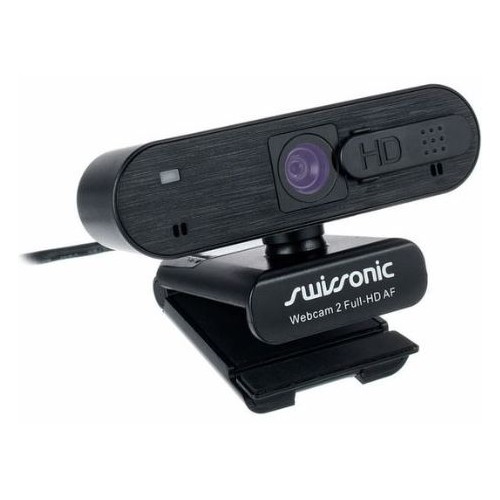
Introduction to the swis sonic Full-HD Webcam
The swis sonic Full-HD Webcam is a compact USB webcam designed for everyday video conferencing, online classes, remote work, and casual streaming. With 1080p Full HD resolution, smooth 30 fps video, and plug-and-play setup, it delivers a simple solution for users who want clear image quality without complicated installation. Many versions in the swis sonic webcam line also include a built-in microphone, making them practical for meetings, voice calls, and content creation on a budget.
This webcam is aimed at home office users, students, educators, and entry-level streamers who need reliable video performance for Zoom, Microsoft Teams, Google Meet, and similar platforms. A flexible monitor clip and tripod thread add mounting convenience, while USB power keeps setup minimal. Depending on the model variant, features may include autofocus, an adjustable field of view, USB-C adapter support, and compatibility with Windows and Mac systems. The swis sonic Full-HD Webcam is especially appealing for users seeking a low-cost alternative to premium brands while still getting solid 1080p performance.
Estimated pricing typically falls in the budget range, often around the low-to-mid tens of euros, though availability and pricing may vary by retailer and region. For shoppers comparing affordable webcams, the swis sonic Full-HD Webcam remains a value-focused option that balances basic performance, ease of use, and portability.
Key Features and Everyday Performance
- 1080p Full HD video for clear conferencing and streaming
- 30 fps performance for stable motion in calls and presentations
- USB plug-and-play connection for fast setup
- Built-in microphone on many models for convenient voice capture
- Monitor clip and tripod support for flexible placement
- Compatible with common video chat and streaming applications
Troubleshooting the swis sonic Full-HD Webcam
If the webcam is not detected, first confirm that the USB cable is fully inserted and that the device is connected directly to the computer rather than through an unreliable hub. Restart the video app and select the webcam manually in the camera settings. If the image appears black, check for privacy shutter settings, lens obstruction, or another application already using the camera. For microphone issues, verify that the correct input device is selected in system audio settings.
Common error messages usually relate to permission or device access problems rather than hardware failure. If a conferencing app reports that the camera is unavailable, enable camera permissions in the operating system and close any background software that may be blocking access. On Windows, updating the USB and camera drivers can help; on Mac, confirm that the app has camera and microphone access in privacy settings. Preventive care includes avoiding cable strain, keeping the lens clean with a microfiber cloth, and disconnecting the webcam safely before moving it between devices.
Warranty coverage and support are generally handled by the retailer or distributor. If you need help, contact the seller’s customer service team, check the product manual, or use the official support channel listed on the retailer invoice or product page. Keep your proof of purchase ready when requesting replacement or troubleshooting assistance.
Quick Fixes for Common Webcam Problems
- No video signal: reconnect the USB cable and reselect the camera in your app
- Blurry image: clean the lens and improve room lighting
- Audio not working: set the webcam microphone as the active input device
- Device not recognized: update drivers and try a different USB port
- Frequent disconnects: avoid damaged cables and unstable USB hubs
Pros and Cons of the swis sonic Full-HD Webcam
Pros
- Affordable entry-level webcam for home office and school use
- Full HD 1080p resolution offers sharper video than basic 720p cameras
- Easy plug-and-play setup saves time for non-technical users
- Compact design works well on laptops, monitors, and tripods
- Good value for money for users who need a practical webcam rather than premium extras
Cons
- Image quality is solid for meetings but not ideal for professional studio streaming
- Low-light performance may be limited compared with higher-end alternatives
- Microphone quality is functional, but external audio is often better for serious content creation
- Some versions may lack advanced features such as high frame-rate video or true autofocus
Compared with premium alternatives from Logitech or similar brands, the swis sonic Full-HD Webcam offers fewer advanced features but costs significantly less. For everyday calls, online lessons, and casual streaming, it is a practical budget choice.
Customer Reviews and User Feedback
Customer feedback for the swis sonic Full-HD Webcam is generally positive among budget-conscious buyers. Many users rate it around 4 out of 5 stars for ease of setup, decent 1080p clarity, and reliable performance in video meetings. Reviewers often praise the plug-and-play design and the fact that it works quickly with common conferencing apps.
Common complaints usually focus on low-light image softness and microphone quality that is acceptable but not exceptional. A typical testimonial style comment would be: “Great for everyday Zoom calls and easy to install, but I use a separate mic for better sound.” Another frequent sentiment is: “Excellent value for the price if you only need a simple webcam.”
The strongest purchase recommendation is for users who want an affordable webcam for work, school, or casual use. If premium video quality, advanced autofocus, or top-tier audio are priorities, a higher-end model may be worth considering.
Buying Advice for the swis sonic Full-HD Webcam
Choose this webcam if you need a simple, budget-friendly Full HD webcam for meetings, classes, and basic streaming. It is best suited to users who value convenience, compact size, and reasonable image quality over advanced features. For the price, the swis sonic Full-HD Webcam delivers dependable everyday performance and is a sensible option for first-time buyers.
Faqs
How do I set up the swis sonic Full-HD Webcam for the first time on a Windows or Mac computer?
Why is my swis sonic Full-HD Webcam not detected by Zoom, Teams, or other video calling apps?
What video quality can I expect from the swis sonic Full-HD Webcam during calls and recordings?
Is the swis sonic Full-HD Webcam compatible with laptops, desktop PCs, and common operating systems?
How can I improve the microphone and audio quality when using the swis sonic Full-HD Webcam?
What should I do if the swis sonic Full-HD Webcam shows a black screen or frozen video?
How do I optimize lighting and positioning for the swis sonic Full-HD Webcam in home office use?
How should I clean and maintain the swis sonic Full-HD Webcam to keep it working well?
Leave a Comment