
Setup Guide: Tripp Lite USB 3.2 Gen 1 Docking Station User Manual
Content
Tripp Lite USB 3.2 Gen 1 Docking Station Manual
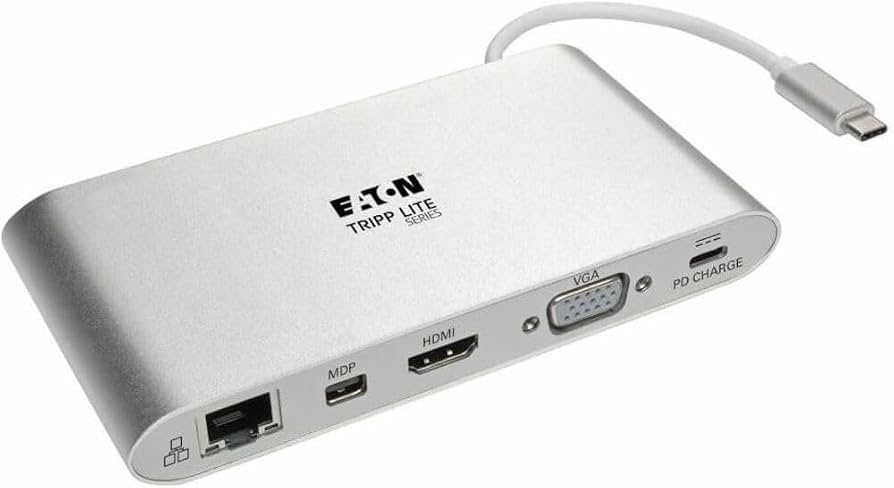
Comprehensive Guide for Setup, Features, and Daily Use
The Tripp Lite USB 3.2 Gen 1 Docking Station is designed to simplify workstation expansion for laptops, Chromebooks, and other USB-C or USB-A compatible devices. Built for users who need a dependable all-in-one connectivity solution, it combines high-speed USB expansion, external display support, Ethernet access, and charging capabilities in a single compact dock. This makes it an excellent choice for hybrid workers, office professionals, students, and home users who want a cleaner desk setup without sacrificing performance.
One of the biggest advantages of the Tripp Lite USB 3.2 Gen 1 Docking Station is its practical balance of speed and versatility. With USB 3.2 Gen 1 transfer rates up to 5 Gbps, it supports fast file transfers, external storage devices, keyboards, mice, printers, and other peripherals. Many models in the Tripp Lite docking line also include HDMI, VGA, DisplayPort, Mini DisplayPort, RJ45 Gigabit Ethernet, memory card slots, and audio ports, giving users a flexible hub for both productivity and entertainment. Some versions also support USB-C Power Delivery charging, which helps reduce cable clutter and keeps compatible laptops powered during use.
For buyers comparing docking station options, the Tripp Lite USB 3.2 Gen 1 Docking Station stands out for business-friendly reliability, broad device compatibility, and a straightforward setup process. It is commonly priced in the mid-range docking category, typically around $60 to $180 depending on the model, port selection, and charging support. Availability is generally strong through major electronics retailers, office supply stores, and online marketplaces. If you are searching for a USB 3.2 Gen 1 dock that delivers strong everyday value without unnecessary complexity, this product line is a smart option.
How to Use the Tripp Lite USB 3.2 Gen 1 Docking Station
Step-by-Step Setup for First-Time Users
- Connect the docking station to your laptop or host device using the included USB-C or USB-A cable.
- Attach your monitor using HDMI, DisplayPort, VGA, or Mini DisplayPort if supported by your model.
- Plug in peripherals such as a keyboard, mouse, flash drive, or printer to the USB hub ports.
- Connect an Ethernet cable for a stable wired network connection.
- If your model supports Power Delivery, connect the USB-C power input to charge the host device.
- Install any required drivers or display software if your dock model uses DisplayLink or similar technology.
For best results, connect the dock directly to the host device rather than through a USB hub or extender. This helps preserve bandwidth, reduces display issues, and improves peripheral stability.
Troubleshooting the Tripp Lite USB 3.2 Gen 1 Docking Station
If the dock is not recognized, first check the USB cable, power adapter, and host port. Many connection problems are caused by loose cables, unsupported ports, or outdated drivers. If the external monitor stays blank, confirm that the correct video input is selected on the display and that the dock model supports the required video mode. For example, some docks rely on USB-C DisplayPort Alt Mode, while others use DisplayLink-based video output.
Common error indicators may include no display output, “device not detected,” intermittent USB disconnects, or network failure. If you see a display error after sleep mode, unplug and reconnect the dock, then restart the computer. If the issue continues, reinstall the dock driver and check for operating system updates. For USB speed problems, remember that the dock’s USB 3.2 Gen 1 ports are limited to 5 Gbps; performance will drop if connected through a slower port.
To prevent recurring issues, use certified cables, keep firmware and drivers updated, and avoid overloading bus-powered ports with high-draw devices. Tripp Lite products are covered by a 3-year limited warranty, and support is available through Eaton Tripp Lite customer service for warranty claims, product help, and replacement guidance. For assistance, use the official Tripp Lite support website or contact Eaton Tripp Lite technical support through the customer service channels listed on the product packaging and documentation.
Pros & Cons of the Tripp Lite USB 3.2 Gen 1 Docking Station
Balanced Review for Buyers
- Pros: Strong connectivity options with USB 3.2 Gen 1 speeds up to 5 Gbps for fast file transfers and smooth peripheral use.
- Pros: Broad compatibility with laptops, Chromebooks, and select USB-C or USB-A host devices depending on the model.
- Pros: Useful for desk setups that need HDMI, VGA, DisplayPort, Ethernet, and USB expansion in one unit.
- Pros: Good value for money compared with premium Thunderbolt docks, especially for standard office productivity.
- Cons: Not as fast or future-proof as Thunderbolt docking stations for users who need maximum bandwidth.
- Cons: Some models depend on driver software for full video functionality, which adds setup steps.
- Cons: Port selection varies by model, so buyers must check compatibility carefully before purchase.
- Cons: It may not be the best choice for power users who need multiple 4K displays or advanced workstation features.
Compared with cheaper generic hubs, the Tripp Lite USB 3.2 Gen 1 Docking Station usually offers better build quality, stronger support, and more reliable long-term performance. Compared with premium alternatives, it delivers a more affordable workstation solution while remaining practical for everyday business use.
Customer Reviews of the Tripp Lite USB 3.2 Gen 1 Docking Station
Customers frequently rate the Tripp Lite USB 3.2 Gen 1 Docking Station between 4 and 5 stars for dependable performance, clean desk organization, and easy peripheral expansion. Many users praise the dock for stable Ethernet connections, fast USB 3.2 Gen 1 data transfer, and convenient multi-monitor support on compatible models. A common positive comment is that it “turns a basic laptop into a full workstation in minutes.”
Frequent complaints usually focus on driver installation, video compatibility differences between models, and the need to verify exact port types before buying. Some buyers also mention that power delivery and monitor output performance depend heavily on the specific model. A typical review summary is: “Excellent for office work and travel, but make sure your laptop supports the right video mode.”
Overall, the product is recommended for users who want a reliable docking solution for work-from-home setups, business travel, and everyday productivity. If your priority is a stable, affordable, and practical USB-C or USB-A dock, this line is a strong purchase.
Frequently Asked Questions
What is the data transfer speed?
Most Tripp Lite USB 3.2 Gen 1 docking stations support transfer rates up to 5 Gbps.
Does it support external monitors?
Yes, depending on the model, it may support HDMI, DisplayPort, VGA, or other video outputs.
Does it charge laptops?
Some models include USB-C Power Delivery charging support, while others focus mainly on data and video expansion.
What warranty is included?
Most Tripp Lite docking stations include a 3-year limited warranty.
Final Verdict
The Tripp Lite USB 3.2 Gen 1 Docking Station is a dependable choice for users who need a practical docking solution with strong everyday performance. It offers a smart mix of speed, port flexibility, and business-ready features, making it ideal for office setups, home workstations, and mobile professionals. If you want a trusted dock that delivers solid functionality without premium pricing, the Tripp Lite USB 3.2 Gen 1 Docking Station is an excellent option.
Faqs
How do I set up the tripp lite USB 3.2 Gen 1 Docking Station for the first time?
Why is my tripp lite USB 3.2 Gen 1 Docking Station not detecting monitors or external displays?
What laptops are compatible with the tripp lite USB 3.2 Gen 1 Docking Station?
Can the tripp lite USB 3.2 Gen 1 Docking Station charge a laptop while it is connected?
How can I fix slow data transfer or lag on the tripp lite USB 3.2 Gen 1 Docking Station?
What should I do if USB devices stop working after connecting the tripp lite USB 3.2 Gen 1 Docking Station?
How do I get the best video quality from a tripp lite USB 3.2 Gen 1 Docking Station?
How should I clean and maintain a tripp lite USB 3.2 Gen 1 Docking Station for long-term reliability?
Tags
Leave a Comment