
Ups BIXOLON SRP-770III Printer User Manual
Content
ups BIXOLON SRP-770III Printer: Complete Product Manual and Buyer’s Guide
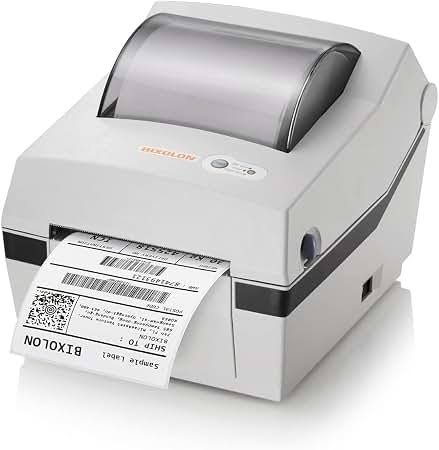
The ups BIXOLON SRP-770III Printer is a compact direct thermal label printer built for fast, reliable shipping, retail, warehouse, and light industrial labeling. Designed for 4-inch label workflows, it delivers up to 203 dpi resolution and print speeds of up to 5 ips, making it a practical choice for barcode labels, order tickets, and shipping tags. Its smart media handling, broad media compatibility, and support for common label languages help reduce setup time and minimize daily printing issues. For businesses that need a dependable desktop thermal printer without the cost and complexity of larger industrial systems, this model offers a strong balance of speed, print quality, and ease of use.
This printer is especially useful for e-commerce sellers, fulfillment centers, logistics teams, healthcare desks, and small businesses that print high volumes of shipping labels. The ups BIXOLON SRP-770III Printer typically fits users who want straightforward USB, Serial, and Parallel connectivity, with optional Ethernet or wireless configurations on some versions. It is widely positioned in the entry-level to midrange desktop label printer category, with an estimated price range of roughly $70 to $200 depending on condition, seller, and interface bundle. New units may vary by region and distributor, while refurbished models are often available at lower prices. Its availability is generally good through office equipment resellers, barcode printer suppliers, and online marketplaces.
Specifications for ups BIXOLON SRP-770III Printer
- Print technology: Direct thermal
- Resolution: 203 dpi
- Maximum print speed: Up to 5 ips / 127 mm per second
- Maximum print width: Up to 104 mm
- Maximum print length: Up to 1000 mm
- Supported media width: 42 to 106 mm
- Media thickness: 0.06 to 0.20 mm
- Roll diameter: Up to 130 mm
- Memory: 64 MB SDRAM, 128 MB FlashROM
- Interfaces: USB, Serial, Parallel; optional Ethernet and WLAN on select variants
- Dimensions: 189 x 231 x 171 mm
- Weight: About 1.53 kg
- Power: External power adapter, 100-240V AC, 50/60Hz
- Operating temperature: 0°C to 40°C
In real-world use, the ups BIXOLON SRP-770III Printer performs well for standard shipping labels, warehouse barcodes, and retail shelf labels. Compared with smaller desktop label printers, it offers broader media support and stronger connectivity options. Against higher-end industrial printers, it is more affordable and easier to deploy, though it is not built for rugged 24/7 production environments. It is a strong fit for businesses that need a dependable desktop thermal label printer with solid print speed and clean barcode output.
Troubleshooting the ups BIXOLON SRP-770III Printer
- Blank labels: Check that direct thermal labels are loaded correctly and that the print side faces the print head.
- Poor print quality: Clean the print head and platen roller, then confirm the darkness setting is not too low.
- Label skipping or misalignment: Recalibrate the media sensor and verify that gap, black mark, or notch sensing matches the label type.
- Paper jam: Remove stuck media, reload the roll, and make sure the guide rails are not too tight.
- Printer not detected: Test a different USB cable, reinstall drivers, and confirm the correct COM or USB port selection.
- Error codes or warning lights: Refer to the status indicator pattern in the user manual, then restart the printer after clearing the media path.
Preventive maintenance keeps the printer reliable. Clean the print head regularly, use quality media, and avoid exposing labels to heat or direct sunlight since direct thermal output can fade over time. Keep the printer on a stable surface and ensure the roll diameter does not exceed the supported limit.
Warranty coverage and support options vary by seller and region, so buyers should confirm terms at purchase. For help, contact the original distributor, authorized BIXOLON support channel, or the reseller that supplied the printer. If the unit is under warranty, have the serial number, purchase date, and a description of the issue ready before requesting service.
Pros and Cons of the ups BIXOLON SRP-770III Printer
Pros
- Fast 5 ips printing speed for shipping and barcode labels
- 203 dpi output that is clear enough for most label and logistics tasks
- Flexible media support for gap, black mark, notch, continuous, and fan-fold media
- Multiple connectivity options improve compatibility with older and newer systems
- Compact desktop design saves counter and workstation space
- Good value for money, especially in refurbished or open-box condition
Cons
- Direct thermal printing means labels can fade over time
- Not ideal for harsh industrial environments or extremely high-volume operations
- Some variants require optional networking or wireless accessories
- Limited to 203 dpi, so it is not the best choice for very small barcode text
- Compared with premium industrial models, build quality and duty cycle are more modest
For businesses comparing desktop thermal printers, this model offers stronger value than many entry-level alternatives while staying more affordable than industrial-grade Zebra or Honeywell units. The ups BIXOLON SRP-770III Printer is best for teams that want reliable daily performance without overpaying for features they may never use.
Customer Reviews of the ups BIXOLON SRP-770III Printer
Average user sentiment is generally positive, with many buyers giving it around 4 out of 5 stars for everyday labeling tasks. Customers often praise its easy setup, dependable label feeding, and clear barcode output. A common testimonial is: “Works well for shipping labels and was easy to install with our warehouse system.” Another frequent comment is: “Fast enough for our small business and much more affordable than larger industrial printers.”
Common complaints focus on direct thermal fading, the need for occasional recalibration, and occasional driver or port setup issues on older computers. Users who print frequently tend to recommend keeping spare labels and cleaning supplies nearby. Most reviewers suggest the printer for e-commerce shipping, office labeling, and small warehouse use, especially when price and reliability matter more than advanced industrial durability.
If you need a practical desktop thermal label printer for daily operations, the ups BIXOLON SRP-770III Printer is a sensible purchase. It is especially attractive for buyers who want solid performance, easy maintenance, and broad label compatibility at a reasonable cost.
Faqs
How do I set up ups BIXOLON SRP-770III Printer for the first time without missing the basic configuration steps?
Why is my ups BIXOLON SRP-770III Printer not printing, and what troubleshooting steps should I try first?
What connectivity options does the ups BIXOLON SRP-770III Printer support for POS systems and retail setups?
How do I improve print quality on the ups BIXOLON SRP-770III Printer when receipts look faded or incomplete?
Is the ups BIXOLON SRP-770III Printer compatible with modern POS software and operating systems?
What are the best maintenance practices for ups BIXOLON SRP-770III Printer to extend its lifespan?
How can I fix paper jams and cutter problems on the ups BIXOLON SRP-770III Printer?
What should I know about using the ups BIXOLON SRP-770III Printer in a high-volume retail or restaurant environment?
Leave a Comment