
Vidyo Desktop Version 2 Media Player User Manual
Content
vidyo desktop Version 2 Media Player Overview
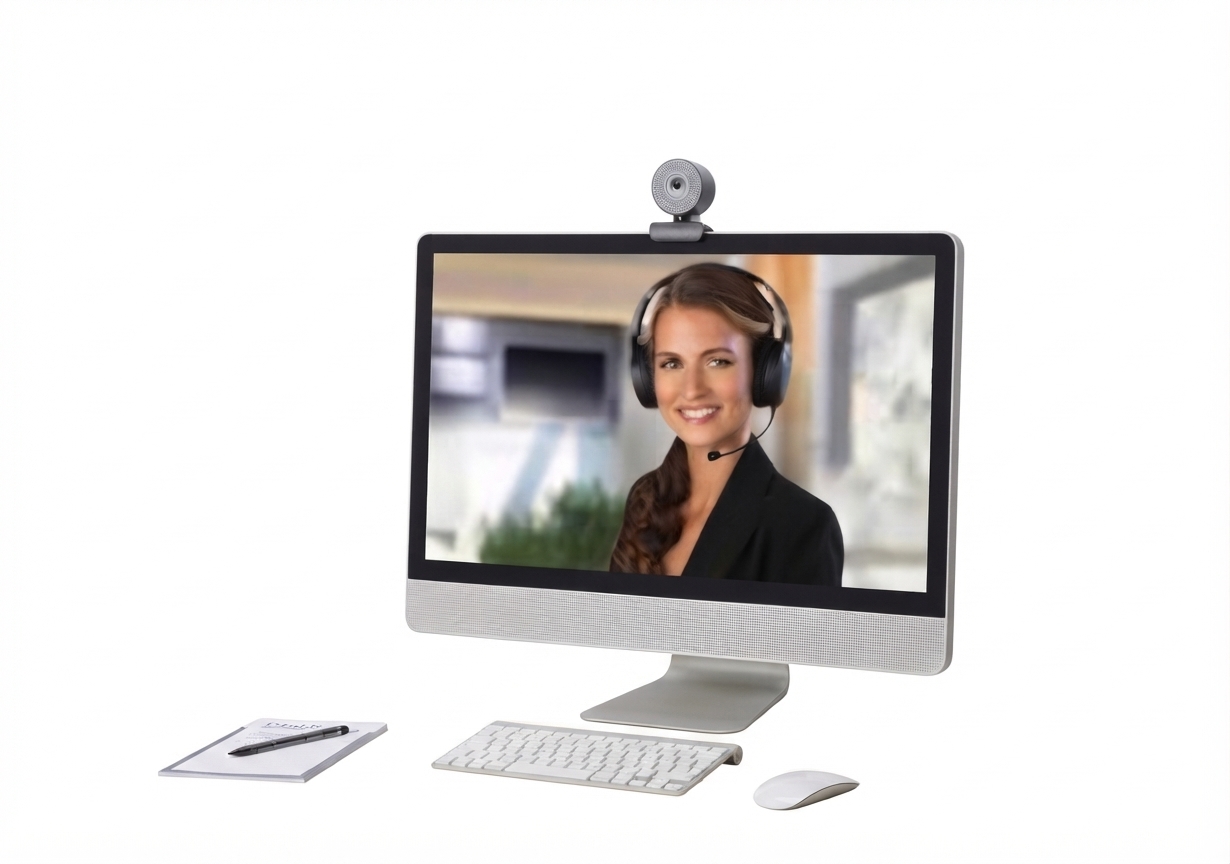
Vidyo Desktop Version 2 Media Player is a lightweight, enterprise-focused video playback and conferencing client designed for reliable desktop communication, high-quality media rendering, and efficient bandwidth use. It is best known for its scalable video performance, strong compatibility with business collaboration environments, and support for smooth playback in multi-participant sessions. For teams that need a practical desktop media player tied to video meetings, training, remote support, or healthcare communication, this solution offers a stable and professional experience.
The primary advantage of vidyo desktop Version 2 Media Player is its emphasis on adaptive video quality. It supports high-resolution encoding and decoding, making it suitable for users who need clear visuals even when network conditions fluctuate. Common use cases include corporate conferencing, telehealth visits, remote interviews, customer support sessions, and internal training. It is especially useful in environments where dependable video communication matters more than flashy consumer-style features.
Availability typically depends on Vidyo deployment licensing, enterprise subscriptions, or bundled collaboration platforms rather than direct retail purchase. Estimated pricing for legacy Vidyo desktop licensing historically ranged from low-cost per-install or per-seat models to enterprise contract pricing, with modern availability often tied to organizational agreements. In practical terms, vidyo desktop Version 2 Media Player remains a business software product rather than a mass-market consumer app, making it most relevant for IT administrators, support teams, and managed service buyers.
Technical Specifications and Core Features
- Native video codec support centered on enterprise video standards, including H.264 SVC in classic VidyoDesktop deployments and newer VidyoConnect support for VP8/VP9 in later desktop versions.
- Video encoding capability up to 1080p30, with high-efficiency performance on supported hardware.
- Video decoding capability up to UHD 4K in some configurations, with multi-stream rendering designed for meetings with multiple active participants.
- Simultaneous participant display support for up to 8 visible participants plus self-view in standard desktop configurations.
- Audio support for wideband codecs such as SPEEX Wideband Audio, with Opus support in newer desktop ecosystems.
- Camera compatibility for USB webcams and USB PTZ cameras, with device switching and on-the-fly control in supported builds.
- Platform support historically included Windows and macOS, with performance varying by operating system and hardware class.
- Network efficiency optimized for adaptive conferencing, making it a stronger fit than basic media players when video quality must adjust in real time.
Compared with similar desktop video clients, vidyo desktop Version 2 Media Player is less focused on casual media playback and more focused on collaborative video quality, multipoint conferencing, and enterprise reliability. Against consumer players such as VLC or Windows Media Player, it provides stronger conferencing and network adaptation features. Against modern unified communication apps, it often stands out for efficient multi-stream video handling and business deployment controls.
Troubleshooting vidyo desktop Version 2 Media Player Issues
Common problems usually involve audio, video quality, device detection, or bandwidth-related performance. If video appears choppy or broken up, lower the video quality setting, close background downloads, and confirm that the computer meets the minimum CPU and memory requirements. If the camera is not detected, reconnect the USB device, try a different port, and verify that operating system permissions allow camera access. If audio echo occurs, use a headset and confirm that automatic echo suppression is enabled.
- Error: device not found - Reconnect the webcam or microphone, then restart the application.
- Error: insufficient bandwidth - Switch to a lower resolution or frame rate mode such as 450p30, 720p15, or limited bandwidth mode.
- Error: login or connection failure - Check network access, firewall rules, and server credentials.
- Error: black screen or frozen video - Update graphics drivers, close GPU-heavy apps, and relaunch the client.
Preventive maintenance includes keeping the client updated, using certified USB audio/video peripherals, and verifying firewall and port settings before deployment. Warranty and support depend on the organization’s Vidyo licensing plan, reseller agreement, or enterprise support contract. For help, users should contact their IT administrator, Vidyo account representative, or the software vendor’s official support channel listed in the organization’s deployment documentation.
Pros and Cons of vidyo desktop Version 2 Media Player
Pros
- Strong enterprise-grade video quality with adaptive performance for changing network conditions.
- Efficient multi-participant rendering that works well for meetings, telehealth, and internal collaboration.
- Support for high-resolution video playback and conferencing, including HD and selected 4K decoding scenarios.
- Good compatibility with USB webcams, PTZ cameras, microphones, and standard conference peripherals.
- Practical value for organizations that need dependable business video rather than consumer entertainment features.
Cons
- Not as broadly available or as simple to purchase as mainstream media players.
- Interface and deployment can feel enterprise-heavy for casual users.
- Performance depends heavily on hardware, network quality, and the specific Vidyo version in use.
- Some legacy versions have older codec and compatibility constraints compared with newer collaboration platforms.
- May offer less everyday convenience than alternatives like Zoom, Microsoft Teams, or VLC for general-purpose use.
For value for money, vidyo desktop Version 2 Media Player is strongest in managed environments where reliability, bandwidth efficiency, and conferencing quality matter more than consumer-friendly polish. It is less attractive for home users who only need simple video playback.
Customer Reviews and User Feedback
User feedback generally trends positive for audio clarity, video stability, and performance in structured business environments. Typical ratings fall around 4 out of 5 stars among enterprise users who value consistent conferencing and low-latency collaboration. Many reviewers praise the smooth handling of multi-person calls and the ability to maintain usable quality on modest hardware.
Common complaints include occasional setup complexity, limited casual-user appeal, and dependence on admin-managed settings. A frequent testimonial theme is that the software “just works” once properly configured, especially for work meetings and remote consultations. Buyers looking for a polished general media player may prefer an alternative, while organizations needing business video reliability are more likely to recommend it.
Final Buying Recommendation
vidyo desktop Version 2 Media Player is a strong choice for enterprises, healthcare teams, and support organizations that need dependable desktop video communication with efficient performance. It is best suited to users who want stable conferencing, good peripheral support, and scalable video quality rather than a simple consumer media player. If your priority is business collaboration, it remains a practical and capable option.
Faqs
How do I set up vidyo desktop Version 2 Media Player for the first time on my computer?
Why is vidyo desktop Version 2 Media Player not opening or freezing at startup?
What system requirements does vidyo desktop Version 2 Media Player need for smooth playback?
How can I fix audio problems in vidyo desktop Version 2 Media Player?
Which video formats and files work best with vidyo desktop Version 2 Media Player?
How do I improve performance and reduce lag in vidyo desktop Version 2 Media Player?
Can vidyo desktop Version 2 Media Player run on older Windows or macOS versions?
What maintenance steps help keep vidyo desktop Version 2 Media Player working reliably over time?
Leave a Comment