
Setup Guide: Virgin Media Stream Entertainment Box User Manual
Content
Virgin Media Stream Entertainment Box: Complete Product Manual and User Guide
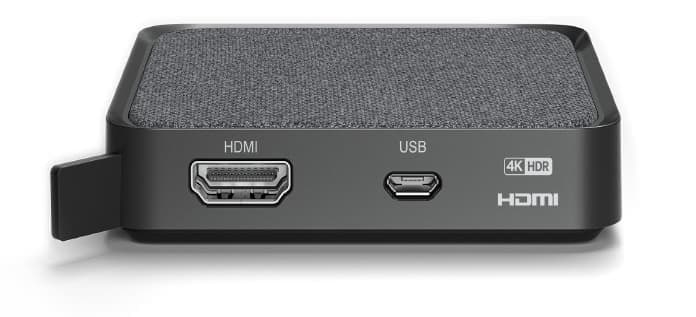
The Virgin Media Stream Entertainment Box is a compact streaming device designed to bring live TV, apps, and on-demand entertainment together in one easy-to-use interface. Built for Virgin Media broadband customers, it is ideal for households that want a simple plug-and-play TV experience without the complexity of a traditional set-top box. The device supports up to 4K Ultra HD, HDR, Dolby Digital, and Dolby Atmos passthrough, making it a strong choice for viewers who want modern picture and sound quality in a small form factor.
One of the biggest advantages of the Virgin Media Stream Entertainment Box is its flexibility. It connects to your TV through HDMI and can be powered through micro-USB, with optional wired network passthrough support. Because it is cloud-based and has no local storage, it is best suited to users who prefer streaming over recording. It is especially useful for families, apartment users, and anyone who wants quick access to apps such as Netflix, Prime Video, Disney+, BBC iPlayer, YouTube, and more.
Availability is typically tied to Virgin Media broadband packages, and a minimum broadband speed of 50 Mbps is generally recommended for smooth performance. Pricing commonly includes a one-off activation fee in the region of £35, while package bundles may vary. For customers searching for a compact, affordable entertainment hub, the Virgin Media Stream Entertainment Box offers a modern alternative to larger TV receivers and traditional DVR-based solutions.
Specifications: Virgin Media Stream Entertainment Box Technical Details
- Dimensions: 80 mm x 80 mm x 16 mm for a discreet, space-saving design.
- Video output: Up to 4K Ultra HD at 60 fps with HDR support, including HDR10 and HLG.
- Audio: Dolby Digital and Dolby Atmos passthrough for compatible sound systems.
- Ports: 1 x HDMI v2.0b with HDCP 2.2, 1 x micro-USB for power and wired network pass-through.
- Wireless: Dual-band Wi‑Fi 5 (802.11ac) and Bluetooth LE for the remote control.
- Software: RDK platform with Horizon 4 user interface.
- Power consumption: Less than 5W, making it energy efficient.
- Remote: Voice-enabled Bluetooth remote for simple navigation and search.
- Compatibility: Works with Virgin Media Hub 3 and above, and requires Virgin Media broadband.
- Build materials: Compact casing made with a high percentage of recycled plastics.
Compared with traditional set-top boxes, the Virgin Media Stream Entertainment Box is lighter, smaller, and more focused on app-based viewing. Against similar streaming devices, it stands out because it integrates live TV and subscription services into one Virgin Media ecosystem. However, unlike recordable boxes, it does not include local storage or DVR functionality.
Troubleshooting: Common Virgin Media Stream Box Problems and Fixes
If the Virgin Media Stream Entertainment Box does not power on, first check the HDMI and micro-USB connections, then confirm the TV is on the correct HDMI input. If the unit is connected by Wi‑Fi but video is buffering or freezing, restart the router, move the box closer to the hub, or switch to a wired connection if available through the micro-USB pass-through adapter.
Common error code issues often relate to network setup, account authentication, or package access. If you see a service error, sign out and back in, verify your Virgin Media subscription, and check that your broadband speed meets the recommended minimum. If channels fail to load in HD or Ultra HD, make sure the TV supports the required resolution and that the HDMI cable is firmly seated.
Preventive maintenance is simple: keep the box well ventilated, avoid blocking the signal path, and restart it occasionally to refresh the software connection. Because the device is tied to Virgin Media services, support is typically handled through Virgin Media customer service, the online help center, and live chat support. Warranty and replacement terms depend on your contract and package, so keep your order details and account information ready when requesting help.
Pros and Cons of the Virgin Media Stream Entertainment Box
Pros
- Compact design that fits neatly behind a TV or in a tight entertainment setup.
- Supports 4K Ultra HD, HDR, Dolby Digital, and Dolby Atmos passthrough for strong picture and sound quality.
- Simple setup with HDMI and Wi‑Fi, plus optional wired connectivity.
- Access to major streaming apps and Virgin Media content in one interface.
- Low power use makes it efficient for everyday viewing.
- Good value for households already using Virgin Media broadband.
Cons
- No built-in recording or local storage, which limits flexibility for time-shifting.
- Requires Virgin Media broadband, so it is not suitable for other internet providers.
- Best performance depends on a stable, fast connection and compatible TV.
- Less advanced than full-featured DVR boxes for users who want recording and archive control.
For value for money, the Virgin Media Stream Entertainment Box is most attractive to existing Virgin Media customers who want a simple streaming-first device. Alternatives such as recordable set-top boxes or standalone streaming players may suit users who need more storage or broader provider compatibility.
Customer Reviews: What Users Say About Virgin Media Stream Entertainment Box
Customer feedback is generally positive, with many users praising the compact size, fast access to apps, and strong 4K picture quality. A common rating pattern falls around 4 out of 5 stars, especially among customers who prefer a minimalist, streaming-focused setup. One frequent comment is that the device feels “small but powerful,” particularly when paired with a modern 4K TV and soundbar.
Common complaints include the lack of recording, limited compatibility outside Virgin Media broadband, and occasional buffering when home Wi‑Fi is weak. Users who mainly watch live TV and streaming apps tend to recommend it more highly than those who want DVR-style features. For shoppers comparing options, the Virgin Media Stream Entertainment Box is a good buy for convenience-first households, but less suitable for viewers who need local storage or advanced recording features.
Faqs
How do I set up the virgin media Stream Entertainment Box for the first time?
Why is my virgin media Stream Entertainment Box not connecting to Wi-Fi?
What should I do if the virgin media Stream Entertainment Box keeps buffering or freezing?
Which apps and streaming services work with the virgin media Stream Entertainment Box?
Can I use the virgin media Stream Entertainment Box without a satellite dish or aerial?
How do I improve picture quality on the virgin media Stream Entertainment Box?
What are the most common virgin media Stream Entertainment Box problems and how can I fix them?
How should I clean and maintain my virgin media Stream Entertainment Box for long-term reliability?
Tags
Leave a Comment