
Setup: Walkerfit M6 Ultra Smart Watch User Manual
Content
Walkerfit M6 Ultra Smart Watch
Introduction
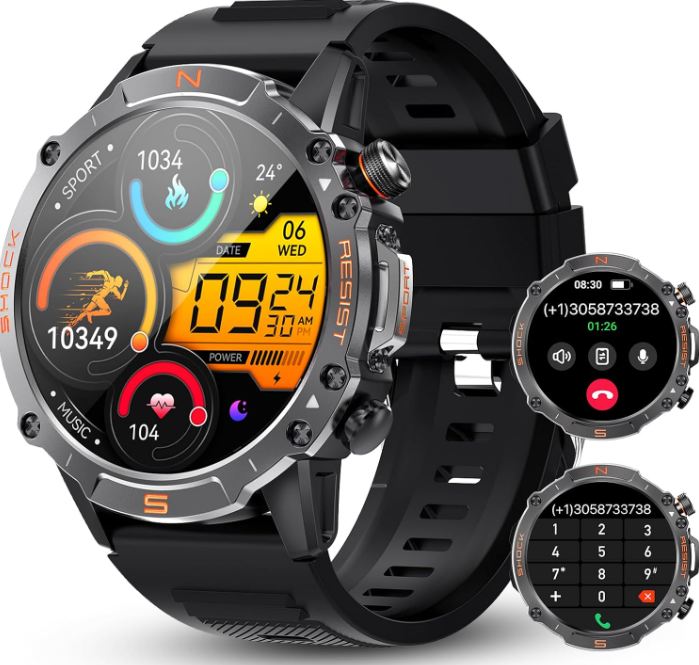
Introducing the **Walkerfit M6 Ultra Smart Watch**, a cutting-edge wearable designed to enhance your active lifestyle. This innovative smartwatch offers a compelling blend of fitness tracking, smart notifications, and sleek design, making it perfect for fitness enthusiasts, busy professionals, and anyone seeking a stylish accessory that keeps them connected. With its advanced heart rate monitoring, sleep tracking, and customizable watch faces, the Walkerfit M6 Ultra is poised to revolutionize how you manage your health and stay informed on the go.
Targeted at individuals seeking a versatile smartwatch for both fitness and everyday use, the Walkerfit M6 Ultra is expected to be priced competitively within the range of $100 to $150, offering excellent value for money. It is available for purchase on major online platforms and select retail stores.
Connecting & Pairing
Use your phone to scan the following QR code, download, and install the FitCloudPro app. For the best user experience, update the app to the latest version as prompted. Keep the phone Bluetooth is on.

Go to app Device >Add device to connect the device to your phone.
Getting started
Power on
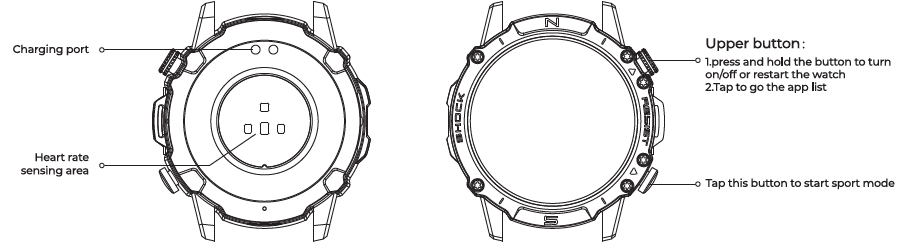
Long-press the button to turn on the screen and go to the start screen. If turning on the watch by long-pressing the button doesn't work, charge the watch and try again.
Shut down:
When the device is on, long-press the button for S seconds to go to the power menu to shut down or restart the watch. Charging
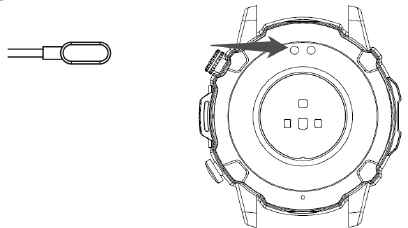
This product charges via a magnetic charging cable. Align the charging port on the back of the watch with the metal contacts on the charging base, and wait until the charging level indicator appears on the watch screen.
Note:
Use the original charging cable and ensure the charging port is dry.
Wearing & Replacing a Watch Strap
- Put the strap on with comfortable looseness to allow the skin to breathe and the sensor to function.
- You can tighten the watch strap during a workout and loosen it afterwards. Lighten the strap appropriately if your watch is always on your wrist or fails to output data.
- To change the watch strap, refer to the illustration below:

Functions available when the watch is connected to the phone
App alerts
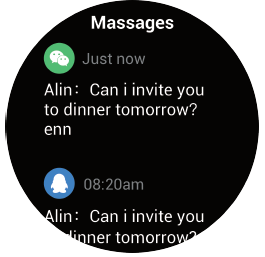
Keep the watch connected with your phone to receive phone app alerts on your watch. You can swipe up on the watch face page to view the latest 15 alerts in the Notification Center.
APP Setting method:
Keep the watch connected with your phone, start the app, and go to Device> Push Notifications. Here, you can select apps for which the app alerts function needs to be enabled.
Note:
To enable this function on an Android phone, you need to add the app to the whitelist or auto-run list in the phone's background so that the app always runs in the background. If the app is killed by the phone's background process, the watch will be disconnected from your phone, and you cannot receive app alerts on the watch .
call audio /Media audio control shortcuts
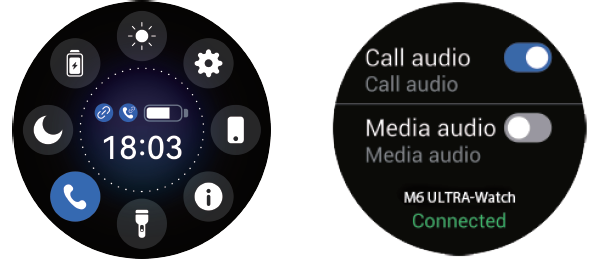
Pair the watch with your phone via Bluetooth, swipe down to go to the control center, to settings for calling /media audio on or off.
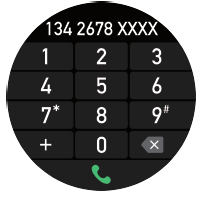
Dail
After using the mobile phone to connect and call Bluetooth, you can use the dialing function normally.
Find Mobile/Watch
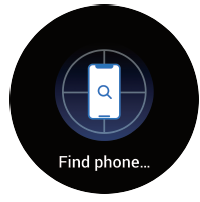
- Keep the watch connected to your phone.
- When the watch and the APP are connected, click to find the phone, the phone will ring, and the watch will show that the search is successful; if the watch is not connected to the APP, the watch will prompt that it is not connected.
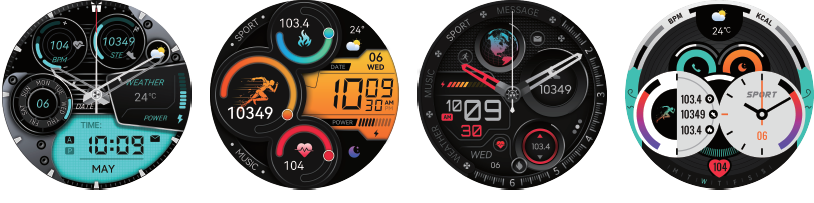
Watch Face Callery
Change Watch Faces
- Wake up the watch face, . And long-press the watch face page to go to the watch face selection page.
- Swipe left or right to preview the watch faces available to the watch, including built-in watch faces and synchronized online watch faces that you chose from the pp Dial market.
Shortcuts
Control center
On the watch face page, swipe down to go to the control center for the following system functions.
Notifications
On the watch face page, swipe up to go to the notification functions.
Specifications
The Walkerfit M6 Ultra Smart Watch boasts impressive specifications, setting it apart from similar models:
- Display: High-resolution touchscreen display with customizable watch faces.
- Performance: Equipped with a powerful processor for seamless app performance and efficient battery management.
- Connectivity: Supports Bluetooth 5.0 for stable connections to smartphones.
- Health Features: Advanced heart rate monitoring, sleep tracking, and breathing exercises.
- Additional Features: Music control, call and message notifications, sedentary reminders, and more.
- Battery Life: Up to 5 days on a single charge, depending on usage.
Compared to similar smartwatches, the Walkerfit M6 Ultra offers superior battery life and a broader range of health tracking features.
Troubleshooting
Common issues and solutions for the Walkerfit M6 Ultra Smart Watch:
- Failed Pairing: Restart both the watch and smartphone, and ensure Bluetooth is enabled.
- Notification Issues: Check app permissions and ensure notifications are enabled.
- Heart Rate Monitoring Issues: Wear the watch snugly but not too tightly, and ensure proper calibration.
For more assistance, contact our support team at [support email]. The Walkerfit M6 Ultra is backed by a comprehensive warranty and dedicated customer support.
Pros & Cons
Pros
- Compact Design: Sleek and lightweight, perfect for daily wear.
- Advanced Health Features: Comprehensive tracking for heart rate, sleep, and more.
- Value for Money: Offers excellent features at an affordable price.
Cons
- Limited App Support: Some users may find limited compatibility with certain apps.
- No Built-in GPS: Requires connection to a smartphone for GPS tracking.
Customer Reviews
The Walkerfit M6 Ultra Smart Watch has received positive feedback from users, with an average rating of 4.5 out of 5 stars. Common praises include its durability, ease of use, and excellent health tracking features. Some users have noted limitations in app support, but overall, the device is recommended for its value and functionality.
"I was impressed by how easy it was to set up and use the Walkerfit M6 Ultra. The heart rate monitoring is accurate, and the battery lasts longer than I expected." - Emily R., 5/5 stars
This manual is designed to guide you through the features and use of the **walkerfit M6 Ultra Smart Watch**, ensuring you maximize its potential while enhancing your fitness and lifestyle goals. With its comprehensive health tracking and smart features, this smartwatch is an excellent choice for anyone seeking a reliable and stylish wearable device.
Faqs
How do I pair and set up my walkerfit M6 Ultra Smart Watch with my smartphone for the first time?
Why is my walkerfit M6 Ultra Smart Watch not displaying weather updates or notifications?
Can I use the walkerfit M6 Ultra Smart Watch for hands-free calling and music playback?
How accurate are the health and fitness tracking features on the walkerfit M6 Ultra Smart Watch?
Is the walkerfit M6 Ultra Smart Watch suitable for outdoor and rugged use, and is it glove-friendly?
What should I do if my walkerfit M6 Ultra Smart Watch battery drains faster than expected?
How do I update the firmware or software on my walkerfit M6 Ultra Smart Watch?
Can I track outdoor activities like running or hiking with GPS on the walkerfit M6 Ultra Smart Watch?
Leave a Comment