
How to Setup: Wightman Telecom Wireless Router User Manual
Content
Wightman Telecom Wireless Router: Complete Product Manual and Setup Guide
Introduction
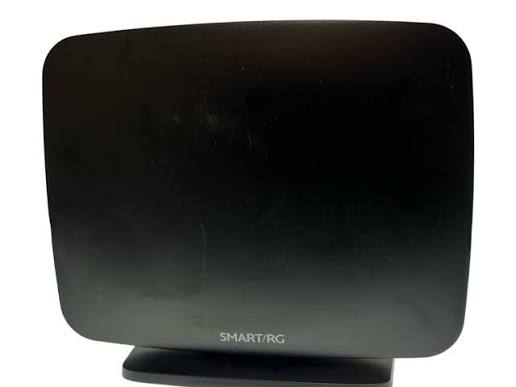
The Wightman Telecom Wireless Router is a home and small-office networking solution designed to deliver reliable internet access across both wired and wireless devices. Built for Wightman customers using DSL or fibre-to-the-home services, it combines router functionality, Wi‑Fi connectivity, and multiple Ethernet ports in a single unit for simplified installation and day-to-day use.
One of the main advantages of the Wightman Telecom Wireless Router is its straightforward setup and broad compatibility with common home networking needs. It supports up to four network devices through LAN ports and includes a dedicated Ethernet WAN port for fibre installations, making it suitable for streaming, browsing, video calls, smart home devices, and basic home office work. The integrated DSL port also makes it practical for older broadband connections.
This router is a strong fit for households that want a dependable, provider-supported gateway rather than a complex third-party networking setup. It is especially useful for users who prefer a guided installation, quick troubleshooting access, and service-backed support from Wightman’s technical team. The product is commonly available through Wightman internet service packages or as part of a service installation, with an estimated price range that varies by plan, promotion, and whether the unit is rented, included, or purchased separately. For the most accurate current availability, customers should check with Wightman customer support or their account portal.
For users searching for a simple, provider-managed wireless internet router, the Wightman Telecom Wireless Router offers a practical balance of convenience, connectivity, and support.
Specifications
The Wightman Telecom Wireless Router is designed for residential broadband use and provides the core features needed for stable internet connectivity. While exact hardware revisions may vary, the router commonly includes the following capabilities:
- LAN IP address: 192.168.1.1
- LAN subnet mask: 255.255.255.0
- Wireless networking for home and small office devices
- Up to four 10/100 BASE-T RJ-45 LAN ports for wired connections
- Auto-sensing MDI/X Ethernet ports for flexible cable use
- Gb ETH port for Ethernet WAN connections on fibre-to-the-home services
- DSL port for xDSL phone line connections with built-in micro filter
- Provider-based SSID and passcode configuration for initial wireless access
- 24/7 technical support availability from Wightman
In performance terms, this router is best suited for standard household workloads such as HD streaming, online browsing, email, and video conferencing. Compared with newer Wi‑Fi 6 mesh systems, it is more basic and focused on essential connectivity rather than advanced whole-home coverage or high-density device performance. Users needing stronger coverage for larger homes may prefer a mesh option such as Wightman’s whole-home Wi‑Fi service, while this router remains ideal for simpler setups and smaller spaces.
Setup Guide
Setting up the Wightman Telecom Wireless Router is straightforward and can usually be completed in a few minutes. Begin by placing the router in a central, open location away from thick walls, microwaves, and metal objects to reduce wireless interference. Connect the power adapter securely, then attach the correct internet source: the grey DSL cable for DSL service or the Ethernet cable to the WAN port for fibre installations.
Next, connect your computer or phone to the default Wi‑Fi network using the SSID and passcode printed on the router or included setup sheet. Once connected, open a web browser and enter 192.168.1.1 to access the router interface if configuration changes are needed. From there, users can update the Wi‑Fi name, change the password, review connected devices, or adjust basic network settings.
If a device does not connect, restart the router by unplugging it for 10 seconds and reconnecting it. Make sure all cables are fully seated and that the internet service is active. For safety, keep the router in a dry indoor location, use only the supplied power adapter, and avoid placing objects on top of the unit. If the setup fails, contact Wightman technical support for guided assistance.
Troubleshooting
Most issues with the Wightman Telecom Wireless Router can be solved with a few simple checks. If there is no internet connection, first power cycle the router and modem if separate, then confirm that the DSL or Ethernet WAN cable is connected to the correct port. If Wi‑Fi is visible but devices cannot browse, forget the network on the device and reconnect using the correct passcode.
- No Wi‑Fi signal: restart the router and verify that wireless is enabled.
- Slow speed: move closer to the router, reduce interference, or reconnect unused devices.
- No internet after power loss: unplug for 10 seconds and reconnect.
- Login issues: confirm the browser uses 192.168.1.1 and try a different device.
- Port or cable problems: test with another Ethernet cable and inspect both ends.
If an error screen or connection fault persists, note the message and contact support immediately. Wightman offers technical support 24/7, and customer service is also available during posted business hours. Customers can reach the support team by phone at 1-888-477-2177, with additional help available through Wightman’s support channels. If the device is under warranty or included with service, ask about replacement options before purchasing new hardware.
Pros & Cons
Pros
- Easy setup for non-technical users
- Supports both DSL and fibre installations
- Multiple LAN ports for wired devices such as desktops, TVs, and game consoles
- Provider-backed support makes troubleshooting easier
- Good value for customers who want a simple, service-approved router
Cons
- Basic feature set compared with premium Wi‑Fi 6 routers
- Limited LAN speed on some models with 10/100 ports
- Less suitable for large homes with many connected devices
- May not match the coverage of mesh systems or high-end third-party routers
For everyday home use, the Wightman Telecom Wireless Router delivers dependable performance and straightforward management. Customers who need advanced parental controls, multi-gigabit speeds, or wider wireless coverage may want to compare it with a mesh Wi‑Fi system or a higher-end standalone router.
Customer Reviews
Customer feedback for the Wightman Telecom Wireless Router is generally positive, especially among users who value simplicity and service support. Many customers rate it around 4 out of 5 stars for ease of installation, stable browsing, and quick reconnection after power cycles. Typical praise includes “fast to set up,” “works well for everyday streaming,” and “helpful support when I had a connection issue.”
Common complaints usually focus on coverage in larger homes and the absence of advanced features found in newer routers. Some users also mention that performance can vary depending on distance from the device and the number of connected devices. For best results, customers often recommend using it in smaller households or pairing it with a whole-home Wi‑Fi solution if coverage is a concern.
Overall, the Wightman Telecom Wireless Router is a solid choice for customers who want a provider-supported, practical router with minimal setup effort and reliable basic performance.
Faqs
How do I set up the wightman Telecom Wireless Router for the first time?
What should I do if my wightman Telecom Wireless Router keeps dropping Wi‑Fi connection?
Which devices are compatible with the wightman Telecom Wireless Router?
How can I improve the speed and performance of my wightman Telecom Wireless Router?
Why is the wightman Telecom Wireless Router not connecting to the internet even though Wi‑Fi is on?
How do I change the Wi‑Fi name and password on the wightman Telecom Wireless Router?
What is the best way to place the wightman Telecom Wireless Router for stronger coverage?
How often should I reset or maintain the wightman Telecom Wireless Router?
Leave a Comment