
Setup & Usage: Xenx P3-1060 Graphics Tablet User Manual
Content
Xenx P3-1060 Graphics Tablet
Introduction
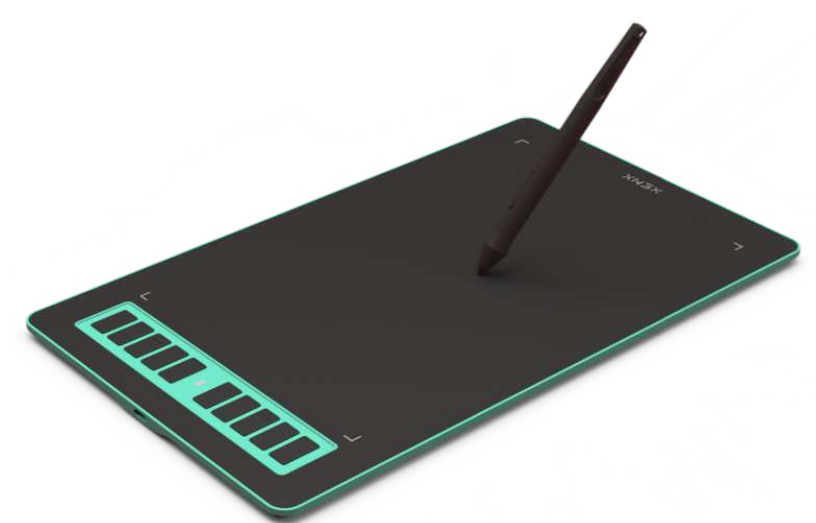
Welcome to the Xenx P3-1060 Graphics Tablet, a cutting-edge digital drawing pad designed for artists, designers, students, and professionals seeking a seamless blend of precision, performance, and affordability. The Xenx P3-1060 Graphics Tablet stands out in the crowded market with its responsive pen technology, generous active area, and plug-and-play compatibility—making it an ideal tool for digital illustration, photo editing, note-taking, and online teaching.
Key benefits include a pressure-sensitive stylus for natural drawing experiences, a slim and portable design for on-the-go creativity, and broad software compatibility with leading creative suites. Unique selling points of the Xenx P3-1060 Graphics Tablet are its high resolution for fine detail work, customizable shortcut keys for efficient workflow, and a durable build that withstands daily use.
This graphics tablet is perfect for beginners exploring digital art, hobbyists upgrading their tools, and professionals needing a reliable secondary device. Whether you're sketching, retouching photos, or annotating documents, the xenx P3-1060 Graphics Tablet adapts to your creative needs. Estimated to be priced competitively in the mid-range segment (typically $80–$120), it offers exceptional value, balancing advanced features with accessibility. The Xenx P3-1060 Graphics Tablet is widely available through major online retailers and electronics stores, ensuring easy access for global customers.
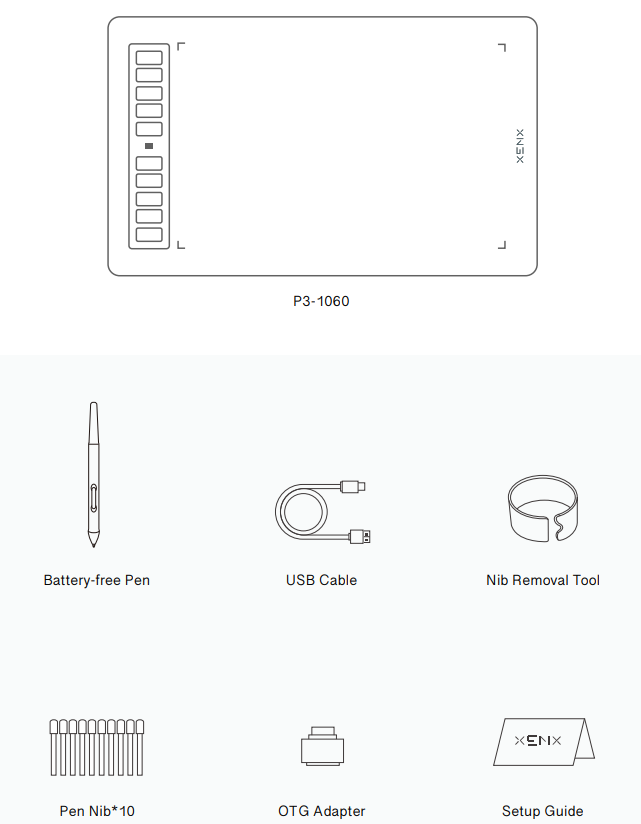
Packaging content
Specifications
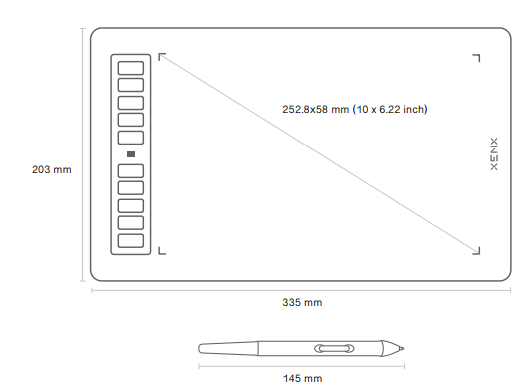
- Product name: Xenx P3 Graphics Tablet
- Product size: 335 x 203 x 8.5 mm
- Active area: 252.8 x 158 mm (10 x 6.22 inch)
- Pen technology: Battery-free electromagnetic resonance
- Pen resolution: 2540 lines per inch
- Sensing height: 10 mm
- Pen weight: 7g
- Model number: P3--1060
- Tablet Weight: 362.5 g
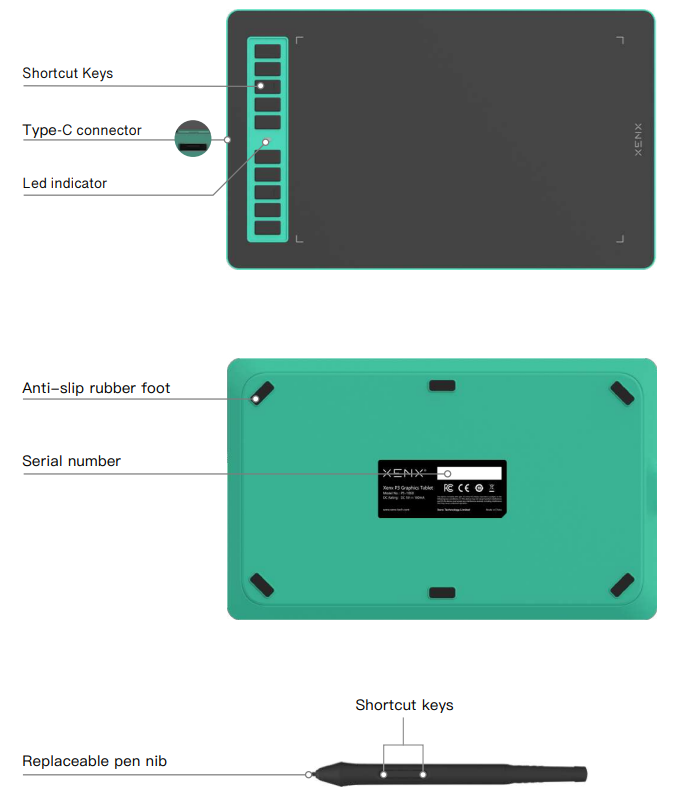
- Number of shortcut buttons: 10
- Pen pressure sensitivity: 8-192 level
- Pen report rate: 266 points per second
- Pen shortcut buttons: 2
- Connection interface: USB
- Compatibility: Mac OS 10.10 or later / Windows 7 64-bit or later / Android 6.0 or later
Compared to similar graphics tablets like the Wacom Intuos and Huion Inspiroy, the xenx P3-1060 Graphics Tablet offers a larger active area and higher pen pressure sensitivity at a more accessible price point, making it a compelling choice for users who demand professional features without a premium cost.
Product overview
XENX P3-1060 is an ideal graphics tablet for digital art, painting, photo editing, and graphic design. Besides, it is a great tool for document annotation, pen input for online classes and meetings,s as well as an s electronic signature application.
- Size
10 x 6.22 inches drawing area. - Battery-free Pen
Our battery-free pen is enhanced by a highly precise pressure sensor,, which utilizes 8192 levels of pressure sensitivity. Two customizable side buttons allow you to put your favouriteshortcuts on them. - 10 Customizable Shortcut Keys
With Xenx Tablet Driver installed, you can customize the 10 on-tablet buttons to your favourite shortcuts. These shortcuts can be configured and saved per application. - High Performance
Xenx P3-1060 captures 266 sets of pen coordinates and pressure data per second. - Compatibility
Xenx Tablet is compatible with Mac OS 10.12 or later, Windows 7 64-bit or later, and Android 6.0 or later. You can also enjoy driver driver-free pen experience with Windows 10 and Android 6.0 or later.
Set up your graphics tablet on Android O..S..The
Xenx graphics tablet supports plug and play on Android OS 6 or later. The default orientation of the drawing area is in landscape mode. When using a Xenx tablet as an Android phone, you may find ratio distortion.
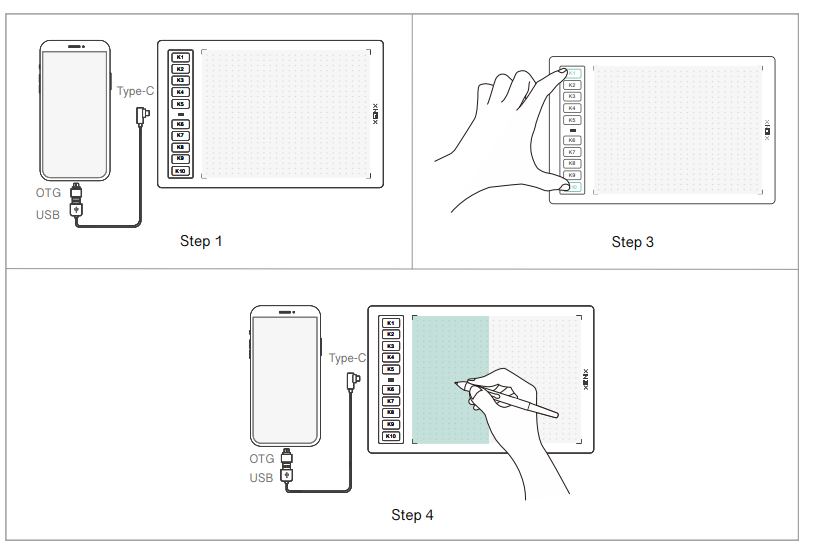
To switch the Xenx tablet to match the phone aspect ratio, please follow the steps below:
- Connect the XENX tablet to your Android phone with a Type-C OTG adaptor.
- Launch your drawing or writing app.
- Press and hold both the top and bottom buttons at the same time for 5 seconds.The The
- XENX tablet will switch to portrait mode to fit your phone orientation.
- To switch back to landscape mode for your PC or Mac, press and hold the two buttons again for 5 seconds.
Note
- Xenx graphics tablets only support Android OS 6.0 or later. For some Android devices, the USB OTG function is disabled by default. Please check with your Android device manufacturer for setting up the OTG function.
- Please note that the shortcut keys on the tablet and pen are not supported in Android devices.
- Only a USB Type-C OTG adapter is provided with the Xenx graphics tablet.
Xenx Driver settings
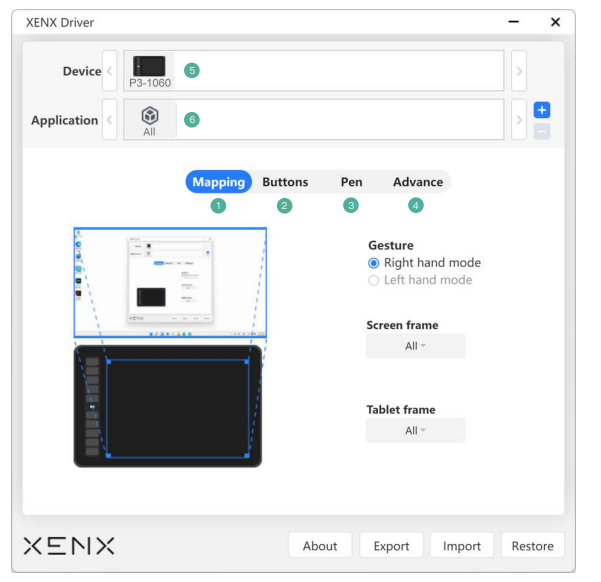
There are 6 sections on Xenx Driver software:
- Mapping
- Buttons
- Pen
- Advance
- Device
- Application
Troubleshooting
Common Problems and Solutions
- Tablet Not Recognized: Ensure drivers are installed from the official website. Try a different USB port or cable.
- Pen Not Working: Check for physical damage. Reinstall drivers if the pen is unresponsive.
- Pressure Sensitivity Issues: Update your creative software and tablet drivers. Calibrate the pen in the driver settings.
- Express Keys Not Functioning: Reassign keys via the driver utility. Restart your computer if changes don’t apply.
Error Codes
- Error 101: Driver conflict—uninstall old drivers before installing new ones.
- Error 205: Connection issue—check cable and port integrity.
Preventive Measures
- Keep drivers and software updated.
- Avoid exposing the tablet to extreme temperatures or moisture.
- Store the pen securely when not in use to prevent damage.
Warranty and Support
The Xenx P3-1060 Graphics Tablet comes with a 1-year limited warranty covering manufacturing defects. For technical support, visit the official xenx website or contact customer service at support@xenx.com. Live chat and email support are available during business hours.
Warranty terms and conditions
This end-user limited warranty ("Warranty") is provided by Xenx Technology Limited (“XENX”) to the original purchaser ("Purchaser") of the XENX product ("Product"), accompanied by this Warranty,y and is not transferable.
What is Covered
XENX warrants the Product against defects in material or workmanship under normal use for the applicable warranty period ("Warranty Period"), 12 months from the date of original purchase by Purchaser. If the Product becomes defective during the Warranty Period, XENX will, at its option and without charge, repair the Product with new or reconditioned components or parts, or replace the Product with a reconditioned product of the same or functionally equivalent model. However, that you are responsible for (i) the cost of transportation of the Product to the designated service location and (ii) any loss or damage to the Product resulting from such transportation.
What This Warranty Does Not Cover
This Warranty does not cover and shall be void for defects or damages resulting from defects caused by the operation of the product outside the usage parameters stated in the User’s Guide; malfunctions caused by misuse or abuse, accidental drops, impact, liquid spills, by improper installation, operation or maintenance, by improper connections or peripherals, by use of unofficial spare parts, by service modifications or repairs performed by a person not authorized by XENX, or by other conditions not arising from defects in product materials or workmanship; this also applies to accessories such as USB cable and pen nib exchange ring; malfunction or failure caused by accidental or intentional damage; defects resulting from normal wear and tear; consumable parts such as pen nibs. Warranty is provided only to You, the original Purchaser. This Warranty does not cover Products used as short-term rental equipment.
Preinstalled or Bundled Software
XENX and its suppliers make no warranty or representation, either express, implied,, or statutory, with respect to software provided with the Product and licensed to Purchaser, its quality, performance, merchantability, or fitness for a particular purpose. Nor does XENX warrant that the functions contained in the software will be uninterrupted or error-free. The software is provided "AS IS", except if expressly warranted by the licensor in the applicable software license agreement, and is subject to the terms and conditions of the software license agreement contained in or accompanying the software. In no event will XENX, its ASPs, dealers, distributors,, or other resellers be liable for direct, indirect, special, incidental, or consequential damages resulting from any defect in the software or its documentation, even if advised of the possibility of such damages.
Pros & Cons
Advantages
- High Pressure Sensitivity: 8,192 levels deliver a natural, responsive drawing experience comparable to premium brands.
- Large Active Area: More workspace than many competitors in this price range.
- Battery-Free Pen: No charging needed—always ready to use.
- Customizable Shortcuts: 8 express keys streamline workflow for professionals.
- Plug-and-Play: Easy setup with major operating systems and creative software.
Disadvantages
- No Built-In Display: Unlike some high-end models, you draw on the tablet while watching your computer screen.
- Plastic Build: While durable, the body feels less premium than metal-framed alternatives.
- Driver Updates: Occasional need to manually update drivers for optimal performance.
In terms of value for money, the Xenx P3-1060 Graphics Tablet outperforms many entry-level and mid-range alternatives, offering professional-grade features at a consumer-friendly price. It’s an excellent choice for those transitioning from mouse to pen or seeking a reliable backup device.
Customer Reviews
Users consistently praise the Xenx P3-1060 Graphics Tablet for its smooth pen performance, spacious drawing area, and ease of use. Many highlight the tablet’s value, noting that it rivals more expensive brands in responsiveness and build quality. Common compliments include the ergonomic stylus, customizable buttons, and reliable driver support.
Some users mention minor issues with initial driver setup or occasional lag during intensive sessions, but these are typically resolved with software updates. Star ratings average 4.5 out of 5 across major retailers, with particular appreciation from digital artists, students, and remote workers. Testimonials frequently recommend the xenx P3-1060 Graphics Tablet for beginners and intermediates seeking a feature-rich device without overspending. If you’re looking for an affordable, high-performance drawing tablet, the Xenx P3-1060 Graphics Tablet is a standout option that delivers on its promises.
Faqs
How do I set up the xenx P3-1060 Graphics Tablet for the first time on Windows and Mac?
What should I do if my xenx P3-1060 Graphics Tablet pen pressure sensitivity is not working?
Can the xenx P3-1060 Graphics Tablet be used with Android devices and what are the compatibility requirements?
How do I customize the shortcut keys on my xenx P3-1060 Graphics Tablet for better workflow?
What are the main features of the xenx P3-1060 Graphics Tablet that enhance drawing and graphic design?
How can I optimize the performance of my xenx P3-1060 Graphics Tablet for digital art?
What maintenance tips should I follow to keep my xenx P3-1060 Graphics Tablet in good condition?
How do I troubleshoot connection issues with the xenx P3-1060 Graphics Tablet?
Tags
Leave a Comment