
Setup: Zoskvee P95 Smart Watch User Manual
Content
Zoskvee P95 Smart Watch
Introduction
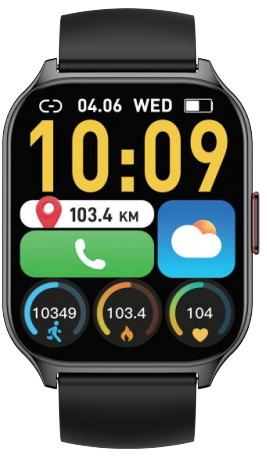
The Zoskvee P95 Smart Watch is a versatile wearable designed to seamlessly integrate health monitoring, communication, and fitness tracking into your daily routine. Featuring a vibrant 2-inch HD touchscreen and powered by Bluetooth 4.0 connectivity, this smartwatch is compatible with both iOS and Android devices via the FitCloudPro app, making it accessible to a broad user base. Key benefits include continuous heart rate, blood pressure, and blood oxygen monitoring, along with sleep tracking and over 100 sports modes for comprehensive activity analysis.
Its Bluetooth calling function allows users to answer and dial calls directly from the wrist, enhancing convenience for busy professionals and fitness enthusiasts alike. With an ergonomic design suitable for both women and men, the Zoskvee P95 Smart Watch targets users seeking an all-in-one health and communication companion. The battery capacity of 270mAh supports extended use,, with approximately 2 hours needed for a full charge. Priced competitively, usually in the mid-range segment, it offers excellent value given its broad functionality and user-friendly app integration. ThZoskveeee P95 is widely available through online retailers and selected stores, making it an accessible option for those looking to upgrade their wearable technology.
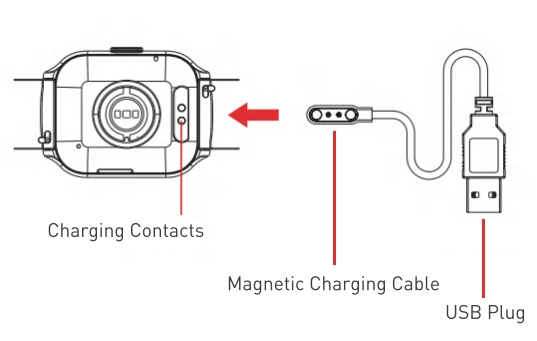
Charging Diagram
Please strictly follow the steps below to operate:
- Please charge the watch before use.
The charging process takes about 2 hours. - Please align the charging cable to the contacts on the back of the watch.
- Please plug it into a USB port on a computer, charging base,, or power bank to charge. (The USB adapter is not included in the package.)
App Installation
Download App
Please use the watch witthe h the FitCloudPro App. You can download 'FitCloudPro' from App Store or Google Play, or by scanning the QR Code below:

FitCloudPro App is compatible with:

Note: It only works with smartphones, not with tablets or personal computers.
Account Registration and Login
Register an account with your email for the future login.
Device Pairing
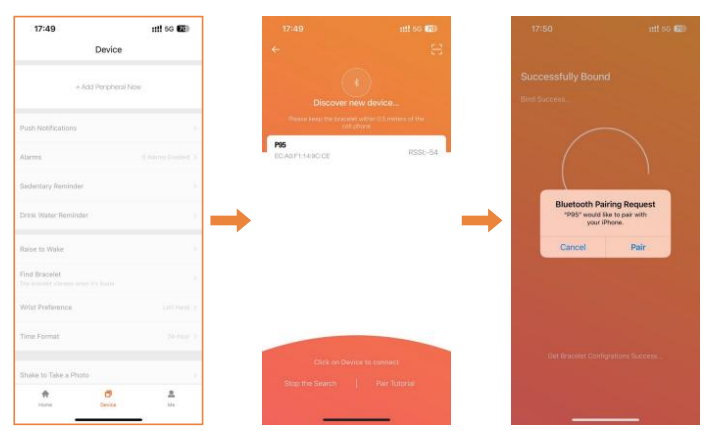
It is required to turn on the Bluetooth and allow FitCloudPro to access the GPS on your smartphone during the pairing.
Warm Tip: Do not connect the watch directly Bluetooth list.
Operation Method:
Open the app ➔ 'Device' ➔ click 'Add Peripheral Now' ➔ 'Search Now· to find the watch [P95] in the search list and click ·p95· to complete the pairing .
Note:
- For Android users, phones must allow the app to obtain permissions and run in the background;, otherwise, it will affect the user experience.
- For iPhone users,,s the watch supports oneclick connection with appon iOSOS 13 or above smartphones.
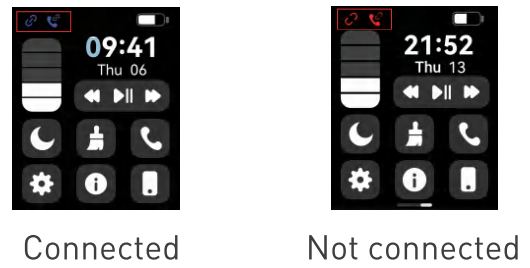
Under iOS 13, the watch needs to connect with the app first, then connect with the P95 in the Bluetooth list to realize the function of Bluetooth call, music play,, etc. - If the above operations don't work, please restore the watch to factory settings.
Turn on Bluetooth and follow the above steps to connect again.
Product Specifications
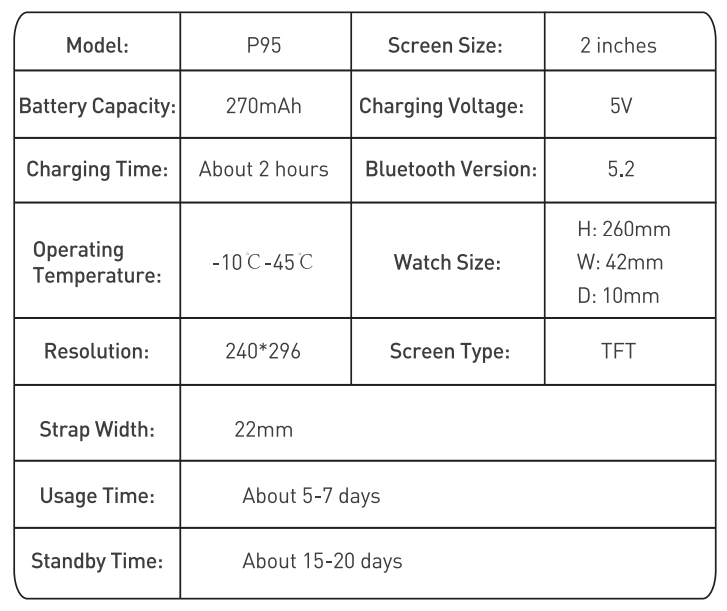
Troubleshooting the Zoskvee P95 Smart Watch
Common issues with the Zoskvee P95 Smart Watch include connectivity problems with the FitCloudPro app, inaccurate sensor readings, and notification delays. To resolve Bluetooth disconnection, ensure the watch and phone remain within a 5-meter range and that Bluetooth is enabled on both devices. Re-pair the devices if necessary by restarting the watch and phone.
If health data such as heart rate or blood oxygen levels appear inconsistent, verify that the watch is worn snugly on the wrist and that personal information is correctly entered in the FitCloudPro app. For error codes, consult the user manual,, where typical alerts like "Sensor Error" may indicate the sensor needs cleaning or repositioning.
Preventive measures include regular firmware updates via the app, avoiding exposure to extreme temperatures (-10°C to 45°C operating range), and charging with the provided 5V charger. The Zoskvee P95 comes with a standard warranty covering manufacturing defects. For support, customers can contact the official service center or use the contact details provided in the user guide, ensuring prompt assistance.
Pros & Cons of the Zoskvee P95 Smart Watch
Pros
- Comprehensive Health Monitoring: Continuous tracking of heart rate, blood pressure, and blood oxygen provides valuable wellness insights.
- Bluetooth Calling: Enables hands-free communication, enhancing user convenience,, especially during workouts or travel.
- Wide Compatibility: Works well with both Android and iOS devices through the reliable FitCloudPro app.
- Extended Sports Modes: Over 100 activity modes support detailed fitness tracking for diverse workouts.
- Affordable Price Point: Offers advanced features comparable to higher-end models at a more accessible cost.
Cons
- Bluetooth Range Limitation: Requires close proximity (around 5 meters) to the paired phone for a stable connection.
- Sensor Sensitivity: Some users report occasional inaccuracies during intense physical activity.
- Charging Time: Approximately 2 hours to full charge might be longer compared to some competitors.
- App Dependency: Full functionality depends on the FitCloudPro app, which may have occasional bugs or interface limitations.
Customer Reviews and Feedback on zoskvee P95 Smart Watch
Users of the Zoskvee P95 Smart Watch generally praise its comprehensive health tracking features and the convenience of Bluetooth calling. Many appreciate the clear HD touchscreen and the large number of sports modes available. The overall star rating averages around 4 out of 5 stars, with positive testimonials highlighting its value for money and ease of use.
Common complaints include connectivity issues when the watch moves out of Bluetooth range, and occasional discrepancies in heart rate measurements during high-intensity activities. Some users note that the FitCloudPro app interface can be improved for smoother navigation. Despite these minor drawbacks, the majority recommend the Zoskvee P95 for daily health monitoring and fitness tracking, especially for users seeking an affordable yet feature-rich smartwatch.
Faqs
How do I set up the zoskvee P95 Smart Watch for the first time?
What should I do if the zoskvee P95 Smart Watch is not connecting to my phone?
How can I use the Bluetooth calling feature on the zoskvee P95 Smart Watch?
Is the zoskvee P95 Smart Watch compatible with all smartphones?
How can I improve the accuracy of health data on my zoskvee P95 Smart Watch?
Why is my zoskvee P95 Smart Watch not showing message notifications?
How often should I clean and maintain my zoskvee P95 Smart Watch?
What are the main features that make the zoskvee P95 Smart Watch stand out?
Tags
More zoskvee manuals
Leave a Comment