
Setup: Amplifi MeshPoint AFi-P-HD User Manual
Content
AmpliFi MeshPoint AFi-P-HD
Introduction
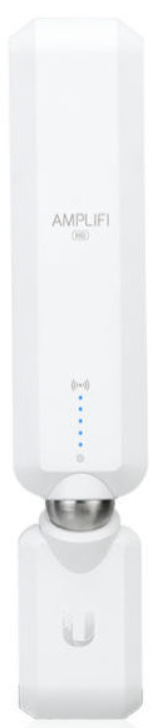
The AmpliFi MeshPoint AFi-P-HD is a high-performance wireless extender designed to eliminate dead zones and deliver seamless, whole-home Wi-Fi coverage. As part of the Ubiquiti AmpliFi Series, this mesh extender features an adjustable super antenna, dual-band frequencies (2.4GHz and 5GHz), and advanced mesh networking technology. It’s ideal for homes, offices, and multi-story environments where reliable, high-speed internet is essential. The AFi-P-HD is easy to set up using the intuitive AmpliFi mobile app (iOS and Android) or a standard web browser, making it perfect for both tech-savvy users and beginners.
Key benefits include powerful signal extension, flexible placement, and real-time signal LED indicators for optimal performance. The AmpliFi MeshPoint AFi-P-HD is compatible with existing AmpliFi routers and can also be paired with third-party routers to create a robust mesh network. With a sleek design and magnetic connector, it blends seamlessly into any environment. The device is widely available through authorized retailers, with prices typically ranging from $100 to $150, depending on region and stock availability.
Specifications
- Dimensions
- 243.83 x 54 x 57.75 (9.60 x 2.13 × 2.27")
- Weight
- 224 g (7.90 oz)
- Max. TX Power
- 26 dBm
- Radios
- 2
- MIMO Chains
- 6
- Speed
- 1750 Mbps
- ESD/EMP Protection
- ‡ 24kV Air/Contact
- Buttons
- Reset
- Antennas
- (1) Dual-Band Antenna, Tri-Polarity
- Wi-Fi Standard
- 802.11ac
- Power Save
- Supported
- Wireless Security
- WPA2-PSK AES/TKIP
- Operating Temperature
- 14 to 131° F (-10 to 55° C)
- Operating Humidity
- 5 to 95% Noncondensing
- Certifications
- FCC/CE/ IC
Package Contents
MeshPoint Overview
Installing the MeshPoints
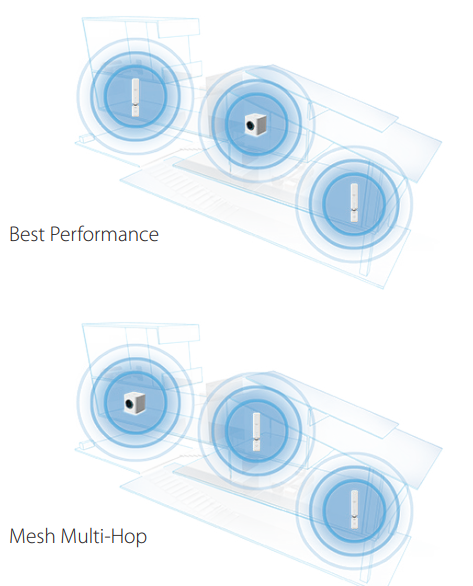
For best performance, the MeshPoints should be placed in different directions between the Router and the areas farthest from the Router. Mesh multi-hop should only be used when necessary, as performance will degrade with each hop.
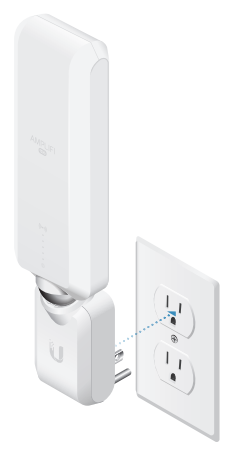
Plug the MeshPoint into a power outlet.
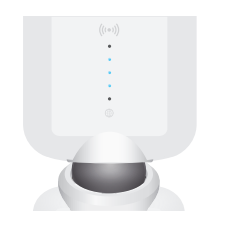
The MeshPoint will be in the Ready to Add state with the three middle LEDs flashing on and off.
Launch the app and follow the instructions for the router you are connecting to.
AmpliFi Router
Third-Party Router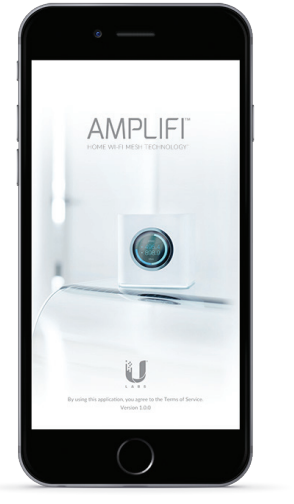
Connect to an AmpliFi Router
If your AmpliFi Router is already up and running, once you launch the app, the new MeshPoint should be displayed. Tap Add to Network.
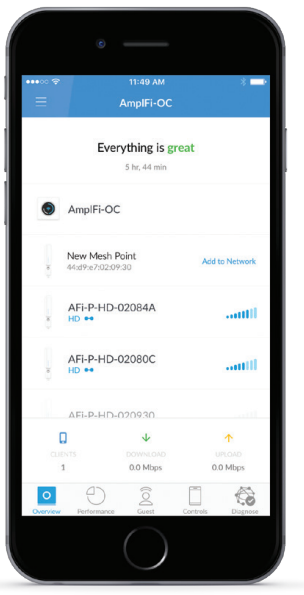
Edit the name of the MeshPoint if desired. Tap Continue.
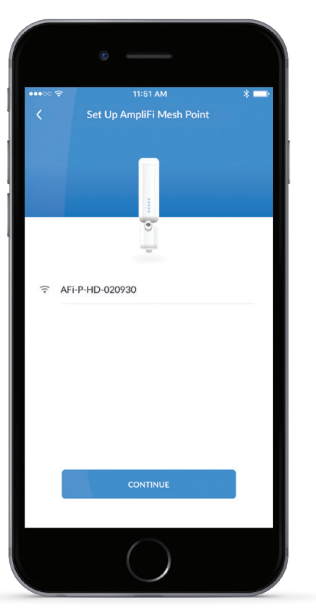
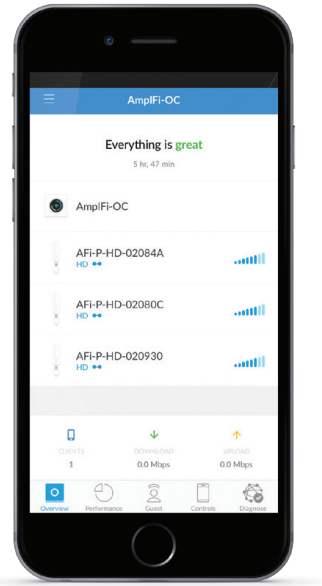
After about a minute, the LEDs on the MeshPoint will reflect signal strength once connected to the Router. The Overview screen in the app will appear and show the MeshPoint connected.
Connect to a Third-Party Router
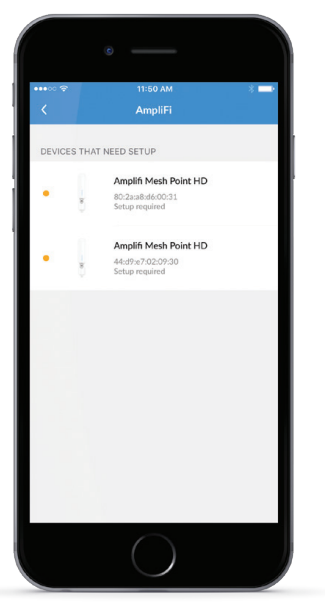
Select the device that needs to be configured (if more than one MeshPoint is being installed).
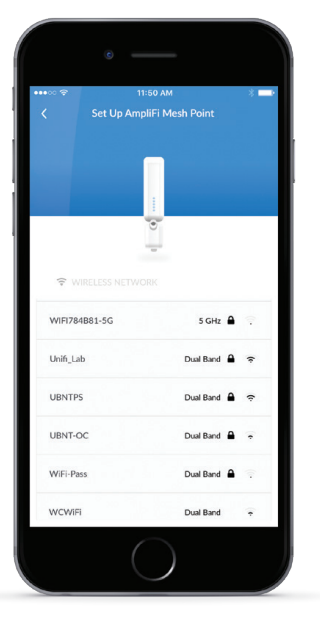
The app will display a list of available Wi-Fi networks. Select the network associated with your Router.
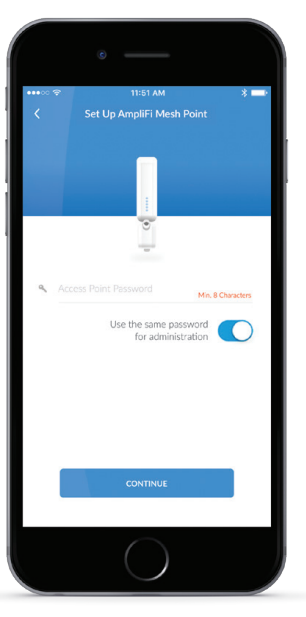
Enter the password associated with the wireless network and tap Continue. An audible tone will indicate successful configuration. After about a minute, the LEDs will reflect the signal strength once the MeshPoint is connected to the Router.
Adjusting the Antenna
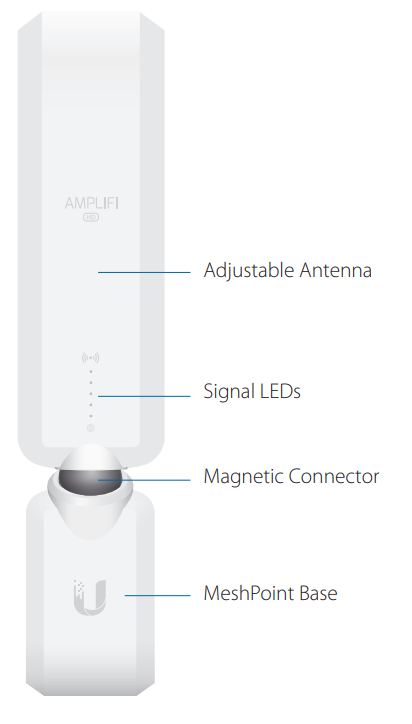
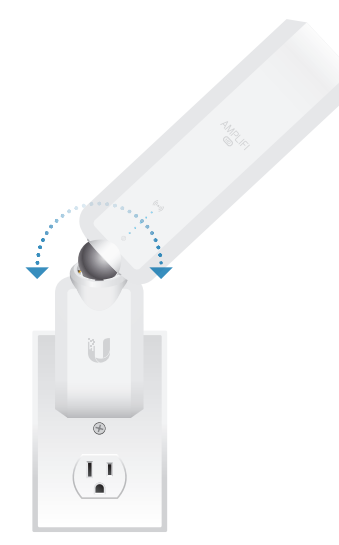
The MeshPoint antenna can be adjusted to provide optimal signal coverage for your location.
Limited Warranty
UBIQUITI NETWORKS, Inc. (“UBIQUITI NETWORKS”) warrants that the product(s) furnished hereunder (the “Product(s)”) shall be free from defects in material and workmanship for a period of one (1) year from the date of shipment by UBIQUITI NETWORKS under normal use and operation. UBIQUITI NETWORKS’ sole and exclusive obligation and liability under the foregoing warranty shall be for UBIQUITI NETWORKS, at its discretion, to repair or replace any Product that fails to conform to the above warranty during the above warranty period. The expense of removal and reinstallation of any Product is not included in this warranty. The warranty period of any repaired or replaced Product shall not extend beyond its original term.
Warranty Conditions
The above warranty does not apply if the Product:
- has been modified and/or altered, or an addition made thereto, except by Ubiquiti Networks, or Ubiquiti Networks’ authorized representatives, or as approved by Ubiquiti Networks in writing;
- has been painted, rebranded, or physically modified in any way;
- has been damaged due to errors or defects in cabling;
- has been subjected to misuse, abuse, negligence, abnormal physical, electromagneti,c or electrical stress, including lightning strikes, or accident;
- has been damaged or impaired as a result of using third-party firmware;
- has no original Ubiquiti MAC label, or is missing any other original Ubiquiti label(s); or
- has not been received by Ubiquiti within 30 days of issuance of the RMA
Troubleshooting Common Issues
- MeshPoint not connecting: Ensure the device is within range of the router. Relocate closer if needed.
- LEDs flashing continuously: The device is ready for configuration. Use the AmpliFi app to complete setup.
- Slow speeds: Check for interference from other devices. Adjust the antenna for a better signal.
- Device not powering on: Verify the power outlet and magnetic connector are secure.
- App not detecting device: Restart the app and router. Ensure Bluetooth is enabled on your mobile device.
Preventive measures include regular firmware updates and optimal placement away from obstructions. The AmpliFi MeshPoint AFi-P-HD comes with a 1-year warranty. For support, contact Ubiquiti customer service or visit the official AmpliFi support page.
Pros and Cons of the AmpliFi MeshPoint AFi-P-HD
Pros
- Easy setup with the mobile app
- Adjustable antenna for optimal coverage
- Seamless mesh integration
- Real-time signal LED indicators
- Compatible with third-party routers
- High-speed dual-band performance
Cons
- Higher price point compared to basic extenders
- Requires an AmpliFi router for full mesh functionality
- Limited LAN ports
The AmpliFi MeshPoint AFi-P-HD offers excellent value for users seeking reliable, high-speed mesh Wi-Fi. It’s a top choice for those upgrading from standard extenders or building a new mesh network.
Customer Reviews and Feedback
Users consistently rate the AmpliFi MeshPoint AFi-P-HD highly, with an average of 4.7 out of 5 stars. Common praises include its easy setup, strong signal, and reliable performance. Many customers appreciate the adjustable antenna and real-time LED indicators. Some users mention the higher cost but agree it’s worth the investment for whole-home coverage. A few report minor issues with app connectivity, but these are typically resolved with a simple restart. Overall, the AmpliFi MeshPoint AFi-P-HD is recommended for anyone seeking a powerful, user-friendly mesh extender.
Faqs
How do I set up the amplifi MeshPoint AFi-P-HD for the first time?
What should I do if my amplifi MeshPoint AFi-P-HD is not connecting to the network?
Can the amplifi MeshPoint AFi-P-HD be used with third-party routers?
What are the key features of the amplifi MeshPoint AFi-P-HD that improve Wi-Fi performance?
How can I optimize the placement of the amplifi MeshPoint AFi-P-HD for best signal?
What maintenance is required for the amplifi MeshPoint AFi-P-HD to ensure stable operation?
How do the LEDs on the amplifi MeshPoint AFi-P-HD indicate device status?
Why is my amplifi MeshPoint AFi-P-HD experiencing slow speeds, and how can I fix it?
Tags
More amplifi manuals
Leave a Comment