
Setup: Celestron SkyPortal WiFi Module User Manual
Content
Celestron SkyPortal WiFi Module
Introduction
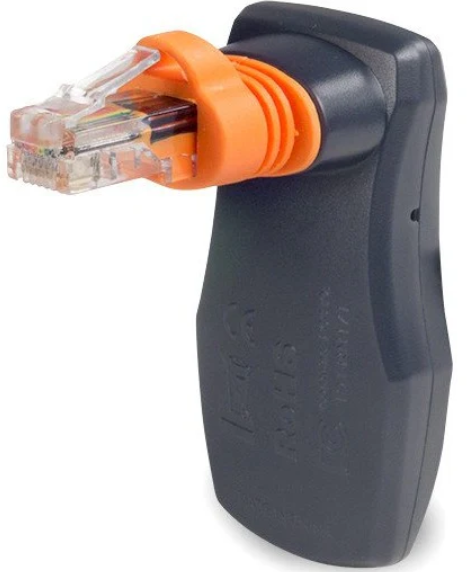
The Celestron SkyPortal WiFi Module is a cutting-edge accessory designed to transform your Celestron computerized telescope into a powerful wireless observatory. By simply plugging this compact WiFi dongle into your telescope’s auxiliary port, you unlock seamless wireless control via the free SkyPortal app available for iOS and Android devices. This integration enables intuitive telescope alignment, precise pointing, and smooth tracking of celestial objects from anywhere within WiFi range,, no cables, batteries, or complicated setups required.
Ideal for astronomy enthusiasts ranging from beginners to advanced users, the SkyPortal WiFi Module enhances night sky exploration with its rich database of over 100,000 celestial objects, featuring stunning astro-images and engaging audio descriptions for hundreds of popular stars, galaxies, and nebulae. The app’s Sky Tour feature intelligently curates the best viewing targets based on your location and time, making it perfect for solo astronomers, families, and star party attendees alike.
With a typical retail price ranging between $130-$150 USD, the module is widely available through authorized dealers and online retailers, often backed by Celestron’s two-year limited warranty. This affordable yet powerful upgrade significantly elevates your stargazing experience by combining modern technology with user-friendly control and deep astronomical content.
Specifications and Key Features of the Celestron SkyPortal WiFi Module
- Connectivity: Wireless WiFi module plugs directly into your Celestron telescope’s auxiliary port,, no batteries or external power needed.
- App Compatibility: Fully compatible with the free SkyPortal app for iOS and Android devices.
- Database: Access to over 100,000 celestial objects,, including stars, planets, galaxies, nebulae, and clusters.
- Control Functions: Wireless alignment, slewing to objects with a tap, and automated tracking of selected celestial targets.
- Sky Tour Feature: Generates personalized lists of prime viewing targets based on precise date, time, and geographic location.
- Modes of Operation: Supports direct connection mode (module creates its own WiFi hotspot) and indirect connection (using existing WiFi network).
- Compatibility: Works with most current computerized Celestron telescopes,, including Advanced VX, CGX, CGEM, CPC, NexStar Evolution, and Astro Fi series. Some older mounts require auxiliary splitter cables.
- Physical Specs: Compact black dongle approximately 2 x 1 x 0.5 inches, lightweight for easy portability.
- Warranty: 2-year limited factory warranty in the US and Canada.
- Performance Benchmarks: Provides a reliable signal range up to 30 feet (10 meters), depending on the environment, and low latency for real-time control responsiveness.
- Comparison: Unlike Bluetooth-only adapters, the WiFi module offers greater range and cross-platform compatibility with tablets and laptops, supporting a richer app experience than many generic wireless telescope controllers.
Fetures
Model # 93973
THE SKYPORTAL APP
Celestron provides a free planetarium application, SkyPortal. You can control your telescope mount via the SkyPortal app and the SkyPortal WiFi Module. The app is available as a free download in the Apple App Store and Google Play.
CHOOSING A CONNECTION METHOD
The SkyPortal WiFi Module allows you to connect to your telescope in two ways. Direct Connect Mode is useful when you are in the field and you just want to connect your phone to the WiFi signal coming from the WiFi Module. This is the fastest and simplest way to connect. However, this method will eliminate your ability to connect your phone to the internet for other uses. If you want to maintain internet access on your device while connected to your telescope, you will need to connect using WLAN Access Point Mode.
CONNECTING TO THE SKYPORTAL WIFI MODULE USING DIRECT CONNECT MODE
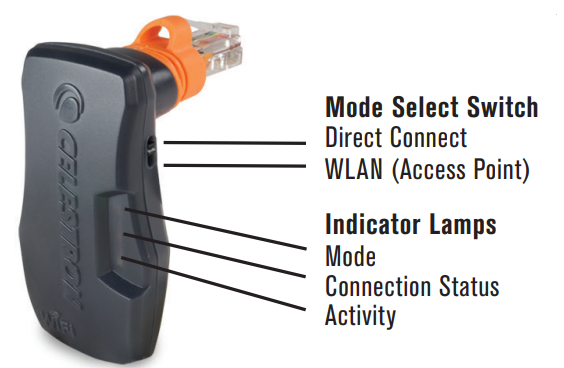
- Slide the Mode Select switch into the Direct Connect position as shown in the figure below.
- Plug the Celestron SkyPortal WiFi Module into an available “AUX” port on your telescope mount. Alternatively, you may unplug the hand control and replace it with your WiFi Module.
- Turn on the mount. After a short delay, the Connection Status lamp will begin flashing.
- Open the Settings menu on your mobile device and choose WiFi options.
- Choose the network named “Celestron-###”. The Connection Status lamp will flash more slowly when your mobile device’s network is connected.
CONFIGURING YOUR WIRELESS LOCAL AREA NETWORK (WLAN) FOR WLAN ACCESS POINT MODE
- Connect your phone to your WiFi Module in Direct Connect mode as described above.
- Open the Celestron SkyPortal app.
- Tap the telescope icon on your screen, then tap Connect.
- Tap the Settings button (gear icon).
- Select Communication.
- Select Configure Access Point.
- Enter the SSID and Password for your wireless network.
- Tap Send Configuration.
- Return to the previous menu and tap Use Access Point.
CONNECTING TO THE SKYPORTAL WIFI MODULE USING WLAN ACCESS POINT MODE
- Slide the Mode Select switch to the WLAN (Access Point) position as shown in the figure.
- The WiFi Module will attempt to authenticate with the wireless network automatically. When authentication is successful, the Connection Status lamp will flash slowly.
- Open the settings menu on your mobile device and choose WiFi options.
- Select the network SSID used in step 7 of Configuring your WLAN for WLAN Access Point Mode (previously stated).
USING THE SKYPORTAL APP TO FIND OBJECTS IN THE SKY AND TRACK THEM WITH YOUR TELESCOPE
- Connect to your WiFi Module using Direct Connect mode or WLAN (Access Point) mode.
- Open the Celestron SkyPortal app.
- Tap the telescope icon on your screen, then tap Connect and Align. When SkyPortal identifies your mount, the application will emit a chime, and the Connection Status lamp will stop flashing.
- Confirm the location and time on your screen.
- Follow the in-app instructions to complete an alignment.
- With a completed alignment, you can select objects in the Sky-Portal app and tap GOTO to have the mount center that object in your eyepiece. The mount will track objects to keep them centered in the eyepiece.
INDICATOR LAMPS
- Mode: On for Direct Connect mode; Off for WLAN mode.
- Connection Status: Fast flashing when no network is found; Slow flashing when a network connection is established with the phone or WLAN; On when the app is connected.
- Activity: Flashing indicates network activity.
©2022 Celestron. Celestron and Symbol are trademarks of Celestron, LLC.
All rights reserved. Celestron.com 2835 Columbia Street, Torrance, CA 90503 USA celestron.com/pages/technical-support Designed and intended for those 14 years of age and older. (Products or instructions may change without notice or obligation.) 09-22
Troubleshooting Common Issues with the Celestron SkyPortal WiFi Module
- Problem: The Telescope does not connect to the WiFi module.
Solution: Ensure the module is securely plugged into the auxiliary port and powered by the mount. Restart your device’s WiFi and reconnect to the SkyPortal network. Verify you are using the latest version of the SkyPortal app. - Problem: The App cannot find the telescope or does not slew properly.
Solution: Confirm compatibility with your mount model; some older mounts need an auxiliary splitter cable sold separately. Reboot the app and telescope mount to reset communications. - Error Codes: The app typically displays errors like “Mount not responding” or “Alignment failed.” Re-align the telescope manually before attempting wireless control again.
- Preventive Measures: Keep firmware and apps updated regularly. Avoid WiFi interference from other devices during operation. Use direct connection mode for stable performance in remote locations.
Celestron provides a 2-year limited warranty covering manufacturing defects. For ongoing support, users can contact Celestron customer service via their official website or authorized dealers. Comprehensive manuals and software updates are available for download from Celestron’s support portal.
Pros & Cons of the Celestron SkyPortal WiFi Module
- Pros:
- Easy plug-and-play installation with no extra power or cables required.
- Access to a vast celestial database with immersive audio and visual content enhances learning and enjoyment.
- Wireless control enables hands-free telescope operation, ideal for remote or dark-sky locations.
- Supports both direct hotspot and existing WiFi network modes for flexible connectivity.
- Compatible with a wide range of Celestron mounts, including newer and select older models.
- Sky Tour feature intelligently suggests the best viewing targets tailored to your conditions.
- Good value for money considering the app integration and feature set compared to other wireless telescope controllers.
- Cons:
- Limited compatibility with older or non-Celestron mounts; some require additional splitter cables.
- WiFi range may be affected by environmental factors, limiting control distance in some settings.
- No built-in GPS; it depends on device location services for time and positioning.
- Requires a smartphone or tablet, which may be a barrier for some users unfamiliar with mobile apps.
Customer Reviews and Feedback on the Celestron SkyPortal WiFi Module
Users consistently praise the Celestron SkyPortal WiFi Module for its convenience and enhanced stargazing experience, highlighting the easy setup and intuitive app interface. Many note the impressive database and engaging audio descriptions, which add educational value, especially for beginners and families.
Common praises include reliable wireless control and the Sky Tour feature’s usefulness in guiding night sky exploration. Typical star ratings average around 4.5 out of 5 stars.
Some users report occasional connectivity hiccups or limited range, particularly in areas with strong WiFi interference, which can occasionally disrupt the link between the telescope and the app. A few reviewers mention the need for auxiliary splitter cables with certain older mounts as a minor inconvenience.
Overall, the module is recommended by most buyers as a worthwhile upgrade for Celestron telescope owners seeking a modern, app-driven approach to celestial navigation and telescope control.
Faqs
How do I set up the celestron SkyPortal WiFi Module for the first time?
What should I do if the celestron SkyPortal WiFi Module won't connect to my home WiFi network?
Can I use the celestron SkyPortal WiFi Module with SkySafari or other astronomy apps?
How do I switch between Direct Connect and Access Point modes on the celestron SkyPortal WiFi Module?
What are the key features that make the celestron SkyPortal WiFi Module different from other telescope controllers?
How often should I update or maintain the celestron SkyPortal WiFi Module?
Is the celestron SkyPortal WiFi Module compatible with older Celestron telescope models?
What troubleshooting steps should I take if the celestron SkyPortal WiFi Module connection keeps dropping?
Tags
More celestron manuals
Leave a Comment