
Compaq S0000/8000 Series Desktop PC User Manual
Content
Compaq S0000/8000 Series Desktop PC Manual
Introduction
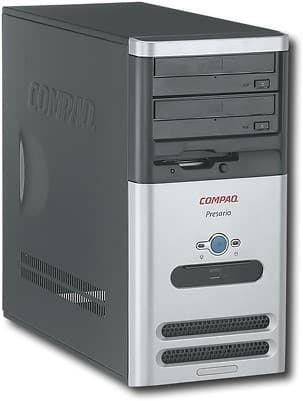
The Compaq S0000 / 8000 Series Desktop PC is a classic business and home desktop platform designed for dependable everyday computing, office productivity, and light multimedia use. Built around Intel-based configurations with DDR3 memory support, integrated graphics, and flexible tower, small form factor, and ultra-small form factor designs, this desktop line was created to deliver stable performance in a compact and serviceable package. The compaq S0000 / 8000 Series Desktop PC remains popular among refurbishers, IT departments, and budget-conscious users who need a straightforward machine for web browsing, document editing, point-of-sale tasks, and legacy software support.
One of its key strengths is expandability. Depending on the chassis, users can benefit from multiple memory slots, SATA storage options, optical drive bays, and a range of USB and video connections. The desktop is also known for its practical design, easy-access internal layout, and reliable cooling for mainstream workloads. For users who value a low-cost system with proven hardware compatibility, the Compaq S0000 / 8000 Series Desktop PC offers strong value as a refurbished or secondary workstation.
Estimated pricing typically ranges from about $50 to $250 USD on the refurbished market, depending on configuration, storage, memory, and condition. Availability is now mostly through used equipment sellers, online marketplaces, and surplus computer resellers rather than new retail channels.
Specifications
- Processor support: Intel Celeron, Pentium, Core 2 Duo, and Core 2 Quad options depending on model and region.
- Chipset: Intel Q45 Express platform on many 8000 Elite desktop configurations.
- Memory: DDR3 SDRAM PC3-10600, non-ECC, with dual-channel support.
- Maximum memory: Up to 16 GB in tower and small form factor models; up to 8 GB in ultra-small form factor variants.
- Storage: SATA hard drive support with common capacities including 250 GB, 320 GB, 500 GB, and 1 TB on desktop variants.
- Graphics: Integrated Intel graphics on many models, suitable for office applications and standard video playback.
- Expansion: PCI, PCI Express x1, and PCI Express x16 slots depending on chassis size.
- Ports: USB 2.0, VGA, DisplayPort, RJ-45 Ethernet, PS/2 keyboard and mouse, audio in/out, and optional serial or parallel ports on some models.
- Power: Systems in the 8000/S0000 family were offered with power ratings up to 320 watts, with lower-wattage supplies for compact versions.
- Performance profile: Best suited for productivity, admin work, lightweight media, and legacy business applications rather than modern gaming or heavy video editing.
Compared with newer entry-level desktops, the compaq S0000 / 8000 Series Desktop PC offers lower raw performance but stronger upgrade flexibility for legacy hardware environments and low-cost refurbishment projects.
Detailed Description
The compaq S0000 / 8000 Series Desktop PC is a traditional desktop solution built for reliability, serviceability, and long-term use. Its internal design varies by chassis, but most models follow a simple layout with accessible drive bays, standard memory slots, and expansion connectors that make upgrades easier than on many modern compact PCs. This makes it especially attractive for IT maintenance, classroom labs, and home users who want a machine they can repair or improve without specialized tools.
In real-world use, the system works well for spreadsheets, email, accounting software, web access, and older Windows applications. The integrated graphics and standard HDD-based storage make it best for moderate workloads rather than demanding creative tasks. Build quality is typically practical and durable, with metal-and-plastic enclosures designed for daily office use. Users often appreciate the straightforward BIOS setup, cable management, and dependable boot behavior.
The compaq S0000 / 8000 Series Desktop PC is also a common platform for refurbished systems because replacement parts, memory modules, drives, and power supplies are relatively easy to source. For users who need a stable desktop at a low entry cost, it remains a sensible choice.
Setup Guide
- Unbox the desktop and check that the power cable, keyboard, mouse, and monitor are included.
- Place the computer on a flat, ventilated surface with enough clearance around the vents for airflow.
- Connect the monitor to VGA or DisplayPort, depending on the model and available graphics outputs.
- Attach the keyboard and mouse to the USB or PS/2 ports.
- Plug in the Ethernet cable if wired network access is required.
- Connect the power cord and verify the voltage setting is compatible with your local mains supply if the system includes a selector.
- Power on the desktop and enter BIOS/Setup if you need to adjust boot order, date and time, or drive settings.
- Install or recover the operating system from a bootable USB, DVD, or recovery image as needed.
For safety, disconnect power before opening the case and avoid touching internal components without grounding yourself. Do not block air vents, and keep liquids away from the unit. If the system does not display an image, confirm the monitor input source, cable seating, and video output selection. If it fails to boot, reseat memory and storage connections before assuming a component failure.
Troubleshooting
- No power: Check the outlet, power cable, and rear power switch. If the power supply fan never starts, the PSU may need replacement.
- No display: Verify the monitor, cable, and video port. Test with another monitor or cable if possible.
- System beeps on startup: Reinstall RAM, check for dust buildup, and confirm that memory modules are compatible DDR3 parts.
- Slow performance: Replace an aging hard drive with a solid-state drive, reduce startup programs, and increase memory where supported.
- Overheating or shutdowns: Clean fans and vents, ensure proper ventilation, and replace dried thermal paste if needed.
- Drive not detected: Reseat SATA cables and verify BIOS drive settings.
Preventive care includes periodic dust removal, firmware checks, and replacing worn storage before failure. Support for legacy Compaq systems is now limited, so most help comes from refurbished hardware sellers, community forums, and independent repair shops. Warranty coverage usually depends on whether the desktop was purchased new, refurbished, or used, so verify the seller’s return policy and support terms before buying.
If you need help, contact the seller or refurbisher first, and then consult HP/Compaq documentation archives or local computer repair specialists for model-specific service advice.
Pros & Cons
Pros
- Low purchase price on the refurbished market, making it attractive for budget builds.
- Good upgradeability for a legacy desktop, especially in tower and small form factor versions.
- Reliable for office work, browsing, and general productivity tasks.
- Wide availability of used parts, including memory, drives, and power supplies.
- Simple internal design that is easier to maintain than many modern compact desktops.
Cons
- Outdated platform compared with modern processors and storage standards.
- Limited suitability for gaming, high-end content creation, or heavy multitasking.
- Integrated graphics are basic and not intended for demanding visual workloads.
- Used units may require battery, fan, or drive replacement due to age.
- Value depends heavily on the seller’s refurbishment quality and included warranty.
For users comparing alternatives, newer budget desktops offer better performance and efficiency, but this model remains competitive when low cost and repairability matter more than speed.
Customer Reviews
Typical user feedback for the Compaq S0000 / 8000 Series Desktop PC is mixed but practical. Many buyers rate it around 4 out of 5 stars for basic office and home use, praising its reliability, easy upgrades, and low refurbished price. One common comment is that it “boots quickly enough for email, documents, and web browsing after a storage upgrade.”
Frequent complaints focus on age-related wear, fan noise, and the limitations of older hardware. Some users also note that the original hard drive and power supply may need replacement sooner than expected. Buyers who want a dependable secondary PC, a school workstation, or a simple office computer usually recommend it. Users looking for modern performance, however, often prefer a newer desktop with faster processors and SSD storage.
Overall, the compaq S0000 / 8000 Series Desktop PC is a sensible purchase for anyone who values affordability, compatibility, and straightforward maintenance over cutting-edge performance.
Faqs
How do I set up a compaq S0000 / 8000 Series Desktop PC for the first time?
Why does my compaq S0000 / 8000 Series Desktop PC power on but show no display?
What upgrades are compatible with the compaq S0000 / 8000 Series Desktop PC?
How can I speed up a slow compaq S0000 / 8000 Series Desktop PC?
What should I do if the compaq S0000 / 8000 Series Desktop PC keeps restarting or freezing?
Which operating systems work best with the compaq S0000 / 8000 Series Desktop PC?
How do I maintain the compaq S0000 / 8000 Series Desktop PC to prevent overheating?
What is the best way to troubleshoot USB, audio, or network problems on a compaq S0000 / 8000 Series Desktop PC?
More compaq manuals
Leave a Comment