
How to Pair: Petcube Cam 360 User Manual
Content
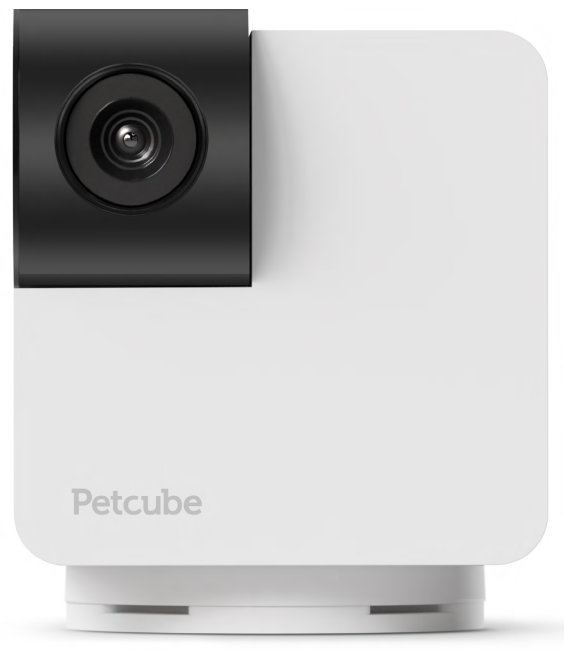
Petcube Cam 360
Introduction
The Petcube Cam 360 is a revolutionary smart pet camera designed to provide pet owners with peace of mind while away from home. This device offers a unique combination of features, including 360-degree pan-tilt rotation, 1080p HD video, two-way audio, and night vision, making it ideal for monitoring pets remotely. The target audience includes pet owners seeking to ensure their pets' safety and well-being, whether at home or away. The Petcube Cam 360 is available for purchase at an estimated price range of $38 to $53, depending on promotions and retailers.
Key benefits of the Petcube Cam 360 include its ability to provide a full-room view, thanks to its 350-degree horizontal and 55-degree vertical rotation capabilities. It also features 8x digital zoom, allowing users to focus on specific areas or pets without losing clarity. The two-way audio functionality enables real-time communication with pets, helping to alleviate separation anxiety. Additionally, the camera supports motion and sound alerts, ensuring users stay informed about any potential issues.
This smart pet camera is perfect for those who value ease of use and comprehensive monitoring capabilities. It is also a great option for pet owners interested in using Petcube's vet chatline for professional advice on pet health and behavior.
Specifications
The Petcube Cam 360 boasts a robust set of features that make it a versatile tool for pet monitoring:
- Resolution and Video Quality: 1080p HD for clear and detailed video streaming.
- Rotation and View: 350° horizontal and 55° vertical rotation for complete room coverage.
- Digital Zoom: 8x zoom capability to focus on specific areas without losing image quality.
- Audio Features: Two-way audio for real-time communication with pets.
- Night Vision: Up to 30 feet of night vision for low-light situations.
- Additional Features: Motion and sound alerts, optional cloud storage, and privacy mode.
Compared to similar products like the Petcube Play 2, which includes a laser pointer, the Petcube Cam 360 focuses on its pan-tilt-zoom capabilities and wide-angle view, making it ideal for those prioritizing comprehensive room coverage.
PETCUBE CAM 360 SPECS AND SYSTEM REQUIREMENTS
Petcube Cam 360 features:
- 105º angle view
- 1080p HD video
- 350º horizontal and 55º vertical rotation
- 2-way audio
- Night vision
- 8x digital zoom
- Sound and motion alerts
- Closed lens Privacy Mode
Petcube Cam 360 requires:
- Wi-Fi 802.11b/g/n, 2.4, password protected
- iOS 14 and higher or Android 7.1.2 and higher
- Min 2 Mbps upload speed on the Petcube (recommended 4 Mbps)
- Min 2 Mbps Download speed on the mobile device (recommended 4Mbps)
SAFETY AND HANDLING
To avoid injuries or causing harm, read all safety information and operating instructions prior to using Petcube.
- Don’t drop, hit, shake, or tumble your Petcube camera.
- Don’t stain, scratch, or otherwise damage the front panel.
- Petcube is not to be used by minors unless under the direct supervision of an adult.
- Don’t expose to liquid, moisture, dust, excessive heat, or naked flame.
- Don’t leave it in direct sunlight.
- Prevent the power cord from being walked on or pinched.
PETCUBE CARE™
What is Petcube Care
Petcube Care is an optional subscription service that adds features to a Petcube camera and gives owners additional peace of mind when it comes to their pets and their property.
Depending on the subscription plan, Petcube Care provides Petcube users with access to extended cloud-based video history for 3 or 90 days, longer 30-second video clips, 10 or unlimited video downloads, and smart alerts.
How much does Petcube Care cost
Petcube Care offers two different subscription plans, Optimal and Premium, to fit the needs of pet owners of all stripes.
For more information on the plans, check out the Petcube Care subscription options on petcube.com/care/
How does Petcube Care work
Petcube Care watches after your pets and home when everyone is away, capturing action videos, triggered by sound or motion. 30-second clips are saved securely in the cloud and are accessible in the interactive timeline in the Petcube app to review and download for 3 or 90 days (depending on the subscription plan). The 3-second look back lets you see what event set off the recording.
Using powerful AI technology, Care understands what pets are doing, registering important events like cat, dog, or human movements, barks, or meows, and sends you real-time smart alerts.
Without Care, Petcube users only have access to the live video streaming and general sound and motion notifications.
How to activate Petcube Care
To start using Petcube Care, you need to have a Petcube camera and a Petcube Care subscription.
To subscribe:
- Go to petcube.com.
- Sign in with your Petcube account or go to the Petcube Care product page and select the most suitable subscription option for you. You will also be able to subscribe from the ‘Home’ page in the Petcube app on both iOS and Android devices.
If you are not a Petcube camera owner yet but wish to buy one, you will also be able to subscribe to Petcube Care when you make your purchase.
How to Turn Off Petcube Care Video History
Petcube Care’s video history feature is turned on by default.
To deactivate it:
- Open the Petcube app.
- Go to the camera profile in the Home menu.
- Move the slider to ‘Sleep’ mode in the lower right corner of the Petcube camera controls.
In Sleep mode, Petcube Care is disabled. It will not detect and record events. Nothing will be added to your video history timeline. You will still have access to recorded videos if any were taken when Care was active,, and your subscription plan allows.
Use Awake mode, when you are not around and want Petcube Care to be active. You will get noise & motion notifications. These moments will be stored on your timeline.
How to view your video history in Petcube Care
- It’s very easy to access your video history with Petcube Care! Launch the Petcube app on your phone.
- Tap on ‘Show Older Videos’ to move back or forward in time.
- Tap on the ‘...’ next to each video to get options to Delete, Share, or Save the video.
- You can also access your video history if you log into your Petcube account on petcube.com in the upper right corner.
- The website doesn’t offer live streaming or alerts, but you can scroll through, filter, and play back the recorded Care videos.
Remember, Petcube Care records videos to the timeline automatically by default. If you would like to deactivate this feature, review these instructions in the article ‘How to Turn Off Petcube Care Video History’.
If your Petcube Care is currently set to Sleep mode, you will need to change it to Awake mode in order for videos to be recorded to your timeline. To do this:
- Open the Petcube app.
- Go to the camera profile in the Home menu.
- Move the slider to ‘Awake’ mode.
How to save a video recording to your phone’s internal storage
While you will be able to view video history for the past 3 or 90 days, depending on your subscription plan from the cloud via Petcube Care, you will always be able to store video recordings to your phone’s internal storage. Just pick the necessary video clip, press the three dots ‘…’ located on the left-hand side of the video,, and select ‘Save’.
Video recording length
Currently, video recording length can be no longer than 30 seconds. So, for instance, if there’s a motion that lasts for 2 minutes and 15 seconds, the app will cut it into 5 scenes.
How can I use Petcube Care on multiple Petcube devices
At the moment, the Optimal Care plan covers one camera per subscription, while the Premium, both monthly and annual plans, are applied on the account level and cover an unlimited number of cameras on the account.
How to add or update your payment information for Petcube Care
If you need to add or update your payment information for the Petcube Care service:
- Log in to your Petcube account at petcube.com by clicking on the Home icon in the upper right corner.
- Once logged in, go to the ‘Billing’ tab to update your information.
How do I cancel the Petcube Care subscription?
In order to cancel your Petcube Care subscription:
- Opethe n the Petcube app.
- Go to the camera profile on which you wish to cancel the subscription.
- Tap the ‘Settings’ wheel in the upper right corner.
- Select Care Settings;
- Click on the current subscription at the top;
- Hit Cancel subscription at the very bottom of the page;
TROUBLESHOOTING
LED light doesn’t light up
If the LED light on your Petcube Cam 360 is off while the camera is plugged into the power source, try unplugging it and plugging it back in. Make sure that you are using the original power adapter that came with your Petcube and that the power cord
is undamaged. If you no longer have the original power adapter, make sure to only use the ones that provide 5V/2A power.
Petcube blinks blue/yellow and doesn’t turn blinking blue
It might be that Petcube is located out of reach of wifi Wi-Fi assigned, or wifi is not being broadcast, or there is no internet available. Make sure it is in wifi range and the internet is available.
When you plug in your Petcube before starting the registration process, it should glow solid yellow for a minute. Wait up to 1 minute until it starts blinking blue/yellow.
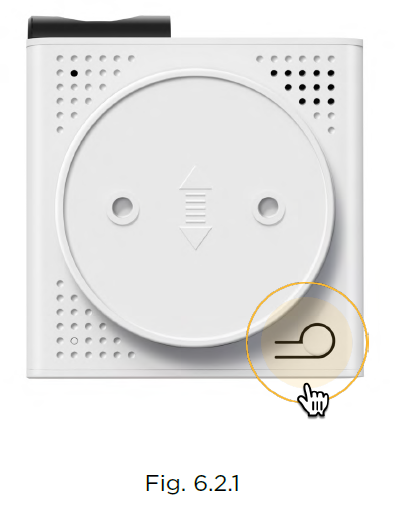
Find the setup button at the bottom of your Petcube Cam 360, press it down once until you hear “Ready to connect” (Fig. 6.2.1);
- Open the Pethe tcube app, go to the ‘Home’ tab, tap the Plus icon in the top right corner of the screen, pick your Petcube from the list of options,, and follow the steps on the screen.
Incorrect Wi-Fi password
Ithe f the Petcube app is showing the ‘Incorrect Wi-Fi password’ error message after the setup, here are a few possible reasons behind that:
- Case sensitivity: check the entered password for uppercase or lowercase characters.
Keep in mind that ‘Password’ and ‘password’ would be two different passwords because the “P” is uppercase in the first example and lowercase in the second example. - Password length: check the entered password length and keep in mind that normally the password length is 8+ characters long.
- Keyboard language: check the onscreen keyboard language and make sure you enter the password in the correct keyboard layout
To reset the Wi-Fi password:
- Open the Petcube app.
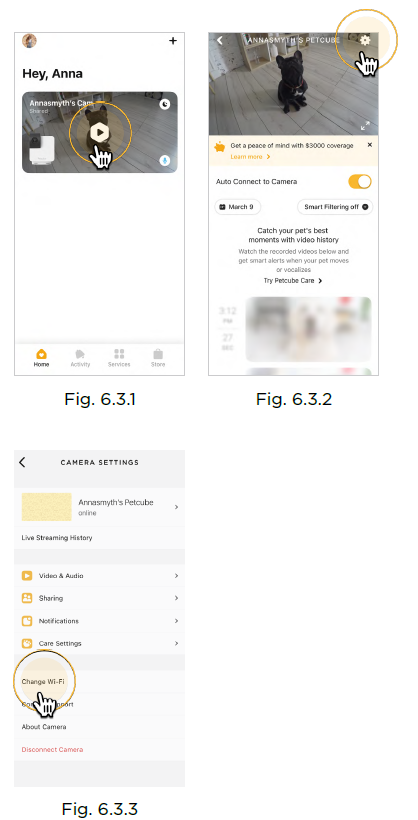
- Go to the camera profile, tap the ‘Settings’ wheel in the upper right corner (fig 6.3.2);
- Tap ‘Change Wi-Fi’ (fig 6.3.3);
- Power up your Petcube, wait 11 minutes until it starts up.
- Find the setup button at the bottom of your Petcube Cam 360 (fig 6.2.1), press it once, until you hear “Ready to connect”;
- Open the Petcube app, go to the ‘Home’ tab, tap the plus icon in the upper right corner of the screen, pick your Petcube from the list of options,, and follow the steps on the screen. In case none of the above tips help, contact the Petcube Customer Care Team at petcube.com/support/.
Petcube can’t register on your Wi-Fi network
You may see this message when your Petcube cannot receive the IP address automatically using DHCP. Normally, the router should assign the IP address to your Petcube automatically , but if this doesn’t happen, you can enter your router settings and assign the IP address to your Petcube manually. You can also contact your ISP or Petcube Customer Care team for help.
Petcube can’t establish the cloud connection / No Internet connection
If you get this error message, firstly, make sure you have Internet access on your Wi-Fi by trying to open a few websites on a few devices. If you have Internet access but Petcube still can’t connect, try to reset the device by following these easy steps:
- First, if you have previously set up your Petcube, open the Petcube app, go to the ‘Home’ tab, then select ‘Settings’ and choose ‘Disconnect Camera’;
- Power up your Petcube, wait 1 minute until it starts up.
- Find the setup button at the bottom of your Petcube Cam 360 (fig 6.2.1), press it down once until you hear “Ready to connect”;
- Open the Pethe tcube app, go to the ‘Home’ tab, select ‘connect your device’, pick your Petcube from the list of options,, and follow the steps on the screen.
If you want to have the firewall on, you need to open the following ports:
- TCP port 3335; 34.194.225.22
- TCP port 443; 35.212.7.2135.207.1.22 (You may not need the UDP ports because they’re rarely blocked, but the UDP range should be from 7000 to 7100).. WPS pin code should be disabled (please note that not all the routers have it). MAC filtering should be disabled. If enabled, a MAC address can be found on the back of the cube.
Oh,, bummer setup error
If during the setup you’re getting an ‘Oh Bummer’ error message, turn your Petcube off and back on, wait up to 1 minute until it boots up and starts blinking,g and start the setup process over again.
Poor video quality or poor network conditions
Like with most video streaming services and products, video quality is affected
by router performance and/or your Internet connection. This can be improved if you place Petcube closer to your home Wi-Fi router or by arranging it in a way so there aren’t any obstacles between it and your router (i.,,e. walls, floors, radio interference,, etc.).
Petcube also requires at least a 2 Mbps Internet connection, with upload and download speeds (4 Mbps is recommended). If your Internet connection upload speed is less than 2 Mbps, we recommend upgrading for the best experience and highest video quality. To check your Internet speed, we recommend performing an online speed test. If you are not getting the full speed you subscribed to, contact your Internet Service Provider.
I can’t connect to my Petcube / Petcube is offline in the app
If you cannot connect to your Petcube from your mobile phone, try the following:
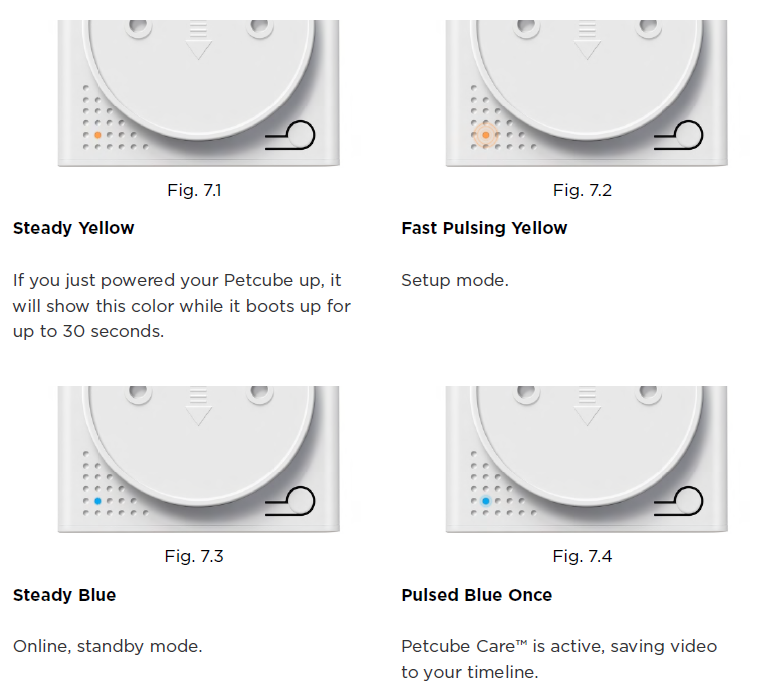
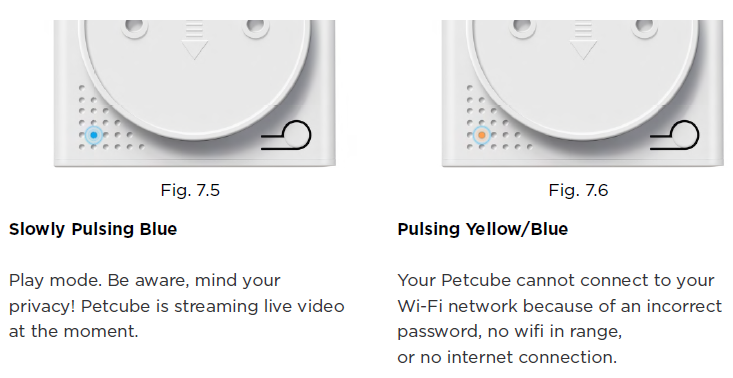
Make sure that the LED light on the front of your Petcube is steady blue. If the LED light on the front of your Petcube isn’t steady blue, see ‘LED light notifications determine the issue. In most cases,, rebooting the Petcube by unplugging and plugging it back in should he, lp but if you’re facing this issue too often, below are a few ideas why it could be happening:
- Your Petcube needs a firmware update. To get the most recent firmware update, contact our support team at support@petcube.com.
- Sometimes the issue may be caused by restrictions of the Wi-Fi network your phone is connected to, especially if it’s a public or office Wi-Fi. Try to temporarily disable Wi-Fi on your phone and connect to your Petcube while using mobile data or or try connecting to another Public Petcube Cam 360 in the feed to make sure it’s not a network restriction issue.
- This issue may occur if you’re using a non-original or a less powerful A/C adapter. Please make sure to use only 5V / 2A power adapters.
- You are using a mesh network,, or your 5GHz and 2.4GHz channels have the same SSID. It has been observed on multiple occasions that sometimes Petcube cannot maintain a reliable connection on a mesh/merged network or different network channels (5Ghz and 2.4Ghz) with the same network name (SSID). It is recommended to change either of the two channel names to avoid connection issues;
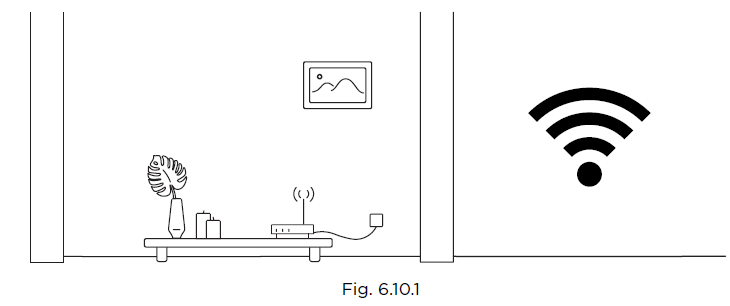
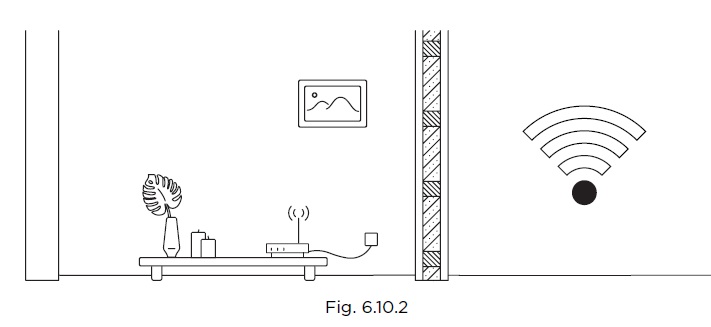
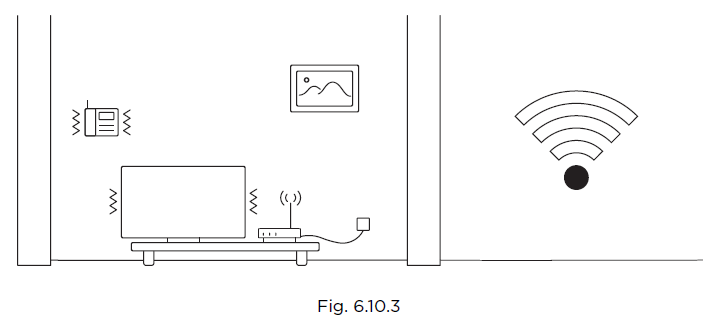
- It’s possible that Petcube doesn’t have a strong Wi-Fi connection. Keep in mind that some connection issues may be caused by a poor Wi-Fi signal, which can depend on the router range, distance to the router,, and obstacles between Petcube anthe d the router, such as walls or radio frequency interferences. Here are a few examples of how electronic appliances or bearing walls can impact your Wi-Fi signal.
Example 1 (fig 6.10.1) shows no electronic or radio devices and no bearing walls between two rooms,, so the signal in the other room is very good.
Example 2 (fig 6.10.2) shows a bearing wall between two rooms,, ms which causes a poor Wi-Fi signal in the other room.
Example 3 (fig 6.10.3) shows interference caused by radio (phone) or electronic appliances (TV). Poor Wi-Fi signal can also be impacted by microwaves, refrigerators, cordless phones, baby monitors, etc.
Petcube disconnected from the app.
If your Petcube Cam 360 status shows as ‘Disconnected’ in the Petcube app, it usually means that your phone is not connected to the Internet at the moment,t or the network you are connected to has certain restrictions. Try to switch to any other Wi-Fi network or connect to your camera using cellular data (LTE, 3G).
Petcube goes offline / turns off.
This issue may occur if you’re using a non-original or a less powerful A/C adapter. Please make sure to use only 5V / 2A power adapters.
If you’re using the original adapter, but the problem persists, contact the Petcube Customer Care Team to determine the problem.
How to find Petcube’s MAC address
Petcube Cam 360 MAC address is specified at the bottom of the device.
LED LIGHT NOTIFICATIONS
The LED light on the back of your Petcube tells you about its status.
Pros and Cons
Pros
- 360-Degree View: Provides full-room coverage with its pan-tilt rotation.
- Easy Setup: Quick installation and user-friendly app interface.
- Two-Way Audio: Real-time communication with pets to alleviate separation anxiety.
- Affordable: Competitive pricing compared to other smart pet cameras.
Cons
- Resolution Limitations: Some users may find the resolution not as high as other cameras.
- Subscription Requirements: Certain features require a subscription for full functionality.
- Wired Design: May not be suitable for those preferring wireless devices.
Overall, the Petcube Cam 360 offers excellent value for its price, making it a top choice for pet owners seeking comprehensive monitoring capabilities.
Customer Reviews
Customers have praised the Petcube Cam 360 for its ease of use and comprehensive features. Many users appreciate the ability to monitor their pets remotely with clear video and two-way audio. However, some users have noted that the camera's resolution could be higher and that certain features require a subscription. Overall, the Petcube Cam 360 is well-regarded for its performance and affordability, with many users recommending it for pet owners seeking a reliable monitoring solution.
Star ratings typically range from 4 to 5 stars, with testimonials highlighting its effectiveness in alleviating pet separation anxiety and providing peace of mind for owners.
Faqs
How do I set up my petcube Cam 360 for the first time?
What should I do if my petcube Cam 360 is not connecting to Wi-Fi?
Can I use petcube Cam 360 with both Android and iOS devices?
What are the key features of the petcube Cam 360 that enhance pet monitoring?
How can I optimize the video quality and performance of my petcube Cam 360?
What troubleshooting steps can I take if the petcube Cam 360 app is not displaying live video?
How do I maintain and clean my petcube Cam 360 to ensure long-lasting performance?
Can I share access to my petcube Cam 360 with family members or friends?
Tags
More petcube manuals
Leave a Comment