
Setup: Thrustmaster T.Flight Hotas One XBOX SERIES User Guide
Content
Thrustmaster T.Flight Hotas One XBOX SERIES

Introduction
The Thrustmaster T.Flight Hotas One XBOX SERIES is a high-performance flight simulation joystick designed to deliver an immersive and realistic flying experience. Officially licensed for Xbox Series X|S, Xbox One, and Windows PC, this flight control system combines an ergonomic joystick with a detachable, full-size throttle, perfectly mimicking the controls used by real pilots. Its design supports a wide range of flight genres, including aerial combat, space exploration, and civil aviation, making it ideal for flight simulation enthusiasts and gamers seeking precision and immersion.
Key benefits of the T.Flight Hotas One include a realistic joystick with adjustable resistance, a dual rudder system for precise maneuvering, and quick access to Xbox console functions with dedicated buttons. The wide handrest and weighted base provide stability and comfort during extended gaming sessions. Priced typically in the mid-range bracket (around $80 to $120), it offers excellent value for those looking to enhance their flight sim setups without investing in premium gear. Widely available through major retailers and online stores, it is a popular choice among both novice and experienced flight sim pilots.
Specifications of thrustmaster T.Flight Hotas One XBOX SERIES
- Compatibility: Xbox Series X|S, Xbox One, Windows PC
- Axes: 5 axes (joystick with twist rudder and throttle lever)
- Buttons: 14 action buttons, 1 rapid-fire trigger, 1 multidirectional hat switch (for navigation and panoramic view)
- Throttle: Detachable, full-size throttle with precise acceleration control
- Rudder system: Dual rudder control via joystick twist with integrated locking system or progressive tilting lever
- Ergonomics: Realistic joystick shape with wide hand-rest and adjustable stick resistance
- Stability: Weighted base for enhanced stability during gameplay
- Official Xbox buttons: Guide, View, Menu for console navigation
- Dimensions: Approx. 350 mm width x 200 mm depth x 235 mm height
- Weight: Approximately 2060 grams for a solid feel
Compared to similar products like the Logitech G X56 or Thrustmaster T.Flight Hotas 4, the Hotas One provides a more budget-friendly entry point while retaining key features like a full throttle and dual rudder system, making it especially suited for Xbox users looking for plug-and-play simplicity.
TECHNICAL FEATURES
- Throttle
- USB connector
- Rudder connector: RJ12 Thrustmaster Rudder (sold separately) connector
- Rudder function via twisting the handle
- Rudder locking screw on the handle
- Allen key to install or separate the throttle
- Handle the resistance adjustment dial
- Rudder via rocking button
- Action buttons
- VIEW – GUIDE – MENU buttons + LED indicator
- Multidirectional "Point Of View" hat-switch
- Xbox/PC selector switch
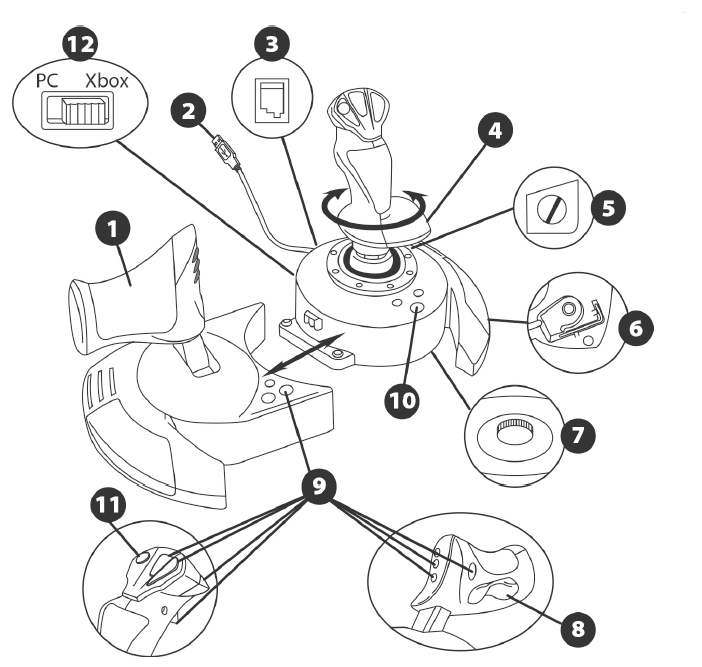
ADJUSTABLE HANDLE RESISTANCE
Depending on your style of gaming, you may wish to have an ultra-sensitive joystick, which responds to the slightest touch, or you may prefer to have a firmer joystick, which offers some resistance when you move it.
Your joystick's handle resistance is adjustable, to adapt to all players. To adjust it, use the handle resistance adjustment dial (7) located underneath your joystick's base.
RUDDER FUNCTION
Your joystick features a rudder function, which in a plane corresponds to the pedals used by the pilot to turn the steering, allowing the plane to pivot around its vertical axis (therefore making the plane turn left or right). This rudder function is accessible on your joystick by rotating the handle to the left or right.
This rudder function is accessible in three ways:
- On your joystick by rotating the handle (4) to the left or right.
- Via the rocking button (8) on the throttle.
- Or via the TFRP RUDDER rudder pedals system (sold separately).
If you are only using the rocking button (or if you are not using the rudder function), you can disable the handle's rotation thanks to the locking screw (5) located on the base of the joystick. Use a flat-head screwdriver to change the screw’s position and thus lock/unlock the rudder function.
INSTALLING THE TFRP RUDDER ON THE T.FLIGHT HOTAS ONE JOYSTICK
The T.Flight Hotas One joystick has 8 axes, including 3 axes reserved for the TFRP RUDDER rudder pedals system (sold separately).
The TFRP RUDDER rudder pedal system connects directly to the joystick.
- Connect the rudder pedals system’s male RJ12 connector to the female RJ12 connector (3) located at the back of the joystick.
- Connect the joystick’s USB connector (2) to one of your PC’s USB ports.
Important notes regarding the automatic calibration of axes:
- Always keep the rudder’s axis centered when connecting the TFRP rudder pedal system to the joystick. Never put your feet on the rudder pedals.
- The pedals’ 3 axes calibrate themselves automatically after a few movements and once the physical stops of the rudder’s axis and of the differential brakes’ 2 axes have been reached.
MULTIDIRECTIONAL "POINT OF VIEW" HAT-SWITCH
Your joystick features a “Point Of View” hat-switch (11) which, as its name indicates, allows you (in games whatsoever) to instantly view everything that’s going on around your plane. To do so, simply go to your game’s configuration menu and program the different views (rear view, left view, right view, and also external views) onto the directions of the “Point Of View” hat-switch. Of course, you can also use the “Point Of View” hat-switch for other functions instead (firing, etc.).
XBOX SERIES X|S / XBOX ONE
INSTALLATION ON XBOX SERIES X|S / XBOX ONE
Set the selector switch (12) to Xbox before connecting the USB cable.
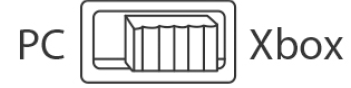
- Connect the USB connector (2) to one of your system’s USB ports.
- Switch on your console.
- The joystick’s LED indicator lights up in white.
- Launch a game that supports the Flight Stick mode.
You are now ready to play!
LIST OF COMPATIBLE XBOX SERIES X|S / XBOX ONE GAMES On Xbox Series X|S / Xbox One, the T.Flight Hotas One:
- It is only compatible with the games that support the Flight Stick mode.
- It is recognized in games as a real joystick and not a gamepad, for better responsiveness and enhanced precision, and the possibility to access the joystick’s options in these games.
A list of Xbox Series X|S / Xbox One games compatible with the joystick is available at https://support.thrustmaster.com. Go to Joysticks / T.Flight Hotas One, then select Games Settings.
This list will be added to regularly, with the arrival of new Xbox Series X|S / Xbox One games compatible with T.Flight Hotas One.
PC
INSTALLATION ON PC
Set the selector switch (12) to PC before connecting the USB cable.
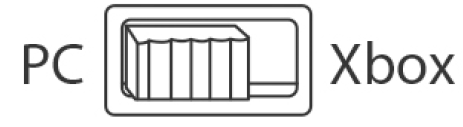
- Go to https://support.thrustmaster.com/. Click Joysticks / T.Flight Hotas One, then select Drivers. Download and install the PC driver and its customized interface for the Windows Control Panel.
- Once the PC driver is installed, connect the USB connector (2) to one of your PC’s USB ports.
- To access the Control Panel, select:
- Start / Apps / Thrustmaster / Control Panel (in Windows® 10 / 8.1 / 8)
- Start / All Programs / Thrustmaster / Control Panel (in Windows® 7)
The Game Controllers dialog box is displayed.
The device appears onscreen with the name T.Flight Hotas One and the status OK.
In the Game Controllers dialog box, click Properties to test and view all functions.
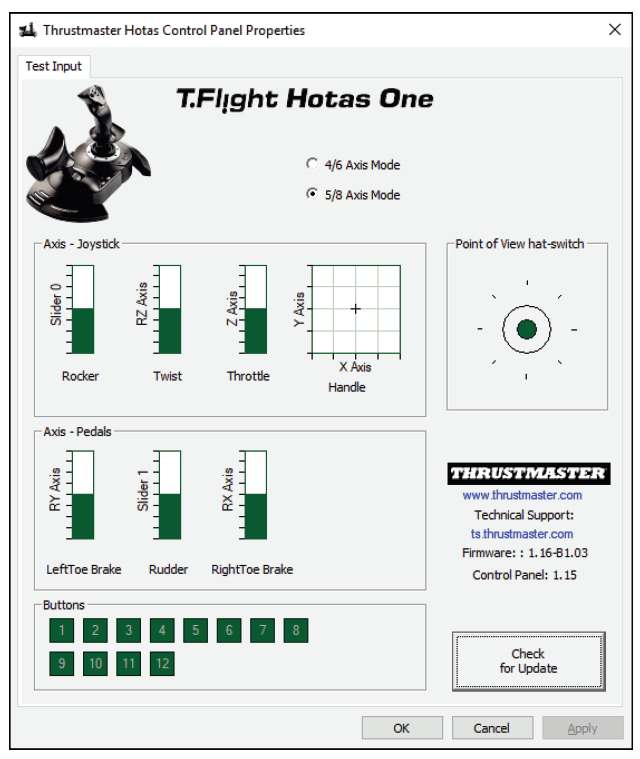
NOTES ON PC
- On PC, in 4/6 axes mode, the throttle’s rocking button and the rudder axis on the TFRP rudder pedals system (sold separately) are coupled with the handle’s rotation.
The joystick’s LED indicator lights up in white. - On PC, in 5/8 axes mode, the throttle’s rocking button and the rudder axis on the TFRP rudder pedals system (sold separately) become independent of the handle’s rotation, thereby providing 3 additional progressive axes.
The joystick’s LED indicator goes off.
To instantly switch between one mode and the other, simply press the XBOX GUIDE button.
TROUBLESHOOTING AND WARNINGS
My joystick doesn’t function correctly or appears to be improperly calibrated:
- Make sure that the selector switch (12) is set to the proper position (Xbox or PC) before connecting the USB cable to the console or PC.
- Switch off your console or your PC, disconnect your joystick, reconnect your joystick,, and then re-launch your game.
- When connecting your joystick: Leave the handle, rudder,r, and throttle centered and do not move them (to avoid any calibration problems).
My joystick is too sensitive or not sensitive enough:
- Your joystick self-calibrates on its own after you have made a few movements on the different axes.
- In your game’s “Options / Controller / Gamepad or Joystick” menu: Adjust the sensitivity or dead zones for your controller (if this option is available).
- Adjust the handle resistance using the dial (7) located under your joystick’s base.
The rudder function is too sensitive:
- Disable the handle's rotation using the locking screw (5) located on the base of the joystick ,ck,, and use the rocking button for the rudder function.
HELP FILES AND FAQS (NOT INCLUDED IN THIS MANUAL)
Please visit https://support.thrustmaster.com. Click Joysticks / T.Flight Hotas One, then select Manual or FAQ.
CONSUMER WARRANTY INFORMATION
Worldwide, Guillemot Corporation S.A., whose registered office is located at Place du Granier, B.P. 97143, 35571 Chantepie, France (hereinafter “Guillemot”) warrants to the consumer that this Thrustmaster product shall be free from defects in materials and workmanship, for a warranty period which corresponds to the time limit to bring an action for conformity with respect to this product. In the countries of the European Union, this corresponds to a period of two (2) years fthe from the delivery of the
Thrustmaster product. In other countries, the warranty period corresponds to the time limit to bring an action for conformity with respect to the Thrustmaster product according to applicable laws of the country in which the consumer was domiciled on the date of purchase of the Thrustmaster product (if no such action exists in the corresponding country, then the warranty period shall be one (1) year from the original date of purchase of the Thrustmaster product). Notwithstanding the above, rechargeable batteries are covered by a warranty period of six (6) months from the date of original purchase.
Should the product appear to be defective during the warranty period, immediately contact Technical Support, who will indicate the procedure to follow. If the defect is confirmed, the product must be returned to its place of purchase (or any other location indicated by Technical Support).
Within the context of this warranty, the consumer’s defective product shall, at Technical Support’s option, be either replaced or returned to working order. If, during the warranty period, the Thrustmaster product is subject to such reconditioning, any period of at least seven (7) days during which the product is out of use shall be added to the remaining warranty period (this period runs from the date of the consumer’s request for intervention or from the date on which the product in question is made available for reconditioning, if the date on which the product is made available for reconditioning is after the date of the request for intervention). If permitted under applicable law, the full liability of Guillemot and its subsidiaries (including for consequential damages) is limited to the return to working order or the replacement of the Thrustmaster product. If permitted under applicable law, Guillemot disclaims all warranties of merchantability or fitness for a particular purpose.
This warranty shall not apply: (1) if the product has been modified, opened, altered, or has suffered damage as a result of inappropriate or abusive use, negligence, an accident, normal wear, or any other cause unrelated to a material or manufacturing defect (including, but not limited to, combining the Thrustmaster product with any unsuitable element, including in particular power supplies, rechargeable batteries, chargers, or any other elements not supplied by Guillemot for this product); (2) if the product has been used for any use other than home use, including for professional or commercial purposes (game rooms, training, competitions, for example); (3) in the event of failure to comply with the instructions provided by Technical Support; (4) to software, said software being subject to a specific warranty; (5) to consumables (elements to be replaced over the product’s lifespan: disposable batteries, audio headset or headphone ear pads, for example); (6) to accessories (cables, cases, pouches, bags, wrist-straps, for example); (7) if the product was sold at public auction.
This warranty is nontransferable.
The consumer’s legal rights with respect to laws applicable to the sale of consumer goods in his or her country are not affected by this warranty.
Pros and Cons of thrustmaster T.Flight Hotas One XBOX SERIES
- Pros:
- Ergonomic, realistic joystick design with adjustable resistance enhances comfort and precision.
- Detachable full-size throttle offers flexible setup options for space-saving or authentic piloting feel.
- A dual rudder system via a twisting handle or lever adds realistic aircraft control functionality.
- Official Xbox buttons integrated for easy console access without leaving the cockpit.
- The weighted base ensures stability during intense gaming sessions.
- Good value for money with comprehensive features for mid-range pricing.
- Cons:
- Build quality is solid but not as premium-feeling as higher-end HOTAS systems.
- No force feedback or advanced haptic features that some competitors offer.
- Limited customization software compared to PC-focused HOTAS devices.
- It may feel less suitable for very advanced flight sim users seeking ultra-realistic feedback.
Customer Reviews and Feedback for thrustmaster T.Flight Hotas One XBOX SERIES
Users consistently praise the Thrustmaster T.Flight Hotas One XBOX SERIES for its ease of setup, comfortable design, and excellent compatibility with Xbox consoles. Typical star ratings average around 4 to 4.5 out of 5 stars. Many highlight the throttle’s responsiveness and the intuitive dual rudder control as standout features that elevate their flight simulation experience.
Common complaints include the absence of advanced force feedback and occasional button layout adjustments needed for optimal customization. Some users mention the build quality could be improved,, but agree that the joystick delivers great performance for its price point. Overall, the product is highly recommended for beginners and casual sim pilots, with several reviewers noting it significantly improves immersion compared to keyboard or standard controller flying.
Faqs
How do I set up the thrustmaster T.Flight Hotas One XBOX SERIES for the first time?
What should I do if the thrustmaster T.Flight Hotas One XBOX SERIES is not working properly?
Can I use the thrustmaster T.Flight Hotas One XBOX SERIES with T.Flight Rudder Pedals?
What are the key features that make the thrustmaster T.Flight Hotas One XBOX SERIES different?
How often should I maintain the thrustmaster T.Flight Hotas One XBOX SERIES?
Is the thrustmaster T.Flight Hotas One XBOX SERIES compatible with other platforms?
How do I troubleshoot button mapping issues with the thrustmaster T.Flight Hotas One XBOX SERIES?
Can I customize the thrustmaster T.Flight Hotas One XBOX SERIES settings for better performance?
Tags
More thrustmaster manuals
Leave a Comment