
How to Use: Tuya Smart App V3.8.0 User Manual
Content
Tuya Smart App V3.8.0

Introduction
The Tuya Smart App V3.8.0 is a versatile and user-friendly application designed to unify control over a wide range of smart home devices. Developed by Tuya, this app provides seamless integration with IoT products such as smart locks, lighting, security cameras, and home automation systems, empowering users to manage their connected environments remotely and efficiently. With its intuitive interface and robust features, it is tailored for homeowners, renters, and tech enthusiasts seeking smart home convenience and security.
Key benefits of the Tuya Smart App include remote device control, voice assistant compatibility (Alexa, Google Assistant), automation setup, device sharing, and real-time notifications. Version 3.8.0 introduces enhanced device debugging, improved UI for custom panels, and optimized push notification management, elevating user experience and reliability.
Ideal for smart home beginners and advanced users alike, the app supports numerous IoT products across global markets, making it suitable for residential, small business, and commercial use cases. The estimated price range for app-related devices varies widely, from affordable smart plugs and sensors to more premium smart locks and control panels, generally spanning $20 to $250 depending on the product. The Tuya Smart App V3.8.0 is available for download on both Android and iOS platforms worldwide, ensuring easy accessibility and compatibility.
Control Devices - Individual Control
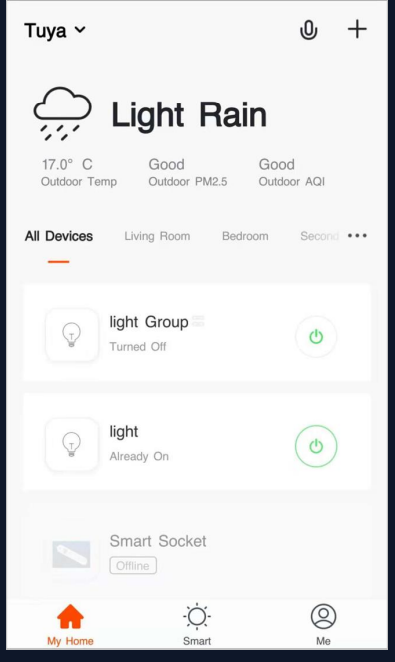
- When devices have been configured successfully, the smart devices will appear on the home page. Click to open the control panel for smart devices.
- Note:
- When devices are online, some will support the use of hotkeys. Click “Common Functions" to use them.
- When devices are offline, they will appear as "Offline" and will not be available for use
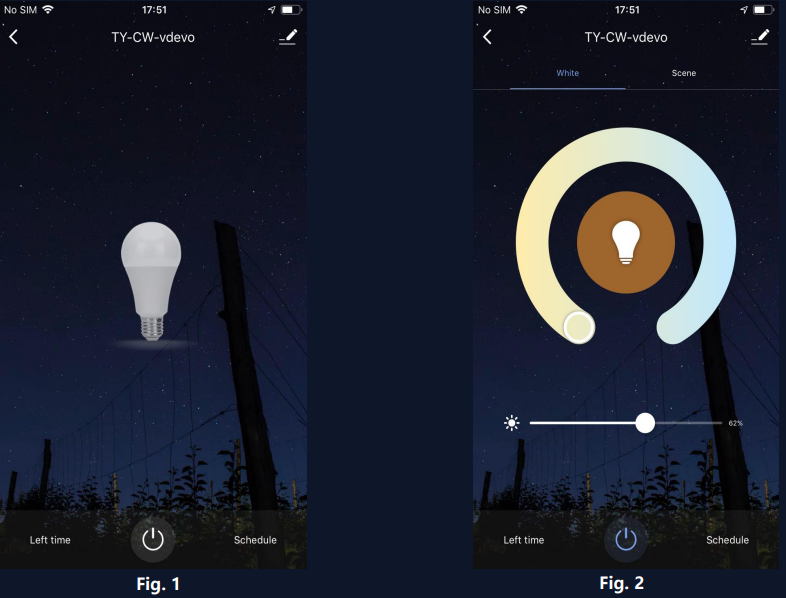
- Open the control panel for devices. For example, Fig. 1 shows that the light is off, and only the timer can be accessed in the off mode. Fig. 2 shows that the light is on, and scene, color, brightness, and schedule can be configured in the on mode. Click "..." at the top right corner of the control panel to manage individual devices.
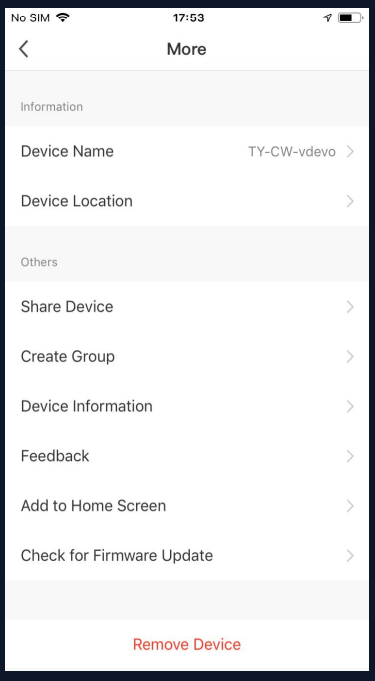
The device modification menu is shown in the figure:
- Device Name: You can change the name and location of a device.
- Device Location: You can choose where the device is located, such as the living room or bedroom.
- Share Device: You can share any individual device with others by entering their mobile phone numbers. (Note: Their mobile phone numbers must be registered with Tuya app accounts.)
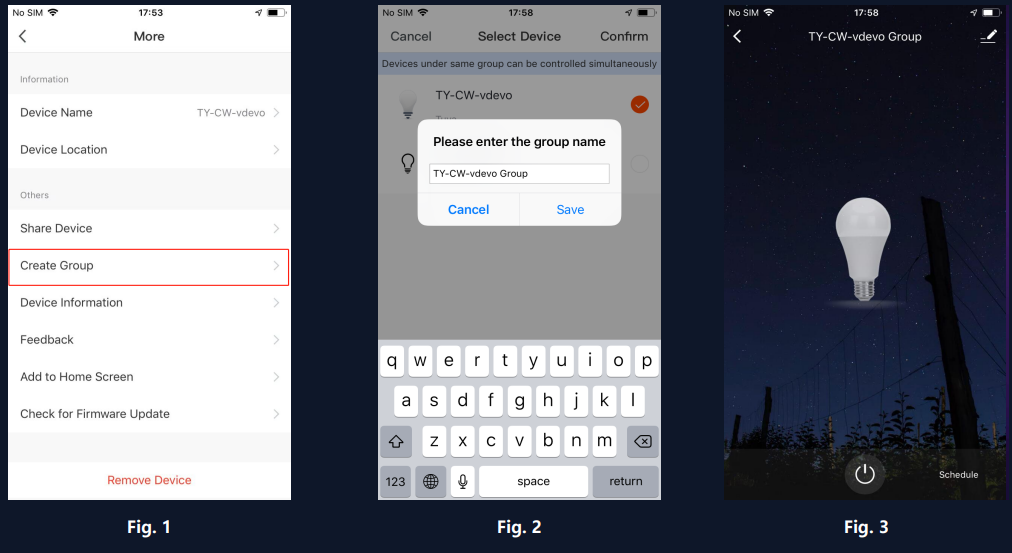
- Create Group: Click, and the page will automatically show all devices that have been added and have the same model number. A group cannot be created for devices with different model numbers.
- Device Information: Check here for: device ID, Wi-Fi signal strength, IP address, Mac address, and device time zone.
- Feedback: You can submit feedback here on problems encountered during usage.
- Add to Home Screen: You can add devices to your phone's desktop for easier control of your device.
- Check for Firmware Update: You can check here for firmware updates.
- Remove Device: Delete a previously added device from the list of devices.
- Restore factory defaults: Remove devices and clear all data.
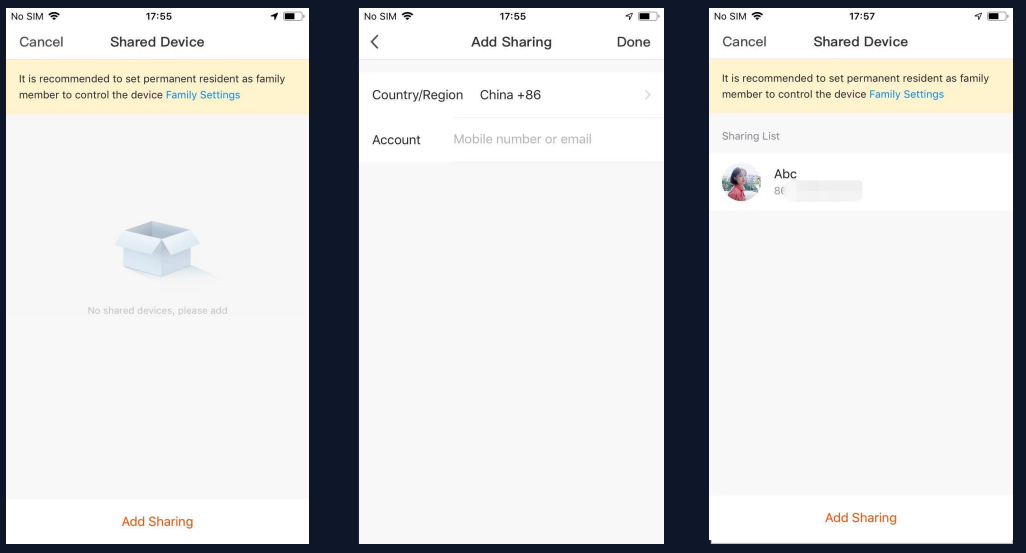
Click “Add Sharing", enter the account to share devices with, and click “Done” to finish. To stop sharing with an account previously added, press and hold to delete in Android, or slide to the left to delete in iOS.
Note: You can only share devices with those who has the account of the app account and are registered in the same country/region.
- Click "Create Group" under "More" on a selected device page, as shown in Fig. 1.
- The page displays all devices with the same model number and available to be added as a group. Select a device and click “Save”, then enter the group name and click “Confirm” to finish, as shown in Fig. 2.
- When a group has been created successfully, the page will be automatically redirected to the group control panel in Fig. 3, where grouped devices can be managed.
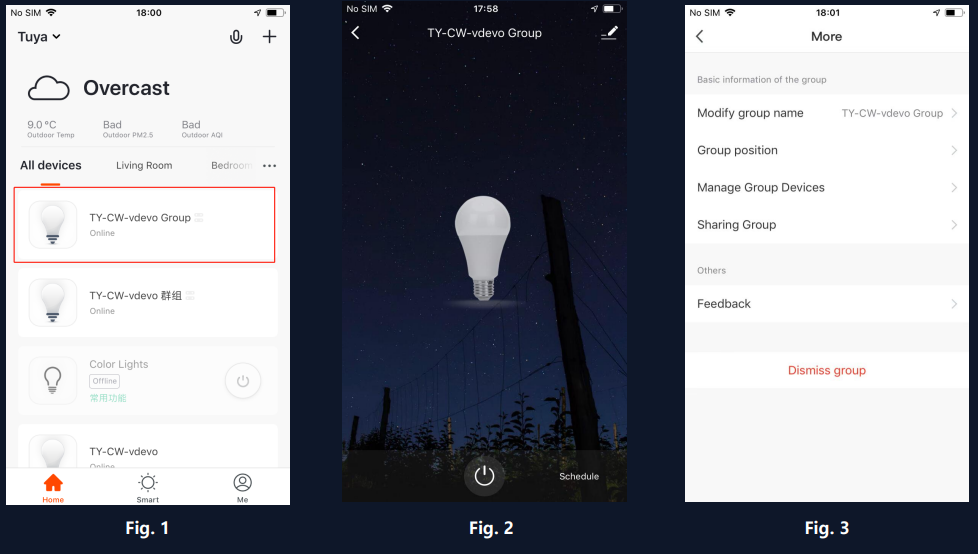
- Groups that have been created can be viewed on the "Home" page, and managed with hotkeys.
- Open the group control panel as shown in Fig. 2.
- Click "..." at the top right corner to configure or dismiss groups, as shown in Fig. 3.
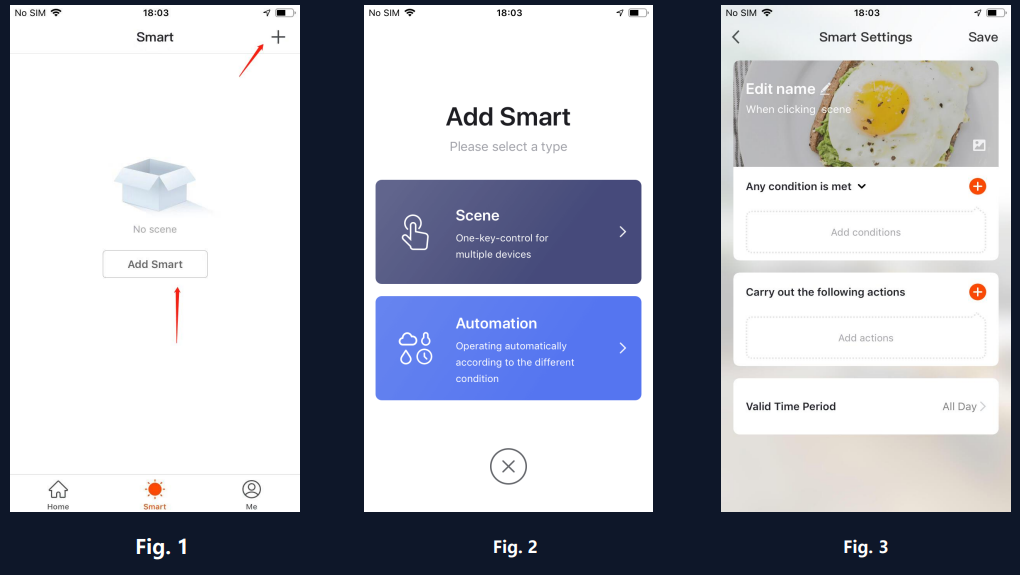
Click “Add Smart“ on the "Smart" page or "+" at the top right corner and select "Automation" to go to the smart configuration page, as shown in Fig. 3
Click "+" as shown in Fig. 3 to add multiple conditions or multiple actions.
Add condition:
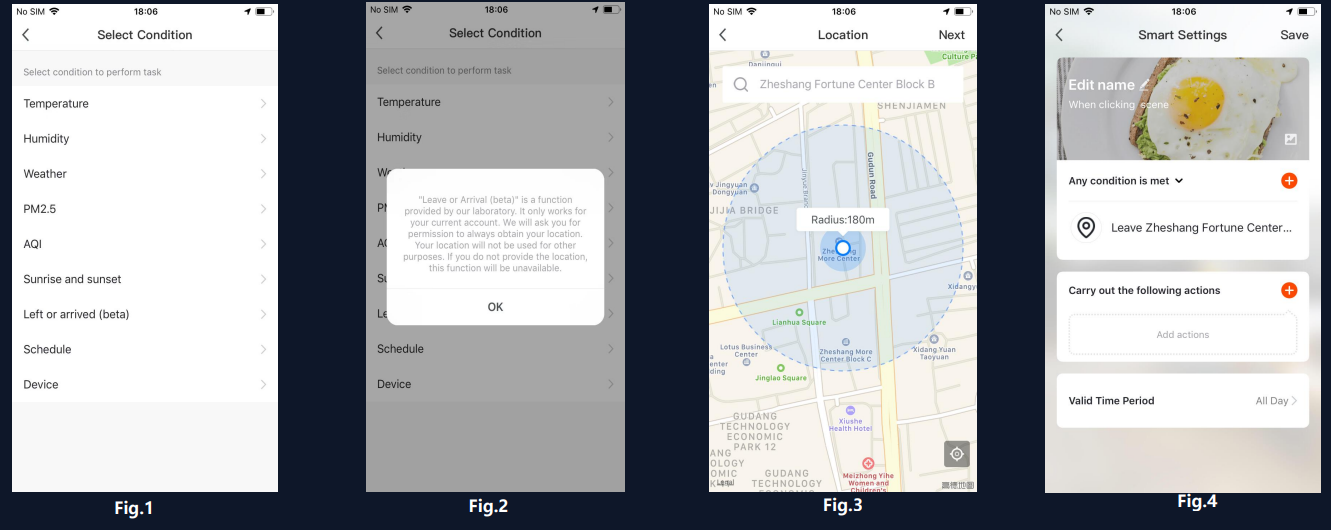
In the case of “Left or arrived” , you can set certain actions to be triggered upon left or arrival. Select “Left or arrived(beta)” in figure 1, and then set the conditions of leaving a place as shown in figure 3. Click “Next" and add conditions to complete as shown in Figure 4. This feature helps you control your device within 110-1024 meters of the location.
Note: to use this function, you need to set the phone to allow the App to get the geographical location. Android versions do not have this function.
Smart Features - Automation
Add action:
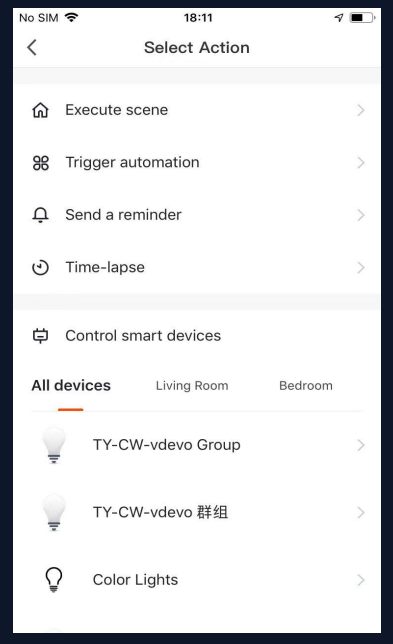
Click "Add action" or "+" at the top right corner to open the menu, as shown in Fig. 1.
There are four types of actions: execute scene, trigger automation, send a reminder,r and time-lapse.
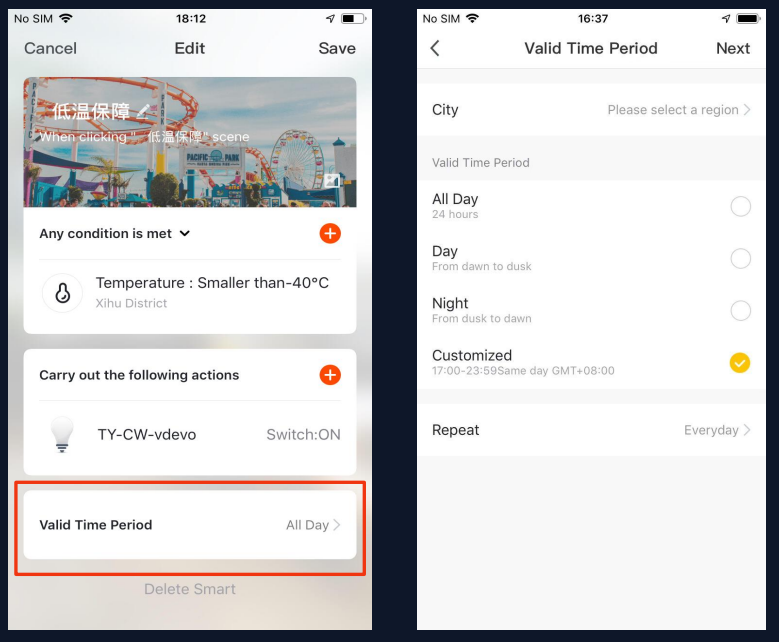
Valid Time Period: You can set a valid time period for automation. For example, if you define a scene where the nightlight automatically lights up when the human motion sensor detects human presence, you can select “Night” as the valid time period. In this case, the nightlight will not automatically turn on in the daytime.
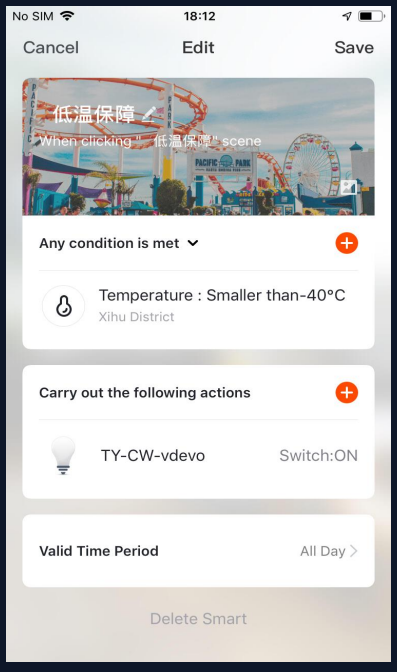
Conditions and actions of automation can all be set up as shown in Fig. 1.
The system primarily supports three types of automation:
- Inter-device synchronization: such as turning on the aroma diffuser and air purifier automatically at the same time the A/C unit is turned on.
- External environment and device synchronization: such as turning on the A/C unit automatically when the temperature falls below 0°C. 3. Timed actions: such as drawing back the curtains drawn automatically at 8:00 am every morning.
- Geo-fencing: You can set arriving or leaving a certain place as a condition to perform specific actions.
Smart Features - Scene
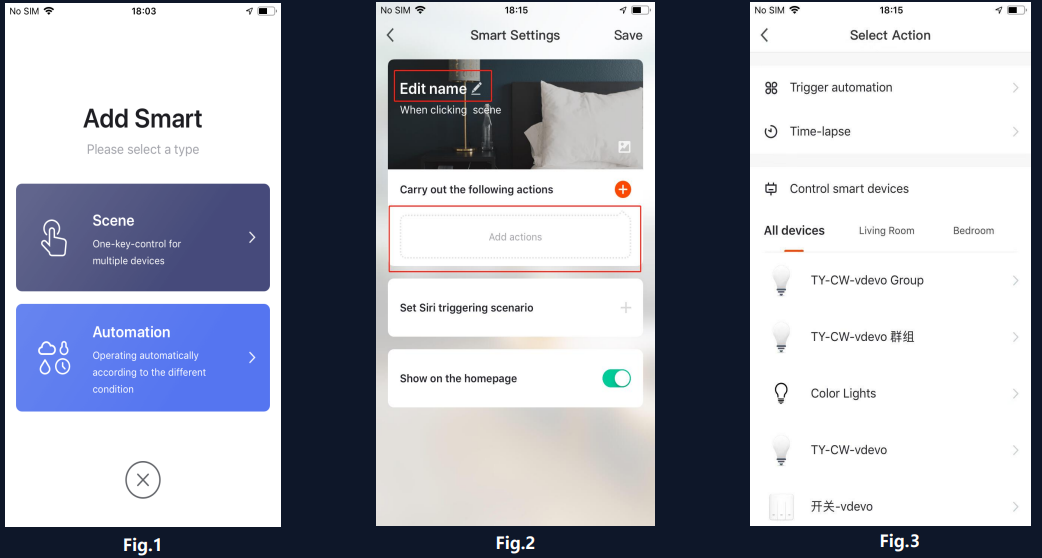
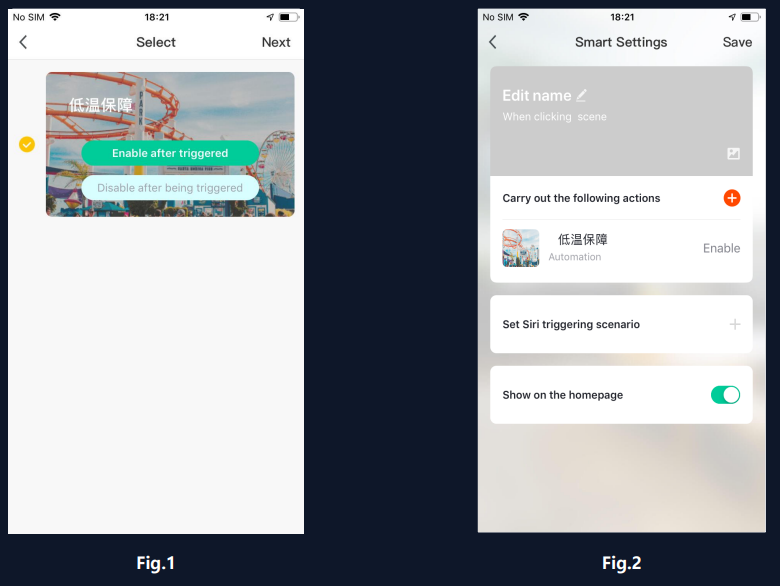
In Figure 1, select the scene and enter the Settings page. As shown in Figure 2, you can edit the scene name. Click "Add actions" or "+" in the top right corner to add the execution action. The action menu is shown in Fig. 3. Configuration is similar to that of automated devices. In addition, you can use Siri to trigger the scene.
To configure a scene with "Trigger automation", you must set up an automated scene in advance. If existing automation options are available as shown in Fig. 1, select "Enabled after triggering" or "Disable after triggering". Then, click "Next" and enter the scene name, and click "Save" at the top right corner to finish the configuration.
Technical Specifications and Features of tuya Smart App V3.8.0
- Supported Platforms: Android and iOS devices
- Device Compatibility: Wide range, including smart plugs, locks, cameras, lighting, and control panels
- Networking: Supports Wi-Fi, Bluetooth , and Zigbee gateway integration for versatile connectivity
- Remote Management: Real-time device control and monitoring via the internet
- Automation: Create scenes and triggers for device automation and scheduling
- Device Sharing: Secure sharing with family and friends registered on Tuya accounts
- Voice Control: Compatibility with Amazon Alexa, Google Assistant, and Tuya’s own voice assistant skills
- User Interface: Updated DIY style panels with customization options and device grouping
- Performance Enhancements: Faster push notification auto-review, support for debugging real devices, and splash screen fixes on Android
- Firmware Updates: In-app firmware checking and seamless updates for connected devices
Compared to similar smart home apps, Tuya Smart App V3.8.0 stands out with its broad device compatibility, no-code automation features, and integrated Zigbee gateway support, offering an all-in-one ecosystem that rivals competitors like Smart Life and Google Home in flexibility and ease of use.
Troubleshooting Common Issues in tuya Smart App V3.8.0
- Problem: Device not responding or offline.
Solution: Ensure the device is powered, connected to the same Wi-Fi network, and firmware is updated via the app’s firmware update feature. - Problem: Unable to add device.
Solution: Verify Bluetooth or Wi-Fi is enabled, reset the device to factory settings, and try adding again. Confirm app and device region settings match. - Error Codes: Common errors like “Device Timeout” or “Connection Failed” suggest network instability; try reconnecting the router or moving the device closer to the Wi-Fi source.
- Preventive Measures: Regularly update the app and device firmware, maintain a stable internet, and periodically reboot smart devices.
- Warranty & Support: Most Tuya-compatible devices come with a 12-month warranty. For app-related issues, Tuya provides online FAQs, community forums, and direct customer support via the app’s feedback feature or official website.
- Contact for Help: Users can submit feedback directly in the Tuya Smart App or contact Tuya’s customer service through their official platform for technical support.
Pros & Cons of tuya Smart App V3.8.0
- Pros:
- Broad device compatibility with both Wi-Fi and Zigbee smart devices
- Robust automation and scene creation without requiring coding skills
- Supports voice assistant integration for hands-free control
- User-friendly interface with customizable control panels
- Reliable push notifications and real-time alerts
- Free to download and use, offering great value for money
- Cons:
- Some users report occasional connectivity lag with Bluetooth devices
- Device sharing is region-locked, limiting cross-country sharing
- Advanced features may require some learning curve for new users
- Remote control of some devices requires additional gateway hardware
Overall, the Tuya Smart App V3.8.0 provides an excellent balance between functionality and ease of use, making it a competitive choice among smart home apps, especially for users invested in multiple Tuya-compatible devices.
Customer Reviews and Feedback on tuya Smart App V3.8.0
Users of the Tuya Smart App V3.8.0 commonly praise its intuitive layout and seamless integration with a variety of smart devices. Many highlight the convenience of remote control and automation features, with an average rating hovering around 4 out of 5 stars. Testimonials frequently mention the effective voice assistant compatibility and the app’s responsiveness.
Common complaints include occasional difficulties with device pairing, especially with Bluetooth products, and regional restrictions on device sharing. Some users also desire more detailed troubleshooting guides within the app interface. Despite these issues, most reviewers recommend the app for those seeking a comprehensive smart home management solution at no extra cost.
Faqs
How do I set up the Tuya Smart App V3.8.0 for the first time?
What should I do if the Tuya Smart App V3.8.0 is not working properly?
Can I use the Tuya Smart App V3.8.0 with Zigbee devices?
How often should I update the firmware of devices connected through the Tuya Smart App V3.8.0?
What are the key features that make the Tuya Smart App V3.8.0 different?
Can I share devices controlled by the Tuya Smart App V3.8.0 with others?
Is the Tuya Smart App V3.8.0 compatible with all types of WiFi networks?
How do I troubleshoot connectivity issues with devices on the Tuya Smart App V3.8.0?
Tags
More tuya manuals
Leave a Comment