
How to Use: Tuya Wi-Fi Camera User Manual
Content
Tuya Wi-Fi Camera Manual: Setup, Features, Troubleshooting, and Buying Guide
Introduction
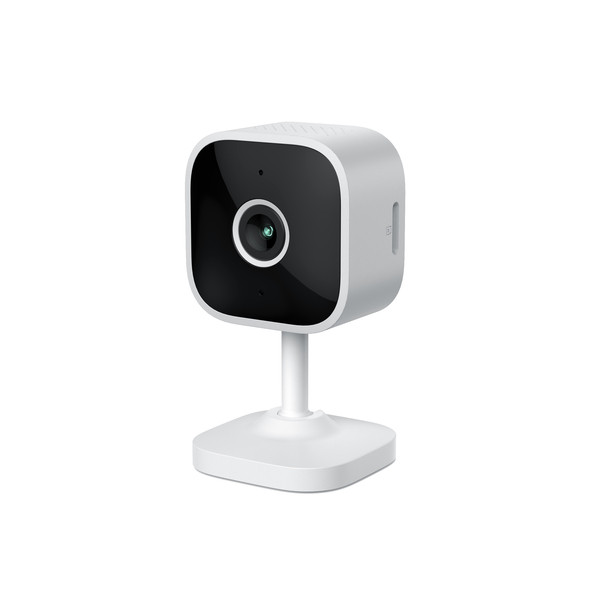
The Tuya Wi-Fi Camera is a smart home security solution designed for users who want affordable remote monitoring, motion alerts, and app-based control in one compact device. Built around the Tuya Smart or Smart Life ecosystem, it is widely used for home entryways, baby monitoring, pet watching, small offices, garages, and outdoor perimeter security. Its biggest strengths are easy smartphone access, flexible storage options, and compatibility with 2.4GHz Wi-Fi networks, which makes it a practical choice for everyday surveillance.
Depending on the model, a Tuya Wi-Fi Camera may include 1080p HD or higher resolution video, two-way audio, infrared night vision, motion detection, and cloud or microSD recording. Outdoor versions often add weather resistance, battery or solar power, and PIR motion sensing for energy-efficient operation. Indoor versions may offer pan-and-tilt control, automatic tracking, and wider viewing angles for room coverage. This makes the camera appealing to first-time smart security buyers as well as users upgrading from basic CCTV systems.
Estimated pricing typically ranges from about $15 to $80 for most consumer models, with advanced dual-lens, battery, or solar versions costing more. Tuya Wi-Fi Cameras are commonly available through online marketplaces, electronics stores, and white-label smart home retailers. If you need a budget-friendly smart camera with app alerts and remote viewing, the Tuya Wi-Fi Camera is a strong option for small-scale home security.
Specifications: Tuya Wi-Fi Camera Key Features and Performance
- Video resolution: Commonly 1080p, with some models offering 2K or 4MP capture for sharper detail.
- Connectivity: 2.4GHz Wi-Fi, typically using IEEE 802.11 b/g/n for stable home network pairing.
- Storage: Cloud storage and local microSD support, often up to 64GB or 128GB depending on the model.
- Audio: Built-in microphone and speaker for two-way voice communication.
- Night vision: Infrared night vision, with some models adding white light illumination for color viewing in low light.
- Motion detection: Standard motion alerts, with selected outdoor models using PIR sensors for better human-triggered detection.
- Power options: USB power, rechargeable battery, or solar-assisted charging on outdoor units.
- Durability: Indoor models focus on compact size, while outdoor versions may include IP66 weather resistance.
- Video compression: H.264 or H.265 on many newer models for efficient streaming and storage.
- App support: Tuya Smart and Smart Life apps for live view, playback, alert management, and device sharing.
Compared with many generic Wi-Fi security cameras, Tuya models stand out for ecosystem flexibility and broad device compatibility. Compared with premium brands, they usually trade advanced AI features for lower cost and simpler setup, making them ideal for value-focused buyers.
Setup Guide: How to Install and Configure a Tuya Wi-Fi Camera
Start by downloading the Tuya Smart or Smart Life app on your Android or iPhone device. Power on the camera, then press and hold the reset button until the indicator light flashes or you hear the pairing prompt. Confirm that your phone is connected to a 2.4GHz Wi-Fi network, because most Tuya Wi-Fi Camera models do not support 5GHz pairing.
Open the app, tap the add-device option, and scan the QR code or follow the manual pairing instructions for your model. Enter the Wi-Fi password carefully and wait for the camera to connect. Once added, set the device name, time zone, motion sensitivity, alarm schedule, and recording mode. If your model supports pan-and-tilt, test movement controls and calibration before final placement.
For best results, mount the camera at eye level or slightly higher, avoid pointing it directly into sunlight, and keep it within good Wi-Fi range. Use weatherproof mounting for outdoor units and never expose indoor-only cameras to moisture. If pairing fails, reboot the router, reset the camera, and confirm that the Wi-Fi password and band are correct. Keep cables secure to avoid power loss during installation.
Troubleshooting Tuya Wi-Fi Camera Common Problems and Fixes
One common issue is failed pairing. This usually happens when the camera is connected to 5GHz Wi-Fi, the password is incorrect, or the signal is weak. The fix is to use 2.4GHz Wi-Fi, move the camera closer to the router, and reset the device before trying again.
If the live feed is lagging or freezing, reduce distance from the router, restart the camera, or limit network congestion by disconnecting unused devices. For night vision problems, clean the lens, check that infrared mode is enabled, and ensure there is not too much reflective light nearby. If motion alerts are too sensitive, lower the detection level or adjust the activity zone in the app.
Some models display generic app errors such as device offline, connection timeout, or cloud sync failure. These are usually related to Wi-Fi instability, outdated firmware, or account login issues. Restart the camera, update the app, and check firmware when available. For hardware issues, warranty coverage and support depend on the seller or distributor, so keep your purchase receipt and packaging. For help, contact the retailer, the app’s in-app support section, or the manufacturer service channel listed in the product documentation.
Pros and Cons of Tuya Wi-Fi Camera
Pros
- Affordable price point, making it a strong value for budget home security buyers.
- Easy app-based setup through Tuya Smart or Smart Life.
- Remote viewing, motion alerts, and two-way audio in many models.
- Flexible storage choices with cloud and microSD recording.
- Wide product variety, including indoor, outdoor, battery, and solar options.
Cons
- Most models rely on 2.4GHz Wi-Fi only, which can limit router flexibility.
- Image quality varies widely between low-cost and higher-end versions.
- Some white-label models have inconsistent firmware and app behavior.
- Cloud features may require extra subscription costs.
- Advanced AI detection is often less refined than premium brands.
For buyers who want dependable smart monitoring without a high upfront cost, the Tuya Wi-Fi Camera offers excellent value for money. Compared with premium alternatives, it is less polished but often easier to justify for basic home, pet, or small-business surveillance.
Customer Reviews: What Users Say About Tuya Wi-Fi Camera
Average customer sentiment is generally positive, with many users rating it around 4 out of 5 stars for affordability, simple setup, and useful app alerts. Buyers often praise the clear daytime video, decent night vision, and the convenience of checking live footage from a phone.
Common complaints include inconsistent motion detection, occasional Wi-Fi drops, and app notifications that arrive too frequently or not often enough. Some users also report that setup can be frustrating if their router defaults to 5GHz or has weak signal coverage.
Typical feedback sounds like: “Great value for the price and easy to install,” and “Works well for monitoring pets, but motion alerts need fine-tuning.” If you want a low-cost smart camera for routine home monitoring, the Tuya Wi-Fi Camera is a reasonable purchase. For buyers who need premium analytics, faster connection stability, or enterprise-grade reliability, a higher-end alternative may be a better fit.
Faqs
How do I set up a tuya Wi-Fi Camera for the first time?
Why is my tuya Wi-Fi Camera not connecting to Wi-Fi during setup?
What features should I expect from a tuya Wi-Fi Camera?
Can I use a tuya Wi-Fi Camera with Alexa, Google Home, or smart home routines?
What should I do if my tuya Wi-Fi Camera keeps going offline?
How can I improve motion detection on a tuya Wi-Fi Camera without getting constant false alerts?
Does a tuya Wi-Fi Camera support local storage, and how do I use it correctly?
How should I clean and maintain a tuya Wi-Fi Camera for long-term use?
More tuya manuals
Leave a Comment