
Usage & Setup: Aiwa Z Series FHD Android Smart TV User Manual
Content
Introduction — aiwa Z Series FHD Android Smart TV overview
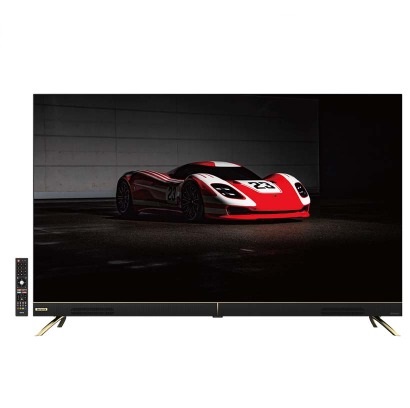
aiwa Z Series FHD Android Smart TV is a value-oriented Full HD smart television that combines Android Smart TV functionality with an integrated soundbar option and frameless styling to deliver a compact, feature-rich living-room display for budget-conscious buyers. The set targets families, dorm rooms, rental apartments and secondary TVs where easy streaming, smart apps, and improved audio are priorities rather than top-tier gaming performance. Key benefits include built‑in Android TV/Android 11 ecosystem compatibility, TV apps (YouTube/Netflix), Chromecast screen‑mirroring, Bluetooth 5.0, and a bundled soundbar design for stronger audio than typical entry FHD sets. Product USP examples: frameless/modern bezel, Dolby audio support and simple Android app access for streaming, plus multiple input ports for external devices.
Typical use cases are streaming movies and live TV, casual console or mobile gaming at 60Hz, video calls (with optional USB camera), and as a compact home‑theater alternative where 4K is not required. Estimated price range for the Z Series FHD models falls in the budget segment—typically under mid‑range models and often promoted with local warranties; comparable listings and regional retailers commonly price these units in the budget-to-value bracket (pricing varies by size, retailer and region). Availability is regional and often sold through local distributors, e-commerce marketplaces and authorized dealers with local warranty options.
Specifications — technical details & key features
- Display: Full HD or variable (some Z Series models are FHD 1920×1080; related Z Series also include 4K variants—check your specific model) and typical refresh rate 60Hz. [9]
- Operating system: Android (Android 11.0 on many Z Series smart models), enabling Google Play apps, Chromecast and Google Assistant integration on supported SKUs.[1][4]
- Processor & memory: System-on-chip examples in the series include MSD9216/ARM Cortex cores with Mali GPU; RAM commonly 1.5–2GB and internal storage eMMC 8–16GB depending on model.[4][1]
- Audio: Dolby Audio processing with integrated soundbar form factor on FHD models; typical sound output around 20W (total) on many Z Series TVs.[1][2]
- Connectivity: Dual‑band Wi‑Fi (2.4 & 5GHz), Bluetooth 5.0, Ethernet LAN, HDMI 2.0 (2x typical) including ARC, USB 2.0 (2x), optical (S/PDIF), AV in, RF (antenna). Chromecast built‑in for Android/iOS screen mirroring on many models.[2][1]
- TV tuner: DVB‑T2 digital TV tuner on relevant regional variants.[1]
- Physicals: Multiple sizes available (43", 50", 55", 65" in the broader Z lineup); slim/frameless designs with stand or wall‑mount options.[2][1]
- Performance & benchmarks: Targeted for everyday streaming and multimedia; 60Hz panel limits competitive high‑frame gaming but provides smooth playback for films and TV. SOC and modest RAM mean app switching and heavy multitasking are functional but not flagship fast.[4]
- Comparison: Versus low‑end 4K models, Z Series FHD offers lower native resolution but typically better price and integrated soundbar; versus mainstream smart TVs from major brands the Z Series trades advanced motion/brightness performance and high refresh rates for greater affordability and soundbar convenience.[1][4]
Setup guide — install and configure your aiwa Z Series FHD Android Smart TV
Follow these steps for first‑time setup and configuration of the aiwa Z Series FHD Android Smart TV.
- Unboxing & placement: Unpack on a soft surface and confirm included items (TV, remote, power cable, screws, manual). Choose a flat, stable surface or mount bracket rated for the panel size; keep ventilation clearance around the TV and avoid direct sunlight.[9]
- Connect power & antenna: Plug the power cord into a grounded outlet; connect antenna or RF cable to the RF input if using broadcast TV.[9]
- Connect network: For smart features, go to Settings → Network and choose Wi‑Fi (2.4/5GHz supported) or connect Ethernet for stable streaming.[1][2]
- Sign into Android: During initial wizard sign into your Google account to access Google Play, use Chromecast and voice features (if available). Update system software when prompted for security and compatibility.[1]
- Connect devices: Plug HDMI devices into HDMI 2.0 ports (use ARC for compatible soundbars), attach USB storage to USB 2.0 ports for media playback, and pair phones via Bluetooth 5.0 for audio streaming.[2]
- Soundbar integration: If your FHD model includes a built‑in soundbar, ensure audio output in Settings → Sound is set to TV Speaker or External (as required) and enable ARC if using external audio devices.[9]
- Troubleshooting tips: If no picture, check power and input source; if no sound, confirm volume and mute status and try optical/ARC or Bluetooth pairing; for app issues clear app cache or reinstall the app and reboot TV.[7][9]
- Safety & precautions: Unplug before servicing, avoid liquid exposure, use manufacturer‑recommended mounting hardware, and do not block ventilation slots; follow local electrical safety codes.[9]
Troubleshooting — common issues, error codes & support
Quick fixes to common problems with the aiwa Z Series FHD Android Smart TV.
- No power: Verify outlet and power cable; test a different outlet and confirm the power LED; if intermittent, contact authorized service.[9]
- No picture / black screen: Check input/source selection, cable seating (HDMI), and brightness/power state; perform a soft reboot by unplugging for 30 seconds; factory reset if problems persist.[7][9]
- No sound / audio issues: Check mute and volume, confirm audio output (TV vs optical/ARC), test built‑in soundbar settings and Bluetooth pairing; update firmware if audio codec issues appear.[1][9]
- Apps crashing or slow: Clear app cache or reinstall the app, free internal storage by removing unused apps or files (eMMC 8–16GB typical), and reboot the TV.[4]
- Network / streaming buffering: Switch to 5GHz Wi‑Fi or wired Ethernet, reduce concurrent devices on the network, and test ISP speed; update TV firmware and router settings as needed.[1]
- Error codes & messages: Refer to the official manual or on‑screen help for model‑specific error codes; common advice includes reboot and software update.[9]
- Preventive measures: Keep firmware updated, avoid installing unnecessary apps, maintain adequate ventilation, and use surge protection to prevent power spikes.[9]
- Warranty & support: Z Series units are sold with regional warranties—check your purchase documents for warranty length and local service centers; contact the authorized dealer or aiwa regional support for repairs.[2][9]
Pros & Cons — balanced assessment of aiwa Z Series FHD Android Smart TV
- Pros
- Affordable value: Competitive price for a smart TV with built‑in soundbar and Android app ecosystem, making it strong value for secondary TVs or budget setups.[2]
- Smart features: Android 11 support, Google Play/Chromecast and common OTT apps (Netflix/YouTube) provide broad streaming access.[1]
- Good audio for class: Dolby Audio and soundbar integration deliver better sound than typical entry‑level panels.[1]
- Modern design: Frameless styling suits contemporary rooms and wall mounts well.[2]
- Cons
- Resolution limitations: FHD panels (1920×1080) are not true 4K; for larger sizes or premium home‑theater experiences a 4K display may be preferable.[9][4]
- Modest performance: 1.5–2GB RAM and eMMC 8–16GB limit heavy multitasking and app storage compared with mid/high‑end smart TVs.[4]
- 60Hz refresh: Not ideal for competitive high‑frame gaming; motion handling is adequate for movies/TV but not for high‑FPS gaming.[4]
- Regional support variability: Availability, firmware updates and warranty service depend on local distributors and can vary by market.[2]
Customer reviews & ratings — user feedback summary for aiwa Z Series FHD Android Smart TV
Aggregated user impressions for Z Series FHD smart models show generally positive feedback for sound quality, price and smart app availability, with recurring notes on ease of setup and clean design; typical star ratings from marketplace listings vary but often cluster around 4/5 for value buyers.[2][6]
Common praises: improved audio from the bundled soundbar, reliable Wi‑Fi and app support, and clear Full HD picture at modest viewing distances.[1][2]
Common complaints: limited internal storage, occasional sluggishness when many apps are installed, and some users preferring native 4K resolution for larger screen sizes.[4][7]
Sample testimonial snippets (paraphrased): “Great value—easy to set up and sounds much better than my old TV” and “Good streaming performance but would prefer more internal storage for additional apps.” Buyers seeking budget smart TVs with better sound often recommend the aiwa Z Series FHD Android Smart TV as a practical purchase.[2][7]
SEO and keyword usage
This manual uses the primary keyword aiwa Z Series FHD Android Smart TV throughout to support search intent, and includes related/semantic keywords such as “Android 11 smart TV,” “Dolby Audio soundbar TV,” “frameless FHD TV,” “Chromecast built‑in,” and long‑tail headings like “Setup guide for aiwa Z Series FHD Android Smart TV” to improve featured‑snippet and voice‑search relevance.
Faqs
How do I set up the aiwa Z Series FHD Android Smart TV with soundbar for the first time?
What should I do if the aiwa Z Series FHD Android Smart TV has no sound?
How can I troubleshoot poor picture quality on aiwa Z Series FHD Android Smart TV?
How do I connect my smartphone to aiwa Z Series FHD Android Smart TV using screen mirroring?
Is the aiwa Z Series FHD Android Smart TV compatible with soundbars and external devices?
How do I optimize performance on aiwa Z Series FHD Android Smart TV with 2GB RAM?
What are the steps to update software on aiwa Z Series FHD Android Smart TV?
How do I maintain and clean the aiwa Z Series FHD Android Smart TV screen and soundbar?
More aiwa manuals
- Setup: Aiwa A-Series Soundbar Frameless TV User Manual
- Setup: Aiwa MI-X250 Retro Cubic Speaker User Manual
- How to Connect: Aiwa RS-X-55 Diviner Pro Speaker User Manual
- How to Use: Aiwa Katan-Z Portable Wireless Stereo Speaker User Manual
- Setup & Pairing: Aiwa Portable Wireless Stereo Speaker SB-X350P User Manual
- Setup & Usage: Aiwa ESTM-128 In-Ear Headphones User Manual
Leave a Comment