
Pairing: Astro A20 Wireless Headset User Manual
Content
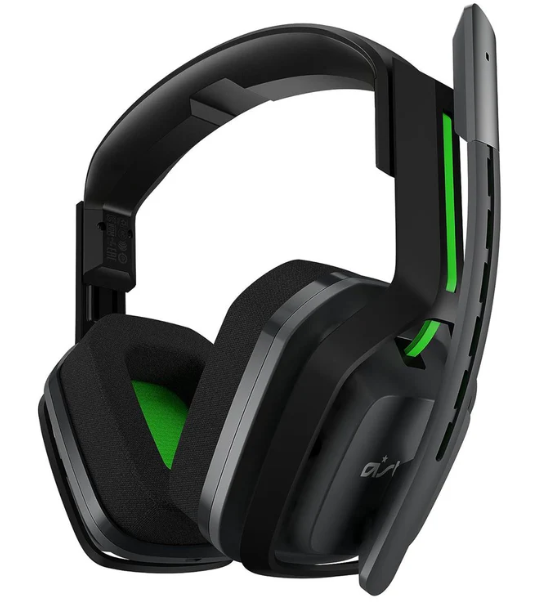
Astro A20 Wireless Headset
Introduction
The Astro A20 Wireless Headset is a premium gaming headset designed to deliver exceptional audio freedom and comfort for gamers across multiple platforms. Featuring advanced 2.4 GHz wireless technology, this headset offers a reliable wireless range of up to 50 feet, allowing gamers to move freely without losing connection. With over 15 hours of battery life, the Astro A20 supports marathon gaming sessions without frequent recharging interruptions.
Key benefits include a flip-to-mute unidirectional microphone that ensures clear communication while blocking out background noise, and customizable equalizer presets tailored to enhance game audio fidelity. Its lightweight, durable design with cloth ear cushions provides long-lasting comfort, making it ideal for competitive and casual gamers alike. The headset supports cross-platform compatibility with Xbox, PlayStation (with additional USB transmitter), PC, and Mac systems.
Targeted at gaming enthusiasts seeking high-quality stereo sound and seamless wireless performance, the Astro A20 Wireless Headset is perfect for immersive gameplay, team chat, and content creation. Available at an estimated price range of $120 to $150, it is widely accessible through major retailers and online stores, making it a cost-effective choice for gamers prioritizing comfort and audio clarity without compromising on durability.
Astro A20 Wireless Headset Specifications and Features
- Audio Drivers: 40 mm Neodymium dynamic drivers delivering amplified stereo sound with frequency response from 20 Hz to 20 kHz
- Microphone: Uni-directional flip-to-mute microphone (6 mm x 2.7 mm) with excellent background noise rejection
- Wireless Technology: 2.4 GHz wireless frequency with up to 50 feet (15 meters) range for an uninterrupted gaming experience
- Battery Life: Over 15 hours of continuous playback on a single charge; auto shutdown after 10 minutes of inactivity to save power
- Connection: USB 2.0 transmitter for PC, Xbox Series X|S, PlayStation 5 (additional transmitter sold separately)
- Comfort: Lightweight design with cloth ear cushions and an adjustable headband to reduce fatigue during extended sessions
- Sound Customization: Multiple EQ presets and adjustable game-to-voice balance on compatible platforms
- Durability: Premium, damage-resistant materials ensure longevity in daily gaming use.
Compared to similar gaming headsets, the Astro A20 Wireless Headset stands out with its balance of battery life, wireless range, and microphone clarity, offering a competitive edge for gamers who demand quality audio without the bulk or high price of flagship models.
Overview
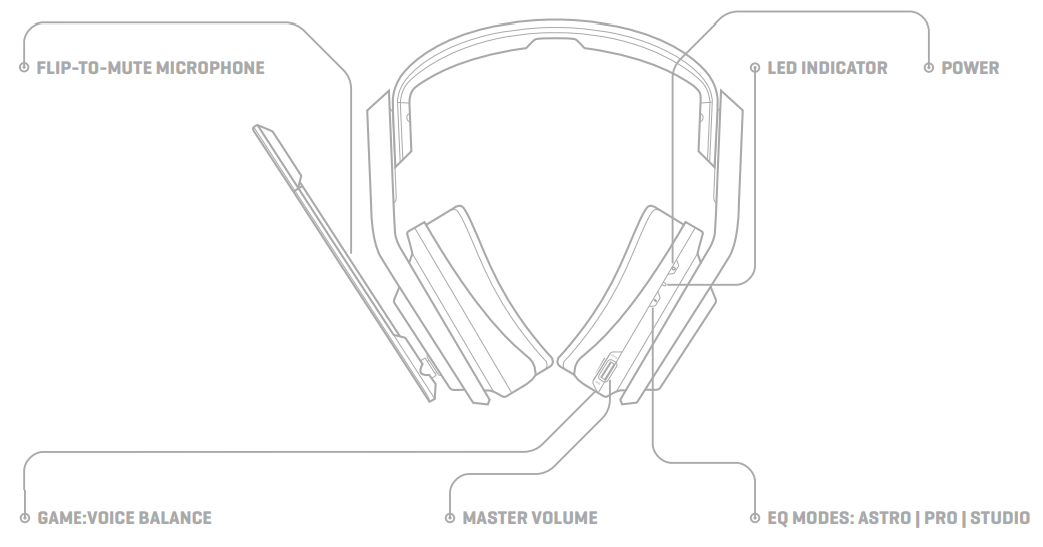
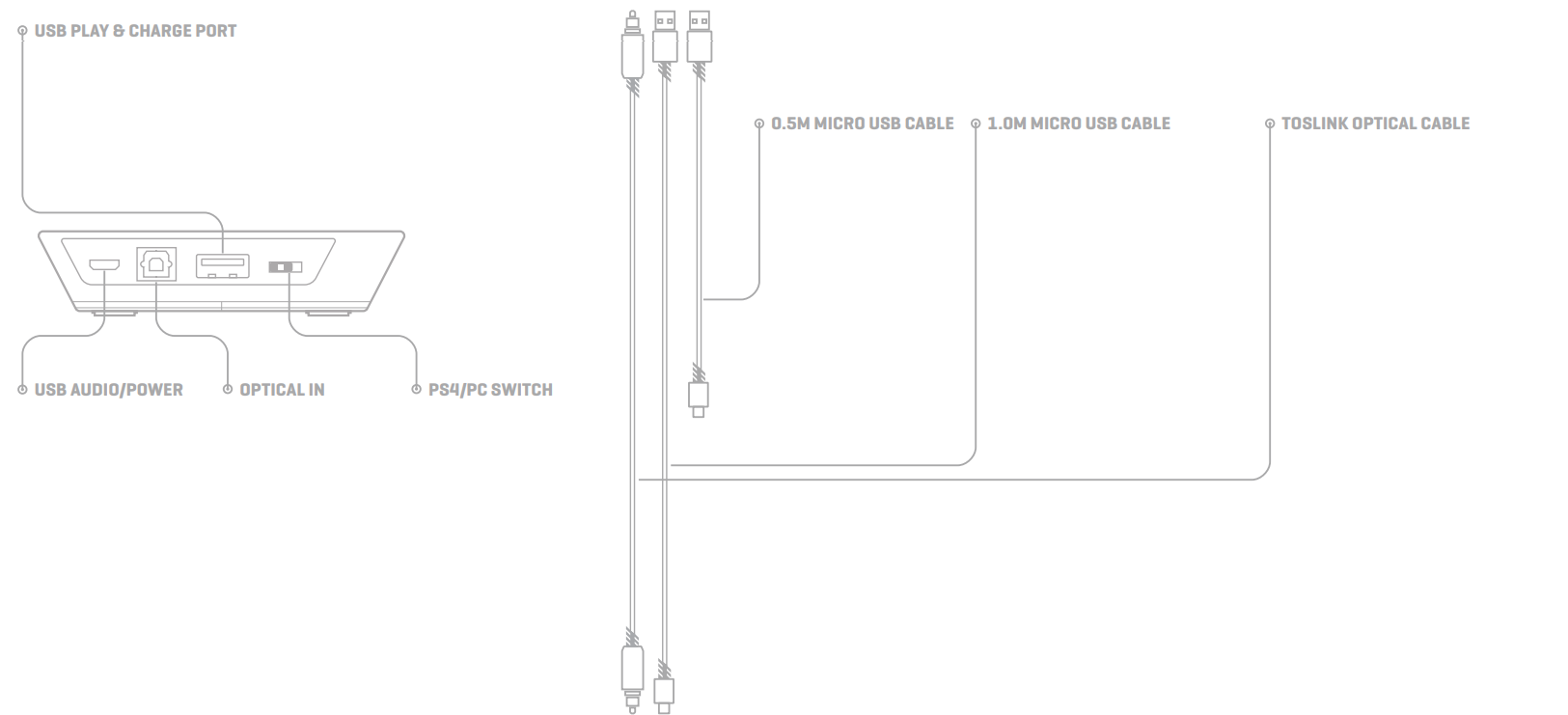
For the latest Firmware updates, please visit http://www.astrogaming.com/firmware/
Setup Guide for the Astro A20 Wireless Headset
- Charge the Headset: Use the included USB-C to USB-A cable to fully charge the headset before first use (approximate charging time: 3 hours).
- Connect the USB Transmitter: Plug the USB transmitter into your gaming device’s USB port (PC, Xbox, or PlayStation with appropriate transmitter).
- Power On and Pair: Turn on the headset by pressing the power button. It will automatically pair with the USB transmitter using 2.4 GHz wireless connectivity.
- Adjust Audio Settings: Use the volume knob on the headset to control overall volume. For Xbox or PC, balance game and voice chat using the on-device controls or Astro Command Center software if available.
- Microphone Usage: Flip the microphone down to activate voice chat or flip it up to mute instantly.
PC/MAC SETUP

- Ensure the Transmitter is set to PC Mode.
- Plug the Micro end of the Micro USB cable into the Transmitter & the USB end into your PC or Mac.
- PC: Right-click the Speaker icon in your Taskbar and select Playback Devices. Mac: Navigate to Settings, select Sound, then Output, and choose ASTRO A20 Game.
- PC: Select ASTRO A20 Game, right click, and set as the Default Device. Mac: Select Input and choose ASTRO A20 Voice. Mac users are complete after this step.
- Select ASTRO A20 Voice, right click, and set as Default Communication Device.
- Navigate to your Recording Devices tab in your Sound settings on your PC.
- Ensure that ASTRO A20 Voice is set as Dethe fault Device and the Default Communication Device.
- That’s it! A20 Wireless and PC / Mac are set up and ready to game!
PS4 / PS4 PRO SETUP
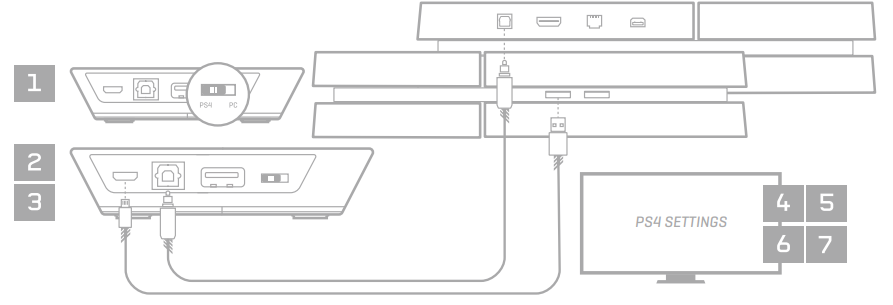
- Ensure the Transmitter is set to PS4 Mode.
- Plug the Micro end of the Micro USB cable into the Transmitter & the USB end into your PS4.
- Plug the TOSLink Optical Cable into the PS4 Optical port & plug the other end into the Opt In port on the Transmitter. *Be sure to remove clear plastic caps from the Optical cable.
- Navigate to Sound and Screen, then to Audio Output Settings.
- Select Primary Output Port and change this to DIGITAL OUT (OPTICAL) and only check the PCM Stereo format on the follow-up screen.
- Navigate back to the Settings page and select Devices followed by Audio Devices.
- Change the Input and Output Device to USB Headset (ASTRO A20 Wireless)
- Select Output to Headphones and change this to All Audio.
Pairing and CHARGING
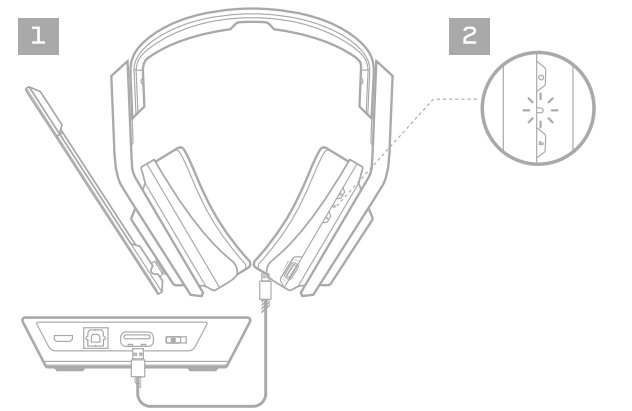
- Pairing occurs automatically when the A20 Wireless Headset is plugged in via USB into the Transmitter. Plug in Micro USB end of the .5m USB charge cable into the headset.
- Plug the USB end of the .5m charge cable into the Transmitter in the port marked "Charge Port". The LED on the transmitter will blink until the headset is fully charged.
LED BEHAVIOR
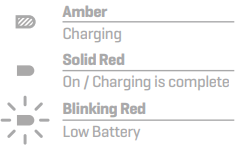
A20 HEADSET LED INDICATOR
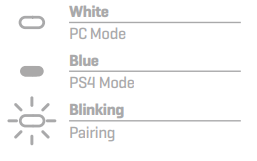
A20 WIRELESS TRANSMITTER LED INDICATOR
Troubleshooting Tips: If pairing fails, restart both the headset and USB transmitter. Ensure the transmitter is plugged directly into the device, not through a hub. For audio issues, check volume settings and mute status. Keep firmware updated via the Astro Command Center app for optimal performance.
Safety Precautions: Avoid exposure to water and extreme temperatures. Do not modify or disassemble the headset. Use only approved charging cables to prevent damage.
Troubleshooting Common Issues with the Astro A20 Wireless Headset
- No Sound: Verify the headset is powered on, check volume levels, and ensure the USB transmitter is firmly connected.
- Microphone Not Working: Confirm the mic is flipped down and not muted; test on another device if possible.
- Connection Drops: Move closer to the USB transmitter to stay within the 50-foot range; remove obstacles obstructing the signal.
- Battery Drains Quickly: Fully charge before use and avoid extended idle times; enable the auto shutdown feature for battery conservation.
- Error Codes: Rare; if encountered, reset the headset by powering off and on, or reinstall drivers/software on PC.
For persistent problems, consult the manufacturer’s warranty policy, which typically covers defects for one year. Contact Astro Gaming customer support via their official website or authorized retail channels for expert assistance and replacement options.
Pros & Cons of the Astro A20 Wireless Headset
Pros
- Long Battery Life: Offers over 15 hours of continuous wireless gameplay without recharge interruptions.
- Comfortable Design: Lightweight with breathable cloth ear cushions suitable for extended gaming sessions.
- Clear Communication: Flip-to-mute uni-directional microphone with excellent noise rejection improves voice clarity.
- Cross-Platform Compatibility: Supports Xbox, PlayStation (with additional transmitter), PC, and Mac connectivity.
- Easy Setup: Quick pairing with USB transmitter and intuitive controls for volume and audio balance.
Cons
- Limited Audio Customization: EQ presets are basic compared to premium headsets offering full equalizer control via software.
- Additional Hardware Required: Needs an extra USB transmitter for PlayStation 5 compatibility, sold separately.
- Bulkier Compared to True Wireless: A Larger form factor may feel cumbersome compared to ultra-light earbuds or headsets.
- Price Point: Slightly higher than entry-level models but justified by enhanced features and durability.
Customer Reviews and Feedback on the Astro A20 Wireless Headset
The Astro A20 Wireless Headset generally receives positive reviews for its robust wireless range and comfortable fit, with users praising the clear sound quality and long battery life. Many gamers highlight the convenience of the flip-to-mute microphone and appreciate the headset’s durable build, suitable for intense gaming sessions.
Common complaints include the need for an additional USB transmitter for certain consoles and limited audio customization options. Some users note that while the headset’s microphone excels at background noise rejection, audio output can benefit from pairing with Dolby Atmos or similar sound enhancements for the best experience.
Overall, the Astro A20 is rated around 4 to 4.5 stars by customers, making it a recommended wireless gaming headset for those seeking reliable performance and comfort at a mid-range price point.
More astro manuals
Leave a Comment