
Setup: Bloody GP30 USB Gaming Controller User Manual
Content
Bloody GP30 USB Gaming Controller: Comprehensive Product Manual and Setup Guide
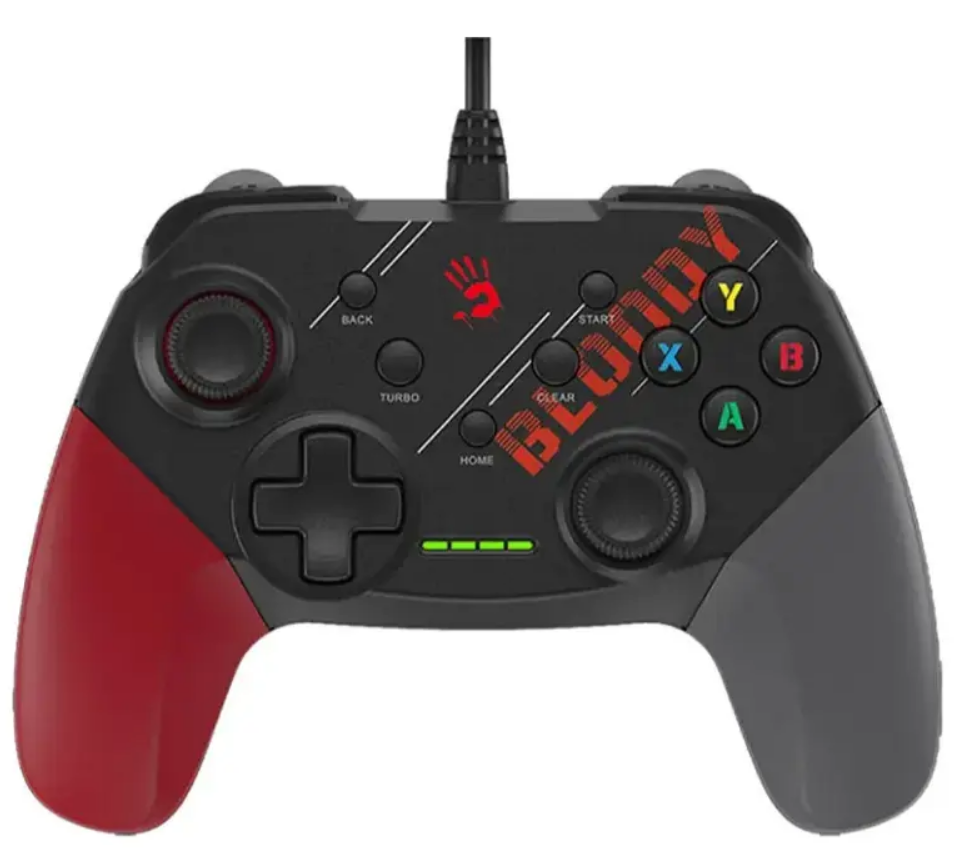
Introduction to Bloody GP30 USB Gaming Controller
The Bloody GP30 USB Gaming Controller is a versatile, ergonomic gamepad designed for immersive gaming across multiple platforms, including PC, PS3, Nintendo Switch, and Android devices like smart TVs, set-top boxes, smartphones, and tablets running Android v5.0 or above. This wired USB controller stands out with its 360° joysticks for precise control, dual vibration motors for realistic haptic feedback, and turbo functionality for rapid inputs in fast-paced games like shooters and racers. Key benefits include an anti-slip dual-color grip for comfort during long sessions, linear triggers (LT/RT) for smooth precision in racing titles, and a clear button to reset turbo settings effortlessly.
Ideal for casual gamers, competitive players, and multi-platform enthusiasts, the Bloody GP30 USB Gaming Controller enhances experiences in genres from action to simulations with its Xbox 360-inspired asymmetrical stick layout and ABXY button design. Available in Sports Blue and Sports Red variants, it offers customizable replaceable pads for personalization. Priced affordably in the $20-40 range depending on retailers, it's widely available online and provides excellent value compared to pricier alternatives like official Xbox or PlayStation controllers. Whether you're dominating PC battle royales or racing on Android, this reliable Bloody GP30 gamepad delivers seamless wired performance without latency issues.
Bloody GP30 USB Gaming Controller Specifications and Features
The Bloody GP30 USB Gaming Controller boasts robust specs tailored for high-performance gaming. Here's a detailed breakdown:
- Connection: USB Wired with 180 cm cable for a flexible setup.
- Compatibility: PC (Windows), PS3, Nintendo Switch, Android v5.0+ (smartphones, tablets, smart TVs, set-top boxes).
- Controls: 13 buttons including 2 clickable analog sticks (LSB, RSB), 2 analog triggers (LT, RT), 2 digital shoulder buttons (LB, RB), 8 digital action buttons (A, B, X, Y, etc.), turbo & clear buttons.
- Joysticks: 360° cross-shaped for rapid, accurate navigation.
- Vibration: Dual asymmetric motors for immersive, realistic feedback.
- Design: Ergonomic with anti-slip dual-color grips, replaceable multi-colored pads; Xbox 360-like asymmetrical layout.
- Dimensions: Compact and lightweight for extended comfort.
- Performance: Linear triggers excel in racing games; turbo is ideal for shooters with quick-fire capability.
Compared to the Xbox Wireless Controller, the Bloody GP30 offers similar ergonomics at a fraction of the cost but lacks wireless connectivity, prioritizing reliable wired precision.
What's In The Box
- Gaming Controller
- User Manual
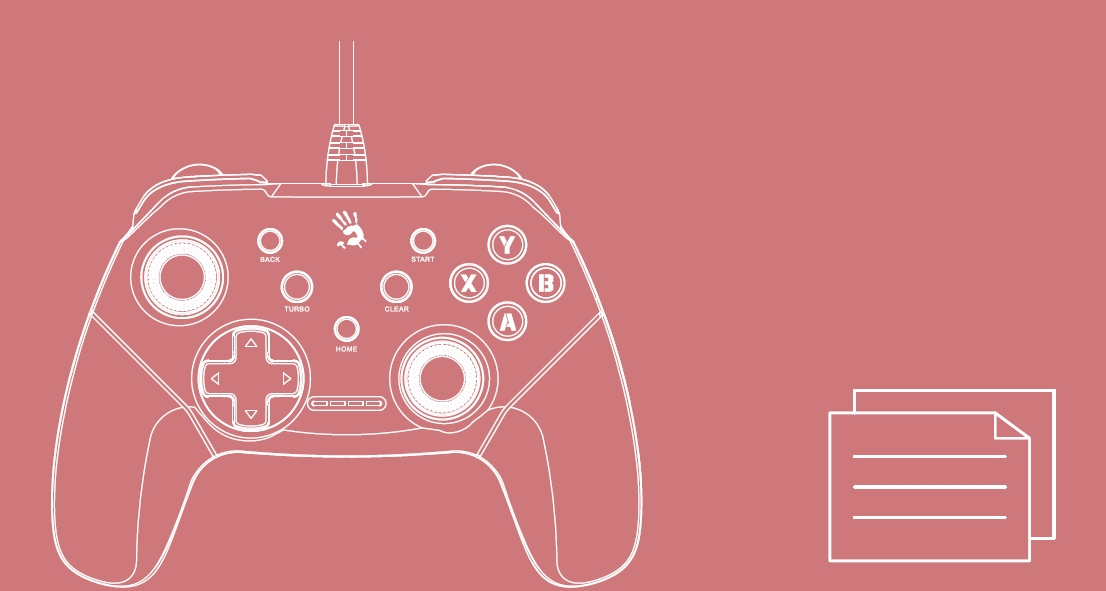
How to Set Up Bloody GP30 USB Gaming Controller: Step-by-Step Guide
Setting up your Bloody GP30 USB Gaming Controller is straightforward for plug-and-play gaming. Follow these steps for optimal Bloody GP30 gamepad performance:
- Connect the Controller: Plug the USB cable (180 cm) into your PC, PS3, Switch, or Android device. LED-1 lights up to confirm connection.
- Platform Configuration: On PC, it's recognized as a standard gamepad; install drivers if needed via the Bloody website. For Android, enable OTG support. PS3/Switch detect automatically.
- Pairing and Test: Launch a game, calibrate joysticks in settings, and test turbo (hold button + clear to reset).
- Customization: Swap colored pads for grip preference; adjust vibration in game menus.
Safety Warnings: Avoid liquids near the controller; unplug during storms; not for children under 8 without supervision.
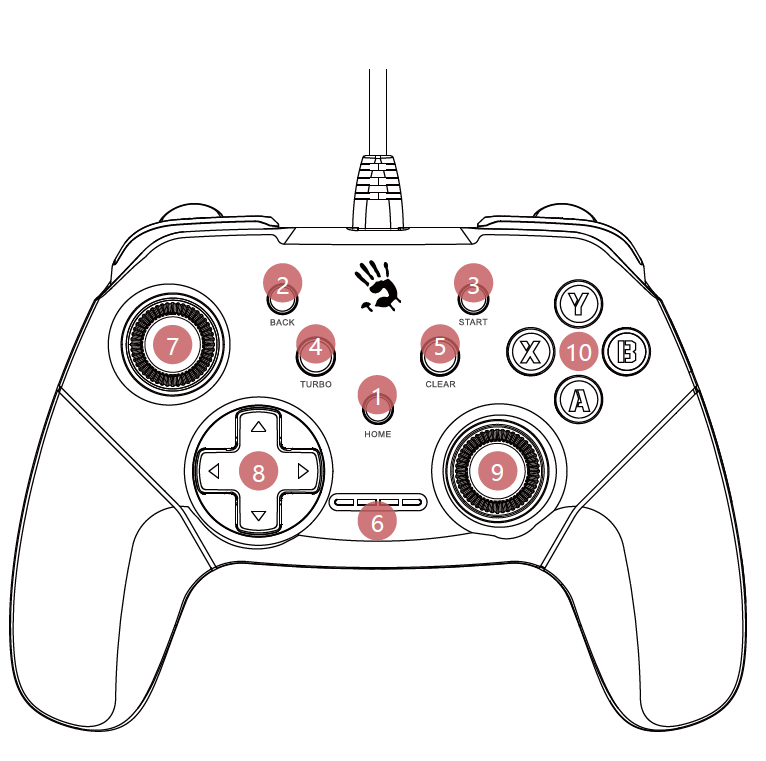
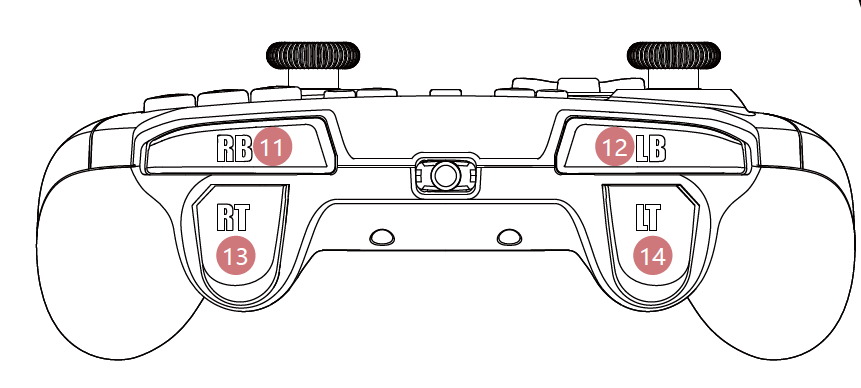
Know Your Product
- Home Button
- Back Button
- Start Button
- Turbo Button
- Clear Button
- LED Indicator
- 3D Left Joystick / LSB
- D-Pad
- 3D Right Joystick / RSB
- ABXY Button
- Right Button (RB)
- Left Button (LB)
- Right Trigger (RT)
- Left Trigger (LT)
LED Indicator
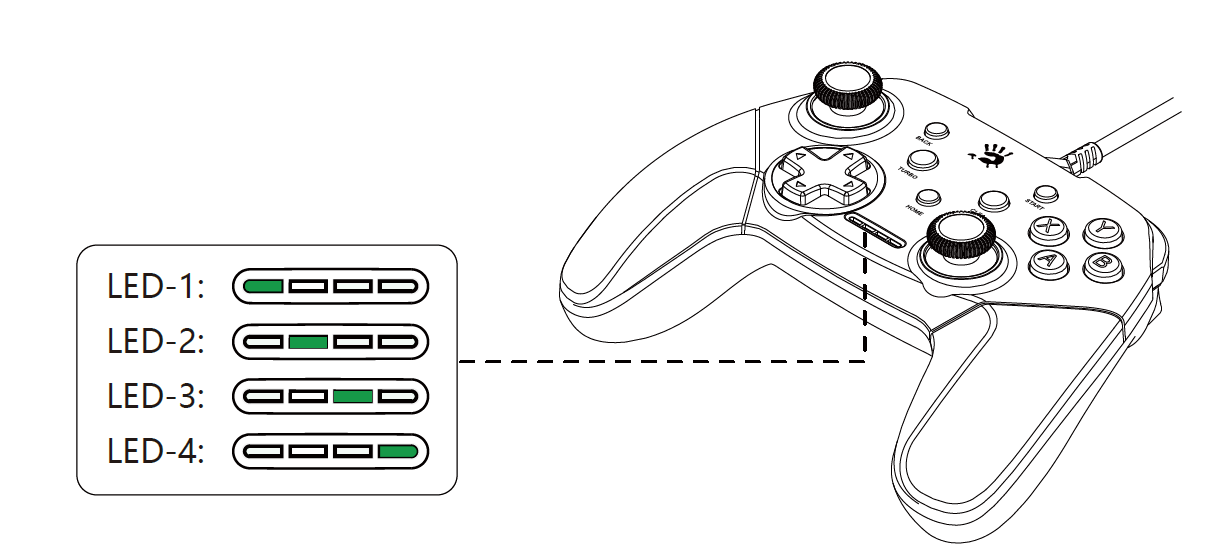
Connect with pc platform
Pc/x-input mode
- Plug the usb cable into the pc.
- The LED-2 lights up once the controller is connected.
Mode exchange (pc/x-input to pc/d-input)
- Long-press the mode button for 3 seconds to switch to D-input mode. The LED-1 lights up.
- Long-press the mode button again for 3 seconds to return to X-input mode. The LED-2 lights up.
Connect with Android Platform
- Plug the usb cable into the Android device (smart tv, set-top box, smartphone, or tablet running Android 5.0 or above).
- The led-3 lights up once the controller is connected.
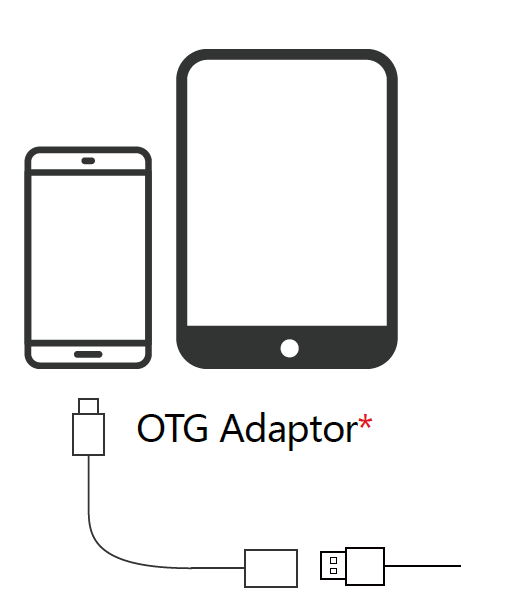
Connect with Nintendo Switch
- Turn on the "Pro Controller Wired Communication" option on the console.
- Go to System Settings> Controllers and sensors > Pro Controller Wired Communication> On.
- Plug the usb cable into your Nintendo Switch console.
- The LED-1 lights up once the controller is connected.
On the Switch platform, buttons "A" and "B" are exchanged, and buttons "X" and "Y" are exchanged. The back and start buttons are also remapped, but their corresponding functions are not clearly specified in the provided text.
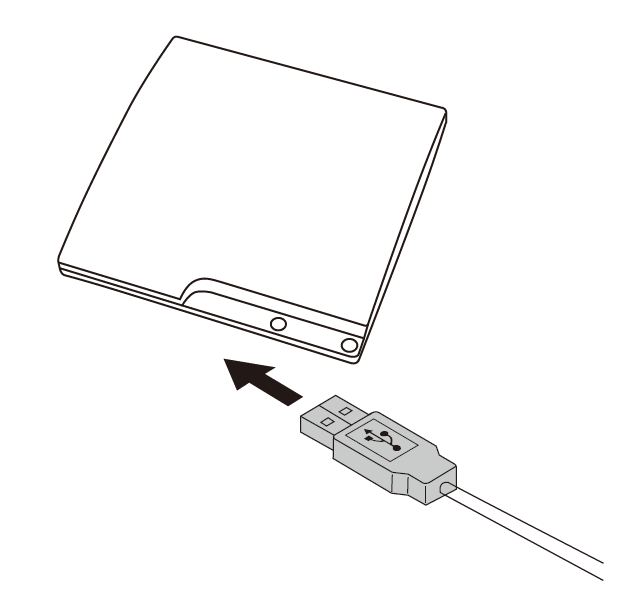
Connect with PlayStation 3
- Plug the usb cable into your PS3.
- The LED-1 lights up once the controller is connected.
Turbo & clear function setting
Enable turbo setting
- Press and hold one or more buttons from a/b/x/y/lb/rb/lt/rt, then press the Turbo button to save the turbo function.
- You can set only one button or button combination at a time. To save multiple turbo settings, repeat step 1.
- For example, to enable the turbo function for button "a", press and hold "a", then press the turbo button to save the setting.
- To enable the turbo function for a button combination, press and hold the desired buttons together, then press the turbo button.
- Repeat these steps for all the buttons or combinations you want to configure.
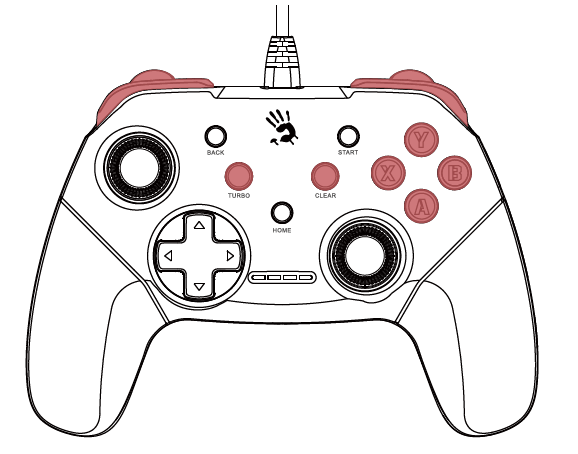
Clear turbo setting
- Press one or more buttons with the turbo function enabled.
- Press the clear button to remove the turbo setting.
- To clear all previously saved turbo settings, clear each setting individually.
- Repeat these steps until all turbo settings are cleared.
Troubleshooting Bloody GP30 USB Gaming Controller Common Issues
Resolve most Bloody GP30 USB Gaming Controller problems quickly with these solutions:
- No Connection/LED Off: Check USB cable integrity; try another port or device. Clean ports gently.
- Stick Drift or Unresponsive Buttons: Calibrate in game settings or PC control panel; reset turbo with clear button.
- Vibration Not Working: Verify game supports haptic feedback; test on another title.
- PS3/Switch Incompatibility: Update firmware; use official USB hub if needed.
- Error Codes: No specific codes reported; generic "device not recognized" fixed by driver reinstall from the Bloody site.
Preventive Measures: Store in a dust-free area; avoid drops. Backed by a 1-year brand warranty from A4Tech.[3] For support, visit bloody.com or contact A4Tech support via email (support@bloody.com) or local retailers.
Pros and Cons of Bloody GP30 USB Gaming Controller
Pros
- Multi-platform compatibility (PC, PS3, Switch, Android) at a budget price ($20-40).
- Excellent ergonomics with anti-slip grips and 360° joysticks for precise, comfortable play.
- Dual vibration and turbo boost immersion in shooters/racers, rivaling premium pads.
- Wired reliability eliminates battery concerns; great value vs. Xbox controllers.
Cons
- No wireless option, limiting mobility on larger setups.
- Occasional driver issues on older PCs; Android OTG required.
- Build feels plasticky compared to high-end models like DualSense.
Overall, strong value for money for entry-level multi-platform gaming.
Customer Reviews and Feedback on Bloody GP30 USB Gaming Controller
Users praise the Bloody GP30 USB Gaming Controller for its comfort and versatility, averaging 4.2/5 stars across sites. "The ergonomic design fits perfectly, allowing long sessions without fatigue—vibration adds realism!" notes one reviewer. Common praises include turbo for shooters and cross-platform ease. Complaints focus on wired limitation and rare stick calibration needs. Testimonials: "Best budget gamepad for PC/Android—beats generics!" (5/5). Recommended for value seekers; address issues via warranty for optimal experience.
Faqs
How do I set up the bloody GP30 USB Gaming Controller for the first time on PC or PS3?
What should I do if the bloody GP30 USB Gaming Controller is not recognized on my Android device?
How do I use the turbo function on the bloody GP30 USB Gaming Controller for shooting games?
Is the bloody GP30 USB Gaming Controller compatible with Nintendo Switch and what setup is required?
Why is the bloody GP30 USB Gaming Controller joystick drifting and how to fix it?
How can I optimize performance of the bloody GP30 USB Gaming Controller for racing games?
How do I clean and maintain the bloody GP30 USB Gaming Controller for long-term use?
What makes the dual vibration motors on bloody GP30 USB Gaming Controller special for immersive gaming?
More bloody manuals
- Setup: Bloody S87 Naraka Hot-Swappable RGB Mechanical Gaming Keyboard User Manual
- Setup: Bloody MR575 RGB Gaming Wireless Headset User Manual
- Setup: Bloody GR270 Wireless Gaming Headset User Manual
- Setup: Bloody B950 RGB Gaming Keyboard User Manual
- Setup: Bloody S5 Lock portable Waterproof Speaker User Manual
- Setup: Bloody MR590 Gaming Wireless Headset User Manual
Leave a Comment