
How to Connect: Creative Sound Blaster JAM V2 Wireless Headset User Manual
Content
Creative Sound Blaster JAM V2 Wireless Headset
Introduction
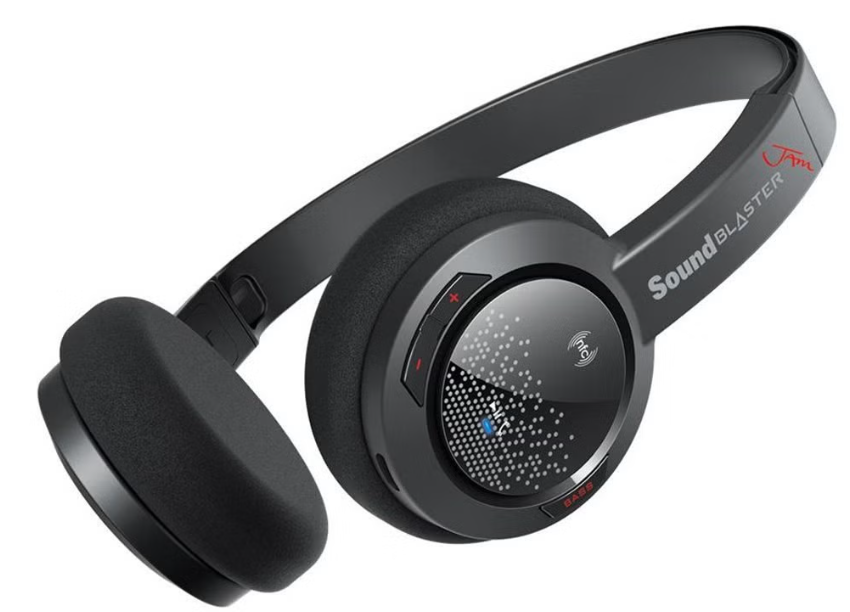
The Creative Sound Blaster JAM V2 Wireless Headset is a cutting-edge audio solution designed for those seeking a lightweight yet powerful listening experience. Equipped with Bluetooth 5.0 and advanced audio codecs such as aptX HD and aptX Low Latency, it provides superior wireless audio quality. This on-ear headset is ideal for both casual music lovers and professionals, offering rich, immersive sound and seamless connectivity options. The dual microphone setup, featuring Qualcomm cVc 8.0 noise cancellation technology, enhances vocal clarity during calls and video conferencing.
The Sound Blaster JAM V2 is perfect for daily use, whether you're at home, in the office, or on the go. It offers up to 22 hours of battery life, ensuring you can enjoy uninterrupted music or calls throughout the day. With its multipoint feature, you can easily switch between two connected devices without interruption. The estimated price range for this headset is generally around $50-$70, making it an affordable option for those seeking high-quality wireless audio. It is available online through various retailers.
General Specifications
Connectivity
- Bluetooth
- NFC
- USB port for charging and connection to computers
Technical Specifications
- Bluetooth Version: Bluetooth 4.1
- Bluetooth Profiles:
- A2DP (Wireless Stereo Bluetooth)
- AVRCP (Bluetooth Remote Control)
- HFP (Hands-Free Profile)
- Bluetooth Operating Frequency: 2402 - 2480 MHz
- Bluetooth Operating Range: Up to 15 meters (Measured in open space. Walls and structures may affect the range of the device.)
- Audio Codec: SBC, FastStream
- Operating Temperature range: 0°C to 45°C
- Number of RF channels: 79
- RF transmitter power output: 0dBm (typical)
- Lithium Ion Battery: 3.7 V 200 mAh
Package Checklist
Your Sound Blaster JAM package comes with the following:
- The Sound Blaster JAM headset
- 1 m USB cable
- Quick Start leaflet
- Warranty leaflet
System Requirements
For Windows® OS
- Intel® Core™2 Duo or AMD equivalent processor, 2.8 GHz or faster recommended
- Microsoft® Windows 8.1 64-bit or 32-bit, Windows 8 64-bit or 32-bit, Windows 7 64-bit or 32-bit, Windows Vista® 64-bit or 32-bit
- 1 GB RAM
- 600 MB of free hard disk space
- Powered USB 2.0 / USB 3.0 port
For Mac® OS
- Intel® Core™2 Duo, 2.8 GHz or faster recommended
- Mac OS X® 10.7.5 or higher
- 1 GB RAM
- 600 MB of free hard disk space
- Powered USB 2.0 / USB 3.0 port
For an iOS device
- iPhone® / iPad® running iOS 5.1.1 or higher for Bluetooth,
For an Android device
- Phone/tablet running Android 2.3 or higher for Bluetooth
Product Overview
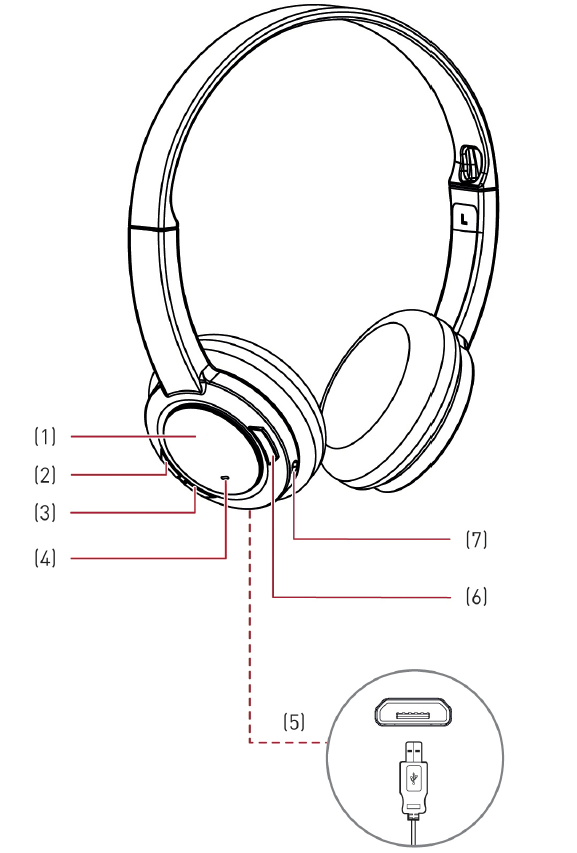
- Multifunction button /NFC receptor
- Volume +
- Volume -
- LED indicator
- USB port
- Bass Boost button
- Microphone
Setting Up Your Headset
Set up your headset in three simple steps:
- Charge your headset
- Connect your headset
- Install the software
Step 1: Charge Your Headset
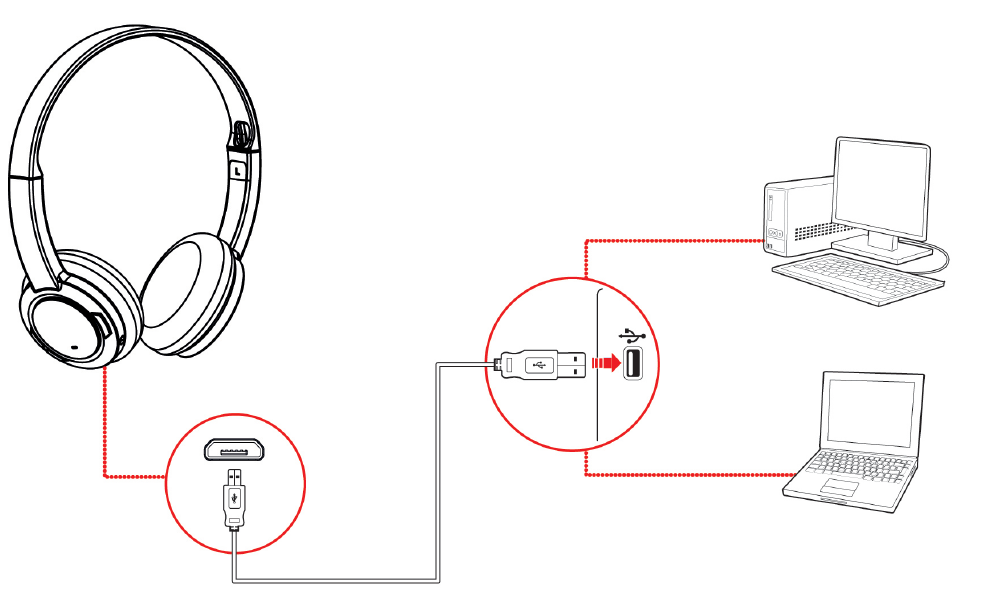
You are recommended to charge your headset before it is used for the first time. Connect your headset to your computer using the USB cable, or connect it to a power supply via an adapter (available separately). The LED will light in red when charging.
Using Your Headset While Charging
During subsequent charges, you can use your headset while it charges. The LED will light in red while charging and return to its last status when fully charged.
Note:
The low battery tone will start beeping to inform users of its status approximately 15 minutes before the headset is completely powered off.
Step 2: Connect Your Headset
Turn on your Sound Blaster JAM by pressing the Multifunction button.
- Turn ON: Press and hold for 4 seconds
- Turn OFF: Press and hold for 4 seconds
Bluetooth Pairing
Activate pairing mode on the headset
Turn on your headset. If the headset has not been paired with any devices previously, it will go into Bluetooth discoverable mode. Otherwise, it will be automatically paired to previously paired devices.

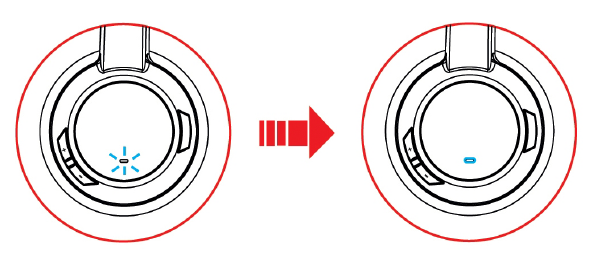
The Bluetooth discoverable mode is only available for 60 seconds after the headset is turned on. To activate Bluetooth again, press the Multifunction button for 2 seconds. The LED will begin to blink quickly in blue for 60 seconds while waiting to be connected.
Activate pairing mode on your device.
Activate Bluetooth on your smart device. From the list of discovered Bluetooth devices, select "Sound Blaster JAM".

Note: Bluetooth pairing between these devices may vary depending on the model type. Consult your device’s manual on how to pair.
Pairing success
When the headset and the Bluetooth device are paired, the LED will flash slowly in blue, and a 3-note tone will be heard to indicate successful pairing.
Pairing Multiple Devices
The Sound Blaster JAM is able to pair up to two smart devices at the same time! To have the second device paired, repeat steps 1 to 3. If a user wishes to pair the headset with a third smart device, one of the two devices that are currently paired with the headset has to be unpaired.
Note:
- Only one of the devices is able to play music at a time. The last paired smart device takes precedence over the other device.
- When there's an incoming call, the call takes precedence over audio playback -- music fades out and the ringtone will be heard.
NFC Pairing
Bring your NFC-enabled device close (20mm) to the NFC zone / Multifunction button. The LED will blink slowly in blue,, and a 3-note tone will be heard to indicate successful pairing.
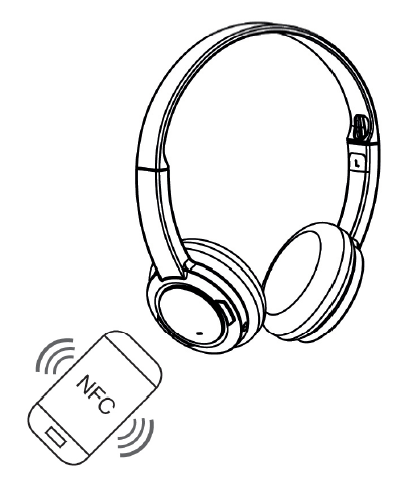
If you wish to unpair the devices, simply tap your NFC device on the headset again.
USB Connection
Connect your headset to a computer using the bundled USB cable. Turn it on by pressing and holding the Multifunction button. The LED will light in red when it is charging and return to the last status when charging is complete. You can stream audio from your computer through the USB connection.
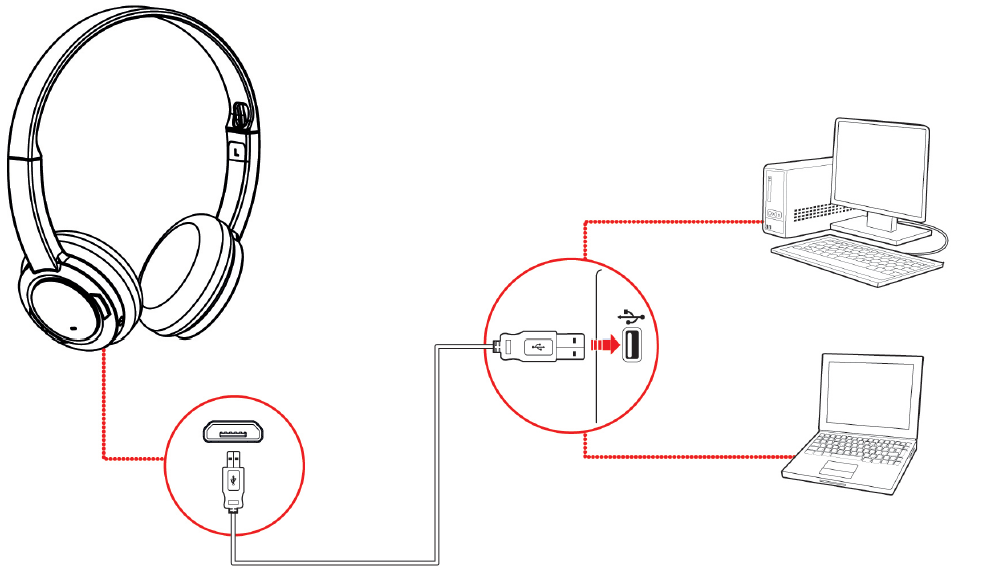
Note:
Profile setting adjustments via Sound Blaster JAM Control Panel are only available in USB Digital Mode. Refer to Using the Software for more information.
Set the default audio device (Mac OS ONLY)
- Go to System Preferences and click Sound.
- Select Sound Blaster JAM in the Output tab.
Step 3: Install the Software
Enhance your audio and voice experience via an optional software package that can be downloaded and installed on your PC. Download and install this software to make full use of all the features that your headset is equipped with.
Note:
Ensure that your headset is turned on and plugged into your computer before downloading and installing the software.
For Windows
- Using a standard web browser, visit www.creative.com and locate the software package for the Windows operating system for your product.
- Download this package to your local hard disk.
- Locate and launch the software package.
- Follow the on-screen instructions to complete the installation.
- When prompted, restart your computer.
- Launch the application by clicking Start > Programs or All Programs > Creative > Sound Blaster JAM > Sound Blaster JAM Control Panel.
For Mac
- Using your web browser, visit www.creative.com and locate the software package for the Mac OS for your product.
- Download this package to your local hard disk.
- Double-click the downloaded file to decompress it.
- Double-click the uncompressed DMG file.
- Double-click the Install icon and follow the subsequent on-screen instructions to complete the installation.
- Launch the Sound Blaster JAM Control Panel from the Applications > Creative > Sound Blaster JAM folder.
For more details on the software and the various features it has to offer, refer to Using the Software.
Troubleshooting
Sound Blaster JAM Controls and Indicators
Different actions can trigger the Sound Blaster JAM to go into different states. The table below lists the controls and related actions, and the meaning of the LED indications.
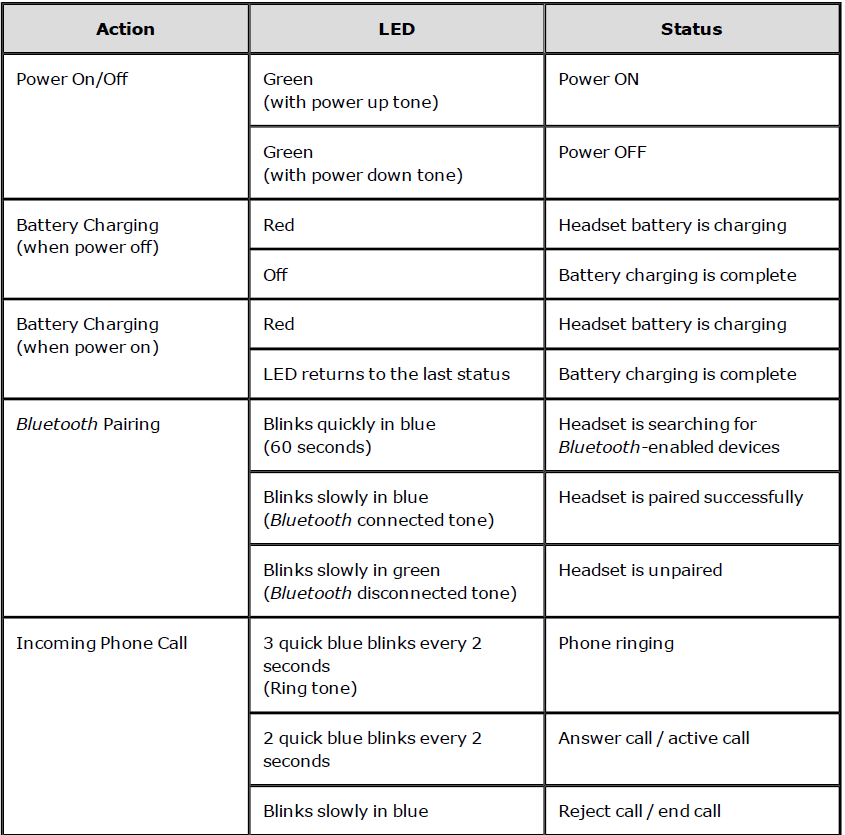
No sound from the headset.
Check the following:
- The headset and your Bluetooth device are turned on.
- The headset has sufficient battery power.
- The volume settings in Sound Blaster JAM Control Panel and system audio are properly adjusted and not muted.
- There is no hardware conflict between the headset and a peripheral device.
- The headset is selected as the default audio device. Ensure that the existing headset is disconnected.
There is clipping/distortion during audio playback.
Check the following:
- Your computer system should be running in high-performance mode. You may need to disable any power-saving features.
- The music source may be distorted. Ensure that the music played has no distortion.
- Ensure that the software graphical equalizer or sound processing effects found in third-party media players are disabled.
Some features are disabled when playing certain games.
When playing games that use DirectSound3D or OpenAL sound engines, certain audio features will be disabled automatically. This is to avoid distorting the environmental audio cues present in the game. These features will be re-enabled automatically when you exit the game.
Electronic interference is occurring with other wireless devices.
Do the following:
- Place your Bluetooth device away from other devices (for example, wireless routers) that transmit wireless signals.
- Place your Bluetooth device away from large metal surfaces.
- Refrain from doing large file transfers via the wireless Internet or Bluetooth connection while listening to music wirelessly. Alternatively, do not use your headset during intensive file transfers.
- Disconnect the existing Bluetooth device.
Music is not being transmitted to my headset.
Check the following:
- Your Bluetooth device and your headset are turned on.
- Your Bluetooth device and your headset are paired with each other.
- For an Android phone, launch Bluetooth settings and click on the headset device's name. Under "Profile", make sure both "Call audio" and "Media audio" are checked.
- Ensure that the headset is set as the default Bluetooth output device on mobile phones or tablets.
Additional Support
If you encounter any other issues or have any other enquiries about your Sound Blaster JAM or any other Creative products, please visit our comprehensive knowledge base at support.creative.com or www.soundblaster.com for additional information.
Pros and Cons of the Creative Sound Blaster JAM V2
Pros:
- Advanced Audio Codecs: Features aptX HD and aptX Low Latency for superior audio quality.
- Long Battery Life: Up to 22 hours of playtime, suitable for extended use.
- Dual Microphones with Noise Cancellation: Enhances call quality by reducing background noise.
- Multipoint Connectivity: Seamlessly switch between two Bluetooth devices.
Cons:
- Build Quality: Some users may find the build too lightweight, which can affect durability.
- Cost-Effective but Not Premium: While it offers good value for money, it may not match premium headsets in terms of build quality.
Customer Reviews and Feedback
Users generally praise the Creative Sound Blaster JAM V2 for its excellent audio quality and value for money. Many reviewers appreciate the comfort and lightweight design, making it suitable for prolonged use. However, some mention that the build could be more robust. The dual microphones and noise cancellation technology receive high marks for enhancing call quality. Overall, it's a solid choice for those seeking a reliable wireless headset.
On platforms like YouTube, users have given the headset positive reviews, highlighting its crisp sound and impressive bass response. With a general rating of 4.5 out of 5 stars, it is recommended for those seeking a budget-friendly yet high-quality wireless listening experience.
Conclusion
The Creative Sound Blaster JAM V2 Wireless Headset is an excellent choice for anyone looking for a reliable and affordable wireless audio solution. With its advanced audio features and long battery life, it suits both casual and professional use. While it may not offer a premium build, it provides exceptional value for its price.
Faqs
How do I set up the creative Sound Blaster JAM V2 Wireless Headset for the first time?
What should I do if the creative Sound Blaster JAM V2 Wireless Headset is not connecting to Bluetooth?
Can I use the creative Sound Blaster JAM V2 Wireless Headset with both Android and iOS devices?
How do the dual microphones and noise cancellation features improve call quality on the creative Sound Blaster JAM V2 Wireless Headset?
What are the optimal settings to maximize battery life on the creative Sound Blaster JAM V2 Wireless Headset?
How can I maintain and clean my creative Sound Blaster JAM V2 Wireless Headset safely?
Does the creative Sound Blaster JAM V2 Wireless Headset support simultaneous connection to multiple devices?
What audio codecs does the creative Sound Blaster JAM V2 Wireless Headset support, and how do they affect audio performance?
More creative manuals
Leave a Comment