
Setup & Pairing: Creative Sound BlasterX H7 GH0330 Headset User Manual
Content
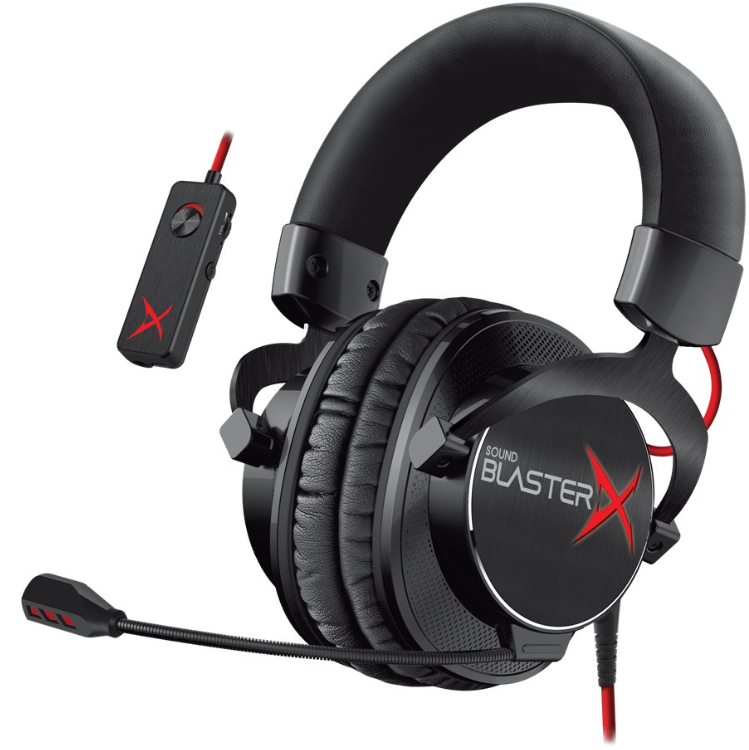
Creative Sound BlasterX H7 GH0330 Headset
Introduction
The Creative Sound BlasterX H7 GH0330 Headset is a premium gaming headset designed to deliver immersive audio experiences for gamers and multimedia enthusiasts alike. Featuring large 50mm FullSpectrum drivers powered by the versatile BlasterX Acoustic Engine, this headset offers HD 7.1 surround sound with dual sound signatures optimized for both competitive gaming and entertainment. Whether connected via USB or analog, the headset delivers crystal-clear audio with precise directional cues, giving gamers a tactical edge in fast-paced environments.
Built with a reinforced steel and aluminum frame, the Sound BlasterX H7 GH0330 combines durability with ergonomic comfort thanks to soft memory foam leatherette ear cushions — making it suitable for marathon gaming sessions. The detachable noise-reduction microphone ensures clear communication, while the dual USB/analog mode allows compatibility across PCs, Macs, gaming consoles, and mobile devices. Ideal for competitive gamers, streamers, and audiophiles who value both performance and build quality.
Currently, the headset is available online and through select retailers, with an estimated price range between $100 to $130, positioning it competitively in the mid-range gaming headset market. This makes the Creative Sound BlasterX H7 GH0330 a versatile and accessible option for users seeking both quality and value in one package.
Package Checklist
Your Sound BlasterX H7 package comes with the following:
- The Sound BlasterX H7
- Micro USB-to-USB cable - Length: 1.5 m (4.9 ft)
- 3.5 mm (1/8") 4-pole stereo cable - Length: 0.8 m (2.6 ft)
- Quick Start leaflet
General Specifications
Connectivity
- 3.5 mm (1/8") 4-pole jack for connection to mobile devices
- Micro USB port for connection to computers and PS4
Physical Specifications
- Weight: Approx. ~291 g
Technical Specifications
- Headphone
- Driver: 50 mm Neodymium magnet
- Frequency response: 20 Hz ~ 20 kHz
- Impedance: 32 Ω
- Sensitivity: 118 dB/mW @ 1 kHz
- USB Input: 5 V
- Microphone
- Type: Unidirectional noise-reduction
- Frequency response: 100 Hz ~ 15 kHz
- Impedance: <2.2 kΩ
- Sensitivity: -40 dB @ 1 kHz
Minimum System Requirements
For Windows® OS
- Intel® Core™2 Duo or AMD equivalent processor, 2.8 GHz or faster recommended
- Intel, AMD, or 100% compatible motherboard
- Microsoft® Windows 10 32-bit or 64-bit,Windows 8.1 32-bit or 64-bit, Windows 8 32-bit or 64-bit, Windows 7 32-bit or 64-bit, Windows Vista® 32-bit or 64-bit (Service Pack 1 or higher)
- 1 GB RAM
- >600 MB of free hard disk space
- Available USB 2.0/3.0 port
For Mac® OS
- Mac OS X® 10.8 or higher
- 1 GB RAM
- >600 MB of free hard disk space
- Available USB 2.0/3.0 port
About Your Hardware
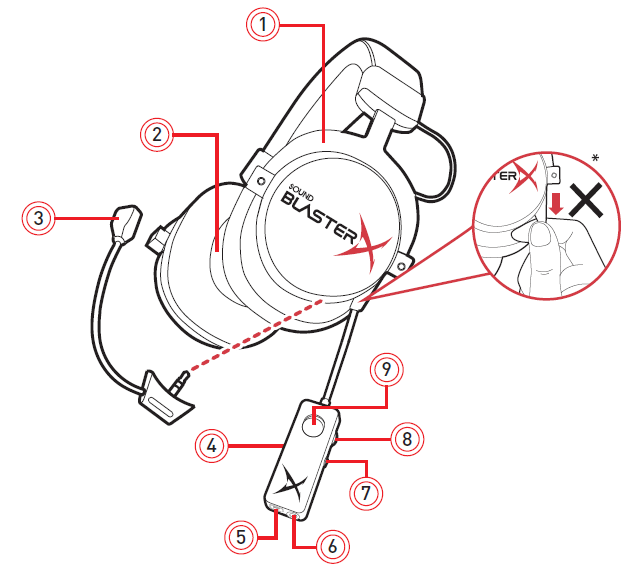
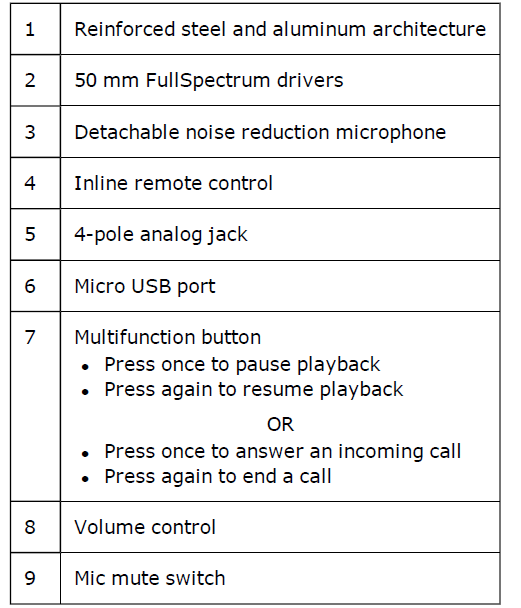
CAUTION:
Non-detachable. Do not pull.
Dual Sound Signature
In an unprecedented move, the Sound BlasterX H7 comes out of the box with 2 unique sound signatures – perfect for gaming as well as for enjoying music and movies.
Analog Mode: Dynamic Sound Signature
Experience immersive gaming with dynamic sound in an analog connection. Professionally-tuned to deliver superior soundstage and imaging, enhancements are added across high, mid, and low frequencies without overemphasizing any particular frequency domain to reproduce a solid, natural sound with enhanced clarity and precision.
USB Mode: X-Plus Signature
Designed for the discerning competitive gamer, the Sound BlasterX H7 comes with an enhanced hardware-based X-Plus mode when connected via USB. It ramps up audio cues that matter most and clamps down on other not-so-crucial sounds – delivering precision sound and accurate directional cues for the added advantage in competitive games. Once the Sound BlasterX H7 is configured with your desired X-Plus game profile, you can enjoy the same enhanced audio signature at any tournament venue – no driver or application installation required. See Using the Creative Software Suite –
X-Plus Configurator
Using Your Sound BlasterX H7
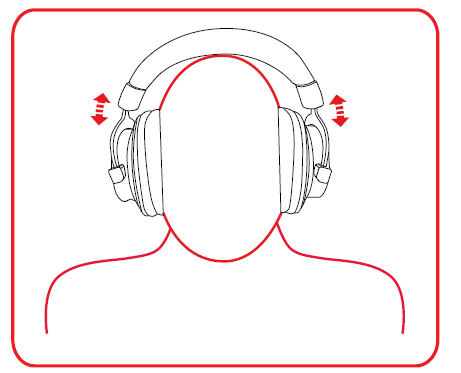
Step 1: Wearing the Headset
Adjust the headband so that the headset rests lightly on your head. Do not tighten excessively.
Step 2: Adjusting the Volume
WARNING:
- Set the volume control to the minimum level before connecting.
- Do not listen to audio at high volumes for prolonged periods of time to avoid impairing your hearing.
The Volume Control on the inline remote control can be used to adjust your headset volume to a comfortable level.
You can also adjust the volume via the software or the built-in volume settings on your computer.
Step 3: Connecting the headset
Connecting to a computer / PS4™ via USB
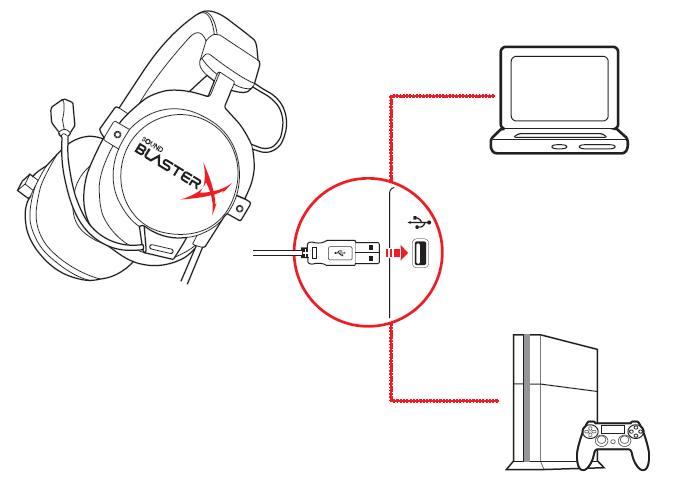
- Micro USB-to-USB cable
- Computer
- PS4
X-Plus Signature
Configure the X-Plus Signature of your Sound BlasterX H7 with your desired game audio profile to enjoy the same enhanced audio signature anywhere – no driver or application installation required. See Using the Creative Software Suite – X-Plus Configurator
BlasterX Acoustic Engine Pro
Enhance audio playback with BlasterX Acoustic Engine Pro enhancements such as 7.1 surround sound, Scout Mode, immersion control, dynamic range restoration, low-frequency boost, dialog boost, and automatic volume levelling. See Using the Creative Software Suite – BlasterX Acoustic Engine Pro.
Note: X-Plus Signature and BlasterX Acoustic Engine Pro settings cannot be used together at the same time.
If your computer is installed with both the X-Plus Configurator and BlasterX Acoustic Engine Pro applications, your headset audio settings will switch according to the last application launched. A balloon notification will pop up to indicate the current active mode.
Connecting to a mobile device / Xbox® via analog cable
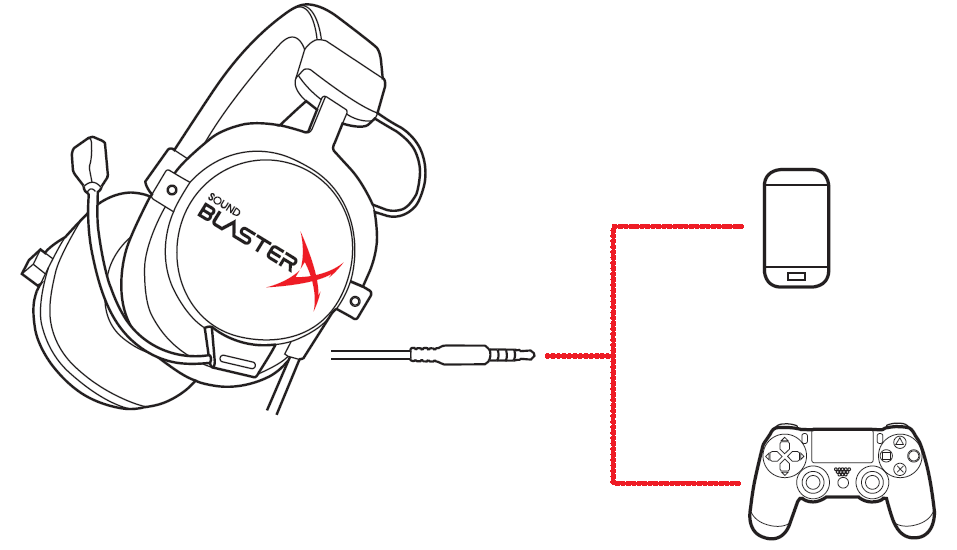
- 3.5 mm 4-pole analog cable
- Mobile device
- Xbox controller
Playing audio
- Connect your Sound BlasterX H7 to your computer via USB to enjoy the ultimate gaming audio experience with BlasterX Acoustic Engine Pro.
- You can also connect it directly to a PS4 via USB for high-resolution audio playback.
- Alternatively, you may also connect via the analog cable to portable gaming devices to enjoy powerful gaming audio on the go.
Multifunction button
- Press once to pause playback
- Press again to resume playback
Answering calls
Mobile communication
When there's an incoming call from your mobile device while you are listening to music, the music fades out and the ringtone will gradually be heard.
Multifunction button
- Press once to answer an incoming call
- Press again to end a call
The music will resume after the call has ended.
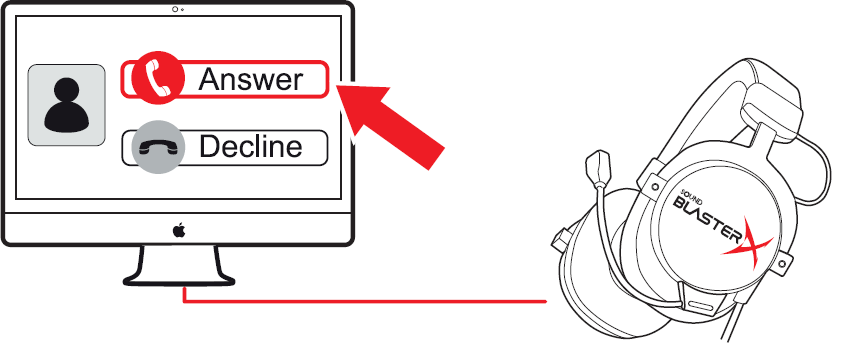
Desktop communication
Use the Sound BlasterX H7 to enjoy outstanding acoustic performance in popular VoIP applications like Ventrilo®and TeamSpeak®. Hear and be heard clearly by teammates during multiplayer games to get the tactical edge.
You may choose to morph your voice with special effects with the Voice FX, too! See Having Fun with Voice FX.
When there's an incoming call, click on the answer call button prompted on the computer screen to enter voice communication.
Installing and Uninstalling Software
(For Windows Only)
To take full advantage of your Sound BlasterX H7 audio device, you need to install device drivers and applications. At times, you may also need to uninstall some or all of the device drivers and applications to correct problems, change configurations, or upgrade outdated drivers or applications.
Installing Drivers and Applications
Ensure that your audio device is connected before proceeding. For instructions on connecting your audio device, consult your Quick Start leaflet.
After you have connected your audio device, turn on your computer. Windows automatically detects your audio device and searches for device drivers.
- Using a standard web browser, visit www.creative.com/support/BlasterXH7.
- Locate Sound BlasterX H7 and the software package(s) for your Windows operating system.
- Download the package(s) to your local hard disk.
- Locate and launch the software package(s).
- Follow the on-screen instructions to complete the installation.
- When prompted, restart your computer.
Note:
Depending on your operating system, model, and software version, the user interface or color theme may differ.
Uninstalling Drivers and Applications
In the event that an uninstallation is required (such as for upgrades), please follow the following procedure.
Before you begin, close all running audio applications. Applications that are still running during uninstallation will not be removed.
- From the Control Panel, click Uninstall a program.
- Select Sound BlasterX H7.
- Click the Uninstall button or option . If the User Account Control dialog box appears, click the Continue button.
- Click the Yes button.
- When prompted, restart your computer.
Safety Information
Refer to the following information to use your product safely, and to reduce the chance of electric shock, short-circuiting, damage, fire, hearing impairment, or other hazards. Improper handling may void the warranty for your product. For more information, read the warranty available with your product.
- Do not dismantle or attempt to repair your product.
- Refer all servicing to authorized repair agents.
- Do not expose your product to temperatures outside the range of 0°C to 45°C (32°F to 113°F).
- Do not pierce, crush, or set fire to your product.
- Keep your product away from strong magnetic objects.
- Do not subject your product to excessive force or impact.
- Do not expose your product to water or moisture.
If your product is moisture-resistant, take care not to immerse your product in water or expose it to rain.
Earphones
- Do not listen to audio on your earbuds or headphones at high volume for prolonged periods of time , as hearing loss may result. For users in the United States, go to www.hei.org for more information.
- Do not listen to your audio device at high volume when driving, cycling, or crossing the road, especially in heavy traffic or any other traffic condition where such use will hinder safe travel on the roads. We recommend that consumers be extremely cautious when using this device on the road.
Avoid Hearing Damage
Permanent hearing loss may occur if the headphone is used at high volume. Set the volume to a safe level. You can adapt over time to a higher volume of sound that may sound normal, but can be damaging to your hearing. If you experience ringing in your ears or muffled speech, stop listening and have your hearing checked. The louder the volume, the less time is required before your hearing could be affected. Hearing experts suggest that to protect your hearing:
- Limit the amount of time you use headphones at high volume.
- Avoid turning up the volume to block out noisy surroundings.
- Turn the volume down if you can't hear people speaking near you.
Troubleshooting and Support
This section provides solutions to problems you may encounter during installation or normal use.
Problems with Sound
No sound from the headphones.
Check the following:
- The headset is properly connected.
- Ensure the volume control of the Sound BlasterX H7 is not at the minimum level.
- Ensure the volume setting in the BlasterX Acoustic Engine Pro is not muted.
- Ensure the volume on your connected device or the media player is not muted.
- There is no hardware conflict between the headset and a peripheral device.
- The headset is selected as the default audio device. Ensure that the existing analog headset is disconnected.
There is clipping/distortion during audio playback.
Check the following:
- Your computer system should be running in high-performance mode. You may need to disable any power-saving features.
- The music source may be distorted. Ensure that the music played has no distortion.
- Ensure that the software graphical equalizer or sound processing effects found in third-party media players are disabled.
Low microphone level on PS4.
Do the following:
- Go to the PS4 Home Screen.
- Scroll up from the Home Screen to the Home Menu and select Settings.
- Select Devices.
- Select Audio Devices.
- Select Adjust Microphone Level.
- Speak into the headset's microphone and adjust the Microphone Level to the appropriate leveland save the setting.
X-Plus Signature or BlasterX Acoustic Engine Pro settings are not functioning.
Check the following:
Your headset may be in BlasterX Acoustic Engine Mode or X-Plus Mode. X-Plus Signature and BlasterX Acoustic Engine Pro settings cannot be used together at the same time. Launch X-Plus Configurator or BlasterX Acoustic Engine Pro to enable the respective settings.
Some features are disabled when playing certain games.
When playing games that use DirectSound3D or OpenAL sound engines, certain audio features will be disabled automatically. This is to avoid distorting the environmental audio cues present in the game. These features will be re-enabled automatically when you exit the game.
Additional guide for Mobile Users
Genera,lly a 4-pole stereo cable bundle allows you to connect your headset to your iPhone / Android phone/tablet. However, some phones/tablets 4-pole female jack has a different configuration, and this cable is unable to support if the configuration is different from the jack (bundled), as illustrated below:
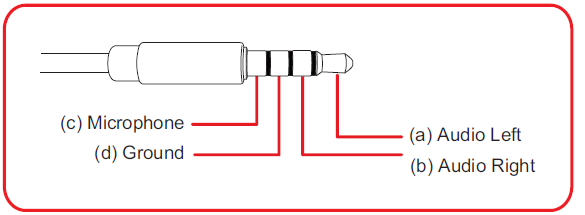
Should you be keen to connect your headset to an MP3 Player, you will need to check if the configuration of its 4-pole female jack is compatible.
Additional Support
If you encounter any other issues or have any other enquiries about your Sound BlasterX H7 or any other Creative products, please visit our comprehensive knowledge base at support.creative.com for additional information.
Pros & Cons of the Creative Sound BlasterX H7 GH0330 Headset
Pros
- Superior Sound Quality: Equipped with 50mm neodymium drivers and BlasterX Acoustic Engine software, it offers rich 7.1 surround sound ideal for immersive gaming and multimedia.
- Dual Sound Signature: USB mode provides a competitive X-Plus signature emphasizing game-critical audio cues, while analog mode delivers a balanced, natural sound signature suitable for music and movies.
- Build Quality & Comfort: Reinforced steel and aluminum architecture combined with memory foam ear cushions ensure durability and comfort during long use.
- Versatility: Dual USB and compatibility support a wide range of devices , including PCs, Macs, consoles like PS4 and Xbox, and mobile devices.
- Detachable Noise-Reduction Mic: Improves voice clarity and reduces background noise, essential for multiplayer communication.
Cons
- Price vs. Alternatives: Priced around $100-$130, it is slightly higher than some entry-level headsets, though justified by features and sound quality.
- End of Service Life: Official support and firmware updates have ended, which might limit future software enhancements or troubleshooting support.
- No Dedicated Control Box: Some users miss a separate inline control for volume and mic mute, relying instead on in-line controls, which may be less precise.
- Weight: The reinforced metal build may feel heavier than plastic alternatives, potentially causing fatigue for some users.
Customer Reviews and User Feedback on the Creative Sound BlasterX H7 GH0330 Headset
The Creative Sound BlasterX H7 GH0330 Headset receives generally positive feedback from users, who praise its excellent sound quality, especially the precise 7.1 surround sound and clear microphone performance. Gamers highlight the effective positional audio that aids competitive play and appreciate the dual sound modes tailored for gaming and media consumption. Many users also commend the headset’s sturdy build and comfort during long gaming sessions.
Common complaints include the headset’s somewhat higher price compared to budget models and the lack of ongoing official support, as the product is classified as "End of Service Life." Mention that at the inline control system could be improved for easier volume and mute adjustments. Overall, the headset earns an average rating of approximately 4 out of 5 stars, with recommendations favoring users who prioritize audio precision and build quality over ultra-lightweight design or the newest software features.
Most reviewers recommend the Creative Sound BlasterX H7 GH0330 for serious gamers and multimedia users looking for versatile, high-quality sound and robust construction at a reasonable price point.
Faqs
How do I properly set up the creative Sound BlasterX H7 GH0330 Headset for the first time?
What should I do if the creative Sound BlasterX H7 GH0330 Headset microphone is not working?
Can I use the creative Sound BlasterX H7 GH0330 Headset with both PC and PS4 without additional drivers?
What are the key audio features of the creative Sound BlasterX H7 GH0330 Headset that enhance gaming performance?
How do I switch between X-Plus Signature and BlasterX Acoustic Engine Pro modes on the creative Sound BlasterX H7 GH0330 Headset?
What troubleshooting steps can I take if the creative Sound BlasterX H7 GH0330 Headset audio is distorted or low volume?
How do I properly clean and maintain the creative Sound BlasterX H7 GH0330 Headset to ensure longevity?
Is the creative Sound BlasterX H7 GH0330 Headset compatible with Mac and other gaming consoles?
More creative manuals
Leave a Comment