
How to Use: Dymo Labe/Writer 400 Turbo User Manual
Content
DYMO LabelWriter 400 Turbo Product Manual
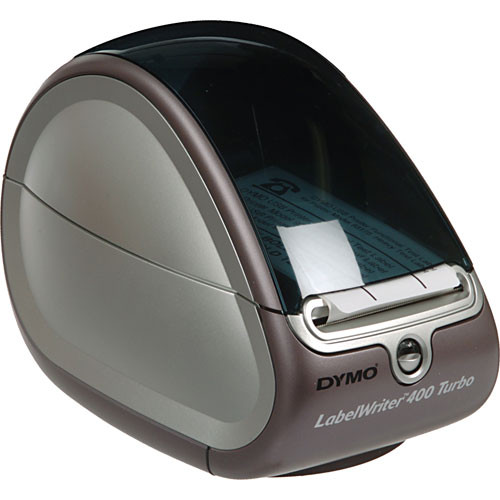
Introduction
The dymo Labe/Writer 400 Turbo is a compact direct thermal label printer designed for fast, reliable everyday labeling in home offices, small businesses, shipping desks, and administrative environments. Built for users who need speed and simplicity, this label printer produces sharp text, barcodes, and graphics without requiring ink or toner, which helps reduce ongoing operating costs. Its biggest advantage is its high-volume output, with print speeds of up to 55 labels per minute and 300 dpi resolution for clear, professional-looking results.
This model is especially popular for address labels, file folder labels, shipping labels, barcode labels, and inventory organization. The USB connection makes it easy to integrate with a computer-based workflow, while the thermal print system removes the hassle of replacing ribbons or cartridges. The dymo Labe/Writer 400 Turbo is best suited for users who want a dependable label printer with quick startup, consistent output, and a straightforward setup process.
In the current market, this printer typically appears as a legacy or renewed product rather than a new retail model. Estimated pricing usually falls in the low-to-mid range for refurbished office equipment, depending on condition, included accessories, and seller support. For buyers seeking a budget-friendly label printer for recurring tasks, it remains a practical option with strong value for money.
Specifications
- Printing technology: Direct thermal
- Print resolution: 300 dpi for crisp text and barcodes
- Print speed: Up to 55 labels per minute
- Connectivity: USB
- Maximum label width: Up to 2.25 inches
- Media type: Thermal label rolls
- Color output: Monochrome
- Barcode support: Common formats including Code 39, Code 128, UPC, EAN, Codabar, and ITF variants
- Power: External AC adapter
- Typical use cases: Address labels, shipping labels, file labels, and barcode printing
- Approximate size: Compact desktop footprint for small workspaces
Compared with basic entry-level label makers, the dymo Labe/Writer 400 Turbo is faster and better suited to high-volume computer-connected printing. Compared with newer network-enabled label printers, it is simpler but less flexible because it relies on USB rather than Wi-Fi or Ethernet. Its 300 dpi output and 55-label-per-minute speed place it above many low-cost office label printers in productivity.
Setup Guide
Setting up the dymo Labe/Writer 400 Turbo is straightforward. First, place the printer on a stable, flat surface near your computer and power source. Connect the external power adapter, then attach the USB cable directly to the computer rather than a hub when possible. Next, install the correct DYMO label software and printer driver for your operating system before loading labels.
To load labels, open the cover, insert the roll, and guide the labels through the feed path according to the printer’s alignment marks. Close the cover and run a test print from the software to confirm correct positioning. In the printer settings, choose the correct label size, orientation, and layout so the software matches the physical roll.
If the printer is not detected, try a different USB port, reinstall the driver, or restart the computer. If labels print misaligned, recalibrate the media size in the software and check that the roll is seated properly. Keep fingers clear of the cutter and feed mechanism while the unit is operating. Avoid using damaged rolls, excessive force when closing the cover, or power adapters that do not match the printer’s requirements.
Troubleshooting
Common issues with the dymo Labe/Writer 400 Turbo usually involve label feeding, driver recognition, or print alignment. If the printer feeds blank labels, confirm that the labels are loaded face-up and that the correct label type is selected in the software. If labels print too high or too low, rerun calibration and verify the label size in the page setup menu. If the printer is slow or unresponsive, disconnect and reconnect the USB cable, then restart both the printer and computer.
- Printer not recognized: Reinstall the driver, try another USB port, and avoid USB hubs.
- Blank labels: Check label orientation and confirm the thermal roll is installed correctly.
- Misaligned printing: Calibrate the label size and confirm the software template matches the roll.
- Frequent jamming: Replace damaged rolls and clean the feed path carefully.
- Faded output: Use fresh thermal labels and store them away from heat and sunlight.
Preventive care includes keeping the printer clean, using compatible genuine or high-quality labels, and avoiding long-term storage in hot environments. Warranty coverage is typically limited on older units and varies by seller, especially for renewed models. For support, contact the retailer where the printer was purchased or DYMO product support through the official manufacturer channels listed in the product documentation.
Pros & Cons
Pros
- Fast output with up to 55 labels per minute, ideal for busy offices.
- 300 dpi resolution produces readable text, sharp barcodes, and clean graphics.
- No ink or toner required, which lowers ongoing operating costs.
- Compact size makes it suitable for desks, counters, and shared workspaces.
- Simple USB workflow is easy for basic label printing tasks.
Cons
- Older design with limited modern connectivity compared with newer label printers.
- USB-only operation reduces flexibility in multi-device environments.
- Best suited for computer-connected printing, not mobile or wireless use.
- Availability is often limited to used, refurbished, or legacy stock.
For value for money, the dymo Labe/Writer 400 Turbo is strong if the goal is fast desktop labeling without recurring ink costs. It compares well against basic label makers, but newer alternatives may be better for wireless printing, cloud integration, or broader device compatibility.
Customer Reviews
Average user feedback for the dymo Labe/Writer 400 Turbo is generally positive, especially among office users who print labels in volume. A typical rating pattern is around 4 out of 5 stars, with praise for speed, reliability, and print clarity. Users often describe it as a practical workhorse for mailing and filing tasks.
Common complaints include driver compatibility on newer computers, the lack of wireless support, and the difficulty of finding replacement stock for older models. One frequent testimonial is, “It prints labels quickly and cleanly, but setup on newer systems can take extra effort.” Another common comment is, “Great for address labels and barcodes, especially if you print every day.”
Purchase recommendation: choose this printer if you need fast, low-cost label printing and can work with a USB-only setup. If you need Wi-Fi, mobile printing, or modern software integration, a newer DYMO label printer may be a better fit.
Faqs
How do I set up the dymo Labe/Writer 400 Turbo for the first time?
Why is my dymo Labe/Writer 400 Turbo printing blank labels or missing text?
What labels are compatible with the dymo Labe/Writer 400 Turbo?
How do I fix label jams in the dymo Labe/Writer 400 Turbo?
Is the dymo Labe/Writer 400 Turbo compatible with Windows and Mac computers?
How can I improve print quality on the dymo Labe/Writer 400 Turbo?
What should I do if the dymo Labe/Writer 400 Turbo is not recognized by my computer?
How do I maintain and clean the dymo Labe/Writer 400 Turbo for long-term use?
Tags
More dymo manuals
Leave a Comment